

Geolocation settings
Add or update the Google Maps API key that powers the Geolocation field in Kissflow forms, so users can capture and view locations.
Geolocation settings
The Geolocation field lets users capture and view locations on a form using Google Maps. Before anyone can use it, an Account Admin needs to add a Google Maps API key in Geolocation settings — without a valid key, the field can't load Google Maps.
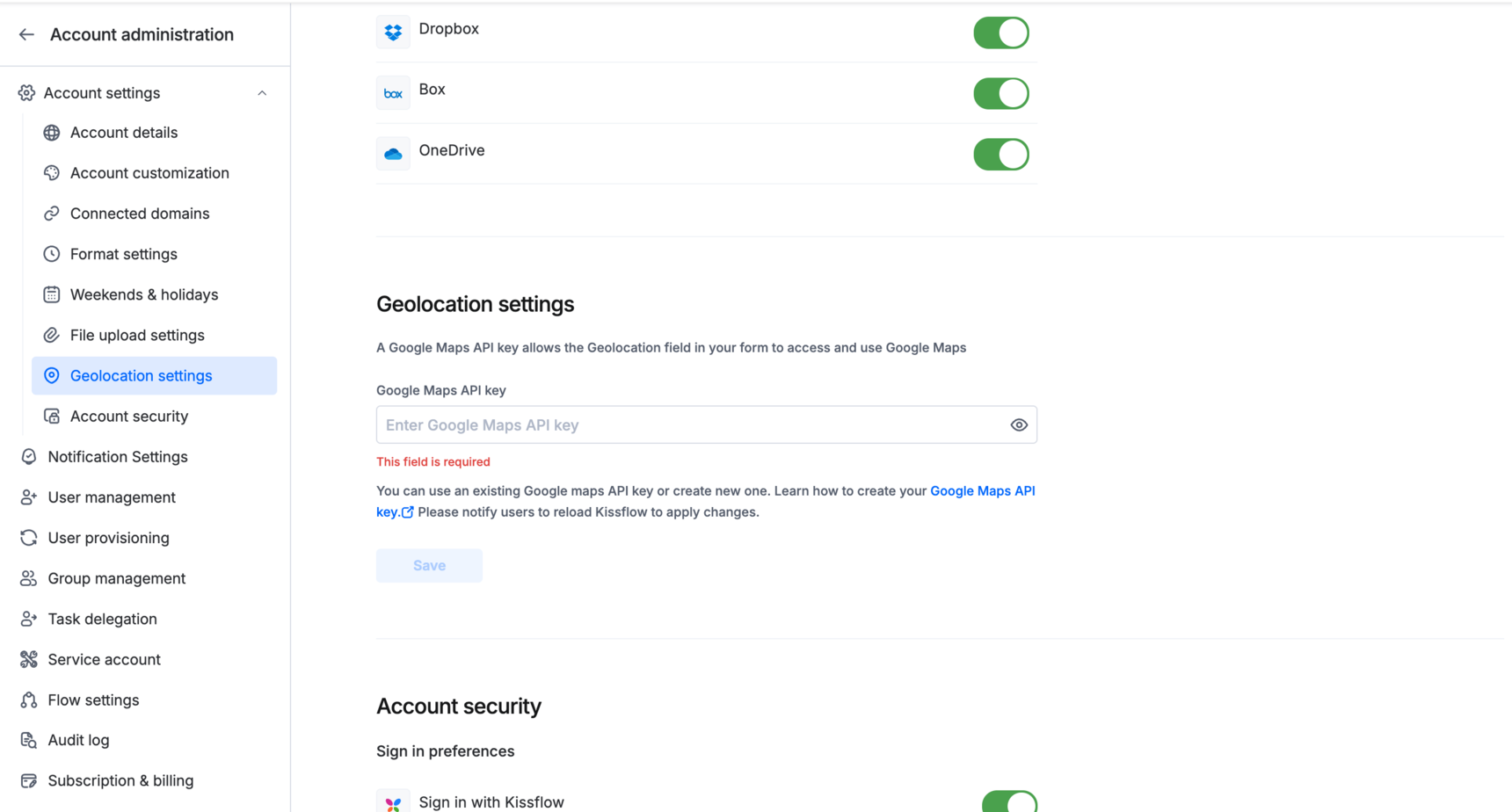
Access geolocation settings
- Sign in to Kissflow.
- Click your profile picture in the upper-right corner of the page.
- Click Account administration > Account settings > Geolocation settings.
Add or update the Google Maps API key
-
On the Geolocation settings page, enter your Google Maps API key in the input box.
Note
You can use an existing Google Maps API key or create a new one. Click the Google Maps API key link on the page for instructions on Google's developer documentation site.
-
Save your changes.
Important
After you add or update the API key, notify your users to reload Kissflow so the change takes effect.
When the API key is missing or invalid
If Kissflow can't load Google Maps for the Geolocation field, the message shown depends on where the form is being filled out:
- On the Kissflow mobile app, users see a message asking them to contact their Super Admin to add the Google Maps API key.
- On web, users see a general connection error instead, without a direct mention of the API key.
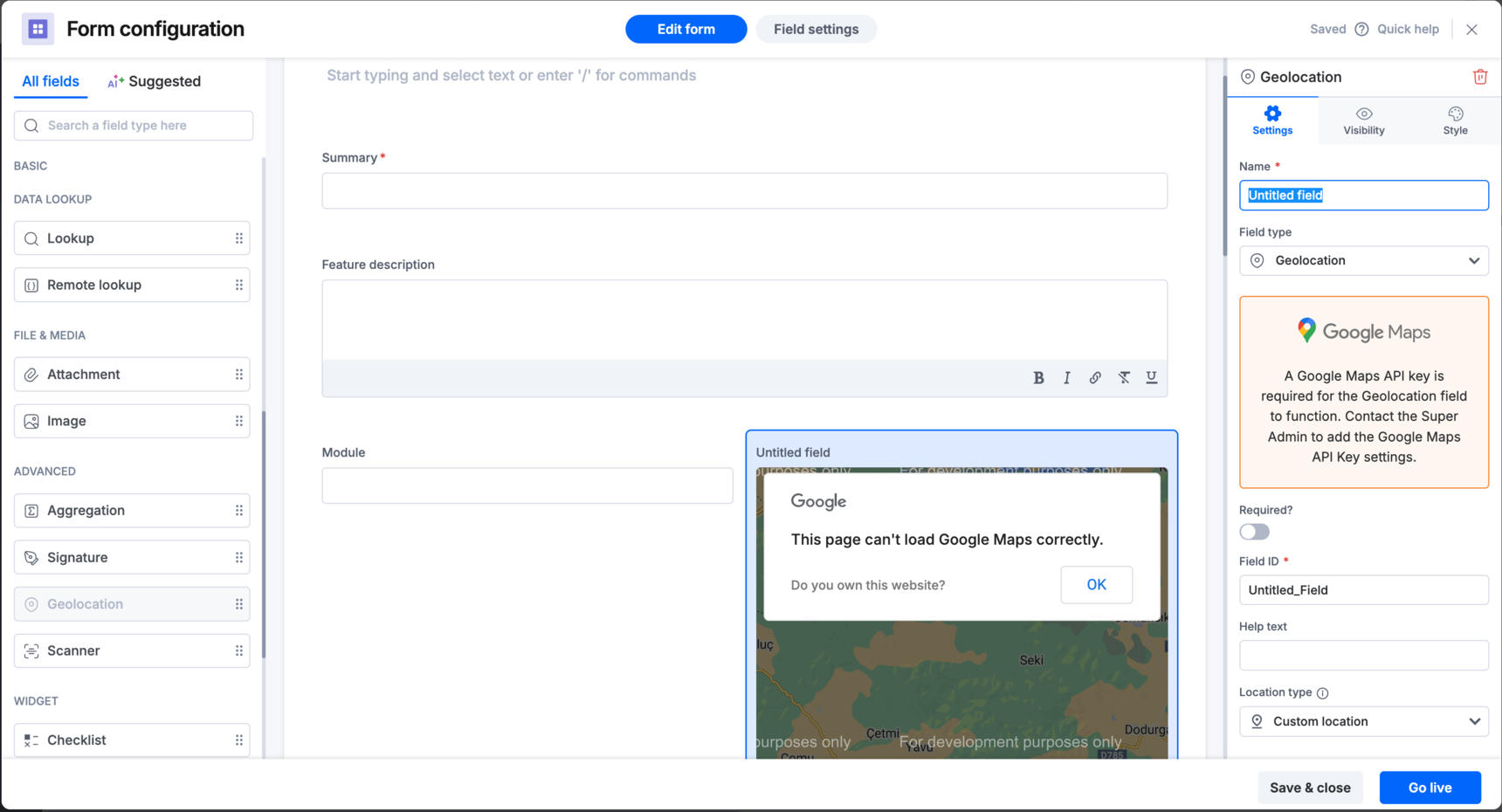
In either case, an Account Admin needs to add or fix the key in Geolocation settings to resolve it.