

Creating status summary report based on boards in Analytics
The Status summary report based on board Items provides a high-level overview of the number of items in each status across one or more boards.
The Status summary report based on board Items provides a high-level overview of the number of items in each status across one or more boards. This report can be a valuable tool for tracking the progress of teams and projects and identifying areas where items are bottlenecked. In this use case, you can create a dataview using the query to gain insights from two boards together.
Creating a status summary dataview
To create a dataview based on boards:
-
Sign in to your Kissflow account, navigate to Analytics, and click Data Explorer.
-
Click Create dataview and provide a name for your dataview.
-
Then, click Create.
-
In the query builder, input the following SQL query.
-
In the query builder, paste the query into the text box.
SELECT "_id" AS "ID", "Name" AS "Task name", "_status_name" AS "Task status", "_counter" AS "Item count", "_flow_name" AS "Board name" FROM "Task_management" UNION SELECT "_id" AS "ID", "Name" AS "Task name", "_status_name" AS "Task status", "_counter" AS "Item count", "_flow_name" AS "Board name" FROM "Access_Requests" -
Click Run.
-
Review the results and click Publish.
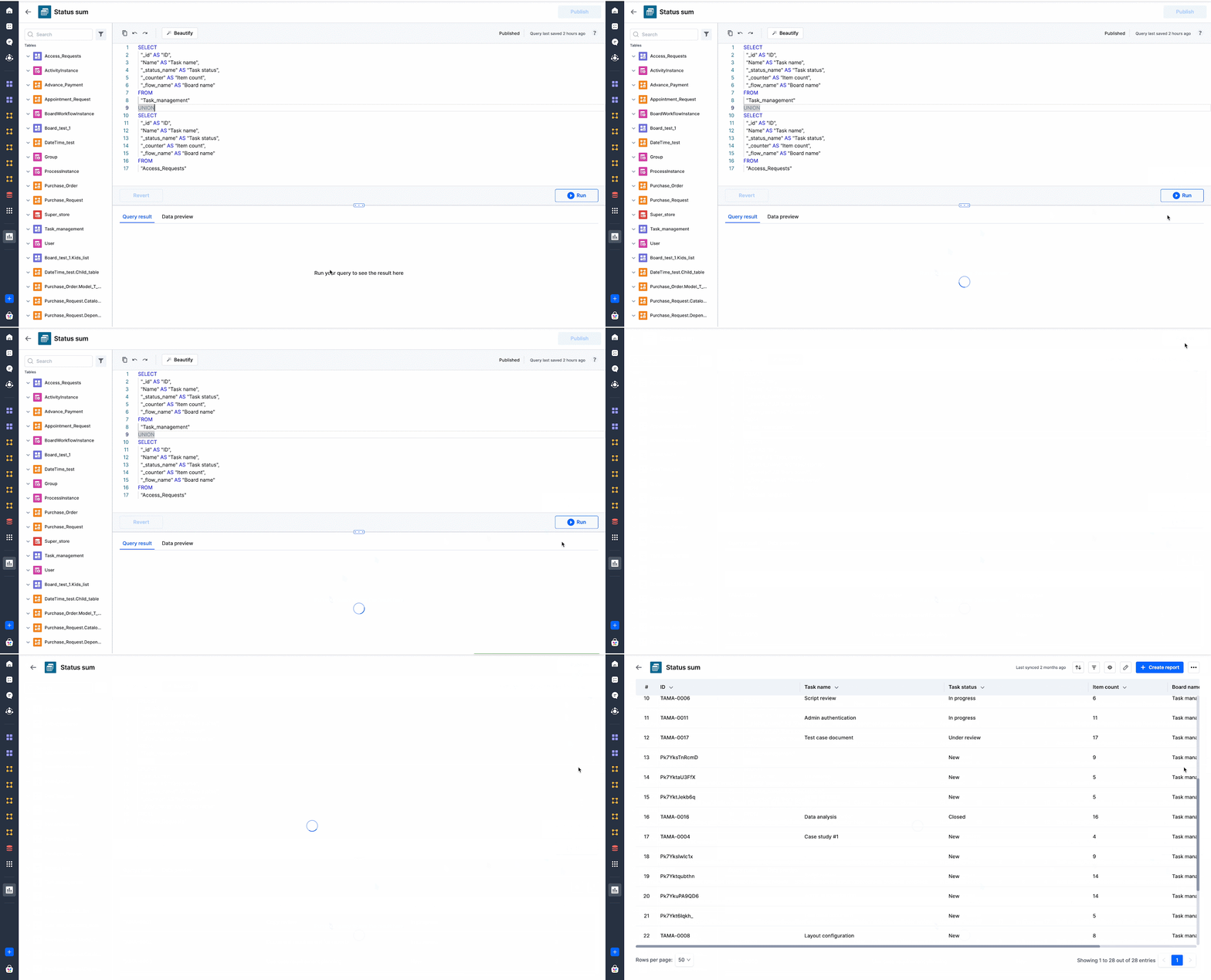
This use case combines two boards, Task Management, and Access Requests, into a single query result. The query result includes data from both boards, including subitems.
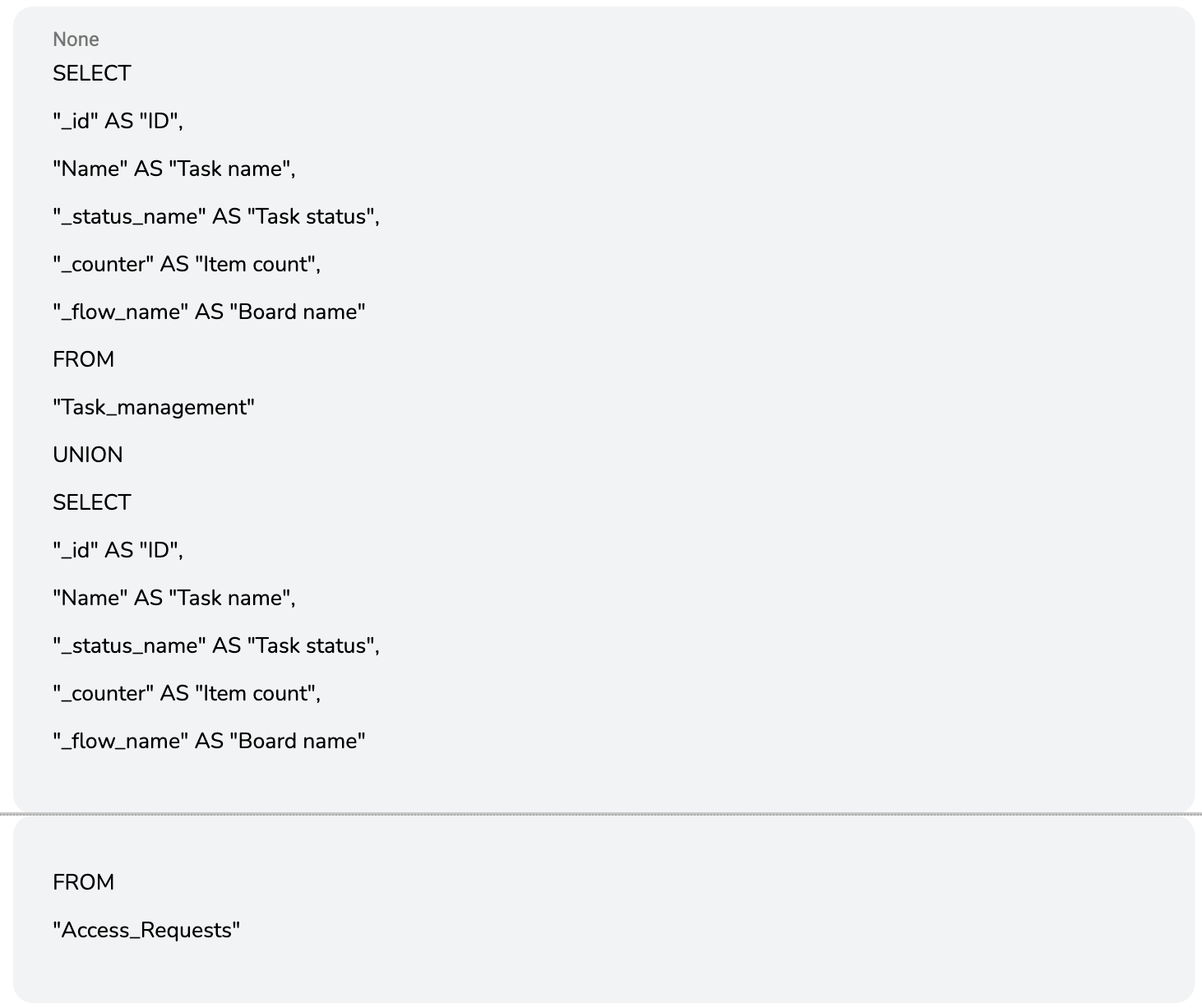
Query breakdown
| Actual column name | Alias name used in the query | Description |
|---|---|---|
| _id | ID | The system generates a unique string to identify an item. |
| Name | Task name | The name given to an item by the user during its creation. |
| _status_name | Status name | The current status of an item. Status names are defined within the default categories in the board workflow. This can be one of the default statuses, such as New, In progress, or any custom status you add to the board workflow. |
| _counter | Item count | An overall count of items, including all existing, moved and deleted subitems on a board. |
| _flow_name | Board name | The name of a board. |
| UNION | The query uses the UNION operator to combine the results of two separate boards into a single result set. The first SELECT statement selects all tasks from the Task_management board, and the second SELECT statement selects all tasks from the Access_Requests board. Using UNION, the dataview can show all the tasks from both boards. |
Creating a Status summary report
To create a Status summary report based in boards using Kissflow Analytics:
-
Sign in to your Kissflow account and navigate to Analytics.
-
Click Create Report.
-
Select the above dataview you created as the data source.
-
Select Chart as the report type.
-
Click Create.
Configuring the report
In the report configuration page, select Vertical bar chart and add the following:
-
Dimension: Task status
-
Measure: Item count
-
Legend: Board name
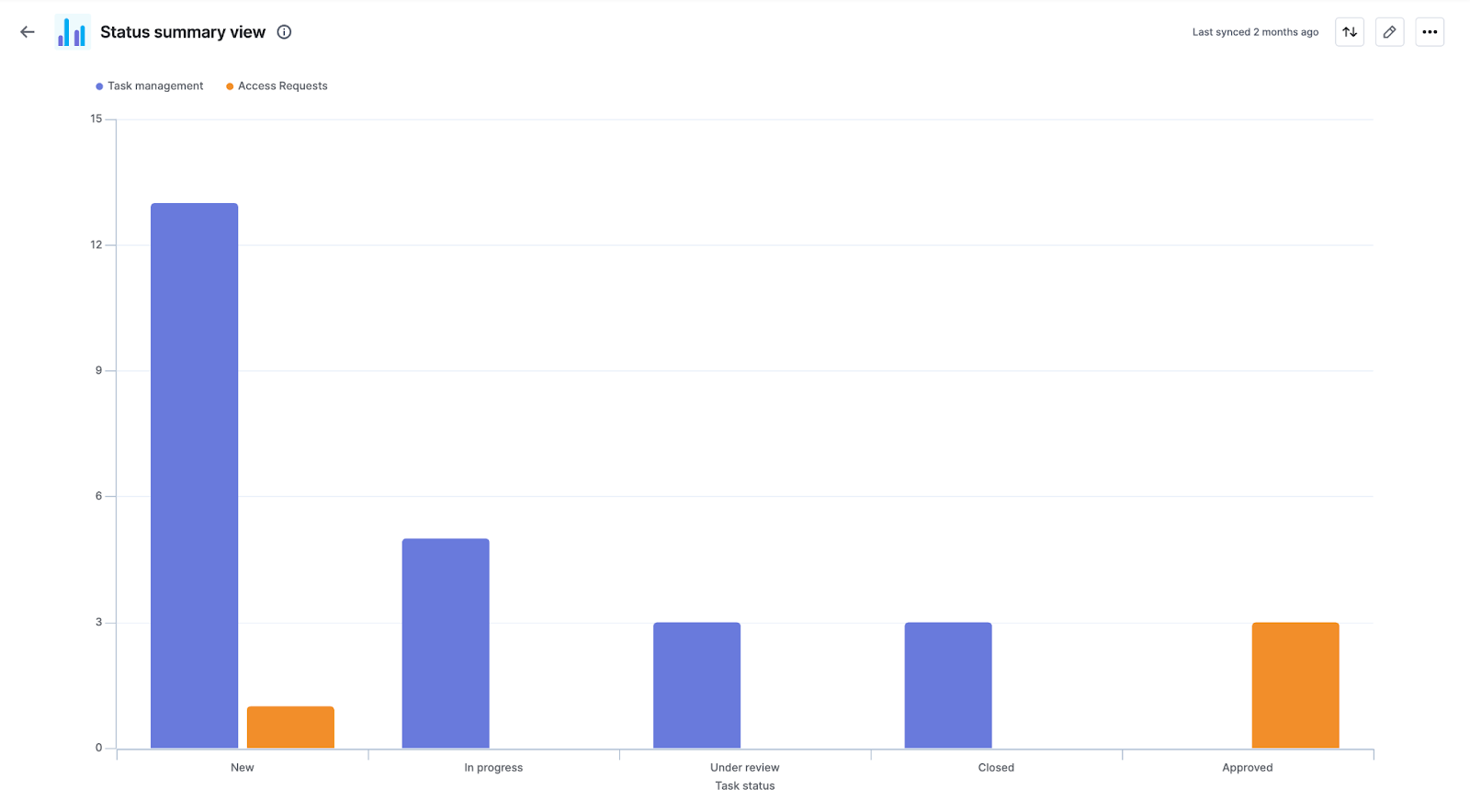
You can sort the report by Item count (COUNT) and use filters if needed.
How are Analytics reports different from Status summary reports in Boards?
| Aspect | Status summary report in Analytics | Status summary report in Board |
|---|---|---|
| Report | 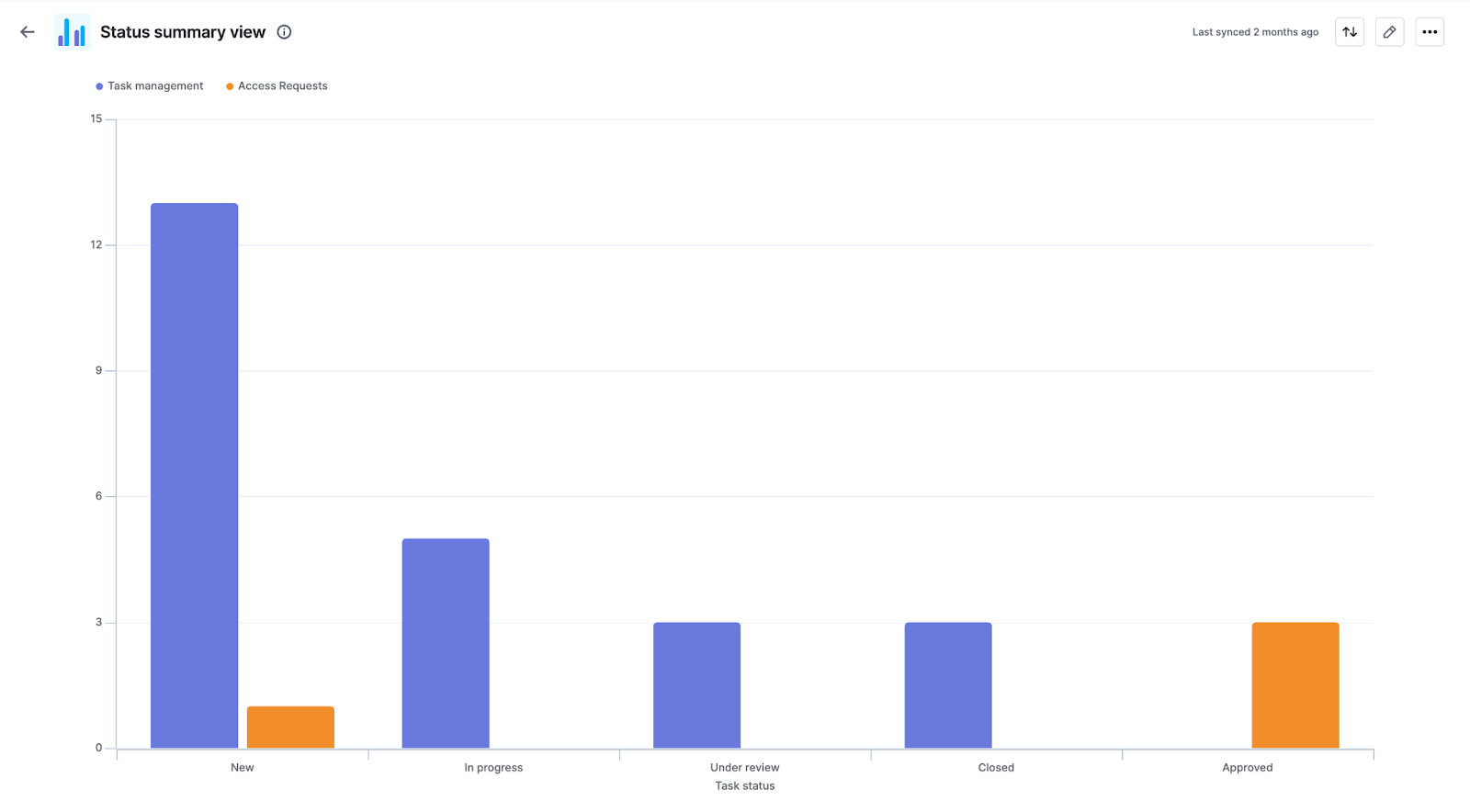 | 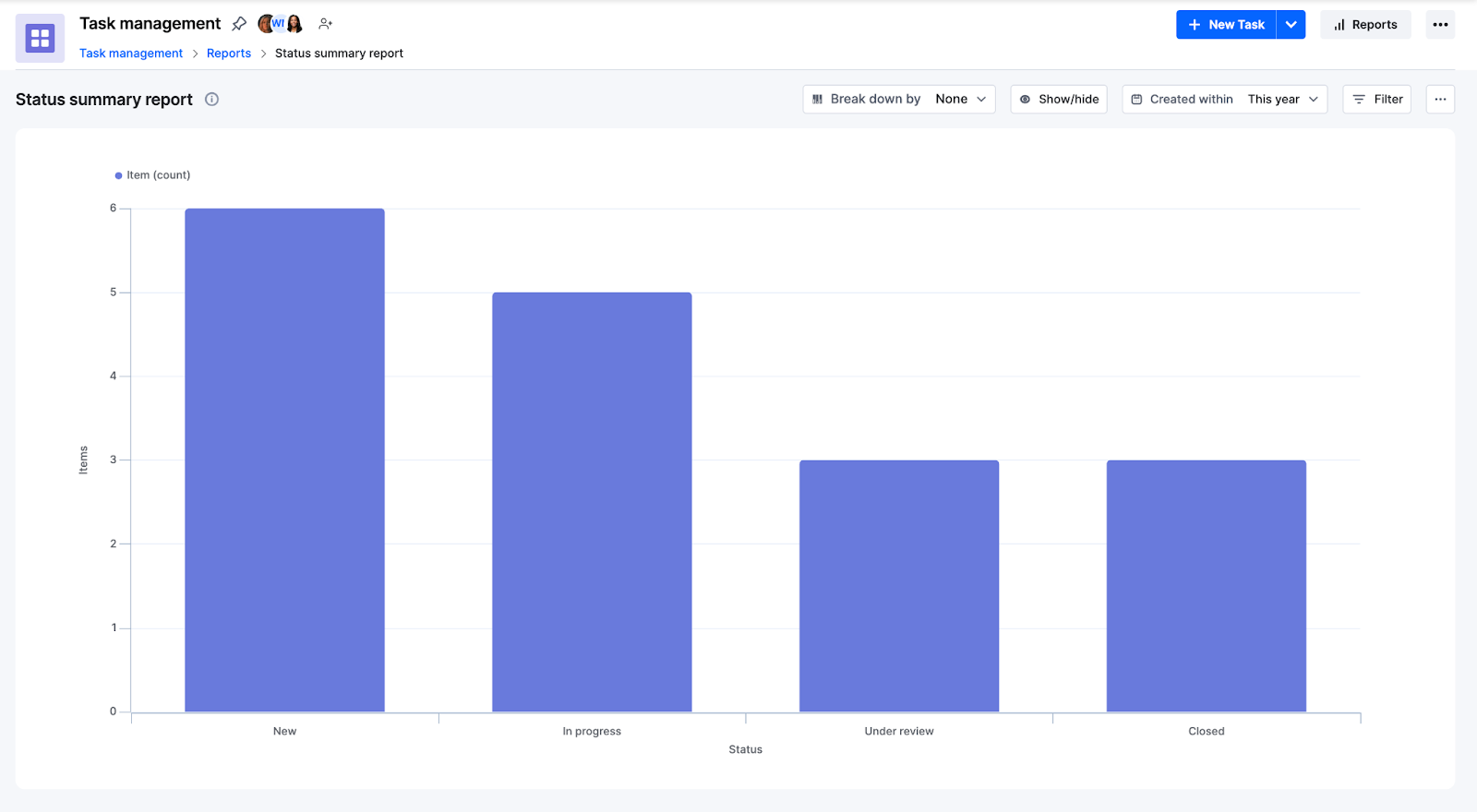 |
| Scope | One or more boards | Single board |
| Filtering | Tailor-made filtering options while creating the chart report | Filter by data range and custom fields of the specific board |
| Data visualization | Tabular report, charts, or pivot report | Bar chart |
| Usage scenario | Get a more granular view of the status of one or more boards | Get a quick overview of the status of a particular board |
| Accessibility | Accessible from the analytics platform | Accessible from the board itself |