

Creating user workload report with Analytics
Keeping track of your team's workload is crucial for maintaining efficiency in your processes.
Keeping track of your team's workload is crucial for maintaining efficiency in your processes. With Kissflow Analytics, you can create a user workload report to get insights into the number of items assigned to different users, identify pending tasks, and assess the overall workload.
Here's how to create a user workload report for all processes in your account using Kissflow Analytics.
Creating the user workload dataview
With the dataview as your data source, you can now create various reports, including tabular, charts, and pivot reports.
To create a dataview,
-
Sign in to your Kissflow account, navigate to Analytics, and click Data Explorer.
-
Click Create dataview > provide a name for your dataview > Create.
-
In the query builder, input the following SQL query.
SELECT "_id" AS "ID", "ExpectedAt.value" AS "Expected at", "AssignedAt.value" AS "Assigned at", AssignedTo.value:Name ::string AS "Assigned to", "_flow_name" AS "Flow Name", TIMESTAMPDIFF(MINUTE, "ExpectedAt.value", CURRENT_TIMESTAMP) AS Time_Diff, CASE WHEN Time_Diff IS NULL THEN NULL WHEN Time_Diff>0 THEN TRUE ELSE FALSE END AS Overdue FROM "ProcessInstance", TABLE (FLATTEN(input=>"AssignedTo", outer => true)) AssignedTo -
Click Run and after verifying the query result > Publish to create the dataview.
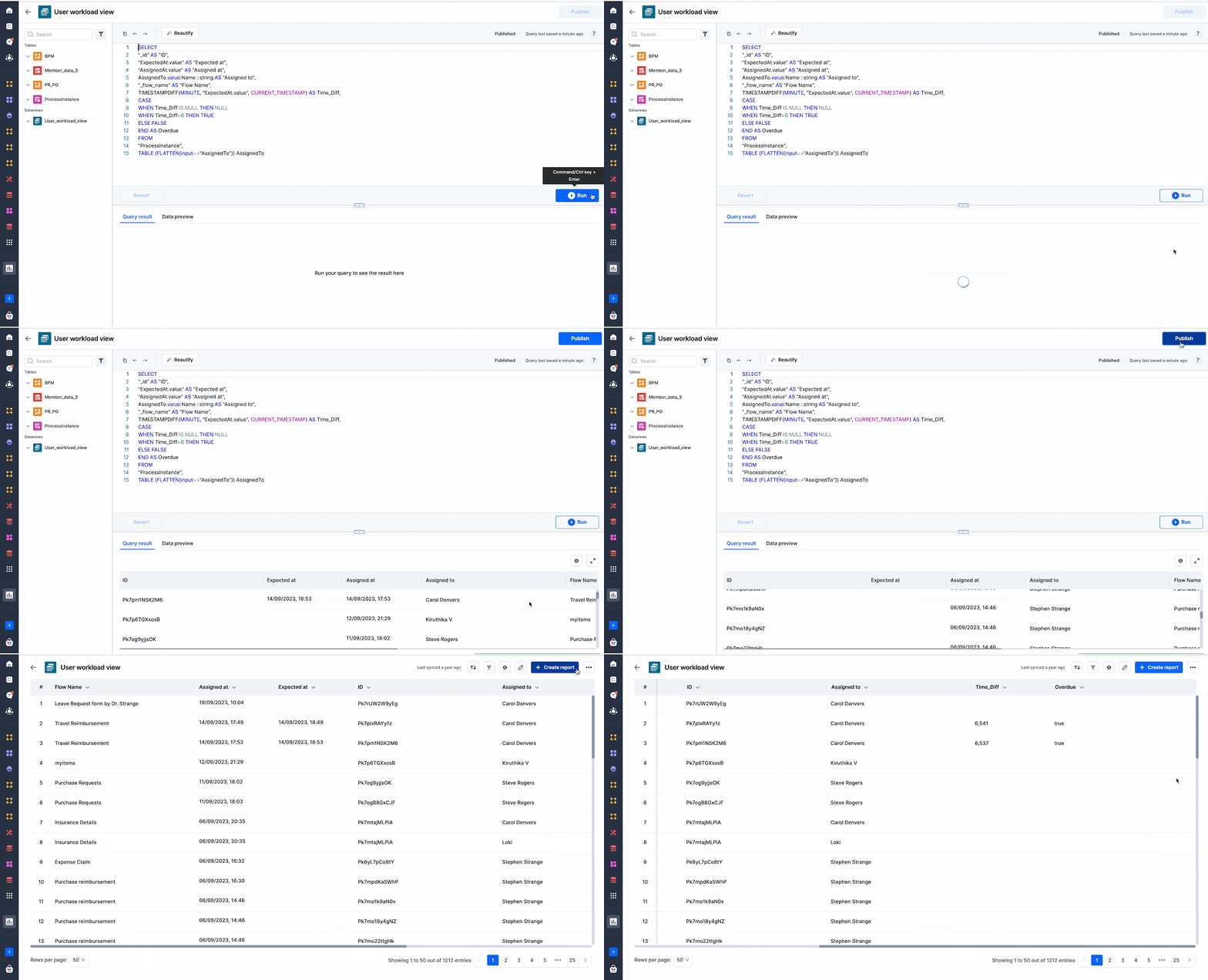
Query breakdown
The following table describes each part of the query.
| Actual column name | Alias name used in the query | Description |
|---|---|---|
| _id | ID | The ID of the process instance. |
| ExpectedAt.value | Expected at | This field displays the date and time the item is expected to be completed. The timestamp format is GMT-based. |
| AssignedAt.value | Assigned at | This field displays the date and time when the item was assigned. The timestamp format is GMT-based. |
| AssignedTo.value:Name ::string | Assigned to | This field displays the user's name to whom the item is assigned. The query parses the "AssignedTo" JSON column as separate columns, allowing you to include the "AssignedTo" field in your Chart or Pivot reports. |
| _flow_name | Flow name | The name of the process. |
| TIMESTAMPDIFF(MINUTE, "ExpectedAt.value", CURRENT_TIMESTAMP) | Time_Diff | This SQL query calculates the time difference in minutes between the "ExpectedAt.value" timestamp and the current timestamp. It uses the function TIMESTAMPDIFF to achieve this. Additionally, it creates a new column named "Time_Diff" to store this calculated difference. |
| CASE WHEN Time_Diff IS NULL THEN NULL WHEN Time_Diff>0 THEN TRUE ELSE FALSE END AS Overdue | The CASE statement evaluates the "Time_Diff" and categorizes items as "Overdue" if the time difference is greater than 0, marking them as TRUE; otherwise, it keeps them as FALSE. If the "Time_Diff" is NULL, it also returns NULL for "Overdue". |
Creating a user workload report
Follow the steps to create a user workload report:
-
Navigate to Analytics and click the Reports tab.
-
Click Create report.
-
Choose the above created dataview in the dropdown given while creating a report.
-
Provide a name for your report.
-
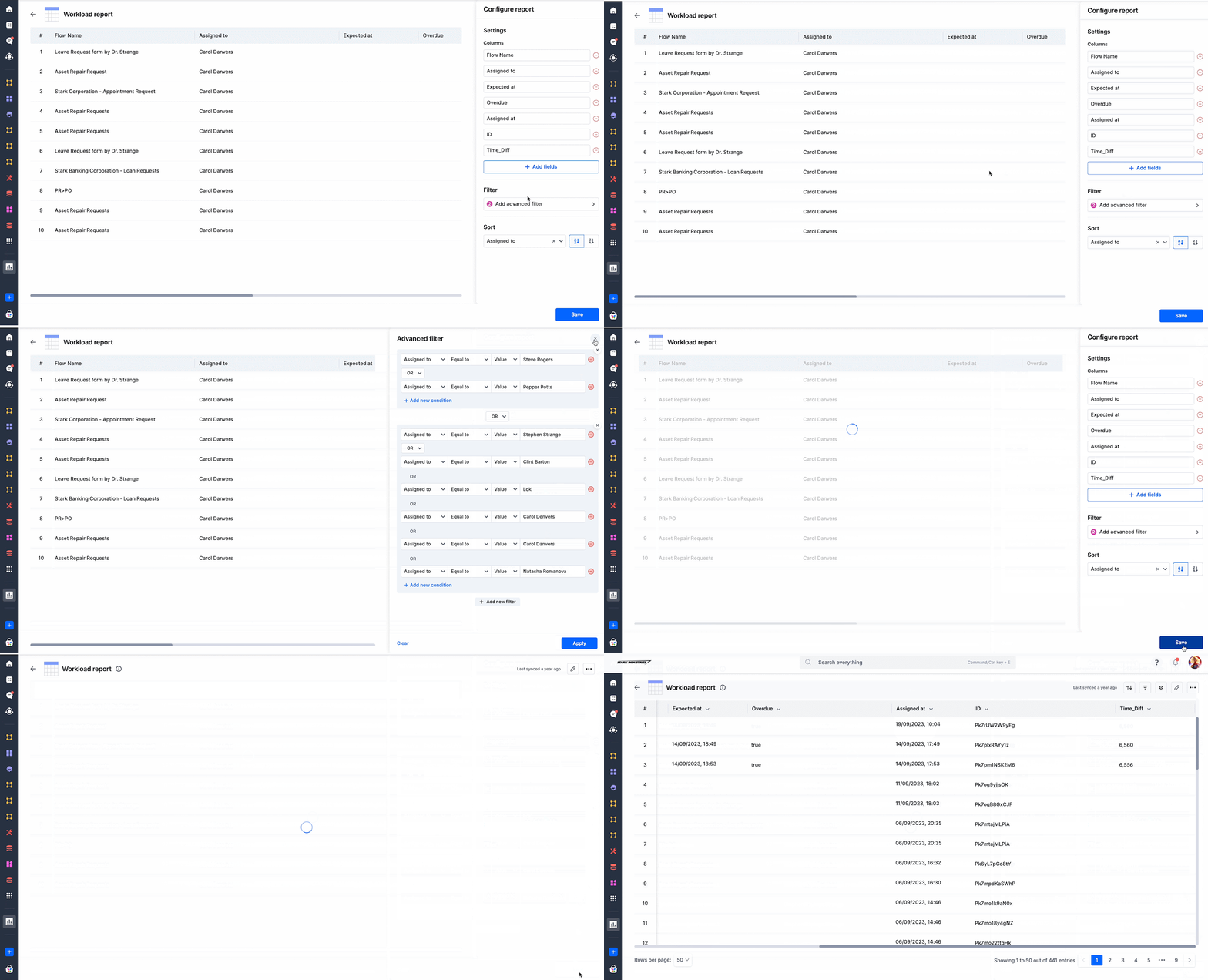
Select the report type - Tabular, to get a quick summary of the workload and click Create.
-
Under the Columns section, add the following fields to display them as table columns: AssignedTo, Flow name, Created by, and Status.
-
Use the Filter to get a specific list of users.
-
Click Save to save your report configuration.
Note
AssignedTo is a JSON column in the ProcessInstance table that analyzes user workload. It can only be used in Tabular report. By using the query part AssignedTo.value:Name ::string, you can parse the JSON columns to create Pivot or Chart report.