

Understanding data sources
Data source is a collection of all data present inside processes, boards, datasets, and other tables in Kissflow.
Data sources
Data source is a collection of all data present inside processes, boards, datasets, and other tables in Kissflow. They are used to create reports in analytics. While you cannot create, modify, or delete data sources, you can combine them to create dataviews.
Types of data sources
| Data source type | Icon | Description |
|---|---|---|
| Process table |  | A table that consists all the fields in a process form. |
| Child table |  | Any table within a process form. |
| Board table |  | A table that consists of all the fields in your board as columns, with the subitems represented as rows. |
| Child table |  | Any table within a board form. |
| System table |  | Process: A table generated by the system to monitor steps and activities in a process. It includes the following tables:Process instance tableIt shows the current status of each item across all processes in your account.Activity instance tableIt shows the entire step history of each item across all the processes in your account. It records each activity in a process flow like assigned, rejected, sent back, and approved.User and group tableIt shows the list of users and groups with their associated data.Board: A table generated by the system to monitor the status and activities in a board is given below:Board status instance tableIt displays the workload information and status of all boards. |
| Dataset |  | A table with rows and columns of data. |
| Dataview |  | A tabular representation of data created by combining multiple data sources using SQL join queries. |
Entity relationship of the data sources
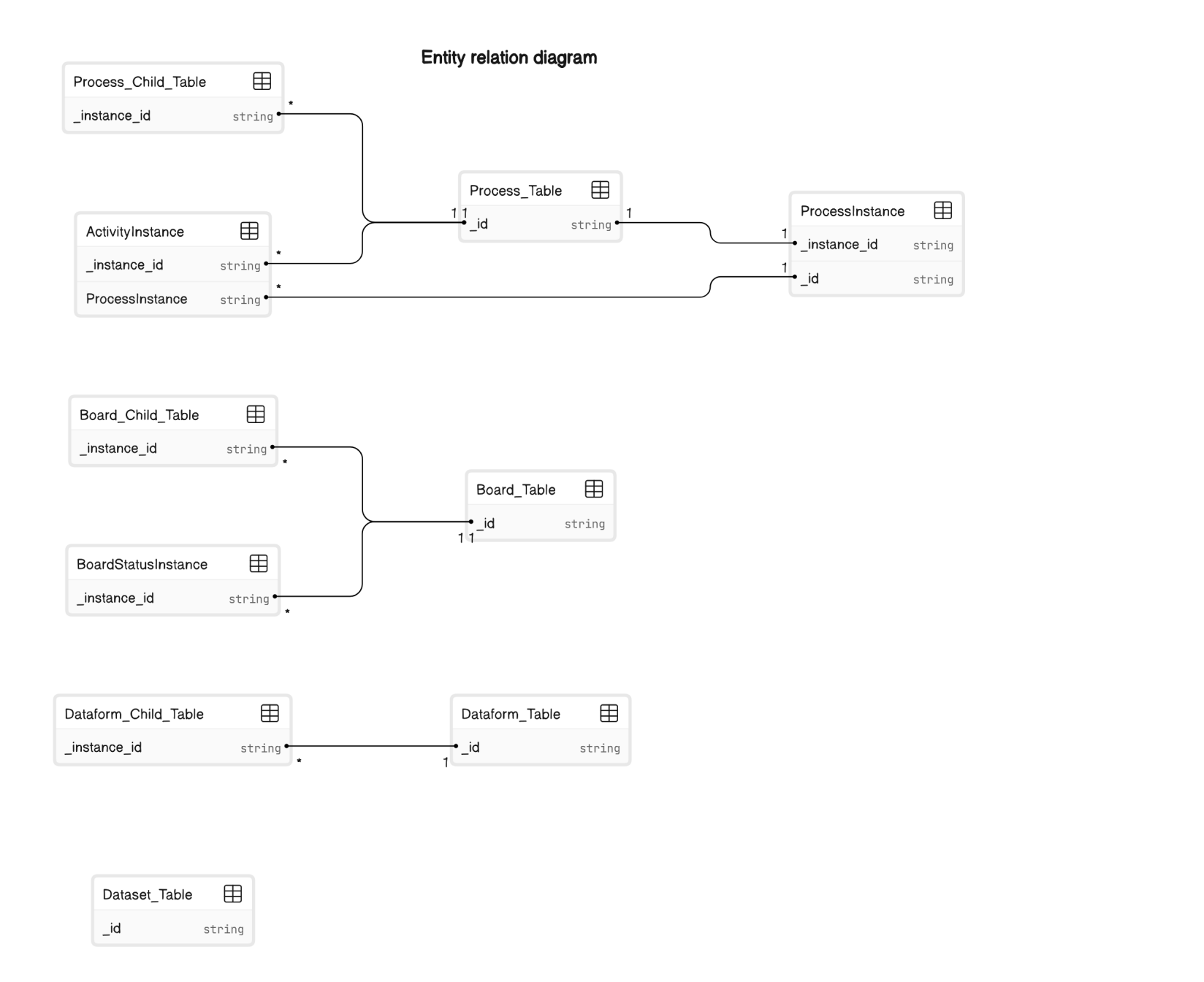
Data explorer
To access data sources:
- Sign in to Kissflow.
- Click Analytics button (
 ) on the left navigation.
 - Under Data explorer, you can find all data sources including process tables, board tables, child tables, system tables, dataviews, and datasets created by you or shared with you.
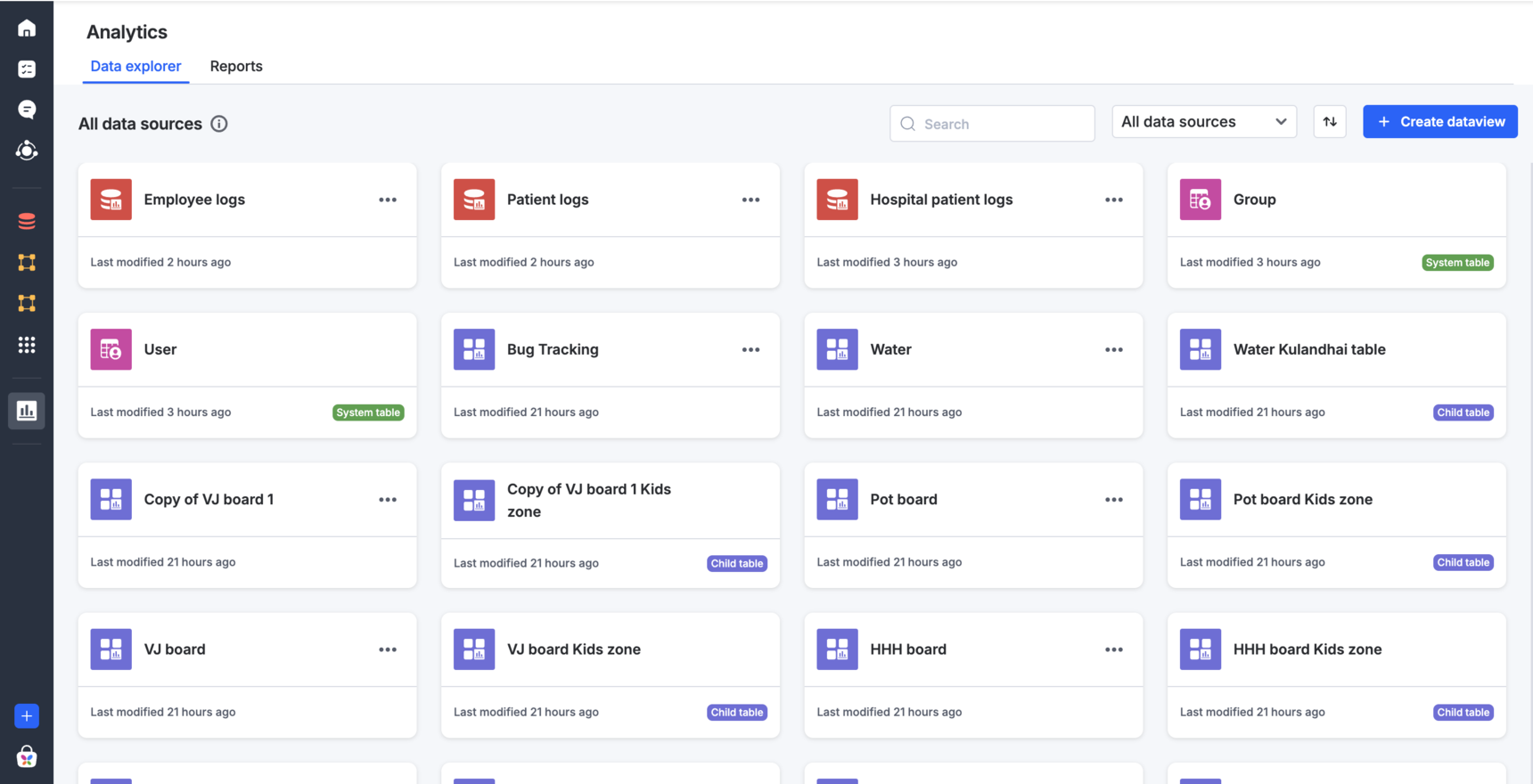
As a Super Admin, you can view all the data sources in your account by default. These include process tables, board tables, child tables, datasets, system tables, and dataviews. You can easily search for a data source by its name, filter by data source type, and sort by last synced, last modified, or in their alphabetic order.
Every data source is shown as a card with these details:
- Name.
- Type.
- Time elapsed since the last sync.
- Option to create a report and share the data source with others.
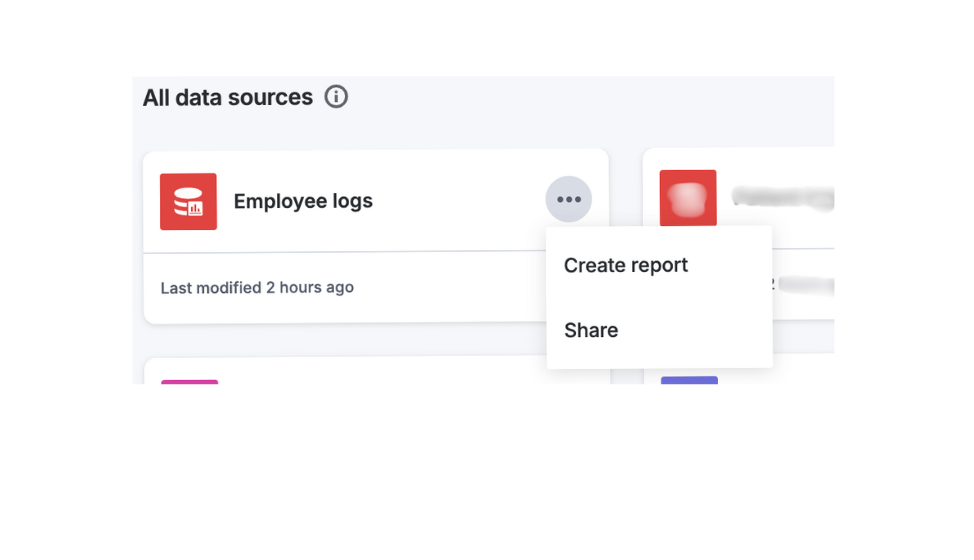
Note
All data sources will be synced once every hour. The Last synced flag specifies the time of the most recent sync.
Accessing a data source for the first time
When a data source is accessed for the first time, a one-time data fetch occurs. Subsequently, the data source is scheduled for periodic synchronization to keep the data updated. This initial data fetch typically completes within zero to ten minutes, depending on the size and complexity of the data source.
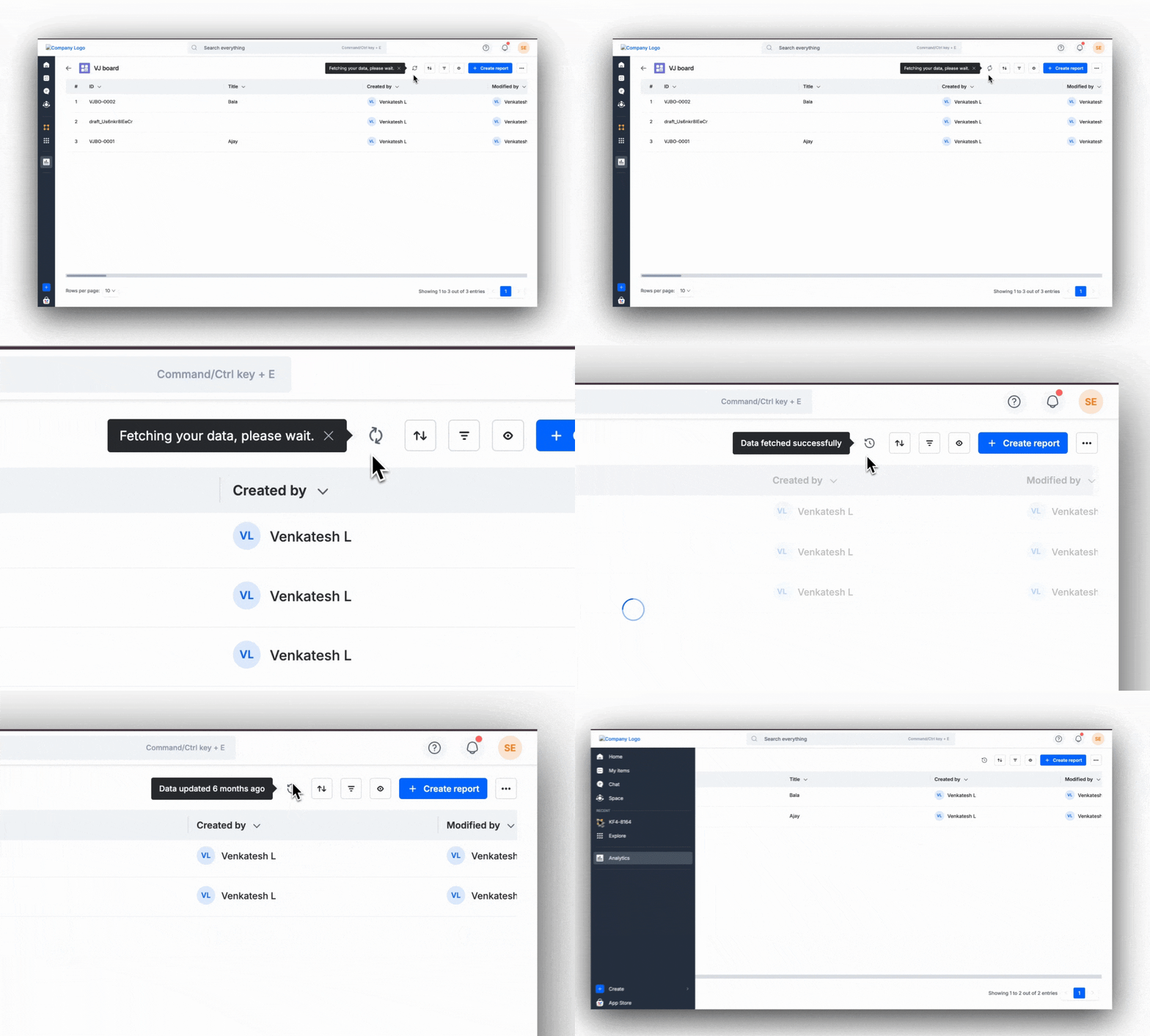
Filtering in data sources
Find relevant data sources using the following filters:
- All - Shows all data sources in your account.
- My dataviews - Shows all dataviews that you have created.
- Shared dataviews - Shows all dataviews that are shared with you.
- System tables - Shows all workload tables created by the system, including user and group data.
- My tables - Shows all tables for which you are an admin.
- Shared tables - Shows all tables for which you have access.
Roles in data sources
There are two roles in data sources:
- Report admin
- Report creator
| Permissions | Report a****dmin | Report creator |
|---|---|---|
| Create/edit/delete dataviews | ✅ (Can only access dataviews shared with them) | ✅ |
| Create/delete data sources | ❌ | ❌ |
| Creat/edit/delete reports | ✅ | ✅ |
| Share data sources | ❌ | ❌ |
Note
If you hold the role of Process admin, Board admin, or Report admin for your process or board, or if you are a Dataset admin or member, you will automatically acquire these permissions and become a Report admin for your data source.
Note
If you are a developer or a process or board member with the permission to create reports, a Data admin for a particular process, board or a viewer of the dataset, you will inherit these permissions and automatically be designated as a Report creator for the data source.