

Basic and advanced fields
Stores multiple lines of text with limited formatting options.
We have classified the fields into two primary categories: All fields and AI-suggested fields for your easy understanding. The All fields tab is further organized into sub-categories such as:
-
Basic fields.
-
Advanced fields.
-
File and media.
-
Data lookup.
-
Widget.
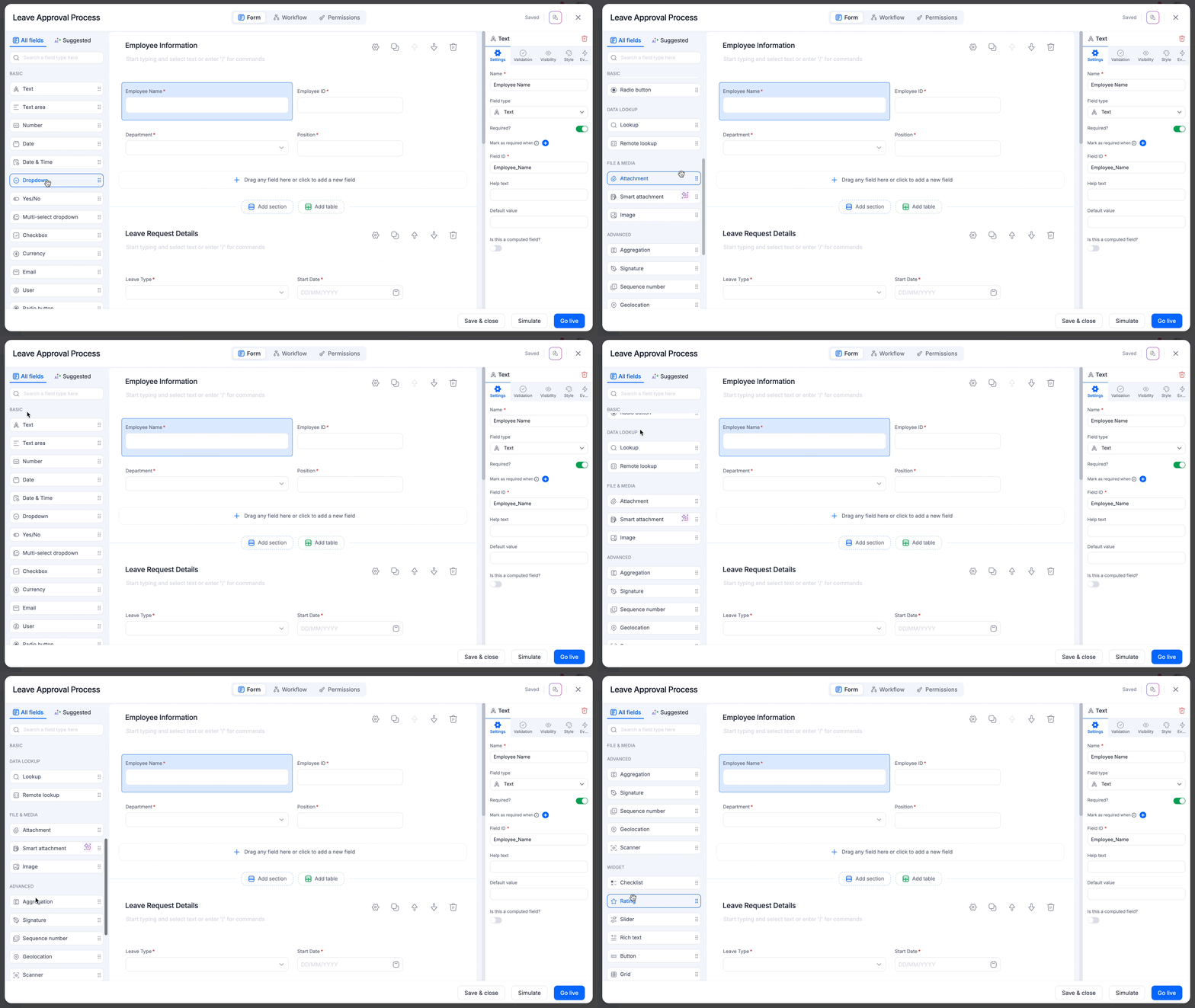
Navigate to the respective form editor in your flow to access the Fields panel on the left side. Toggle between the All fields and AI-suggested fields tabs to access the field that you would like to use in your flow form. You have to drag and drop a field from this panel onto your form editor to add it. You can also click the empty area in your form section to search for a field and add it instantly quickly.
Basic fields
The following are the available basic fields:
| Field | Description |
|---|---|
| Text | Stores a single line of text. |
| Text area | Stores multiple lines of text with limited formatting options. |
| Number | Stores numbers or decimals. |
| Date | Stores date only. |
| Date & Time | Stores date along with timestamp. |
| Dropdown | Stores multiple values but lets the user select only one value at a time. |
| Yes/No | Stores binary information like Yes or No. |
| Multi-select dropdown | Stores multiple values and lets the user select more than one value at a time. |
| Checkbox | Stores multiple values and lets the user check one or more values at a time. |
| Currency | Stores currency values. |
| Stores valid email addresses. | |
| User | Stores usernames only. |
| Radio button | Stores multiple values and lets users select only one option at a time. |
Advanced fields
The following are the available advanced fields:
| Field | Description |
|---|---|
| Aggregation | Collects data from different fields and lets users perform operations like SUM, AVERAGE, CONCATENATE, and so on. |
| Signature | Stores the user's signature. The user can directly sign in the area provided or upload their signature file accordingly. |
| Sequence number | Generates a number in sequence number automatically whenever a flow item is submitted. |
| Scanner | Scans QR codes and barcodes. |
| Geolocation | Store location of the users with their consent. |
Widget
The following are the available widgets:
| Field | Description |
|---|---|
| Slider | Lets the user slide over a number scale to feed their input. The value is stored as a number. |
| Rich text | Stores multiple lines of text supported along with many formatting options. |
| Rating | Stores rating values. |
| Checklist | Displays a list of options that the form user can check off. |
| Grid | Stores rows and columns to optimize space. |
| Button | Stores on-click event actions. |
File & Media
The following is the list of fields that support attachments:
| Field | Description |
|---|---|
| Attachment | Stores many file types like DOC, PDF, XLS, XLSX, ODS, and so on. |
| Image | Stores image files like JPG, JPEG, PNG. |
| Smart attachment | Fetches data from an attachment like a receipt or an invoice, thereby saving the end-user time manually filling in the form fields. |
Data lookup
The following is the list of lookup fields:
| Field | Description |
|---|---|
| Lookup | Loads data from other flows onto the form. |
| Remote lookup | Fetches data from an external data source. |