

Auto retry in integrations
Auto retry is an integration-level setting that reruns a failed step automatically when the failure is temporary, such as a timeout or a rate limit from the service you are calling.
Auto retry is an integration-level setting that reruns a failed step automatically when the failure is temporary, such as a timeout or a rate limit from the service you are calling. It is off by default and you turn it on for each integration separately. Every attempt is recorded, so you can see what was tried and how each attempt ended.
What auto retry does
When a step fails, Kissflow checks whether the failure is temporary. If it is, and auto retry is on for that integration, the step is retried automatically. The run continues on its own if an attempt succeeds.
A step is retried up to four times after the first failure, and the attempts are spaced further apart each time:
| Attempt | When it runs |
|---|---|
| First retry | About 10 seconds after the failure |
| Second retry | About 20 seconds later |
| Third retry | About 40 seconds later |
| Fourth retry | About 80 seconds later |
All retries for a step finish within about three minutes. Retries stop as soon as an attempt succeeds.
Which failures are retried
Only failures that are likely to succeed on a later attempt are retried:
| Failure reason | What it means |
|---|---|
| Request timed out | The request did not complete in time |
| Too many requests | You reached the rate limit of the service you are calling |
| Server connection failed | Kissflow could not reach the service |
| Service unavailable | The service is temporarily down |
| Server took too long to respond | The service did not respond in time |
Validation errors, permission errors, and requests for records that do not exist are not retried. Repeating these fails the same way every time, so the step fails immediately and waits for you.
Turning on auto retry
Important
A retry repeats whatever the step does. Kissflow cannot tell whether a step is safe to repeat, so a retry may create duplicates, such as a second email, a second record, or a second call to an external system. It is recommended to turn on auto retry only for integrations where repeating the step is safe.
To turn on auto retry from the integration builder,
-
Open the integration.
-
Click Auto retry in the header.
-
Switch on Auto retry.
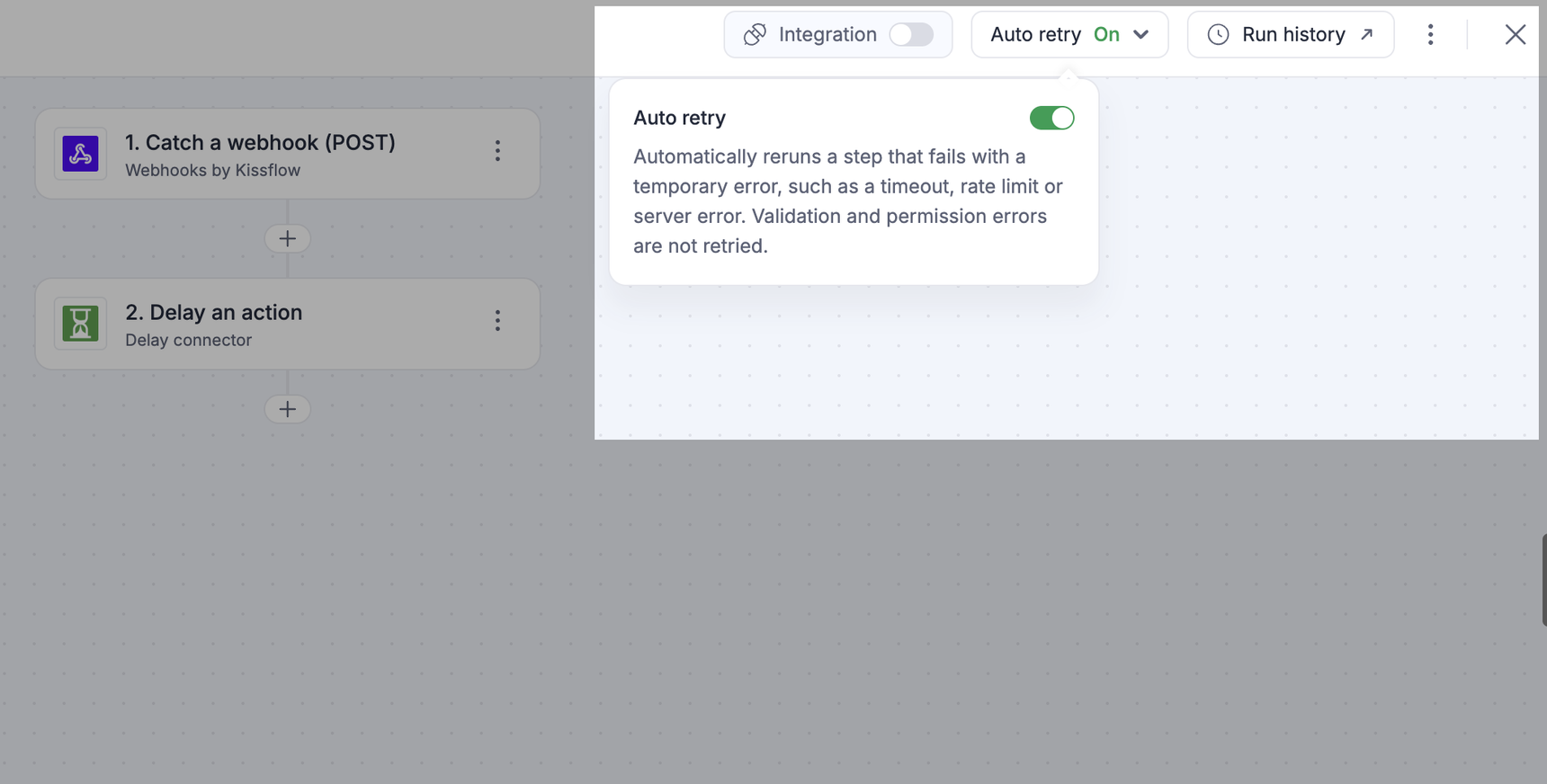
To turn on auto retry from your integrations list,
-
Click the Explore button > Managed by me > Integrations.
-
Click the More options button ( ⋮ ) on the integration you want.
-
Switch on Auto retry.
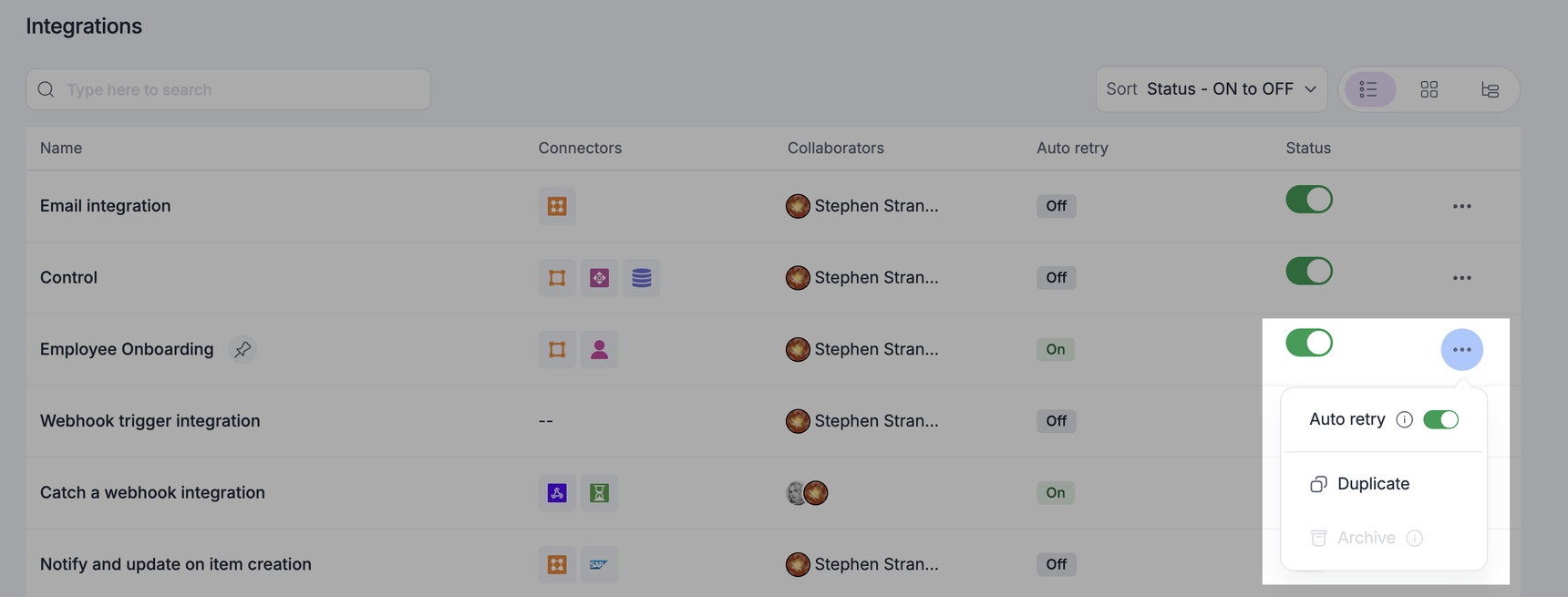
In the table view, the Auto retry column shows whether the setting is on or off for each integration. In the card view, integrations with auto retry turned on display an Auto retry chip.
Turning off auto retry
Switch off Auto retry from either of the places above. A retry that is already in progress finishes, and you can still rerun steps yourself from Run history.
Auto retry in apps
For an integration inside an app, you can change this setting in two places: open the integration in the app builder and click Auto retry in the header, or click the More options button ( ⋮ ) on the integration in your integrations list.
The setting belongs to the environment it is set in. Turning on auto retry in Development does not turn it on in Testing or Production, and deploying an app does not change the setting in the target environment. Set it separately in each environment.
Viewing the attempts
Every attempt against a failed step is recorded in the rerun log, including the failure that started the retries.
To open the rerun log:
-
Open Run history for the integration.
-
Click the run you want.
-
Expand the failed step.
-
Click Rerun log.
The rerun log lists one row for each attempt:
| Column | What it shows |
|---|---|
| Attempt | The position of the attempt, starting at one |
| Time | When the request was sent |
| Performed by | System for an automatic retry, or the name of the person who reran the step |
| Status | Success or Failed |
| Failure reason | Why the attempt failed. This is empty for a successful attempt |
Click Back to return to the Input data and Output data view of the step.
Rerunning a step yourself
Auto retry does not replace a manual rerun. You can still rerun a failed step from Run history using Rerun, or correct the payload first using Edit and rerun.
Each step keeps one set of automatic retries. If a step has already been retried automatically, rerunning it sends the request once and reports the result, without retrying again. Every other step in the run keeps its own retries.