

Jira connector
Jira is an issue-tracking software by Atlassian that allows bug tracking and agile project management.
What is Jira?
Jira is an issue-tracking software by Atlassian that allows bug tracking and agile project management.
About Kissflow's Jira integration
The Jira connector of Kissflow Integration enables you to connect and synchronize your Jira account with popular third-party apps and Kissflow Apps. You must have a valid Atlassian or Jira account and be a paid Kissflow customer to integrate with Jira.
Use the Jira connector to receive data from other flows or apps to perform specific actions.
Triggers in Jira connector
| Trigger event | Description |
|---|---|
| When a new issue is created | Triggers when a new issue is created in Jira. |
| When a new comment is added to an issue | Triggers when a new comment is added to an issue in Jira. |
| When a comment on an issue is updated | Triggers when a comment on an issue is updated in Jira. |
| When an existing issue is updated | Triggers when an existing issue is updated in Jira. |
Note
The Jira connector's trigger connection expires in 30 days. To re-establish the connection, turn the integration off and on.
Actions in Jira connector
| Action event | Description |
|---|---|
| Create an issue | This action creates a new issue in Jira. |
| Find an issue | This action searches for an issue by summary or key in Jira. |
| Add an attachment to an issue | This action adds an attachment to an issue in Jira. |
| Add a watcher to an issue | This action adds a new watcher to an issue in Jira. |
| Add a comment to an issue | This action adds a comment to an issue in Jira. |
| Link issues | This action creates a link between two issues in Jira. |
| Find a user | This action searches for an existing user in Jira. |
| Update an issue | This action updates an existing issue in Jira. |
Jira connector as an action step
-
In your Kissflow account, click the Create button in the left navigation panel and select Integration from the list. Enter a unique name and description for your integration and click Create.
-
Once inside your editor, set up a trigger and action steps as necessary. For example, your trigger event can be When a draft item is submitted. You can create a new Jira ticket every time a new item is created.
-
After setting up your trigger and action step above, click the Add button (
 ) next to set up your action step. Search for the Jira connector and select the desired action.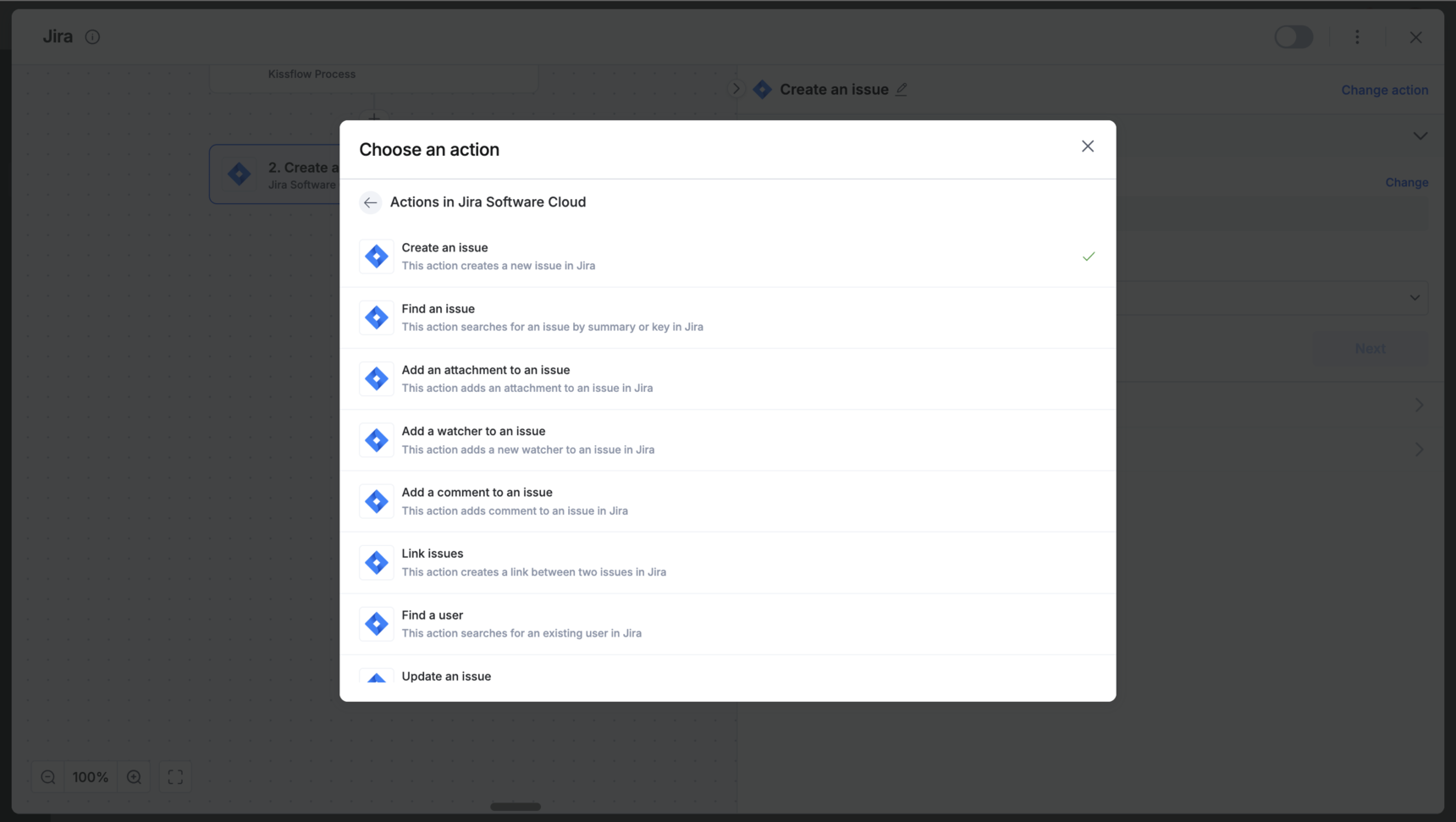
-
After choosing your action event, authenticate the connector. Click +Add an account and sign in using your Atlassian or Jira account. Kissflow uses Altassian’s sign in credentials for authentication.
-
After authenticating with your Jira account, add relevant values against the Jira form fields. You can hit Refresh fields to view all the updated fields in the selected Jira form.
-
Click Next.
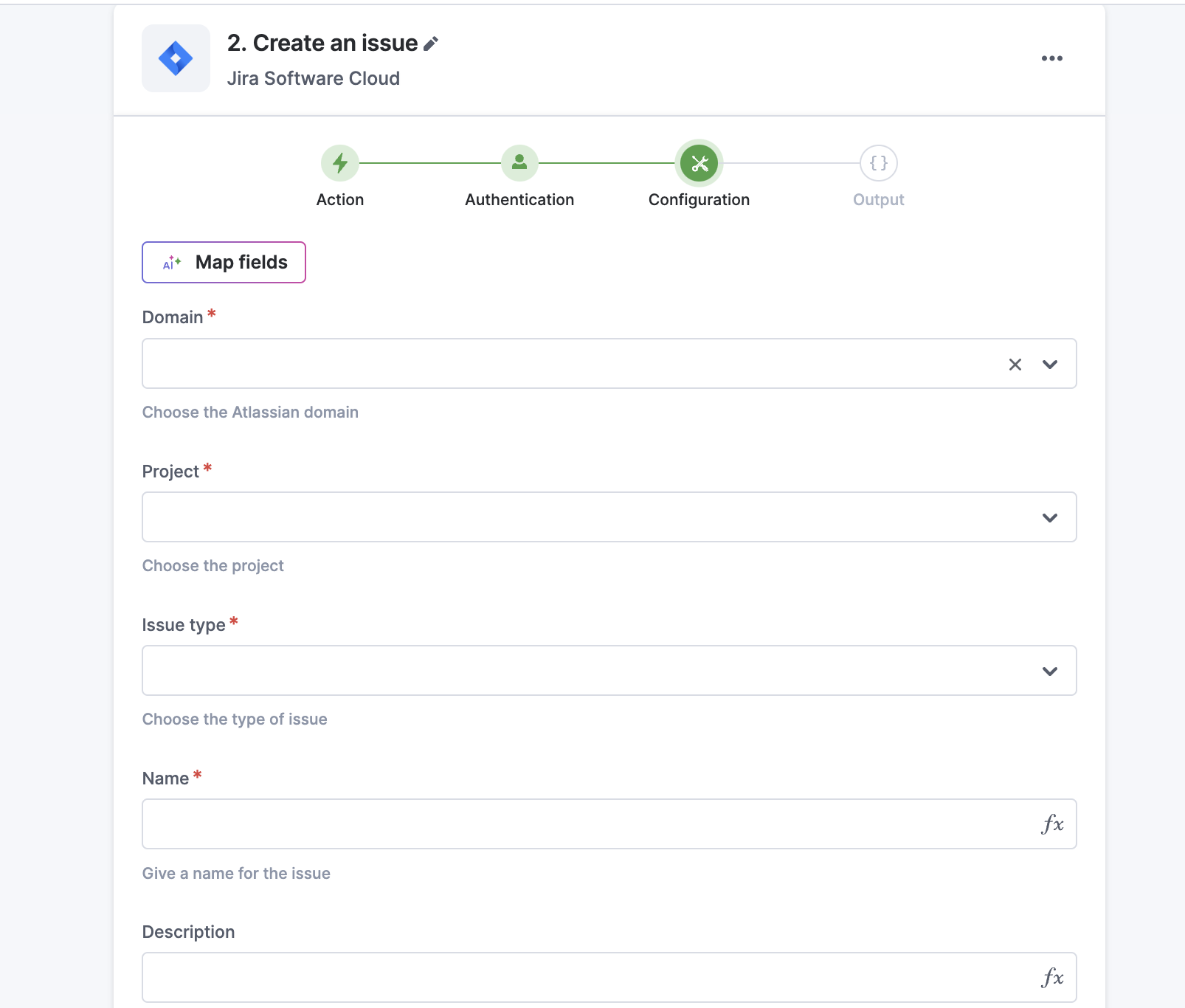
7. After a successful configuration, test whether your Jira action step is set up correctly by clicking the Test button. The connector will pull field data from your selected Atlassian account and display it as a JSON output. Similar to the trigger step, errors are notified to you right away. Fix them before retesting the action step.
Setting up a Jira connector
Switch ON the toggle button to activate the integration run after creating a custom workflow with your Jira connector's action steps. Once a trigger event occurs, the selected Jira action is activated and changes are reflected in your Jira account.
To ensure your integrations are properly configured and tested, review our best practices guide for tips on building robust and maintainable solutions.