

Kissflow user details connector
User details by Kissflow lets you fetch specific attributes of users in your Kissflow account.
User details connector
User details by Kissflow lets you fetch specific attributes of users in your Kissflow account. The details can be of any user in the account or of specific users referenced in the trigger step or any previous action step(s). The output data can then be used as an input to trigger specific actions in other Kissflow apps or any third-party applications.
For example, you can use this connector to gather email addresses and phone numbers of users who participated in the previous step(s) of the integration. These details can then be utilized to trigger specific actions like an automated chat bot response to users.
Note
Check out our academy tutorial on how to use Kissflow's Email connector in conjunction with the User details connector.
Triggers in the user details connector
| Trigger | Description |
|---|---|
| When a new user is added | Triggers when a new user is added to the account. |
| When a user's details are updated | Triggers when a user's details are updated. |
| When a user is activated | Triggers when a user is activated. |
| When a user is deactivated | Triggers when a user is deactivated. |
| When a user is deleted | Triggers when a user is deleted. |
| When a user is added to a group | Triggers when a user is added to a group. |
Actions in the user details connector
| Action | Description |
|---|---|
| Get user data | This action fetches the user data based on their user IDs. |
| Create a new user | This action creates and adds a new user to your account. |
| Deactivate users | This action deactivates users in your account. |
| Create a group | This action creates a new group in your account and adds users to the newly created group. |
| Add users to a group | This action adds users to an existing group in your account. |
| Activate users | This action activates users in your account. |
| Remove users from a group | This action removes users from a group in your account. |
| Retrieve user group details | This action retrieves the list of users who are part of a user group. |
Configuring the connector
-
In your Kissflow account, click your profile picture on the upper right corner of the screen and click Integrations. Click the New integration button to provide a name and description for your integration.
-
In the editor, select a trigger step. You can also use the search to find a trigger directly. For instance, use a webhook from a third-party application or a trigger from one of the flows in Kissflow.
-
Click the Add button (
 ) to add an action. Search for the User details connector and select Get user data as the action.
 -
Create a new connection or use an existing connection in your account. You can connect to another Kissflow account or use your own Kissflow account. Connection is authenticated using your API secret keys and tokens. After authenticating the connection, click Next.
-
Manually enter user IDs if you already know them. Else, select the _id field from the previous trigger or action step(s). Select the relevant user fields for which you want the data to be fetched.
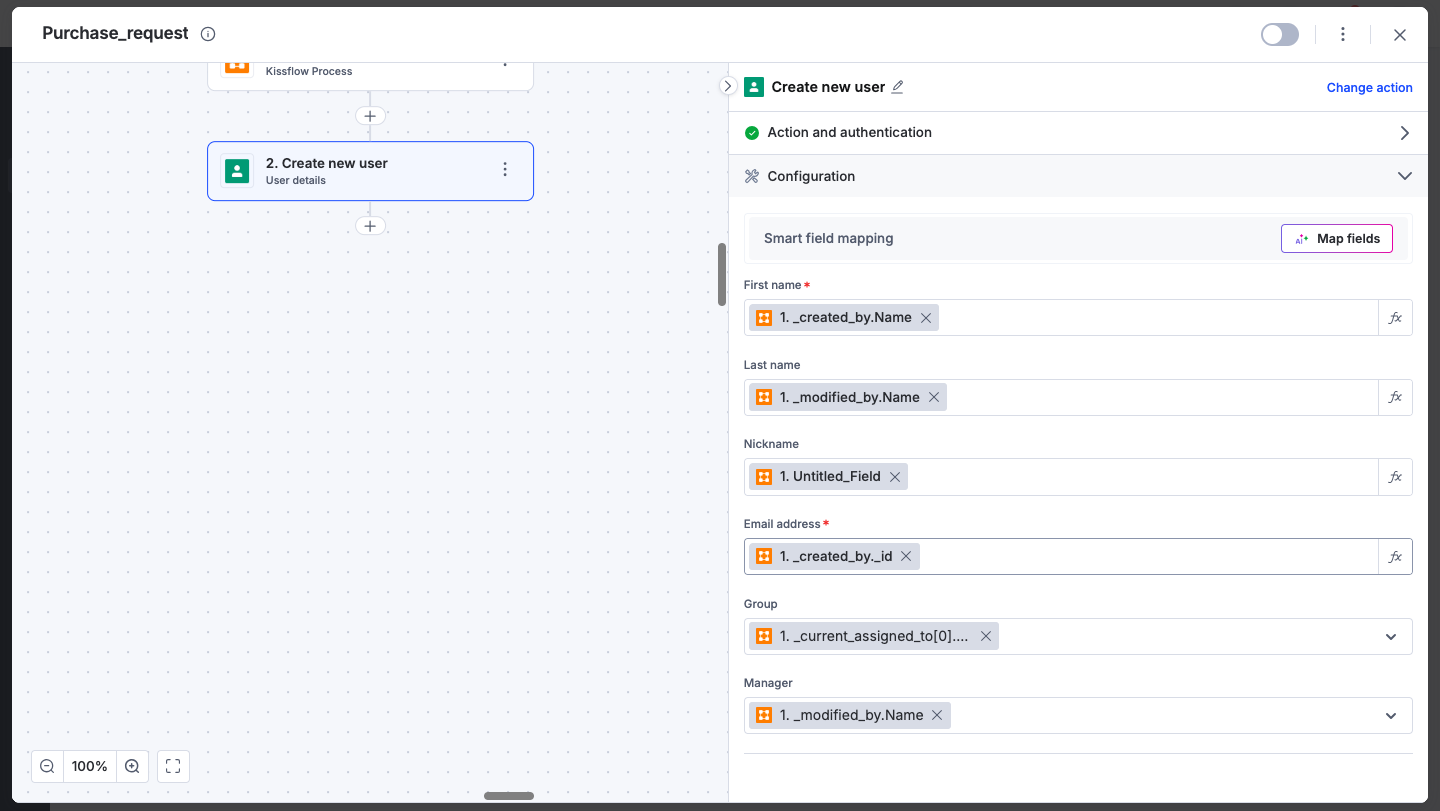
-
After a successful configuration, test whether the action is set up correctly. The connector will pull data of the specific user(s) from the user management table and display it as a JSON output. Errors are notified to you right away. Fix them before completing the action step.
Using the connector
After configuring your connector, turn on the toggle button in the upper-right corner of the editor to activate the action. When the configured action is triggered, the fetched user details are sent as an input to the integration's subsequent steps.
To ensure your integrations are properly configured and tested, review our best practices guide for tips on building robust and maintainable solutions.