Renaming, duplicating, and editing pages
Rename, duplicate, and edit the pages of an app from the app builder.
Renaming a page
-
Open your app and click Manage > Edit to open the app builder.
-
In the app builder, click Pages, select the page you wish to edit and open the page builder.
-
Click the More options button (
 ) present at the top-right of the page.
 -
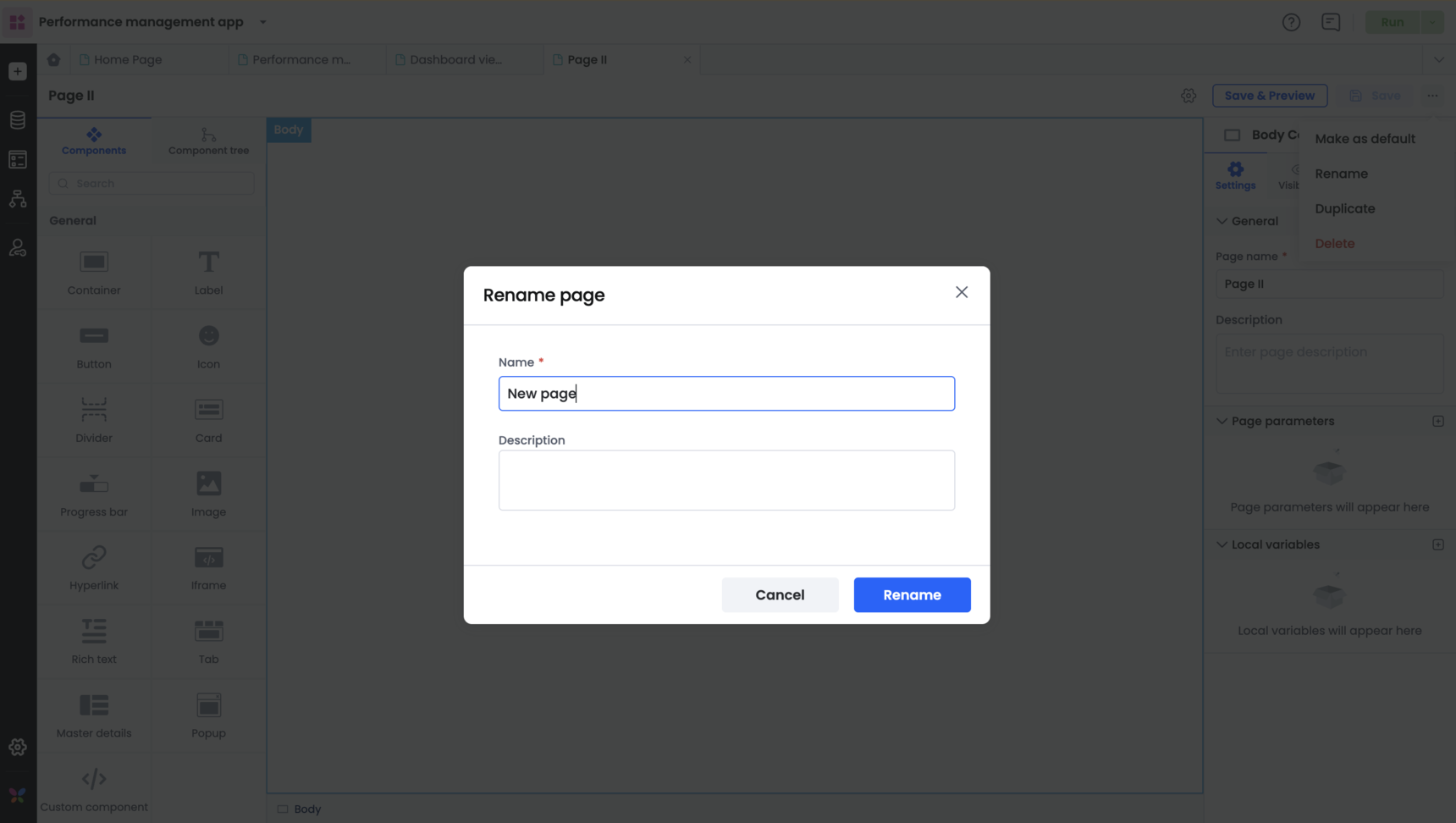
Click the Rename option from the drop-down.
-
In the following pop-up window, type a descriptive name and description for the page in the space provided next to N****ame and Description.
-
Click Rename.
Duplicating a page
-
Open your app and click Manage > Edit to open the app builder.
-
In the app builder, click Pages, select the page you wish to edit and open the page builder.
-
Click the More options button (
) present at the top-right of the page. -
Click the Duplicate option.
-
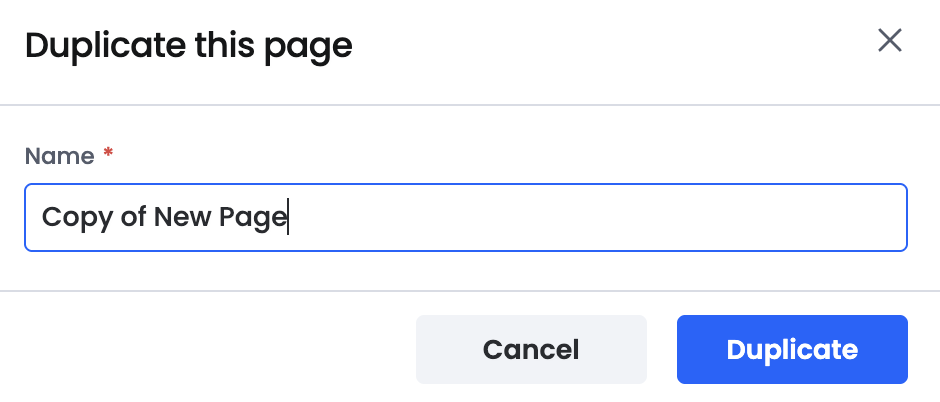
In the following pop-up window, type a descriptive name for the page being duplicated in the space provided next to the page name.
-
Click Duplicate.
Deleting a page
-
Open your app and click Manage > Edit to open the app builder.
-
In the app builder, click Pages, select the page you wish to edit and open the page builder.
-
Click the More options button (
) present at the top-right of the page and click the Delete option. -
In the Delete page window, click Delete.
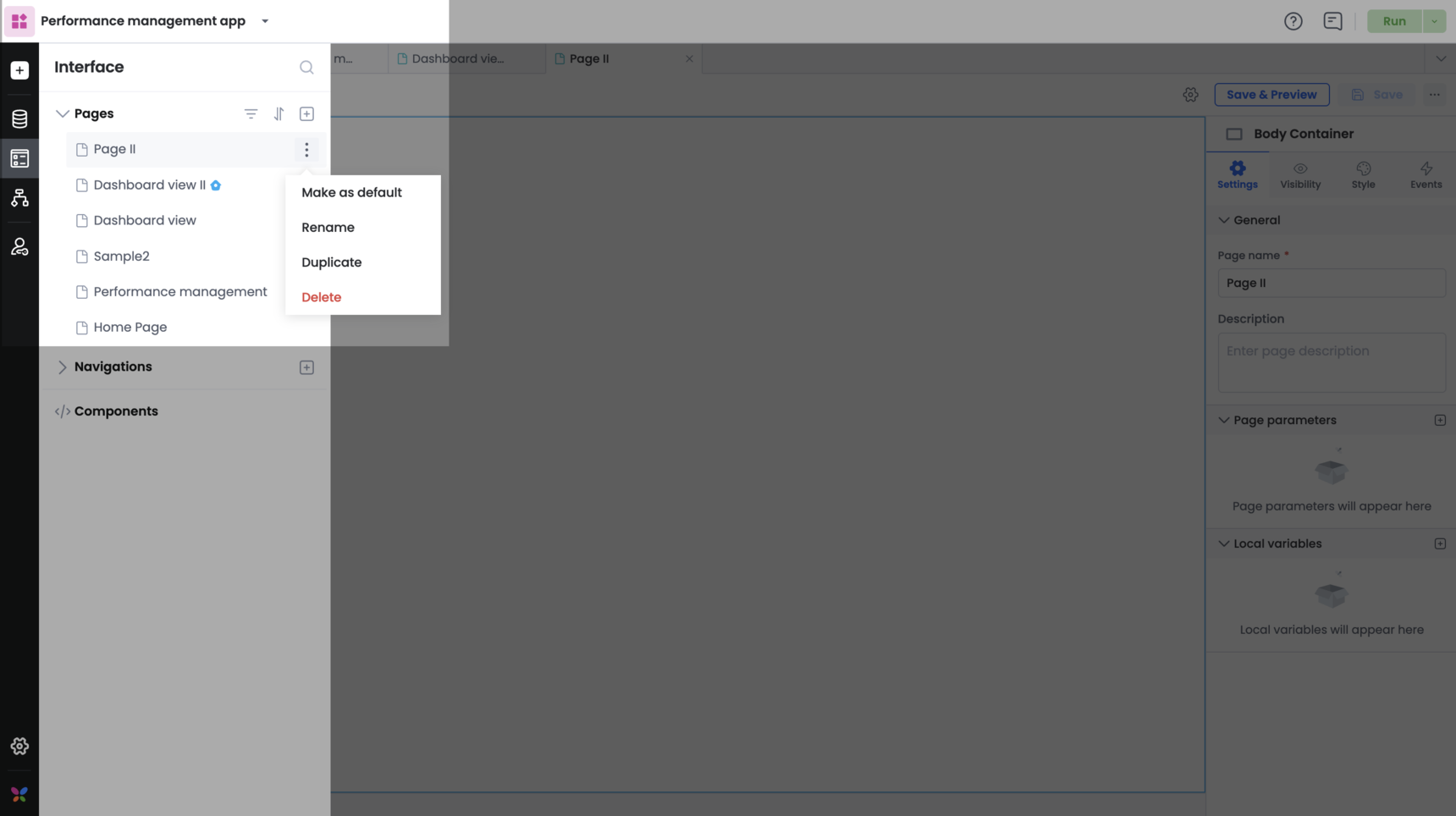
Alternatively, you can also rename, duplicate, delete a page from the left navigation menu:
- Click the Interface option in the left navigation menu
- Click the more options button beside the required page and you can choose one of the following actions from the pop-up menu: Make as default, Rename, Duplicate, Delete.