

Automating barcode scanning in a process form
In the live process form, once you scan the asset’s barcode/QR code, the asset details will be auto-populated in the Asset details lookup field.
If you are developing a process to streamline asset procurement requirements of your organization, you can customize your process form to allow end-users to scan an asset's barcode/QR code and automatically fetch the asset details. You can achieve it with the help of a scanner field, lookup field linked to a dataset's key, and other required fields. When a particular asset’s code is scanned by the end-user, it will auto-populate the asset’s details in the form.Follow the steps below to configure a scanner field in your asset procurement process:
-
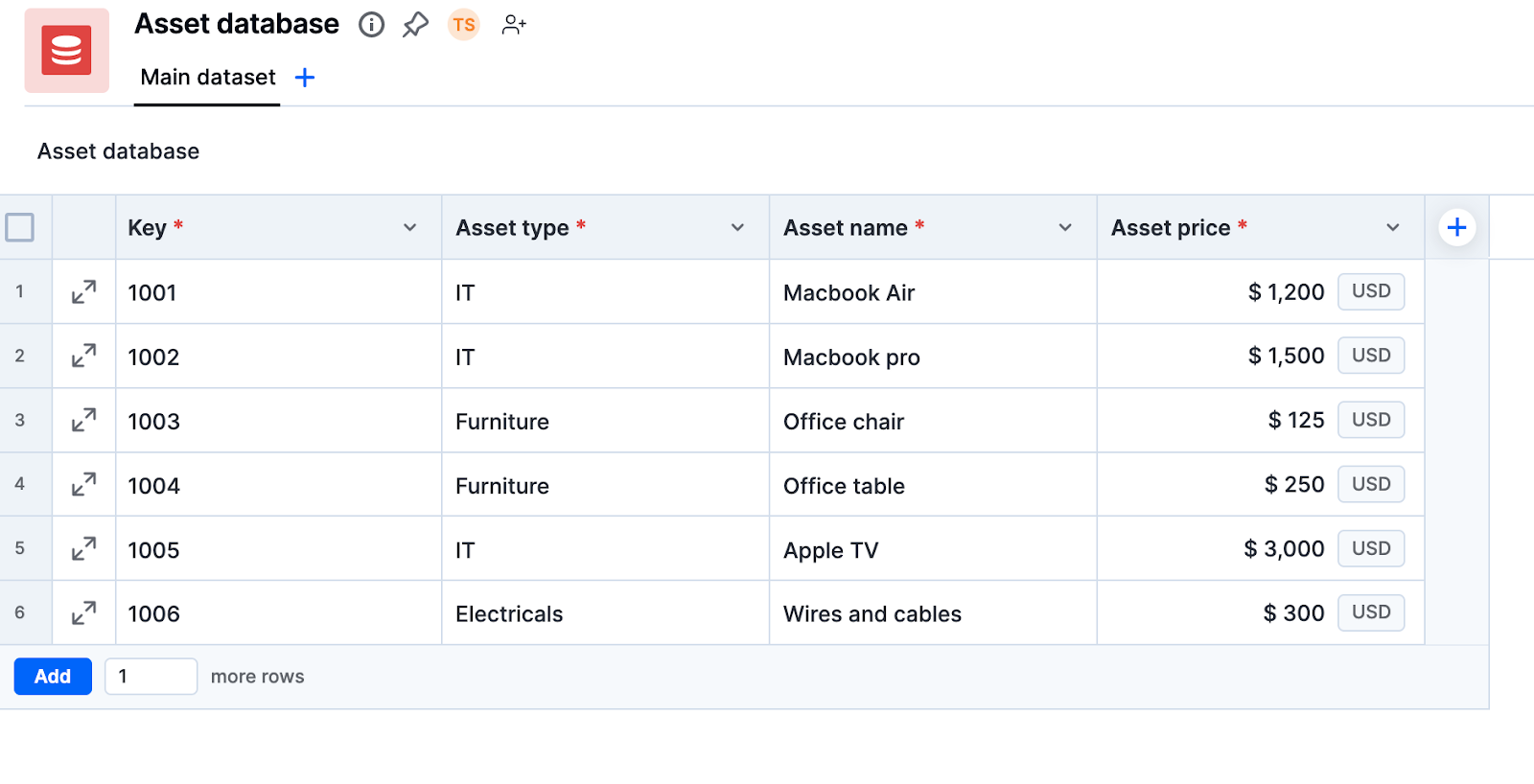
Create a dataset named Asset database and fill it with relevant asset details.
-
Set unique barcode values as keys in the dataset. This will be the value fetched on scanning the code.
-
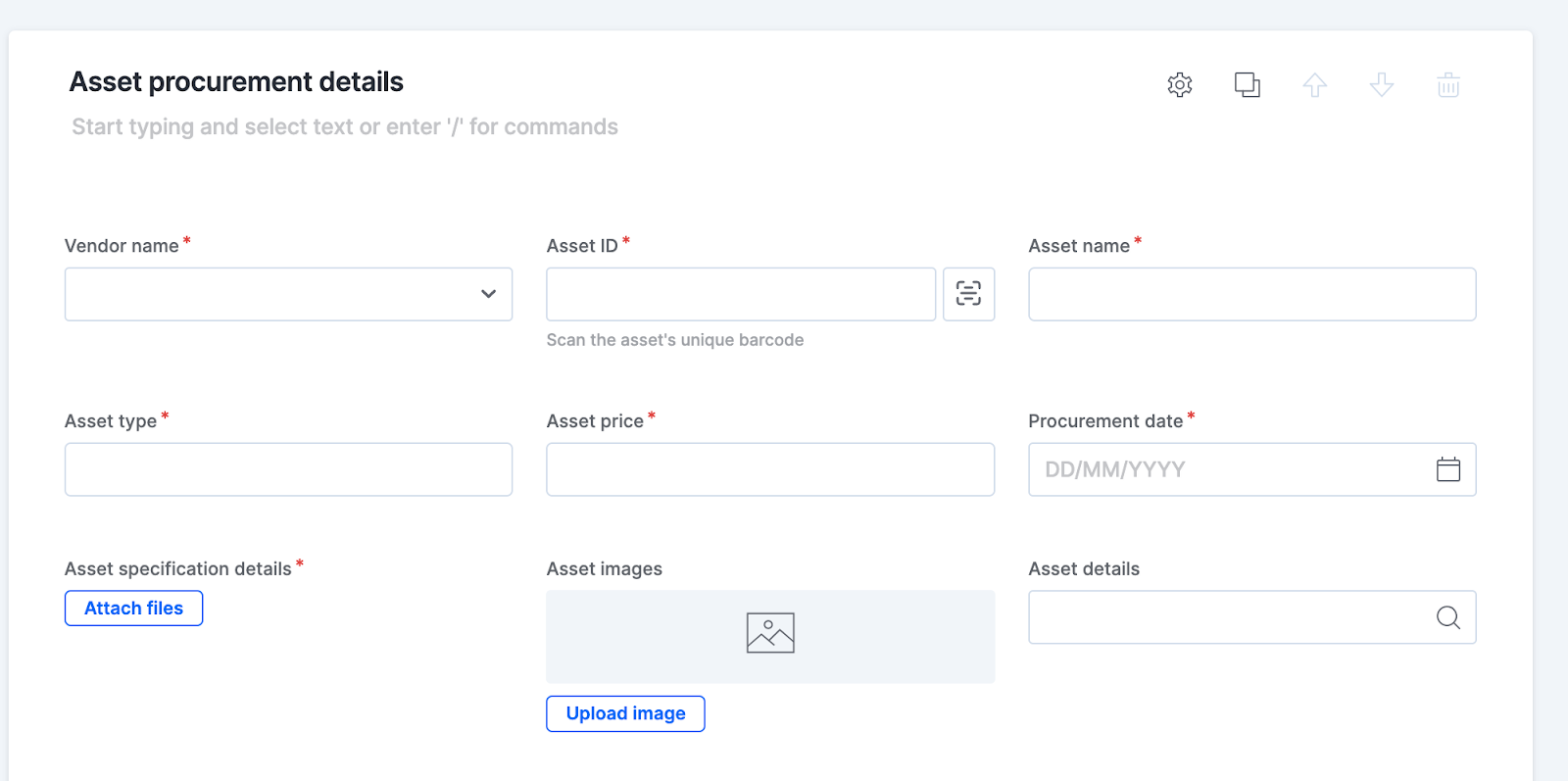
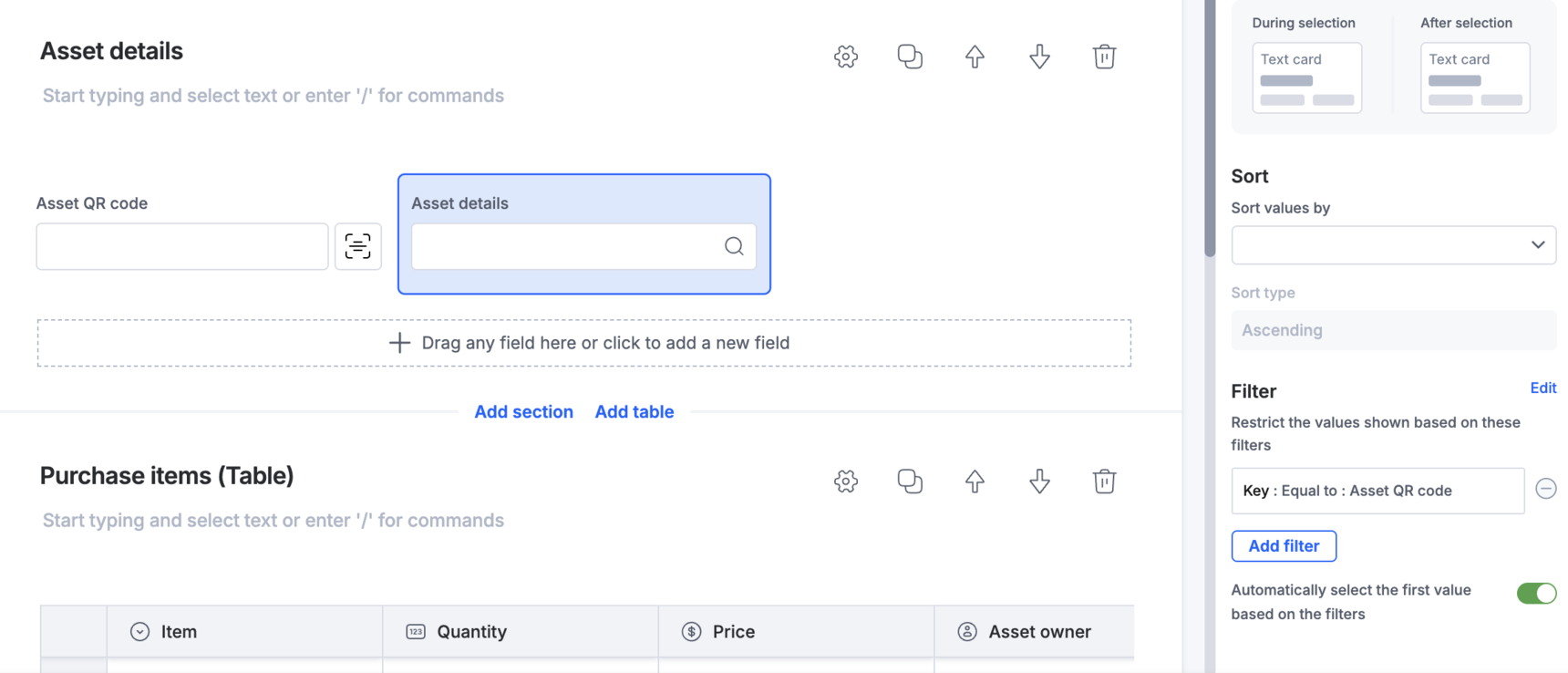
Create a process form, then add scanner (Asset ID), and lookup (Asset details) fields.
-
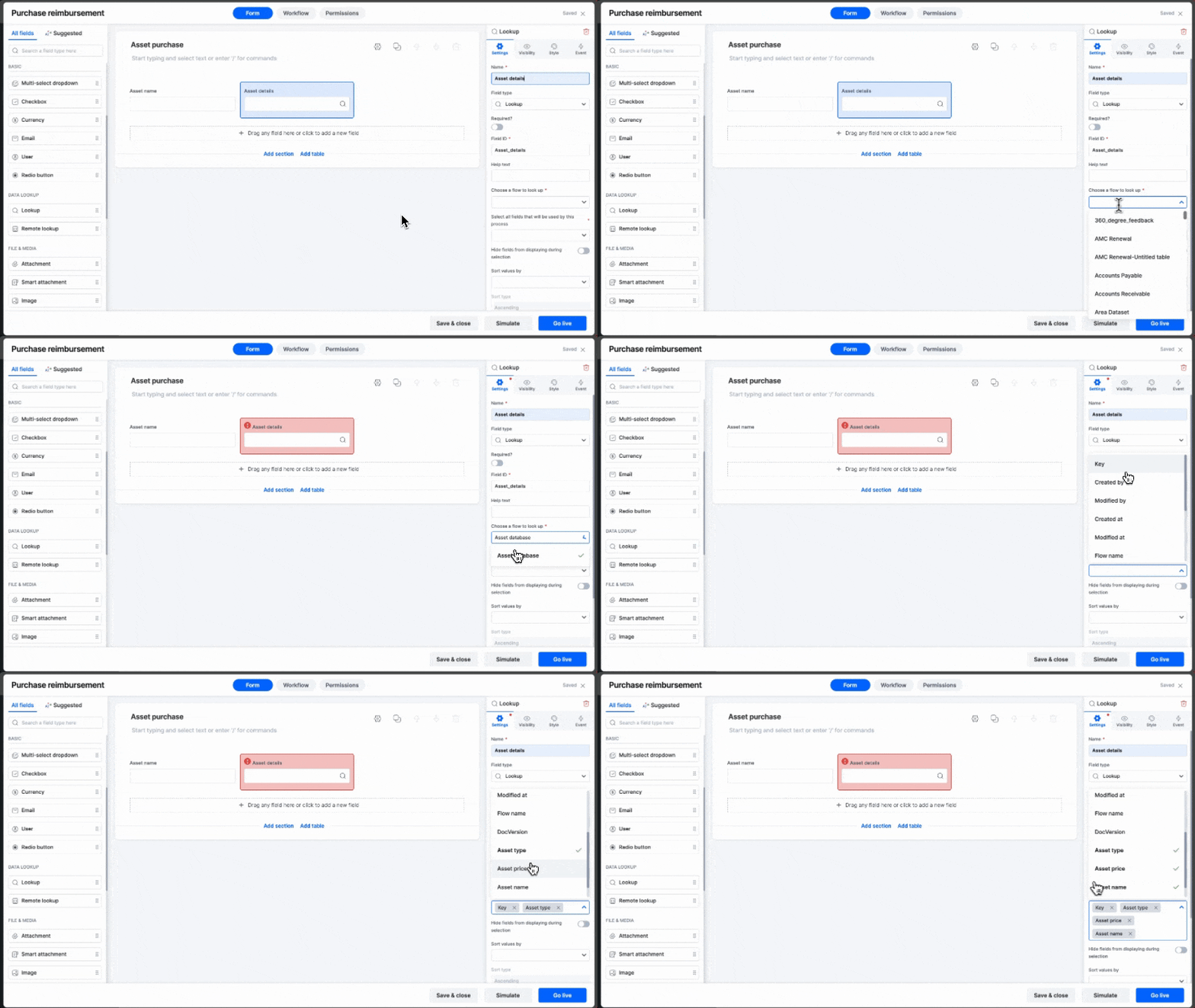
From the Asset details lookup field in your form, select the Asset database dataset so you can lookup dataset fields like Key, Asset type, Asset name, and Asset price.
-
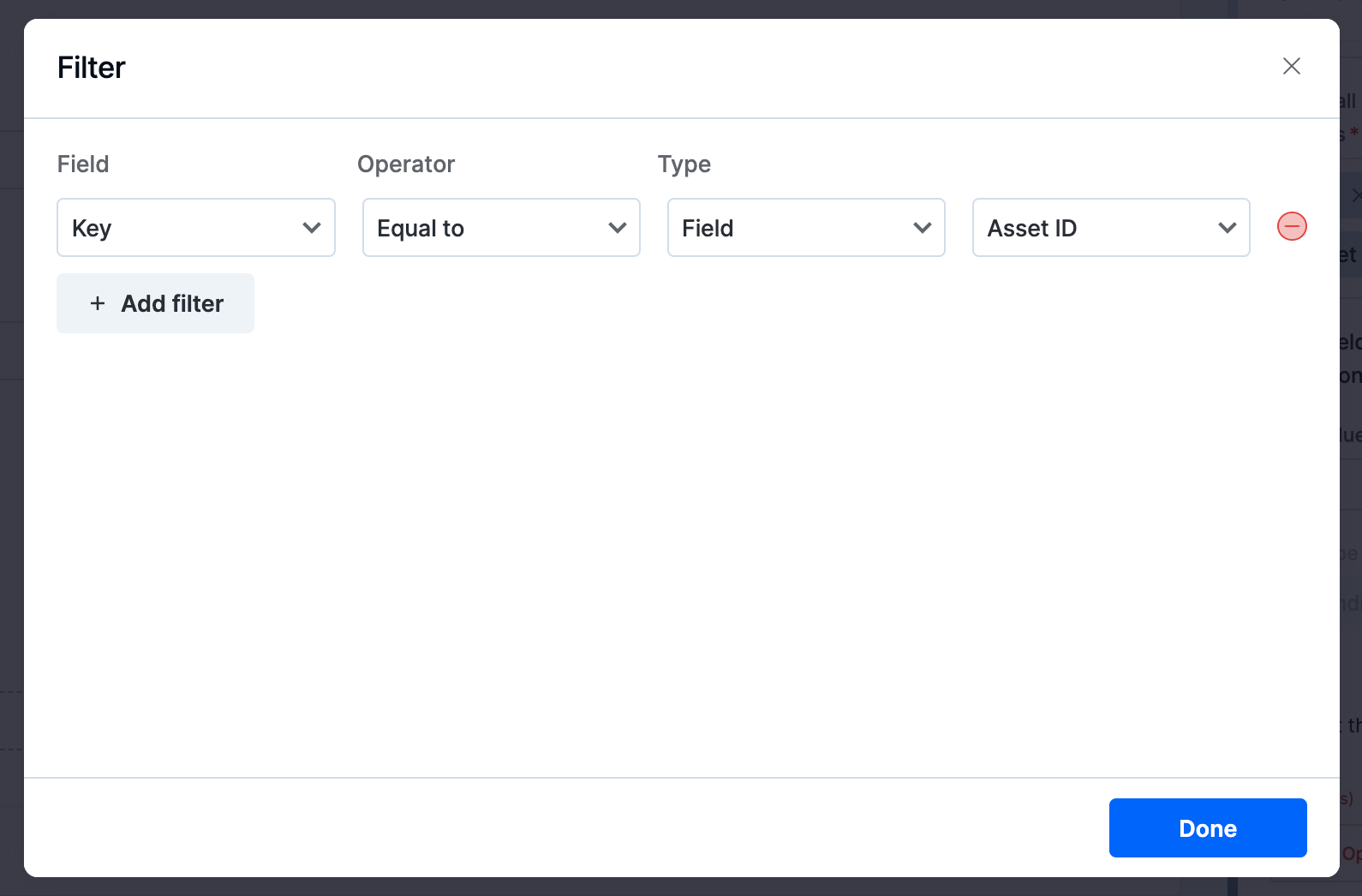
Add a filter to match the dataset key with the value fetched by the Asset ID scanner field.
-
Enable Automatically select the first value based on the filters.
-
Click Go live.
In the live process form, once you scan the asset’s barcode/QR code, the asset details will be auto-populated in the Asset details lookup field.