

Troubleshooting guide - common issues and solutions
Symptoms, causes, and fixes for common Kissflow issues — account access, form validation, process assignees, and integration errors.
Troubleshooting guide - common issues and solutions
This guide covers the issues Kissflow users run into most often, grouped by area, with the likely cause and how to fix each one. If a fix here doesn't resolve your issue, contact support via chat.
General
"Something went wrong. Please contact customer support."
This generic error can appear for several reasons — most often a recently added formula or a workflow misconfiguration. Start with the basics:
- Clear your browser cache and reload the page.
- Try the same action in an incognito/private window to rule out a stale cache or extension conflict.
- If a specific form or workflow triggers it consistently, check any formulas or automations you recently added there.
If the error persists, contact our support team via chat with the steps that reproduce it.
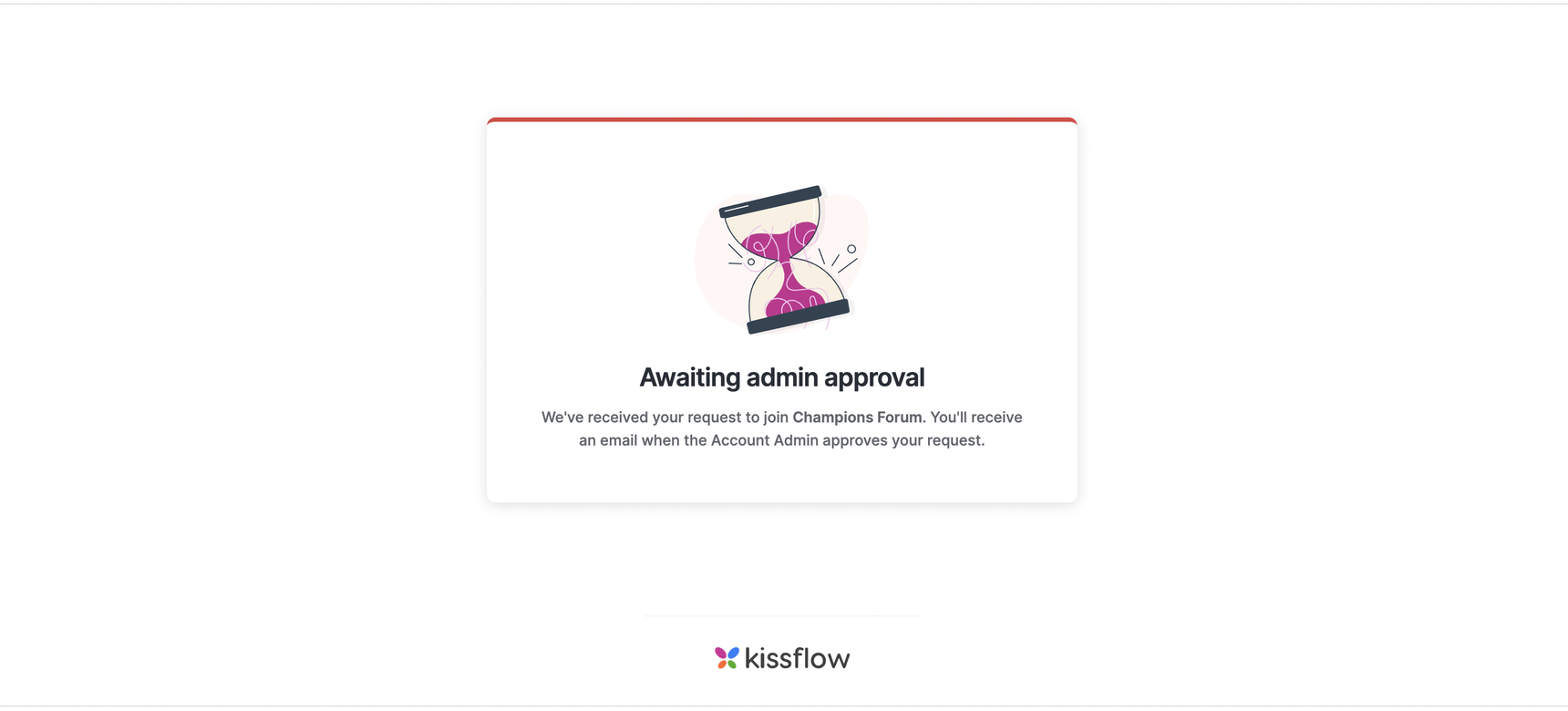
Account approval is pending after sign-up
New sign-ups are added to the account as pending users, not active ones. Every Kissflow account has a set of user licenses, and an Account Admin controls who gets activated with one. If your account is stuck in the pending stage, you can't sign in until an Account Admin manually activates it.
Contact one of your Account Admins and ask them to approve your access request.
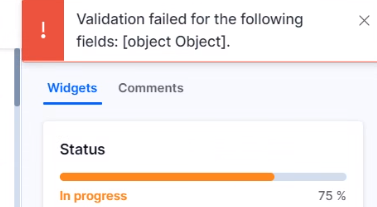
Validation error when submitting a workflow or project form
If a form won't submit and shows a validation error, check:
- Field values — make sure required fields are filled in and match the expected format.
- On-submit validation — a custom validation rule on the form may be rejecting the input.
- Sequence fields — misconfigured sequence number settings can also block submission.
If the form still won't submit after checking these, contact support.
Kissflow Homepage loads as an empty screen
This usually clears up with a hard refresh:
- Clear your browser cache.
- Reload the page.
If the homepage is still blank after that, contact support — it may be a browser extension or network issue on your end that's worth ruling out together.
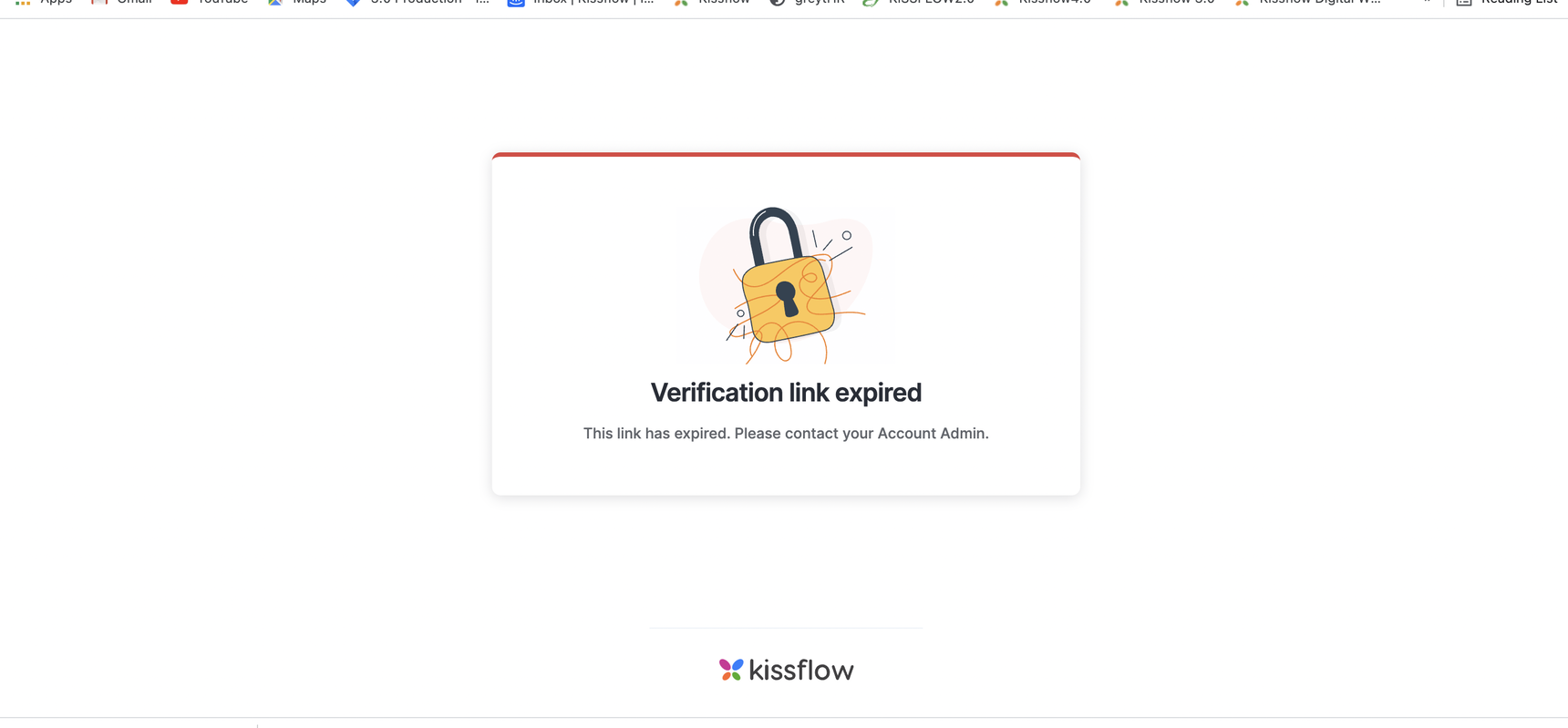
"Verification Link Expired" when signing in from the verification email
Account verification links are valid for 24 hours only. If you open the link after that window, you'll see the Verification Link Expired error instead of being signed in.
Ask your Account Admin to send you a new verification email.
Form changes don't show up when previewing a workflow
If you edit a workflow form and the preview still shows the old version, the preview is likely holding on to simulated data from an earlier run.
Click Reset data in the bottom-left corner of the preview form, then preview again.
Note
Resetting clears only the preview's simulation data — it doesn't affect any live requests already submitted on the form.
Workflows
Process
Send back and Reject buttons are missing from an approval step
If you're an approver and don't see the Send back or Reject buttons on a process form, the process administrator has hidden them for that step. Only the process administrator can restore them — contact them if you need those actions available.
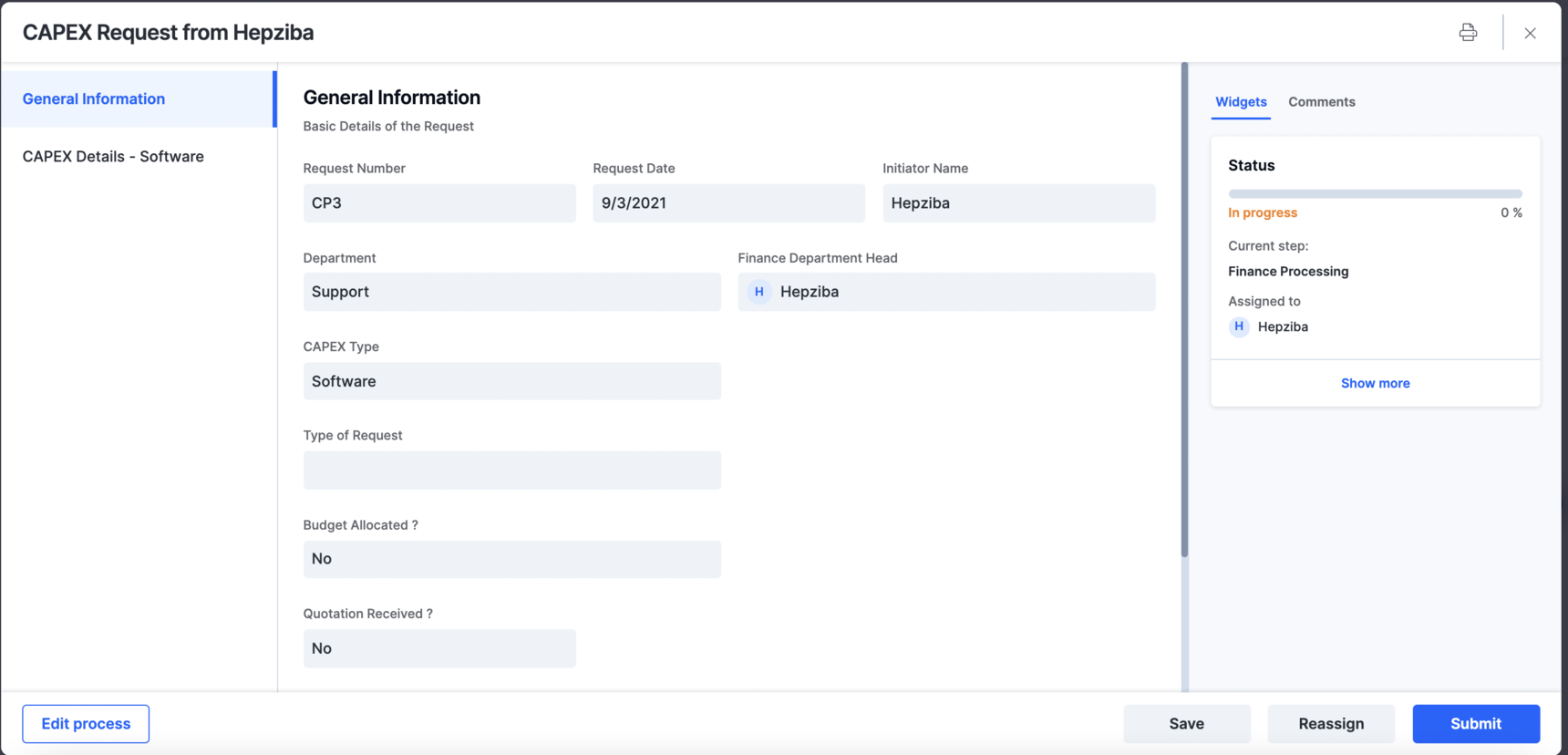
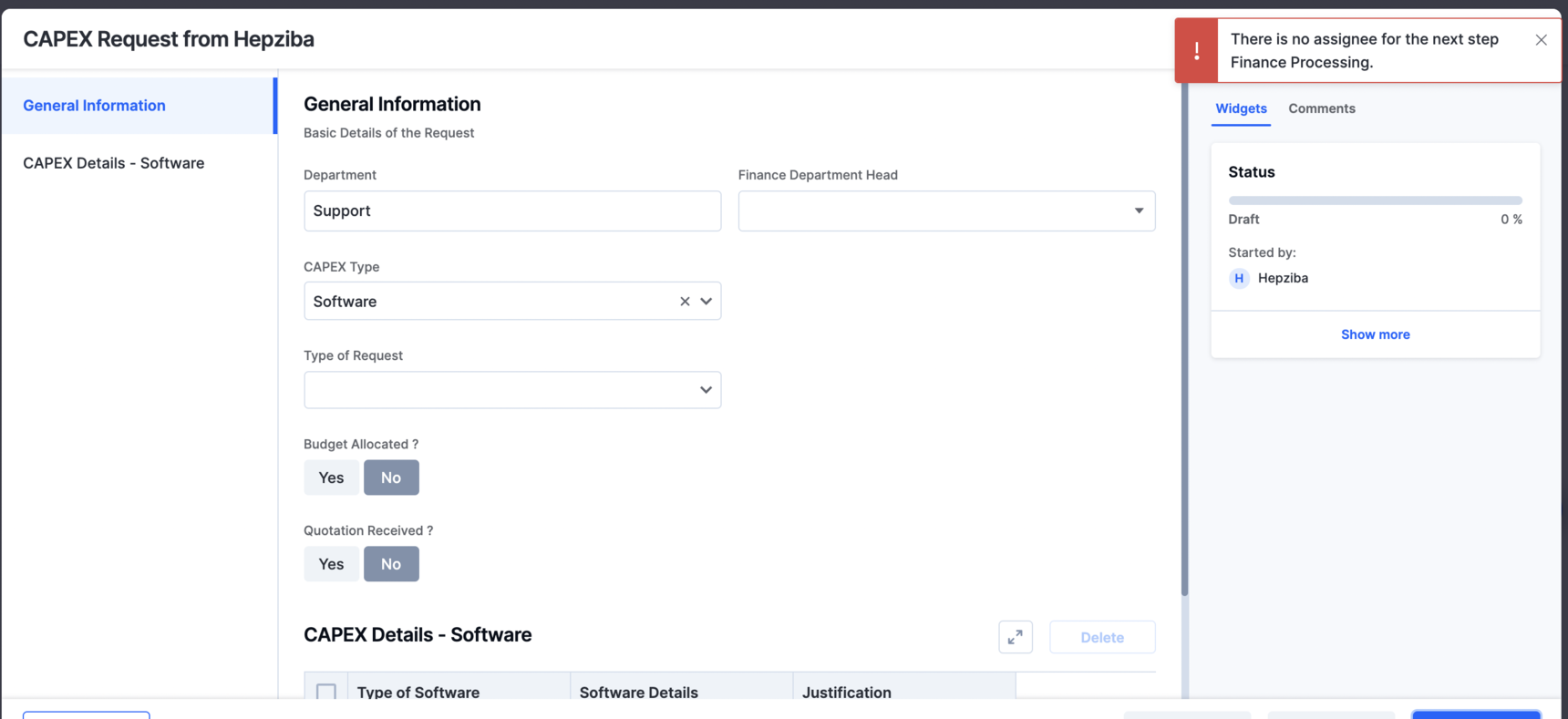
"There is no assignee for the next step" when initiating a request
This error means the next step in the process workflow doesn't resolve to a valid assignee. Check:
- The step's assignee configuration — is an assignee actually set for this step?
- Any formula used to determine the assignee.
- If the assignee comes from a lookup field, the lookup configuration itself — an empty or broken lookup result will leave the step without an assignee.
Changing a process form's title
As a process administrator, you can rename a process form's title:
- Open the process and click Manage at the top right.
- Go to Settings > General Settings.
- Use Configure form title to set the new title.
Integration
An integration with multiple steps fails with an unknown error
Every run of an integration is logged, including error details for failed runs. Check the run history for the specific step and error that failed:
- Click Explore > Managed by me > Integrations > Run history.
- Select the integration you want to check.
- Open the failed run to see which step failed and why.
New workflow fields don't appear in an integration step's configuration
Fields you add to a workflow after an integration step was already configured don't sync into that step automatically. Refresh the step to pick them up:
- Open the integration editor for the integration you want to update.
- Edit the trigger or action step that needs the new fields.
- In the configuration form, click Refresh fields in the bottom-left corner.
- Confirm the new fields now appear, then test the trigger or action again.