

Bot settings
Enable the Kissflow Bot so members can sign in to Kissflow and act on process and board notifications directly from Slack, Microsoft Teams, or Google Chat.
Bot settings
As a Super Admin, you can enable the Kissflow Bot for your organization's chat app — Slack, Microsoft Teams, or Google Chat. Once enabled, members can sign in to Kissflow from the chat app and receive real-time notifications about their processes and boards without switching tabs, then act on them (view, approve, reject, add notes) right from the chat.
Enable the Kissflow Bot
- Click your profile picture in the top right corner and go to Account administration > Account settings > Bot settings.
- Turn on the toggle for each chat app your organization uses: Google Chat, Slack, or Microsoft Teams.
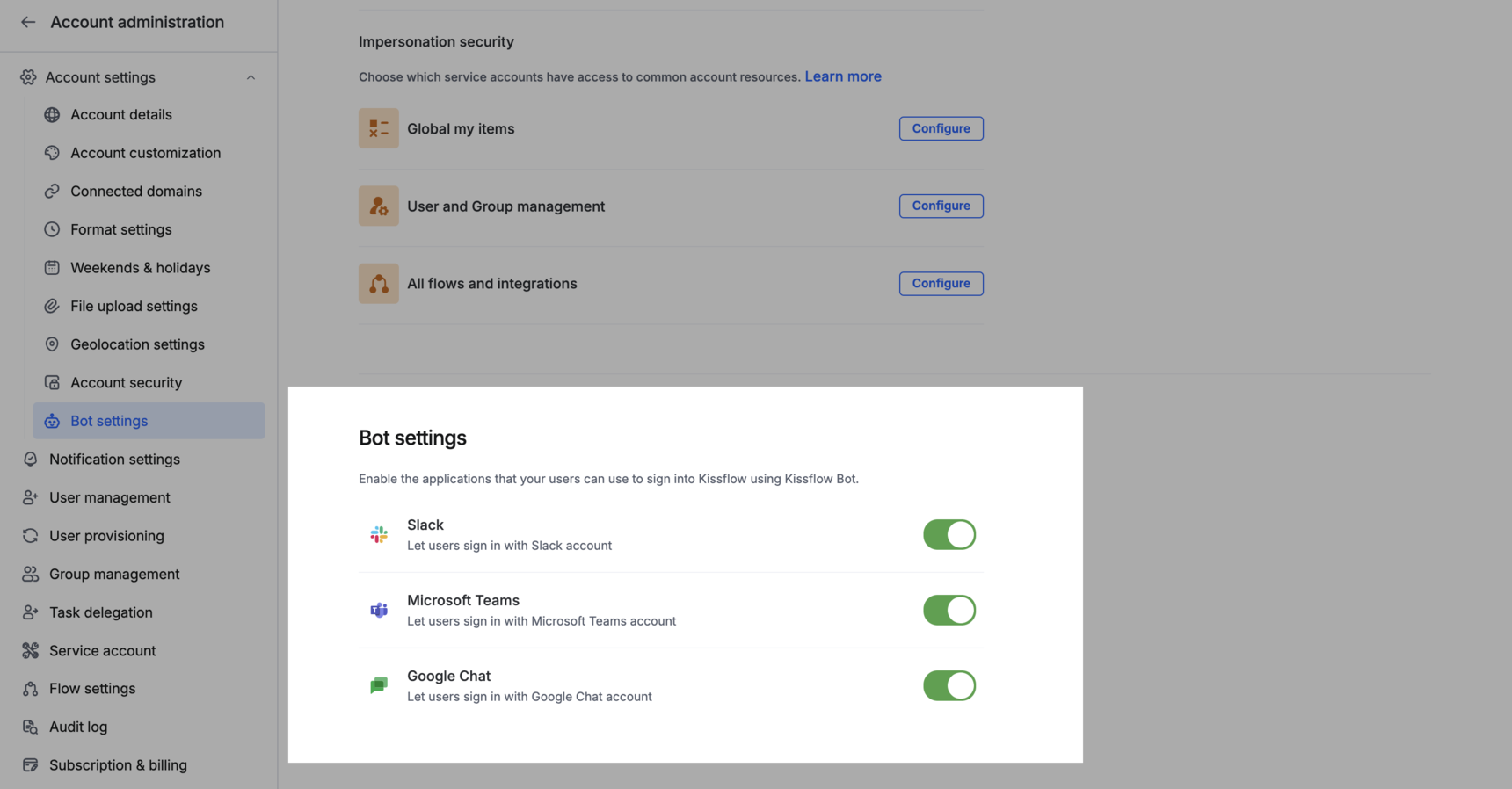
Once a chat app is turned on, members can sign in to it using the steps below.
Sign in to Kissflow from Google Chat
-
Install the Kissflow app:
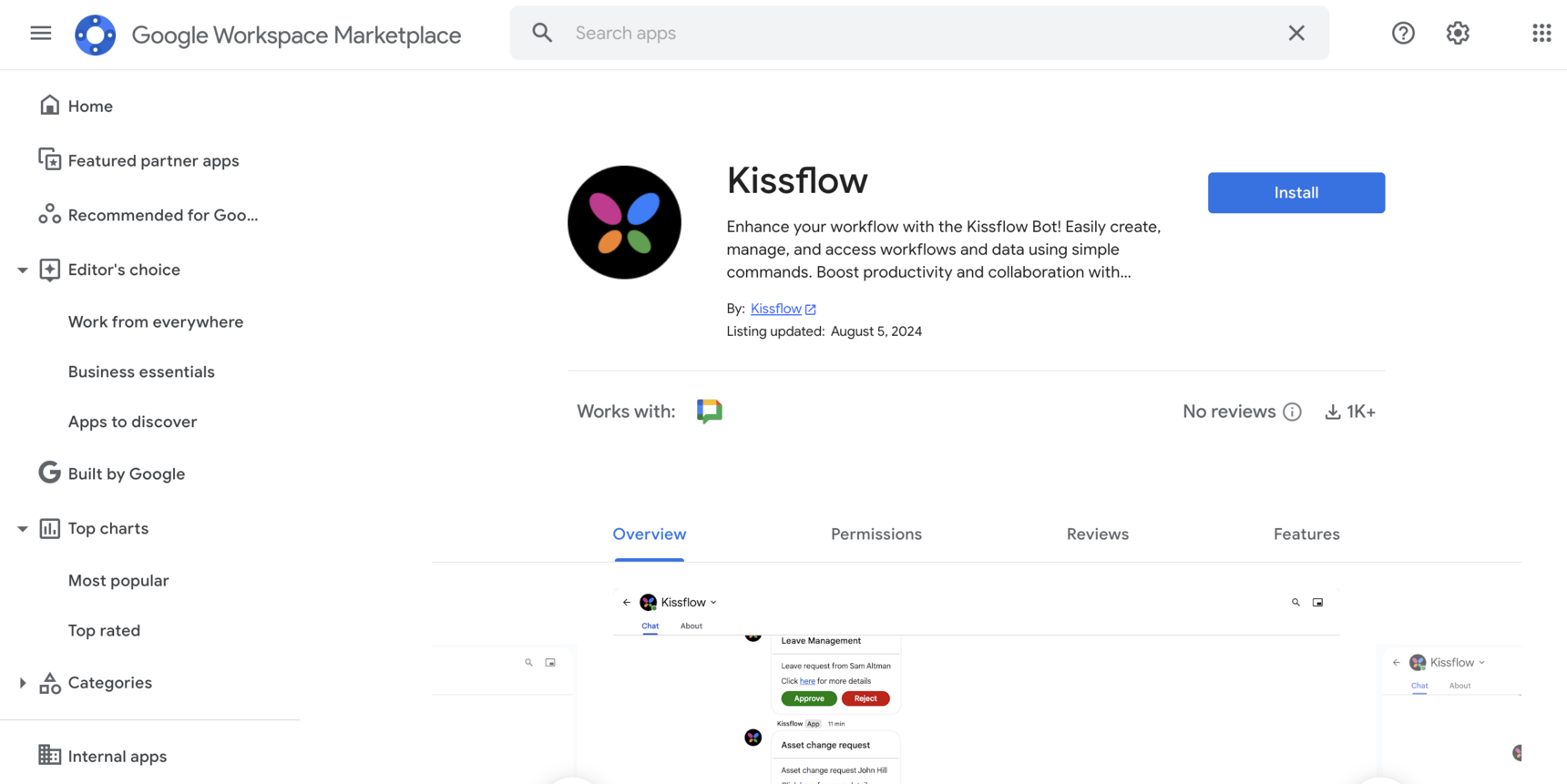
- Go to the Google Workspace Marketplace.
- Find the Kissflow app and install it.
-
Look for Kissflow in your Google Chat list.
-
Sign in to your Kissflow account:
- Type /login inside the Kissflow app and press Enter to sign in. A login URL is generated automatically.
- Click the login URL, enter your Kissflow account domain, and click Submit.
- Click Allow in the permissions popup that appears.
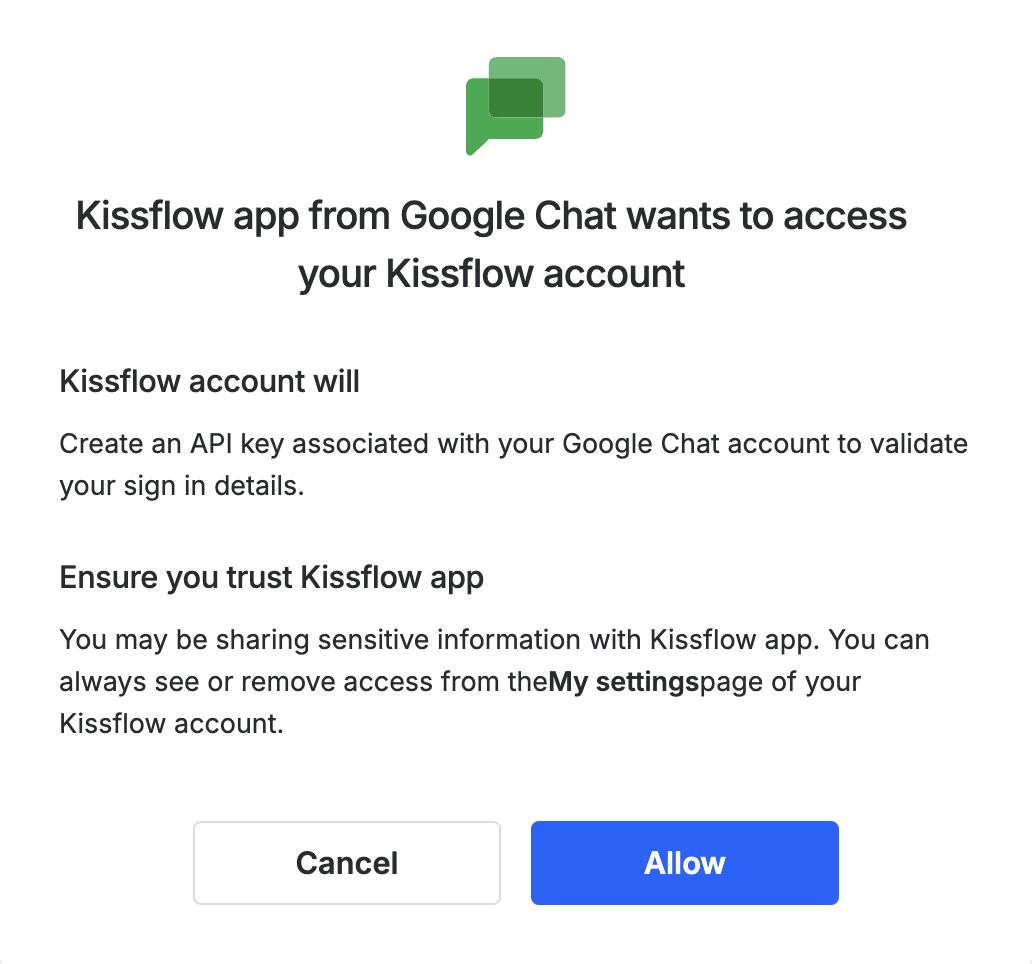
Once signed in, you'll start receiving notifications from your processes and boards directly in the Kissflow app within Google Chat. To sign out, type /logout and press Enter.
Sign in to Kissflow from Microsoft Teams
-
Install the Kissflow app:
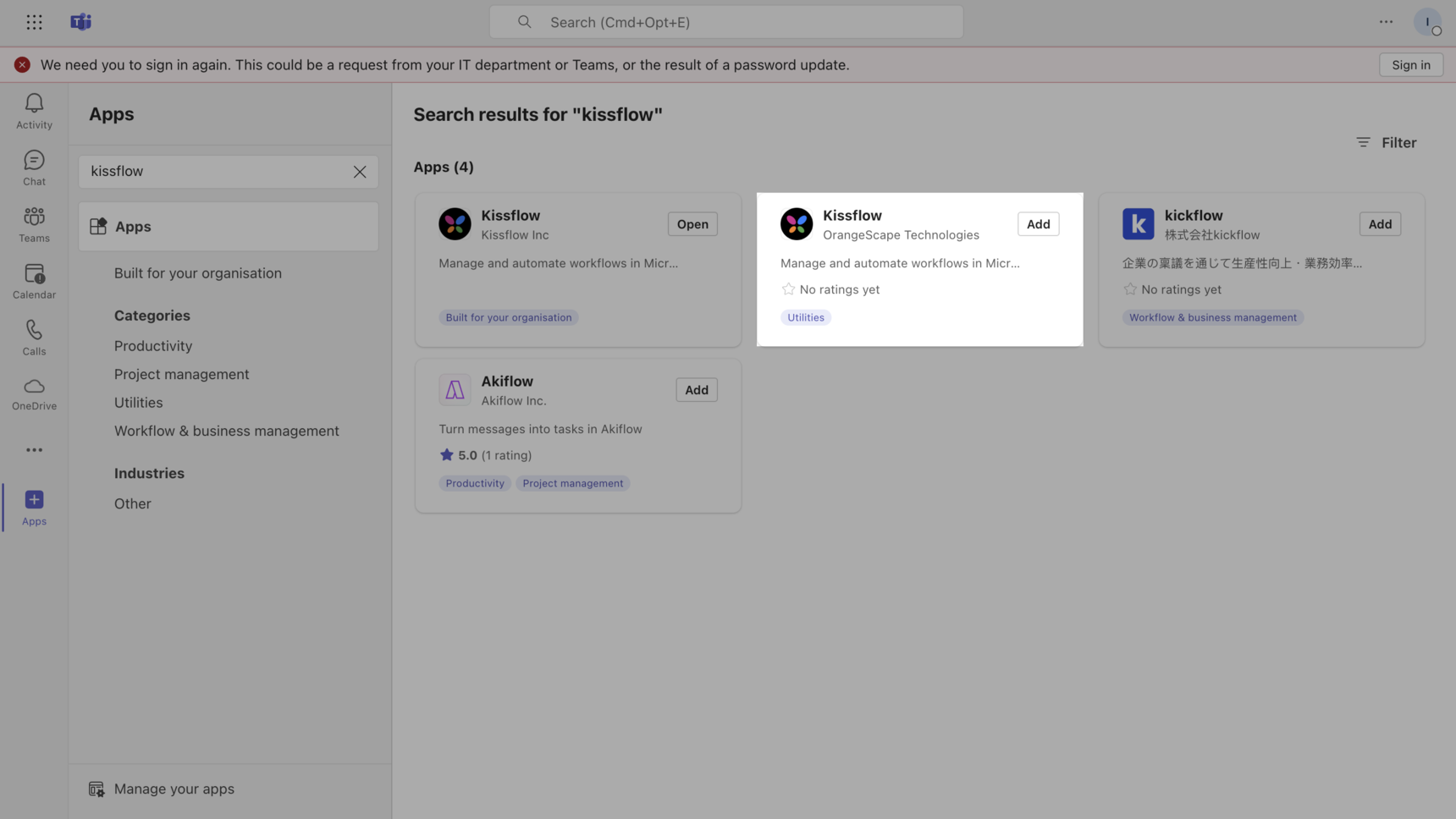
- On Microsoft Teams, click Apps in the left sidebar.
- Find the Kissflow app and add it.
-
Open your newly added Kissflow chat.
-
Sign in to your Kissflow account:
- Type login (no slash) inside the Kissflow app and press Enter to sign in. A login URL is generated automatically.
- Click the login URL, enter your Kissflow account domain, and click Submit.
- Click Allow in the permissions popup that appears.
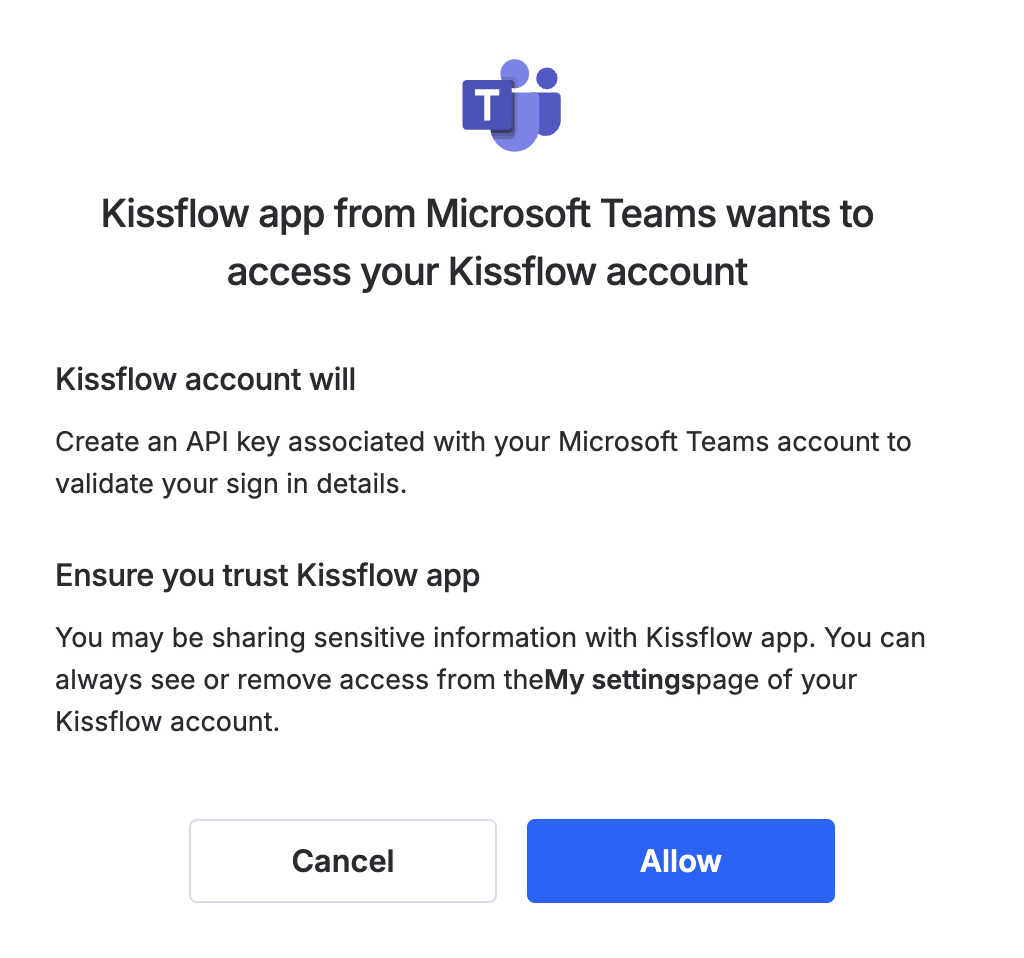
Once signed in, you'll start receiving notifications from your processes and boards directly in the Kissflow app chat within Microsoft Teams. To sign out, type logout and press Enter.
Sign in to Kissflow from Slack
- Install the Kissflow app:
- On Slack, click Apps.
- Find the Kissflow app and add it.
- Open your newly added Kissflow chat.
- Sign in to your Kissflow account:
- Type /login inside the Kissflow app and press Enter to sign in. A login URL is generated automatically.
- Click the login URL, enter your Kissflow account domain, and click Submit.
- Click Allow in the permissions popup that appears.
Once signed in, you'll start receiving notifications from your processes and boards directly in the Kissflow app chat within Slack. To sign out, type /logout and press Enter.
Notification actions
Members can act on a notification directly from the card that appears in their chat app:
| Module | Available actions |
|---|---|
| Process | View item, Approve item, Reject item |
| Board | View item, Add note |
Notification events
Notifications from processes and boards are sent to the chat app for the following events:
| Module | Event | Recipient |
|---|---|---|
| Process | Item assigned to a user | Assignee |
| Process | Item approved | Item initiator |
| Process | Item rejected | Item initiator |
| Process | Item reassigned | Newly assigned user |
| Process | Item deadline breached | Assignee |
| Board | Item assigned to a user | Assignee |
| Board | Item deadline breached | Assignee |
| Board | User mentioned in a note | Mentioned user |
Note
The events and recipients above reflect standard notification behavior. Your organization's notification settings can further customize which events are sent for specific processes, boards, or apps.