User notification settings
Turn on email, web app, push, and bot notifications for your account, and customize notification channels for specific processes, boards, datasets, apps, or portals.
User notification settings
Notification settings lets you customize how and when you're notified about activity in your Kissflow account. You can control which channels you receive notifications on, and fine-tune notifications for individual processes, boards, datasets, apps, or portals.
Global notifications
-
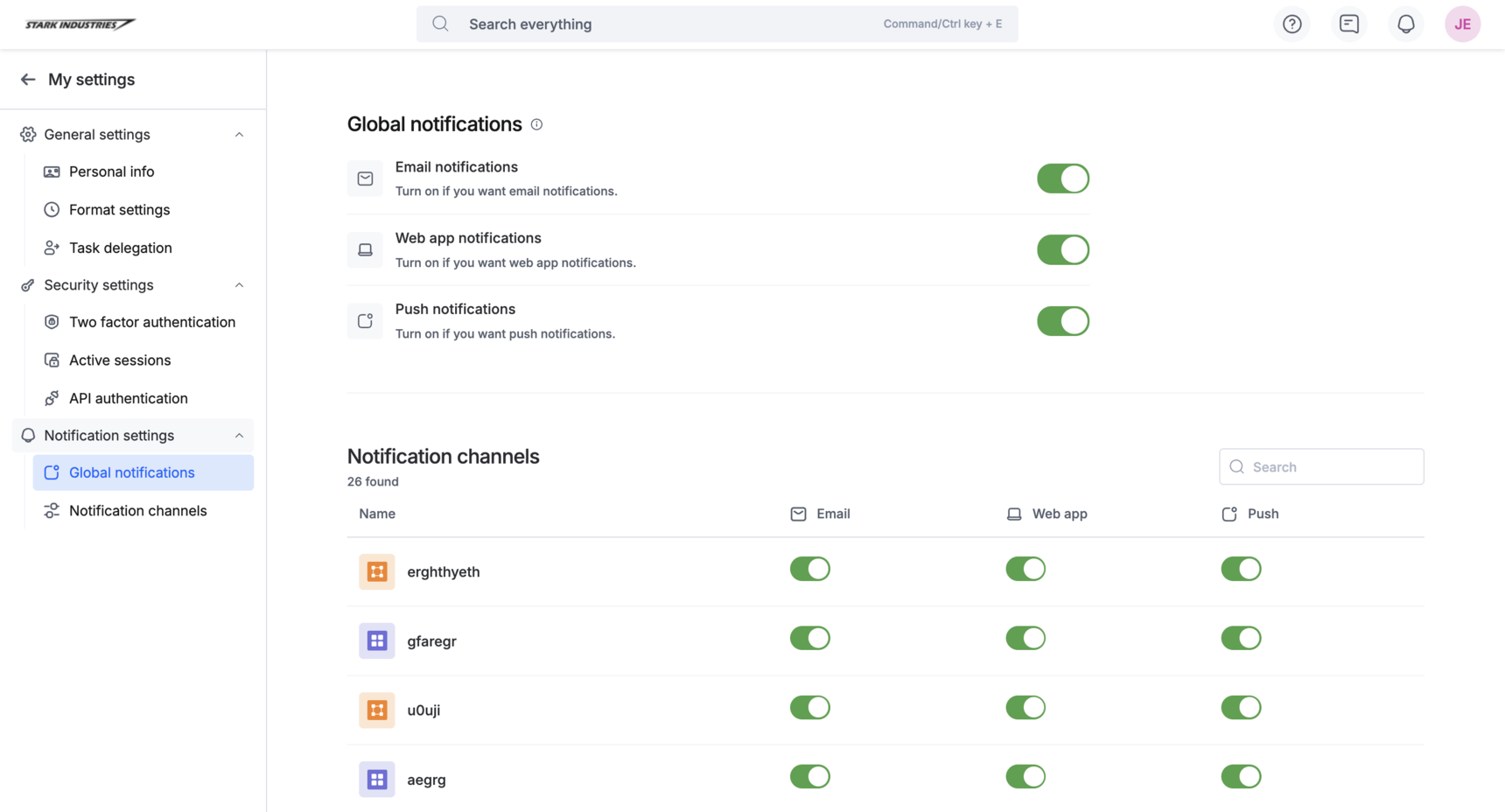
Click your profile picture > My settings > Notification settings.
-
Under Global notifications, turn the following toggles on or off:
- Email notifications — turn this ON to receive notifications via email.
- Web app notifications — turn this ON to receive notifications within the web application.
- Push notifications — turn this ON to receive push notifications. When you enable this for the first time, your browser may prompt you to allow desktop notifications from Kissflow — if you deny the prompt, push notifications won't work until you re-enable them in your browser settings.
- Bot notifications — turn this ON to receive notifications from the Kissflow bot.
Note
Essential system notifications — such as those related to account security and user management — are prioritized and sent regardless of your channel settings, to make sure you don't miss critical updates.
Note
The examples below illustrate the kind of system notifications that bypass your channel settings. The exact list may vary and isn't limited to these events.
| Notification | Trigger |
|---|---|
| User activated | A user's account is activated. |
| User deactivated | A user's account is deactivated. |
| Resend email verification | The verification email is resent. |
| Email address updated | A user's email address is updated. |
| User created | A new user is created. |
| Reset password | A user's password is reset. |
| 2FA status changed | A user's two-factor authentication status is changed. |
| Two factor verification | Two-factor authentication is enabled with an email code. |
| Domain verification | A verification email is sent to connect a domain. |
| Waiting for admin approval | A user creates a process, board, or dataset that requires admin approval. |
| Export | An export related to a user, board, dataform, dataset, or report is carried out. |
Notification channels
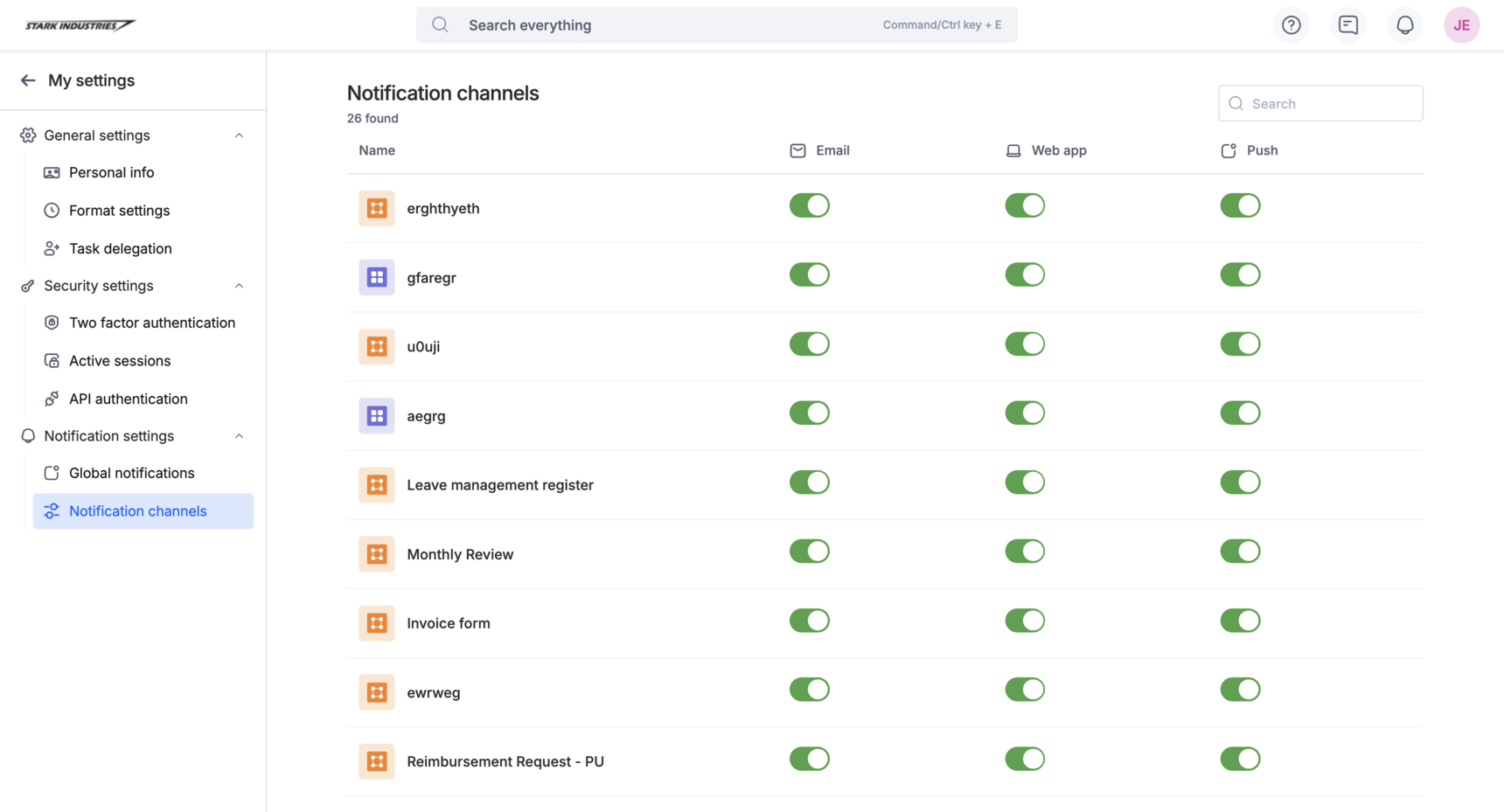
Beyond the global toggles, you can customize notifications for a specific process, board, dataset, app, or portal. This lets you, for example, mute push notifications for one board while keeping email notifications on for another.
Click Notification channels to see every process, board, dataset, app, and portal you're part of, along with its own Email, Web app, Push, and Bot toggles.