

File upload settings
Choose which file attachment services your account users can upload from, and see how Kissflow keeps uploaded attachments secure.
File upload settings
As a Super Admin, or an IAM Admin, you control which file attachment services account users can upload files from in Kissflow.
Choose your attachment services
- Click your profile picture in the upper-right corner of the Home screen.
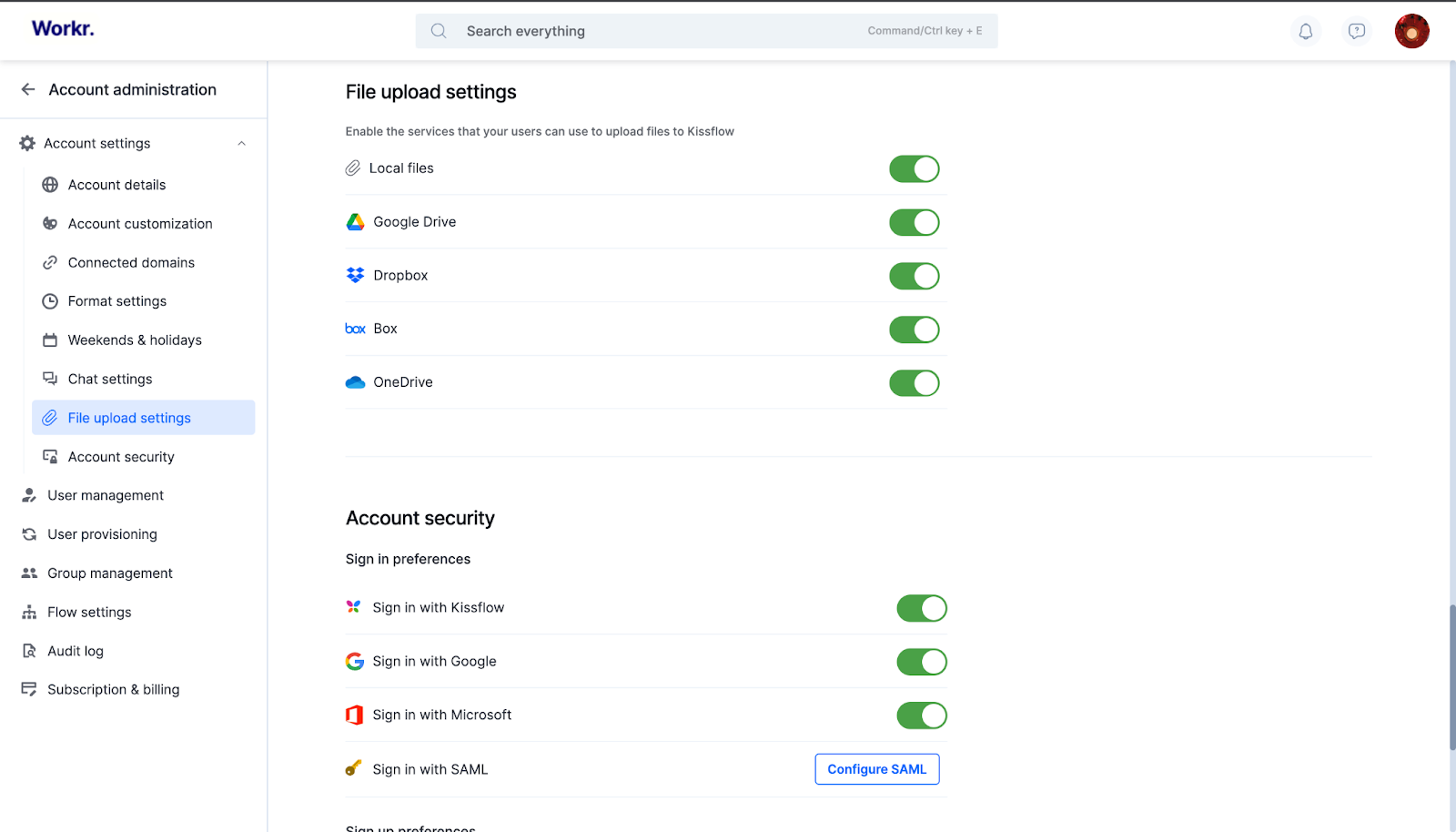
- Click Account administration > Account settings > File upload settings.
- Turn the toggle on or off for each service you want to allow:
- Google Drive
- Dropbox
- Box
- OneDrive
- Local files
Note
At least one service must stay enabled. Kissflow won't let you turn off the last remaining toggle, since users need at least one way to upload attachments.
How Kissflow secures your attachments
All Kissflow attachments are hosted in Google Cloud Storage (GCS). Data is encrypted in transit and at rest using GCS's standard security policies, with Kissflow's application and GCS mutually authenticating each other.
To upload or download an attachment, Kissflow generates a secure link so the file transfer happens directly between the client and GCS instead of routing through additional hops.
Kissflow also blocks manipulated or disguised files from being uploaded. For example, if only JPGs are allowed for a field and someone tries to upload a .exe file renamed with a .jpg extension, Kissflow detects the mismatch and blocks it. This check is based on the file's metadata — its name, extension, and declared type — rather than inspecting the file's contents, for privacy.
Tip
If you can't preview an uploaded file, it's likely disguised or invalid. Treat this as a safety flag worth double-checking.
Validation rules for attachment fields
Beyond account-wide upload settings, admins building a flow's form can add validation rules to individual attachment fields — including Smart attachment fields and attachments on multilingual and public forms. These rules are set on the Validations tab of the field:
- Minimum number of attachments — the least number of files required for the field.
- Maximum number of attachments — the most files a user can add to the field.
- File type restrictions — limit uploads to specific formats, including images (JPG, JPEG, PNG, BMP, GIF, TIF), documents (DOC, DOCX, PDF), presentations (PPT, PPTX), spreadsheets (XLS, XLSX), and others (CSV, TXT, EML).
- Attachment size limit — cap file size, up to 100 MB.
Note
For more on configuring these fields, see Image, Attachment, Smart attachment, and Signature fields.