

Flow settings
Control who can create new flows, enable or disable flow types, and manage account-wide print, download, and email action permissions.
Flow settings
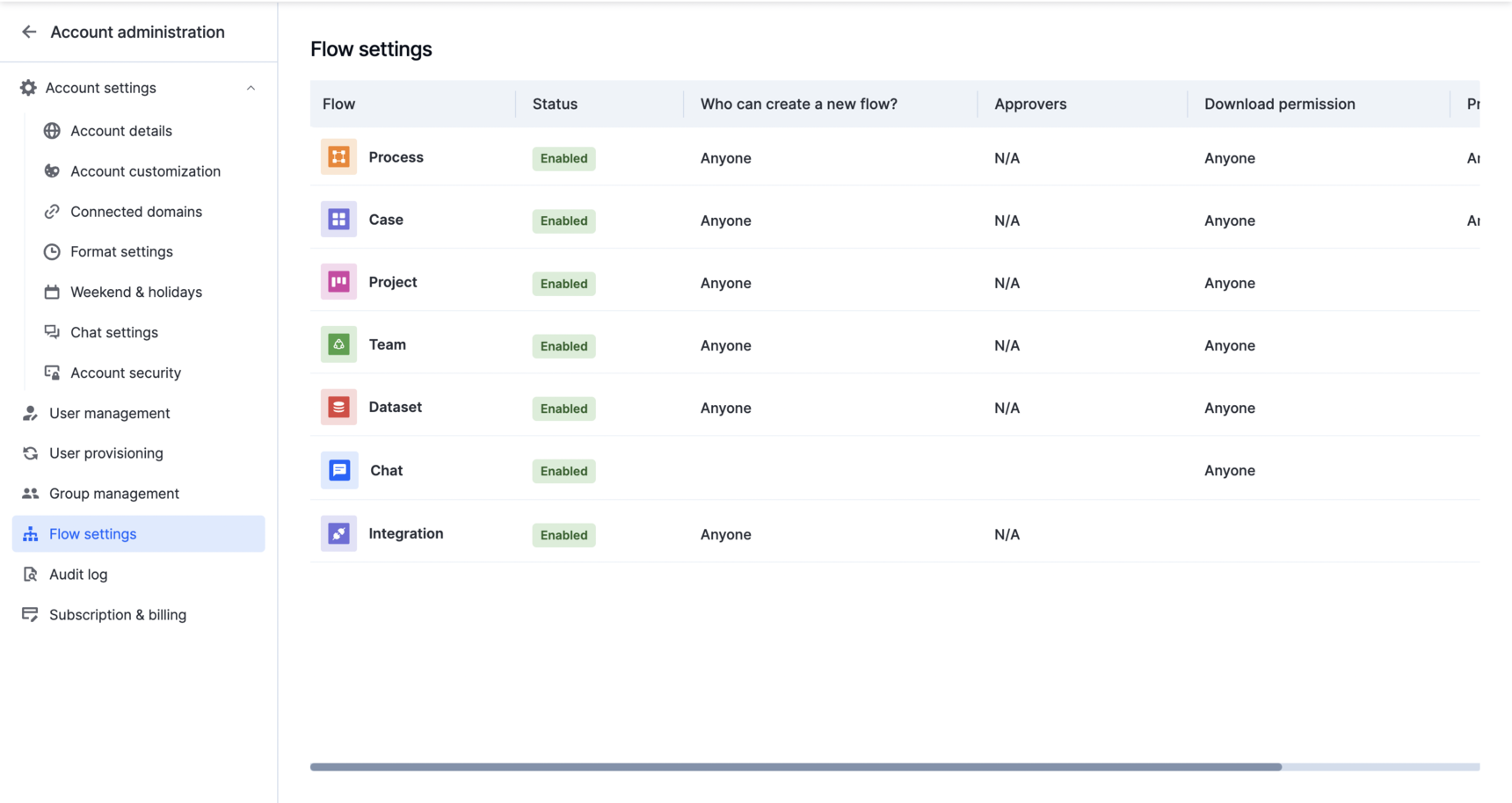
Super Admins and IAM Admins can control who's allowed to create new flows in your account, enable or disable flow types, and set account-wide print, download, and email action permissions.
Access flow settings
- Click your profile picture at the top right.
- Select Account administration > Flow settings.
All flow types — process, board, dataset, and integration — are enabled by default.
Enable or disable a flow type
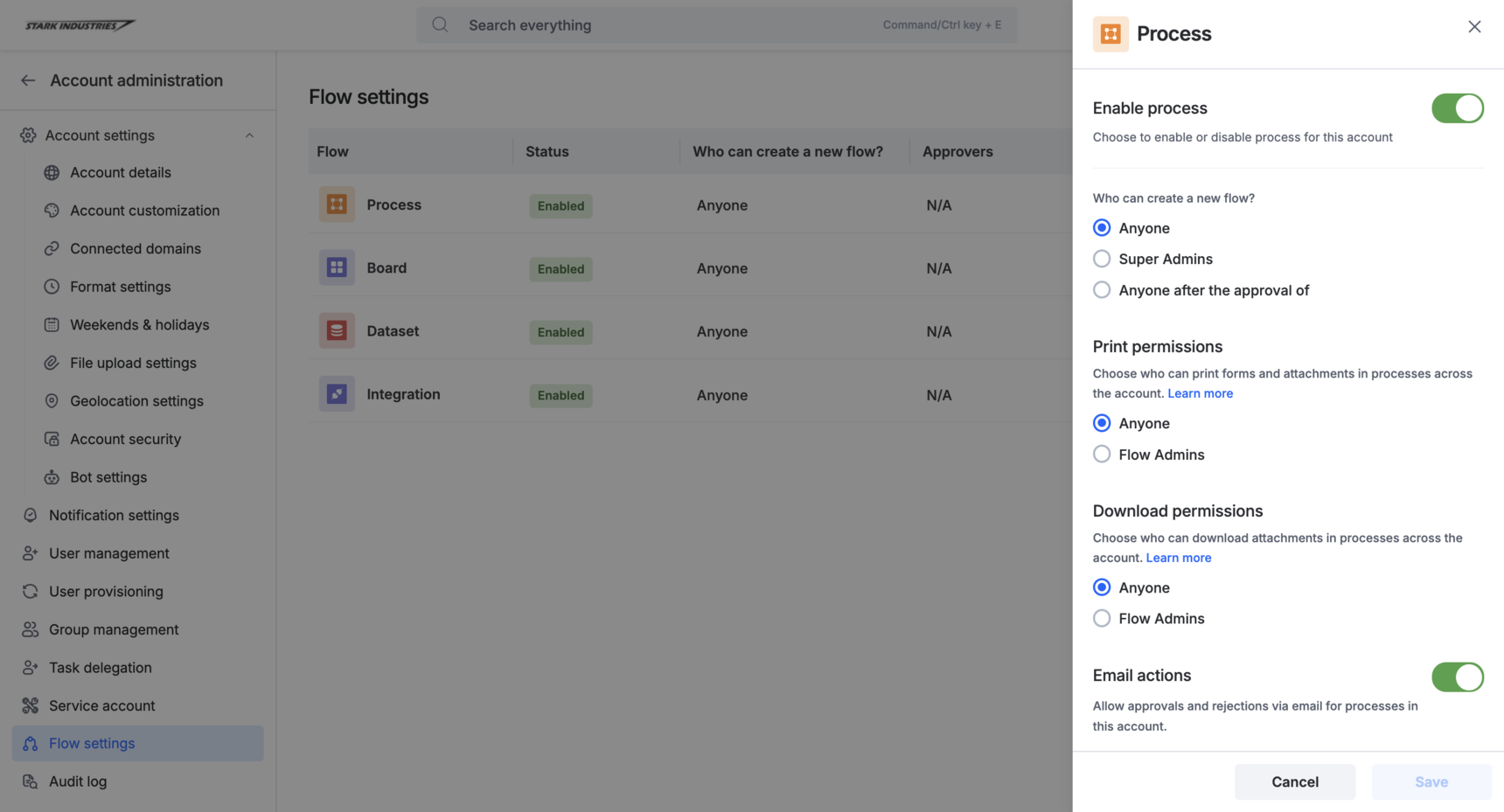
- On the Flow settings page, click the flow type you want to configure.
- Toggle the flow type on or off.
Important
If you disable a flow type, its existing data becomes temporarily inaccessible and no one can create a new flow of that type until you enable it again.
Control who can create a new flow
- On the Flow settings page, click the flow type you want to configure.
- Under Who can create a new flow?, choose one of three options:
- Anyone — every user in the organization can create a new flow of this type without approval.
- Super Admins — only the Account Owner and Super Admins can create a new flow.
- Anyone, after the approval of — any user can request a new flow, but it's created only after the approvers you specify approve the request. Use the dropdown to add or remove approvers.
Note
Changing this setting only affects new flow requests going forward — it doesn't change access on flows that already exist.
Print and download permissions
For process, board, and dataset flows, you can control whether users can print forms or download attachments.
- On the Flow settings page, click the flow type you want to configure.
- Under Print and Download, toggle between:
- Anyone — any user can print or download.
- Flow Admins — only Flow Admins can print or download.
Note
This is an Account Administration–level setting. When it's set to Flow Admins, it takes precedence over any print or download permission configured at the individual flow's security settings.
Email actions
For process flows, Email actions lets assignees approve or reject items directly from their email inbox, without logging into Kissflow.
- On the Flow settings page, click Process.
- Toggle Email actions on.
Learn more in Email actions.