Security settings for flows
Control how a process, board, dataset, or dataform shares data with other flows, plus print, comment, watcher, and impersonation permissions.
Security settings for flows
Flow Admins can control how their process, board, dataset, or dataform shares data with other flows in your Kissflow account. The Security page gives you two layers of control — an account-wide default and per-flow overrides — plus a set of access controls for printing, downloading, commenting, watching, and impersonation.
Access security settings
- Go to the process, board, dataset, or dataform you want to manage.
- Click Manage > Security.
Global permissions
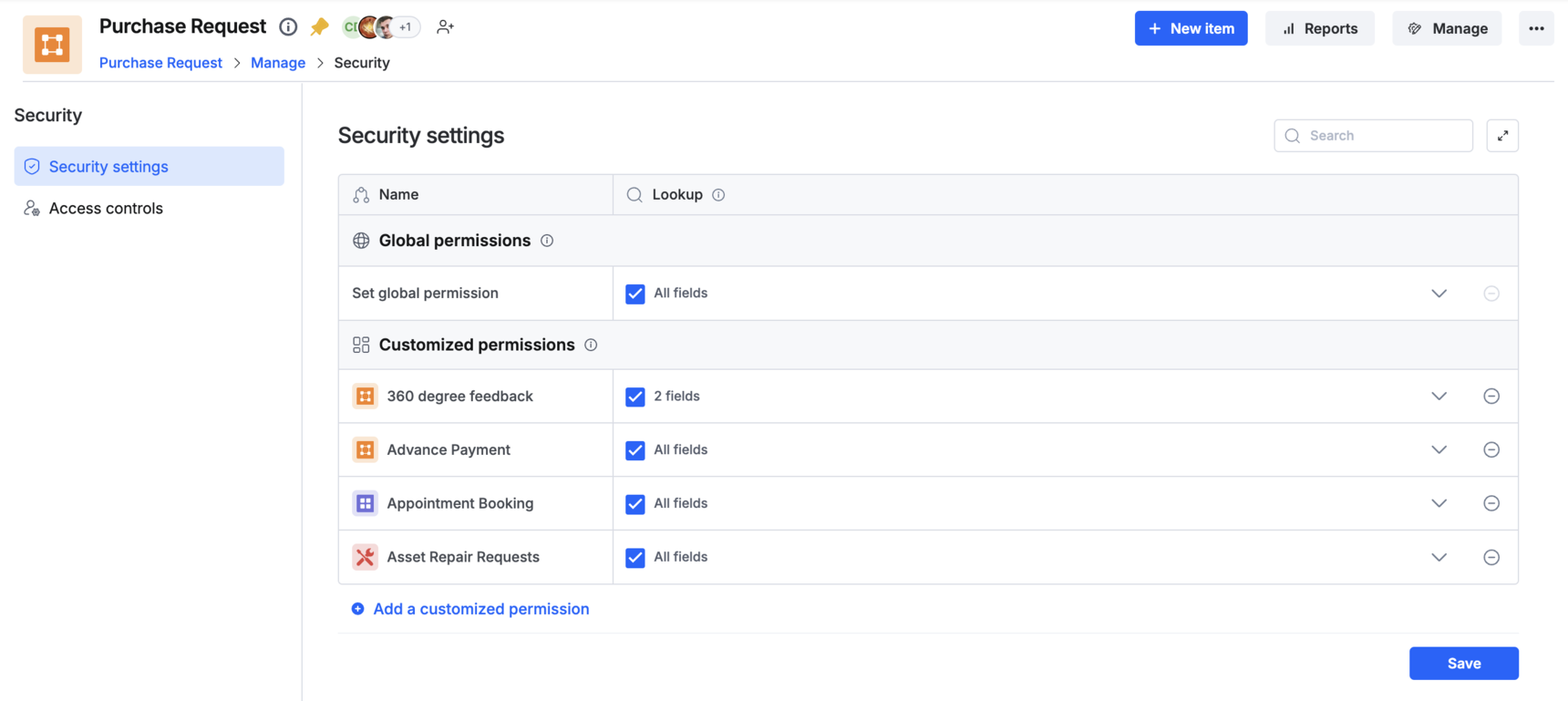
Global permissions are the default access rule that applies to every flow in your account. Today, Lookup is the only permission with a true global toggle — an All flows setting that's turned on by default, so any flow in your account can look up this flow's data unless you turn it off or override it for a specific flow.
Note
Integration access doesn't have a global setting. It must be granted to each flow individually — see Customized permissions below.
Turn off global lookup access
- On the Security page, find the Global permissions section.
- Clear the Lookup checkbox for All flows.
Unchecking it means no flow in the platform can look up this flow's data by default — you'd need to grant access to specific flows individually instead.
Important
Turning off global Lookup access restricts it across every flow unless you override it with a customized permission for a specific flow.
Customized permissions
Customized permissions let you grant or restrict access for one specific flow, overriding whatever the global setting says for that flow. Use them when most flows should follow the global default but a handful need an exception — or, for Integration access, because that's the only way to grant it at all.
Set up a customized permission
- On the Security page, under Customized permissions, click Add flow and select the flow you want to configure.
- Choose the permissions to grant:
- Lookup — select All fields to expose every field, or Select fields to expose only specific ones.
- Integration access — turn this on to let the flow be used as a data source or trigger in another flow's integration steps. This is the only place to grant Integration access, since there's no global setting for it.
- Save your changes.
When you add a flow this way, it starts out carrying over the current global settings, which you can then override.
Note
If a flow has no customized permission, it simply follows the global permission settings.
Remove a customized permission
- On the Security page, find the flow under Customized permissions.
- Click Remove customized permission next to the flow.
- Review any lookup fields that depend on this permission — removing it may affect them.
- Click Remove to confirm.
The flow immediately reverts to the global permission settings, and any specific permissions you'd configured for it are lost.
Share lookup fields within apps
For apps built in Kissflow:
- App Admins can link apps together.
- When linking, an App Admin can choose which fields from the source flow are accessible to the destination app.
Access controls
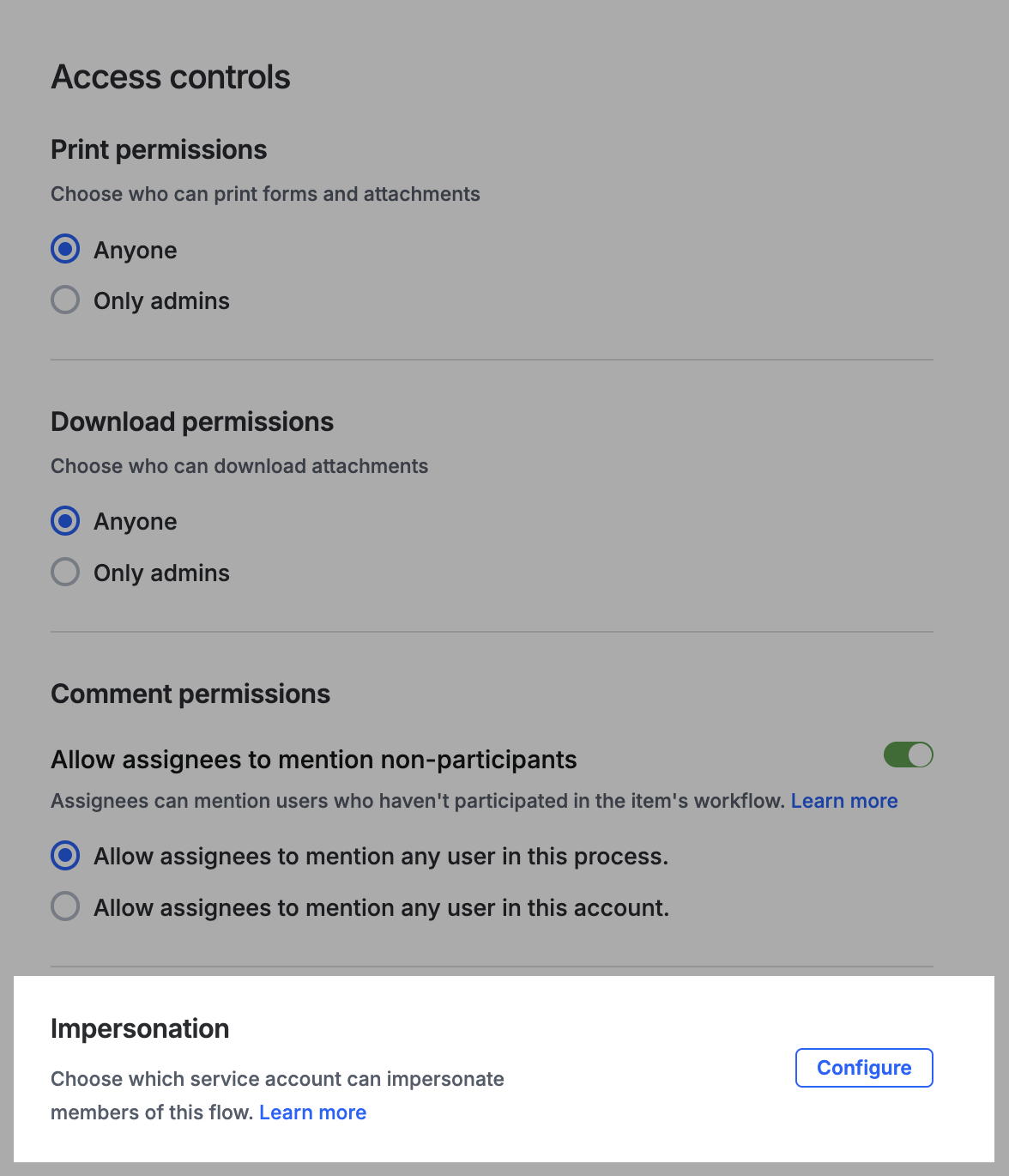
Flow Admins can allow or restrict permissions that affect users' ability to print forms, download attachments, mention people in comments, add watchers, and impersonate other users.
Print and download permissions
For each flow, you can toggle Anyone or Only admins for print and download access. Anyone lets any user download attachments or print forms; Only admins restricts both actions to Flow Admins.
Note
This is a flow-level setting. It can be overridden by permissions set at the Account Administration level, which take precedence when configured.
Comment permissions
Participants vs. non-participants
| Participant | Non-participant | |
|---|---|---|
| Definition | A user who has participated in the item's workflow up to the current step | A user who hasn't participated in the item's workflow up to the current step |
| Includes | The item's initiator and every approver up to the current step | Future assignees, and any account user not part of the process |
For example, if an item is currently at step C, its initiator and the approvers from steps A and B are participants — everyone else is a non-participant.
Allow assignees to mention non-participants
As a Flow Admin, you can let assignees mention non-participants in an item comment, bringing them into a discussion for context without adding them to the workflow.
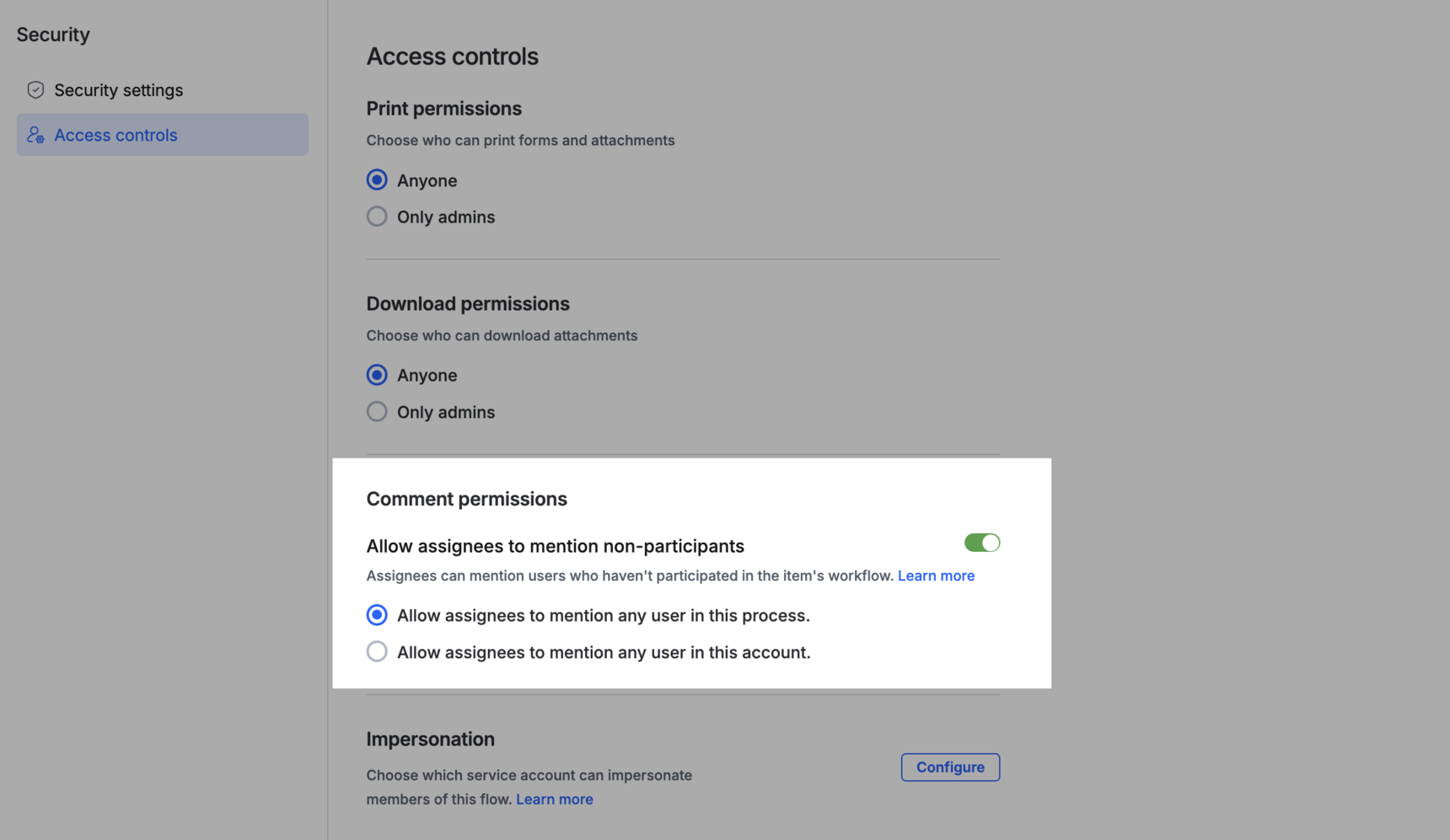
- Go to Manage > Security > Access controls > Comment permissions.
- Enable Allow assignees to mention non-participants.
- Choose a scope:
- Allow assignees to mention any user in this process — assignees can mention any user the process is shared with, whether or not they've participated so far.
- Allow assignees to mention any user in this account — assignees can mention any user in the account, even without current access to the process.
Once a non-participant is mentioned, they can:
- View all past and future comments on the item.
- React and reply only within that comment thread.
- View the item's data as it stood at the step where they were mentioned.
They aren't added as an assignee or participant in the workflow.
Note
A non-participant generally needs to be mentioned in a thread's parent comment to join that thread.
Tip
Example: An HR manager processing a New Hire Contract item spots a custom clause that needs a legal check. Legal Lee is an account user but isn't part of the HR workflow. Because Allow assignees to mention any user in this account is enabled, the HR manager can mention Legal Lee directly in the comments. Legal Lee opens the item from the notification, sees the data filled in through the current step (but nothing from steps that haven't happened yet), and replies in the thread — without ever becoming a participant in the workflow.
Note
To enable this for a process built inside Kissflow Apps, open the app's development environment, then go to the process's Settings > Access controls > Comment permissions and enable Allow assignees to mention non-participants.
Automation
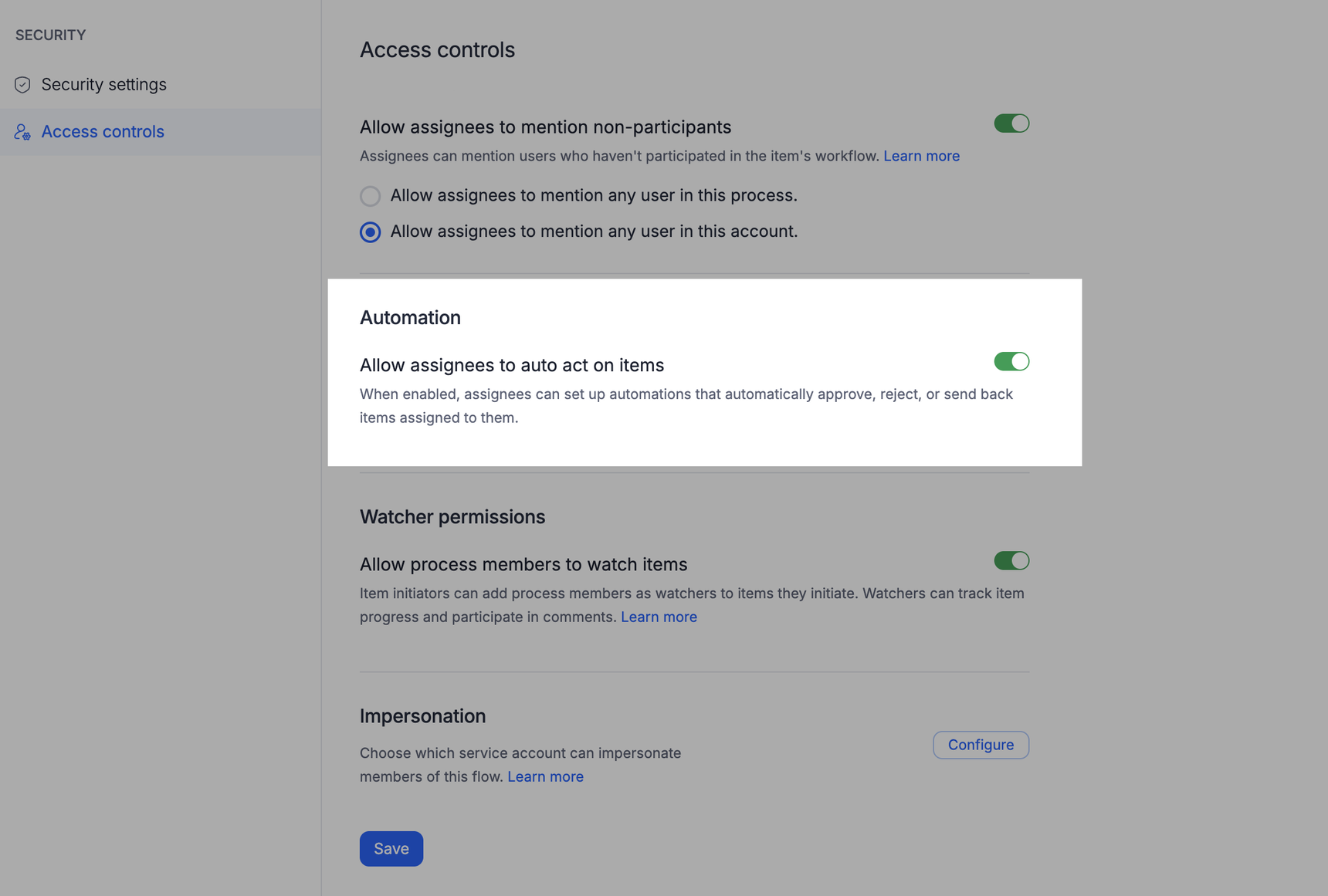
Allow assignees to auto act on items - When this toggle is enabled, assignees can set up automations that automatically approve, reject, or send back items assigned to them. Auto-actions are allowed by default.
What happens when this setting is enabled?
- Assignees can create automations on this process that act automatically, or that only suggest an action.
- A rule set to run automatically acts on an item as soon as it is assigned to that assignee.
- Every run is recorded in the assignee's automation logs and on the item.
What happens when this setting is disabled?
- Automations on this process can only suggest actions.
- Automations that were acting automatically switch to showing suggestions instead.
- Those automations do not switch back when the setting is enabled again.
- Assignees can still create automations that suggest actions, and their suggestions still appear on their items.
Learn more about workflow automations.
Watcher permissions
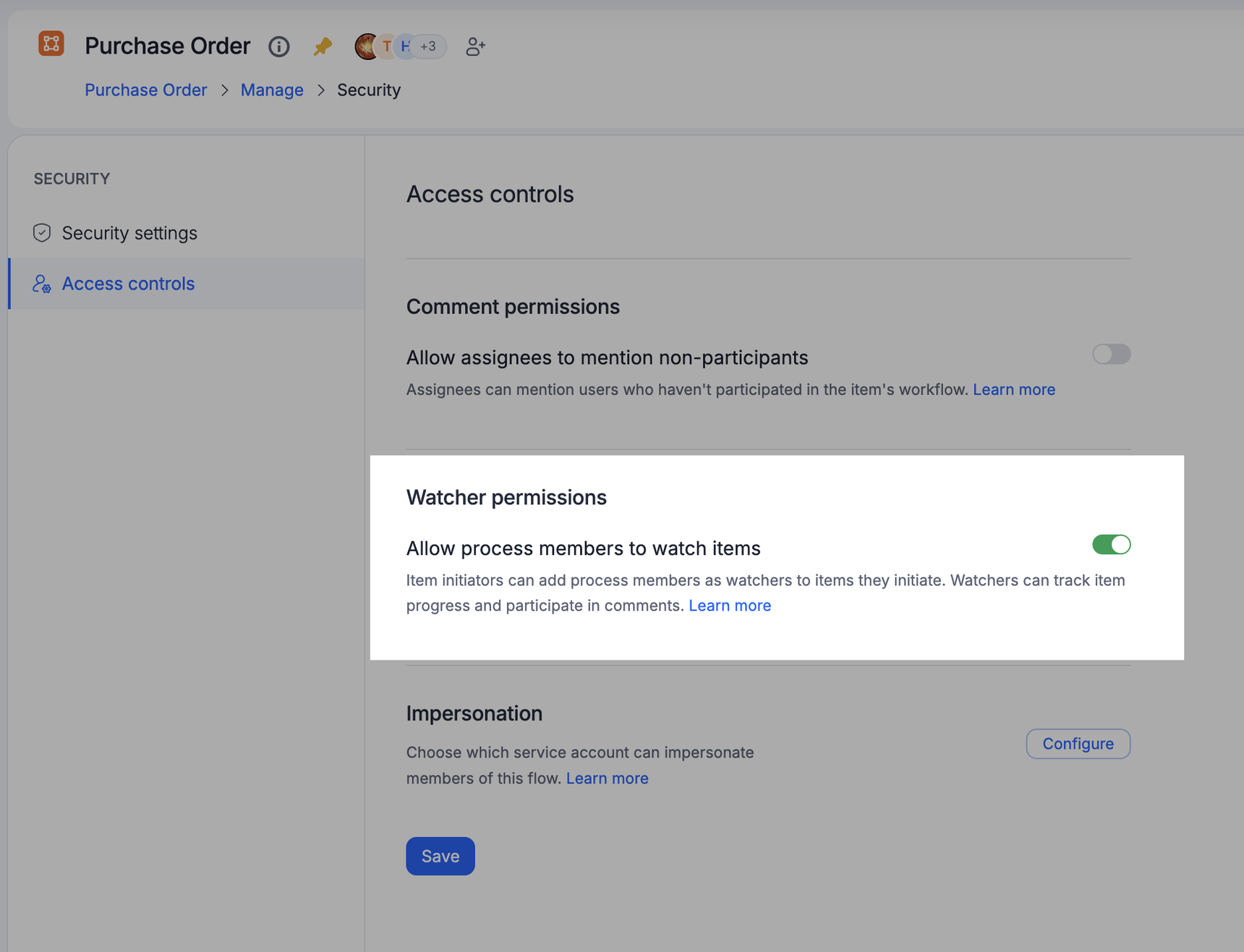
Enable Allow process members to watch items so item initiators can add other process members as watchers on the items they raise.
When this setting is on:
- Initiators can add up to 10 process users as watchers per item.
- Watchers can track an item's progress and outcome, and view its form in read-only mode.
- Watchers can add comments, mention participants, and be mentioned themselves.
- Watchers get notified when they're added or removed as a watcher, when the item is completed, rejected, or withdrawn, and when they're mentioned in or get a reaction/reply to a comment.
When this setting is off:
- No one can add new watchers to process items.
- Existing watchers can no longer watch their items, and stop receiving watcher notifications.
- Existing watchers aren't removed — turning the setting back on restores their watcher capabilities.
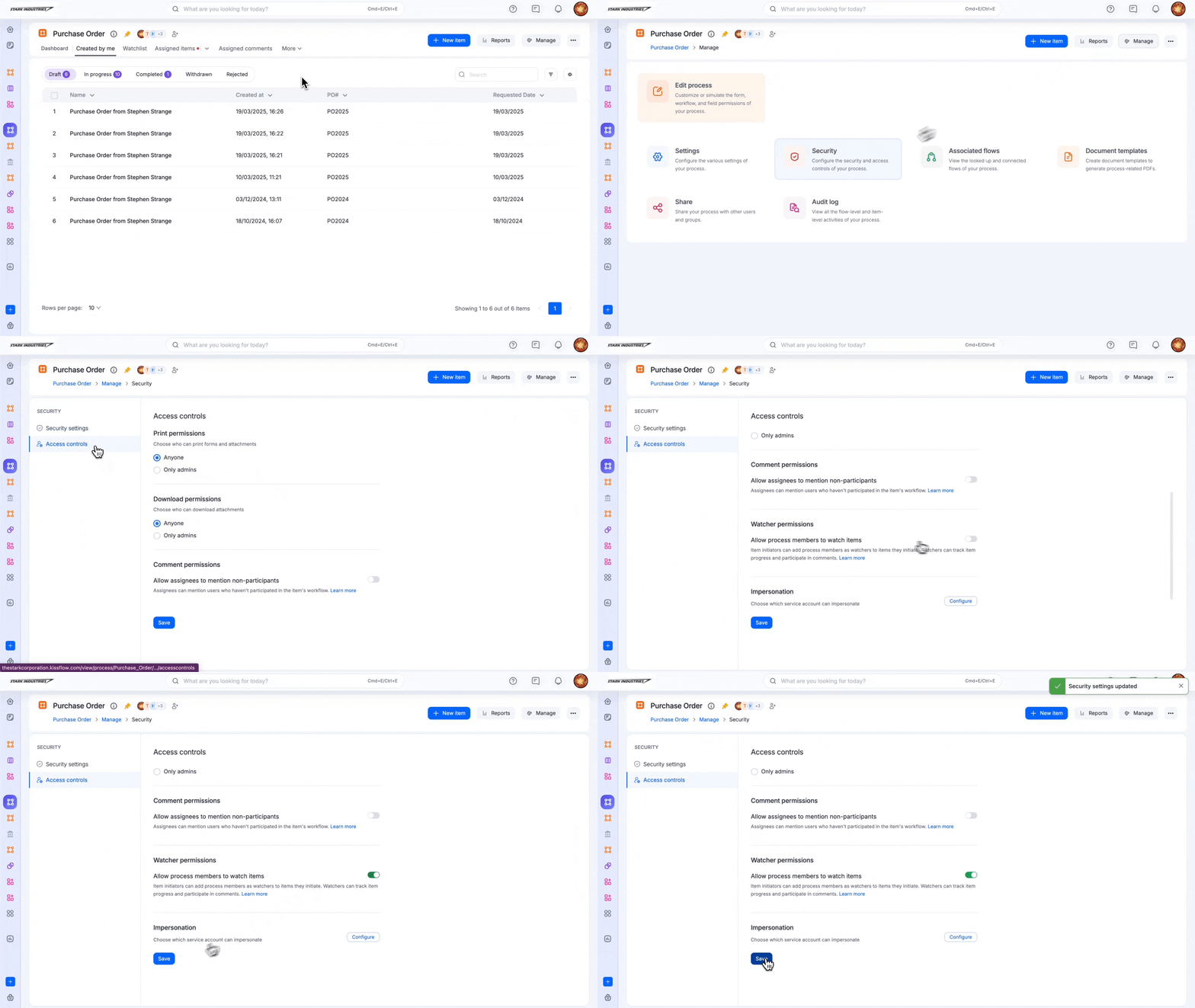
To enable or disable watchers for a process:
- Click Manage > Security.
- Under Access controls, toggle Allow process members to watch items.
- Click Save.
Impersonation
Impersonation lets a service account act on behalf of a user or an item in your Kissflow account. Learn more in Impersonation in service accounts.