

Weekends and holidays
Set your organization's non-working days and holidays so they're excluded from workflow deadlines and SLA calculations.
Weekends and holidays
As a Super Admin, you can set your organization's workweek and holidays so they're factored in when deadlines and SLAs are calculated for workflow activities.
Set your organization's weekend
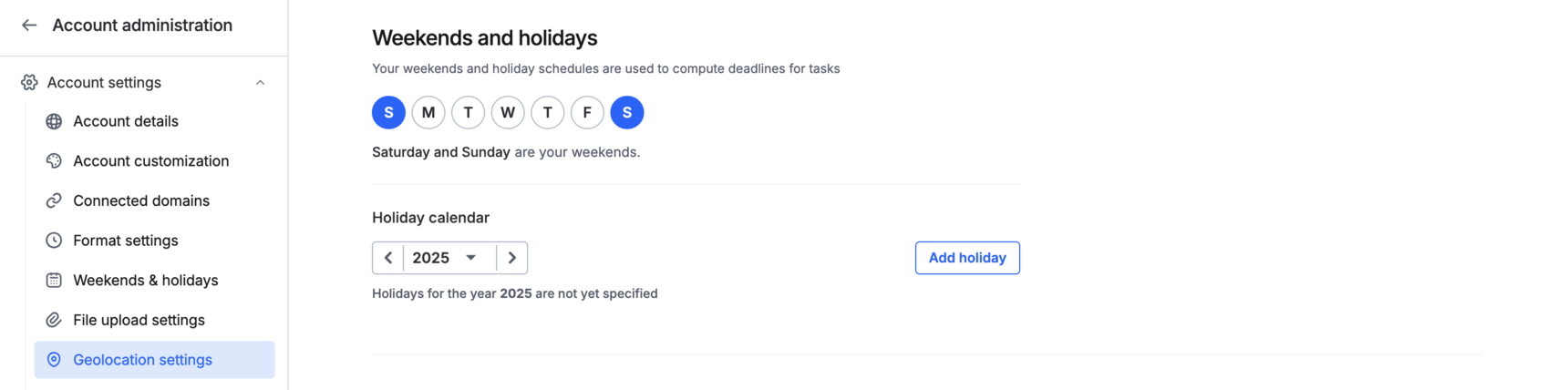
- Click your profile picture in the top right corner and go to Account administration > Account settings > Weekends and holidays.
- Under Weekends, click each day your organization doesn't work to select it.
Note
No weekend days are selected by default. Set your weekend here before it's needed for deadline or SLA calculations.
Add office holidays
- Click Add holiday.
- Select the date.
- Give the holiday a name.
Important
Holidays don't recur automatically. Your holiday list is for a single year, so you'll need to add next year's holidays yourself when the time comes.
How this affects deadlines and SLAs
Weekend days and holidays you've configured here are excluded from deadline and SLA calculations for workflow activities. If part of a task's allotted time falls on a non-working day, that day isn't counted — the deadline extends to give the assignee the full amount of working time you intended.