Compliance and backup history
Edit your backup configuration, cancel a queued backup, and use progress tracking and backup history to monitor account backups for compliance.
Compliance and backup history
Note
Data backup is available on request. Contact Kissflow support to enable it for your account.
As a Super Admin, you manage your account's data backup — you can edit its configuration, cancel a backup that's still in the queue, and review its history.
Cancel a queued backup
You can cancel a backup only while it's still in the queue, before processing starts. Once a backup is in progress, cancellation is no longer available.
- Sign in to Kissflow.
- Click your profile picture at the top right of the page, then click Account administration > Data backup.
- While the backup shows as queued, click Cancel next to it.
Edit your backup configuration
While a backup is queued or in progress, its configuration is read-only — you can view it, but not change it. Once the backup completes, the configuration becomes editable again.
- Sign in to Kissflow.
- Click your profile picture at the top right of the page, then click Account administration > Data backup.
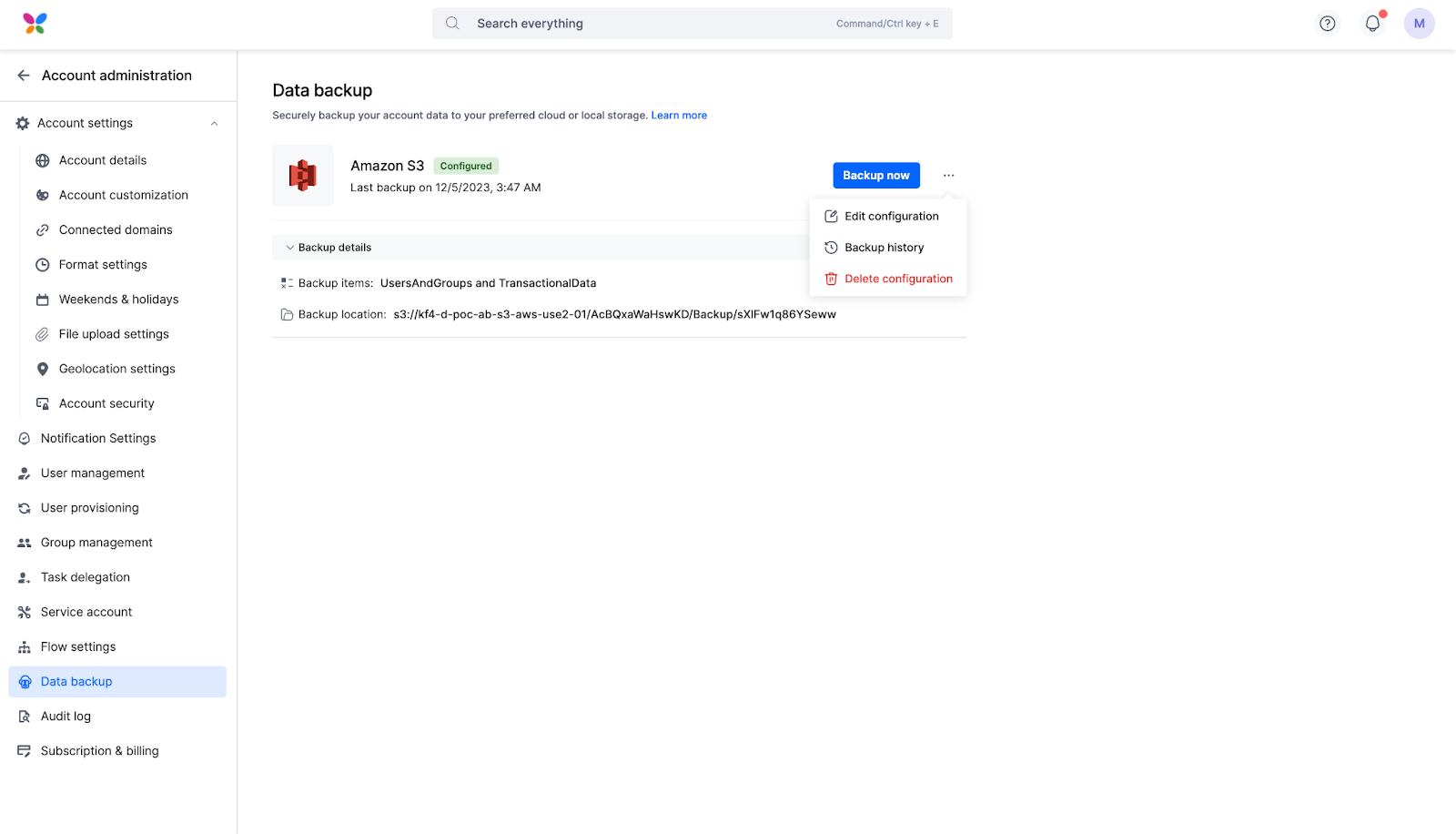
- Click the More options button (
 ) beside Backup now, then click Edit configuration to change your backup settings, or Delete configuration to remove them entirely and stop future backups until you set up a new configuration.
Important
Editing your configuration resets your encryption passphrase — the one you set when you first configured your backup destination. Save your previous passphrase somewhere safe before you edit — you'll still need it to open backup files created before the change, and it won't work on any backup you run afterward.
Track backup progress
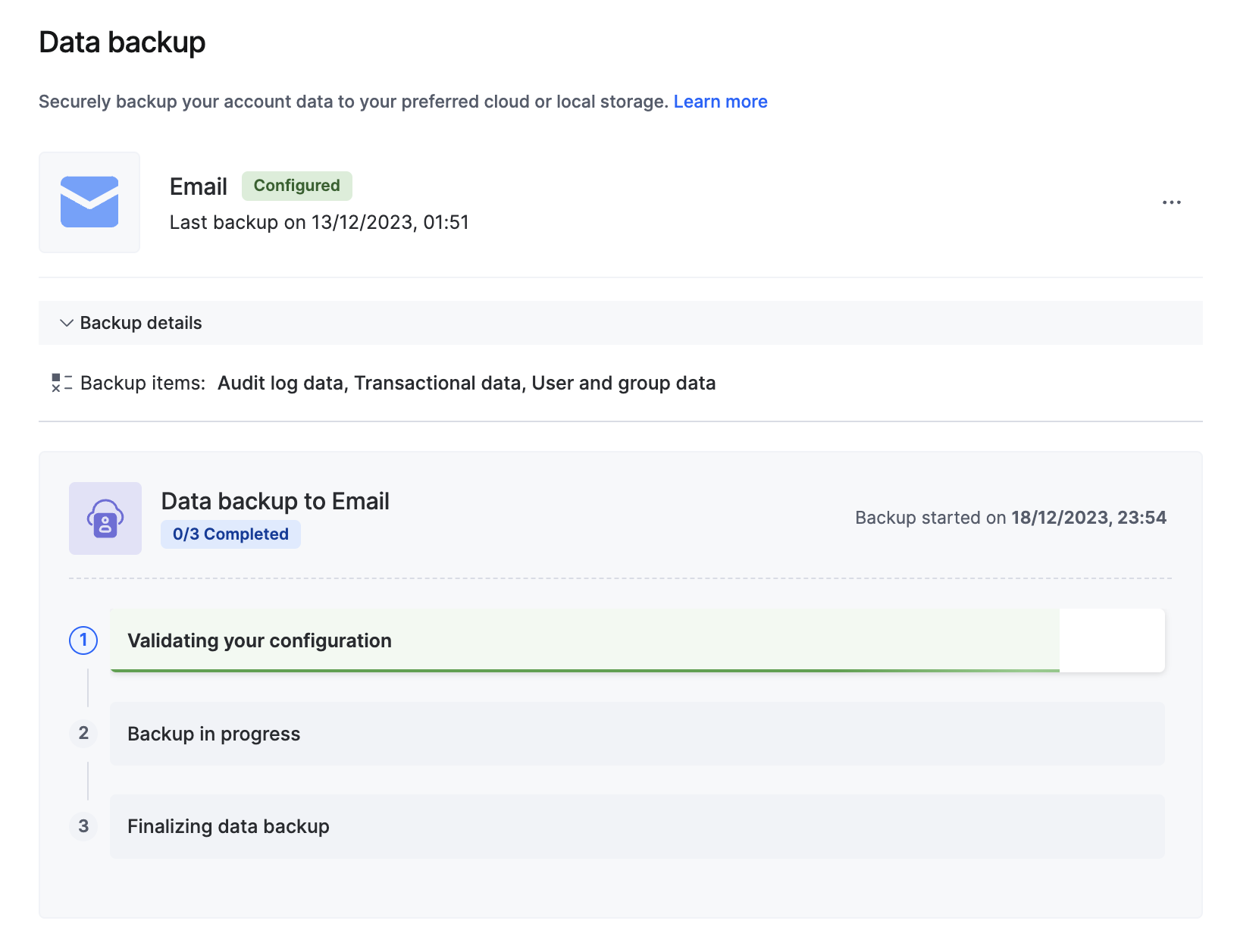
While a backup is running, the Data backup page shows its real-time status — including stages like validating your configuration, backup in progress, and finalizing the backup — so you always know where an ongoing backup stands.
Once a backup completes, its details — including storage mode, backup time, and status — are recorded in the account-level audit log, alongside the user and system actions logged throughout the backup process.
View backup history
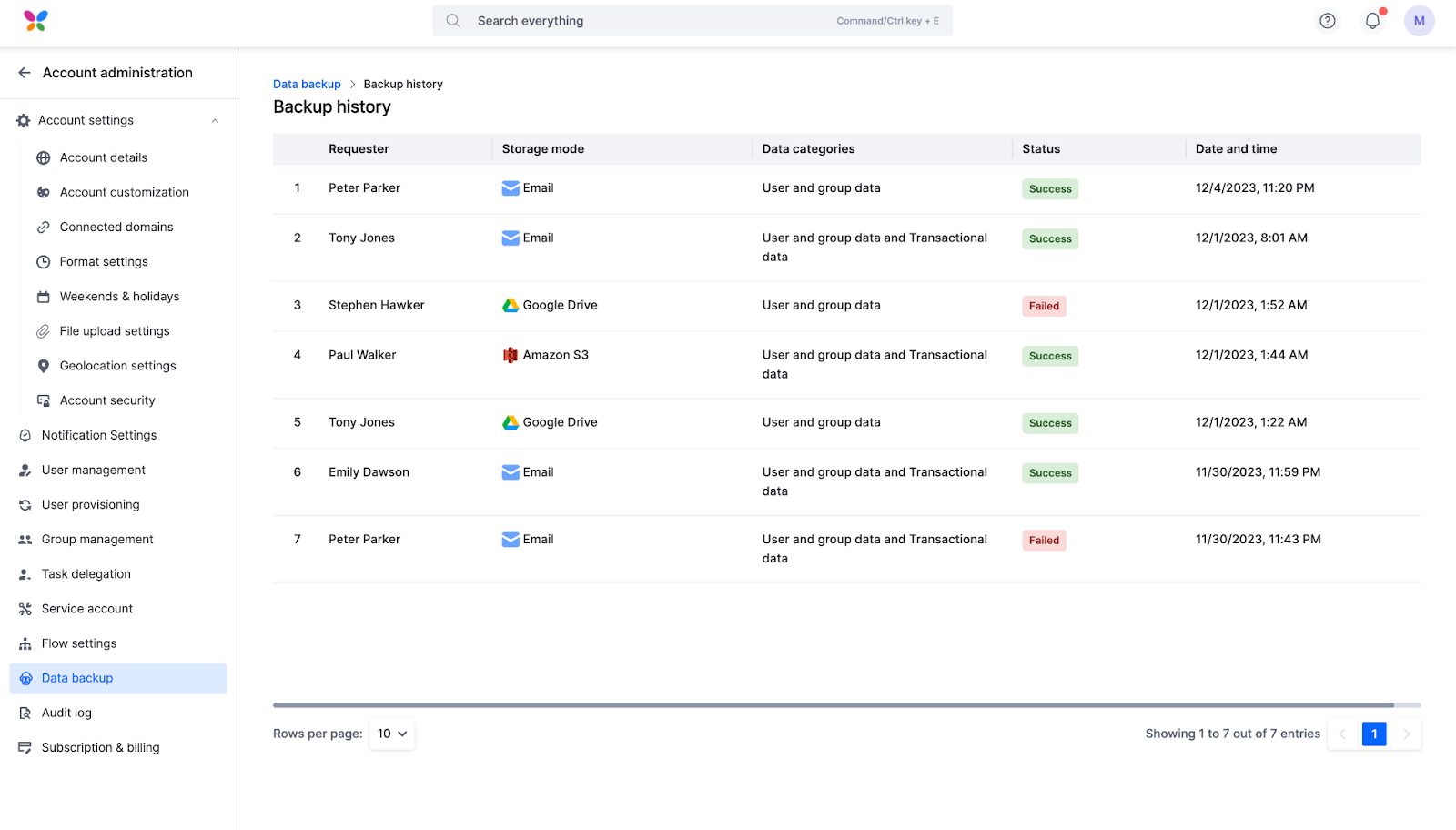
After a backup finishes, you can review its history — the requester, storage mode, data categories included, status, and the date and time of the backup.
- Sign in to Kissflow.
- Click your profile picture at the top right of the page, then click Account administration > Data backup.
- Click the More options button () beside Backup now, then click Backup history.