

Account security
Configure sign-in options, password policy, SAML-based SSO, session timeout, sign-up preferences, and access key expiry for your Kissflow account.
Account security
Super Admins and IAM Admins manage sign-in, sign-up, password, and session security for your account from Account Administration > Account security.
Manage sign-in preferences
Your account has a unique URL that users sign in from. Go to Account security > Sign in preferences to see the sign-in options available to your users and to restrict which ones are allowed.
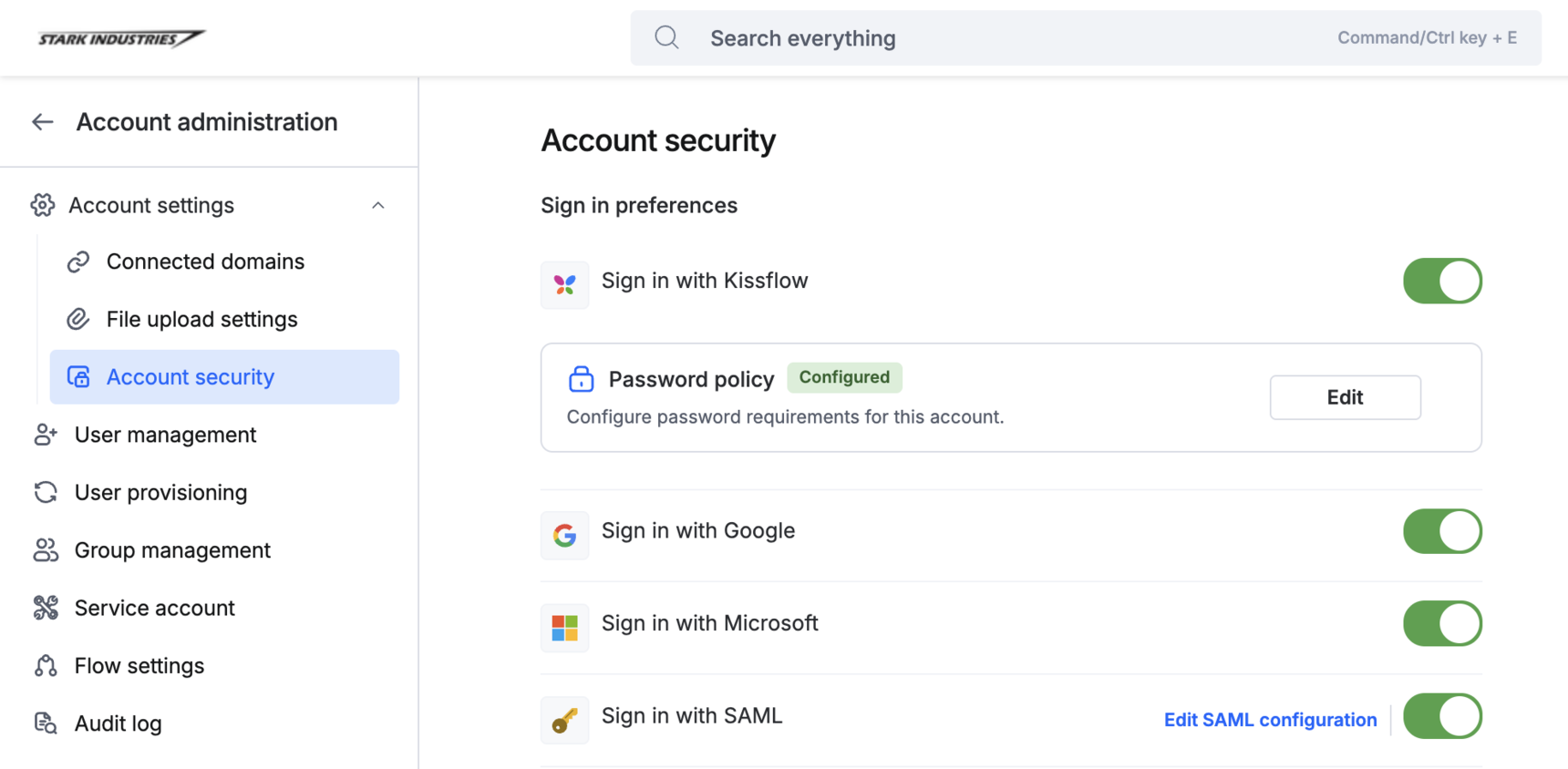
Sign in with Kissflow
Email and password is the conventional method — users enter the email address and password they set during sign-up or after a password reset.
Configure a password policy
You can enforce a password policy for every user in your account to reduce the risk of weak passwords.
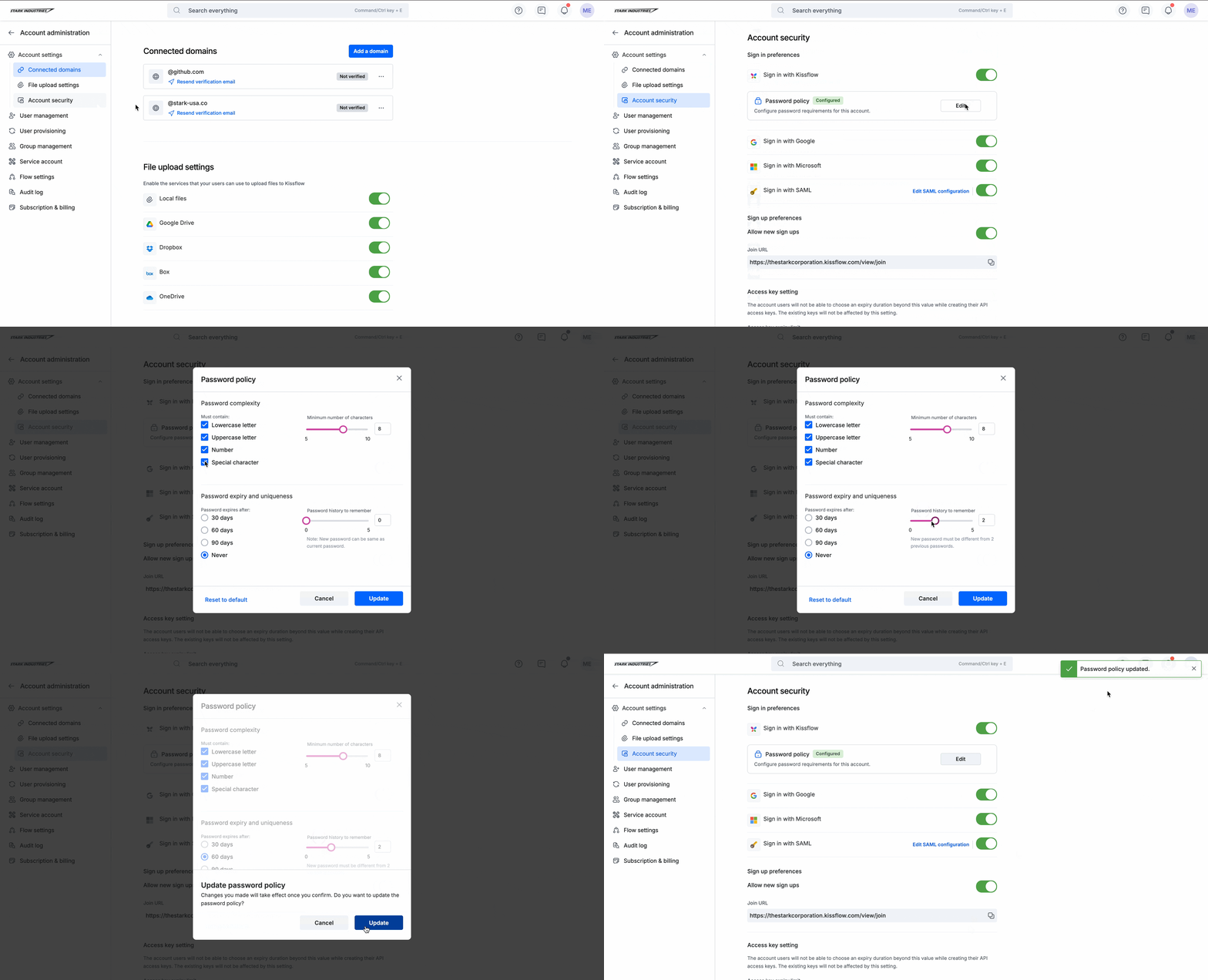
- Go to Account security > Sign in preferences > Password policy > Configure.
- Set your requirements:
- Minimum number of characters — the shortest password Kissflow will accept.
- Password complexity — require a mix of uppercase and lowercase letters, numbers, and special characters.
- Password history to remember — stop users from reusing their recent passwords.
- Password expiry — how often users must update their password.
- Click Update to save your requirements.
Note
Click Reset to default at any time to revert to Kissflow's default password requirements.
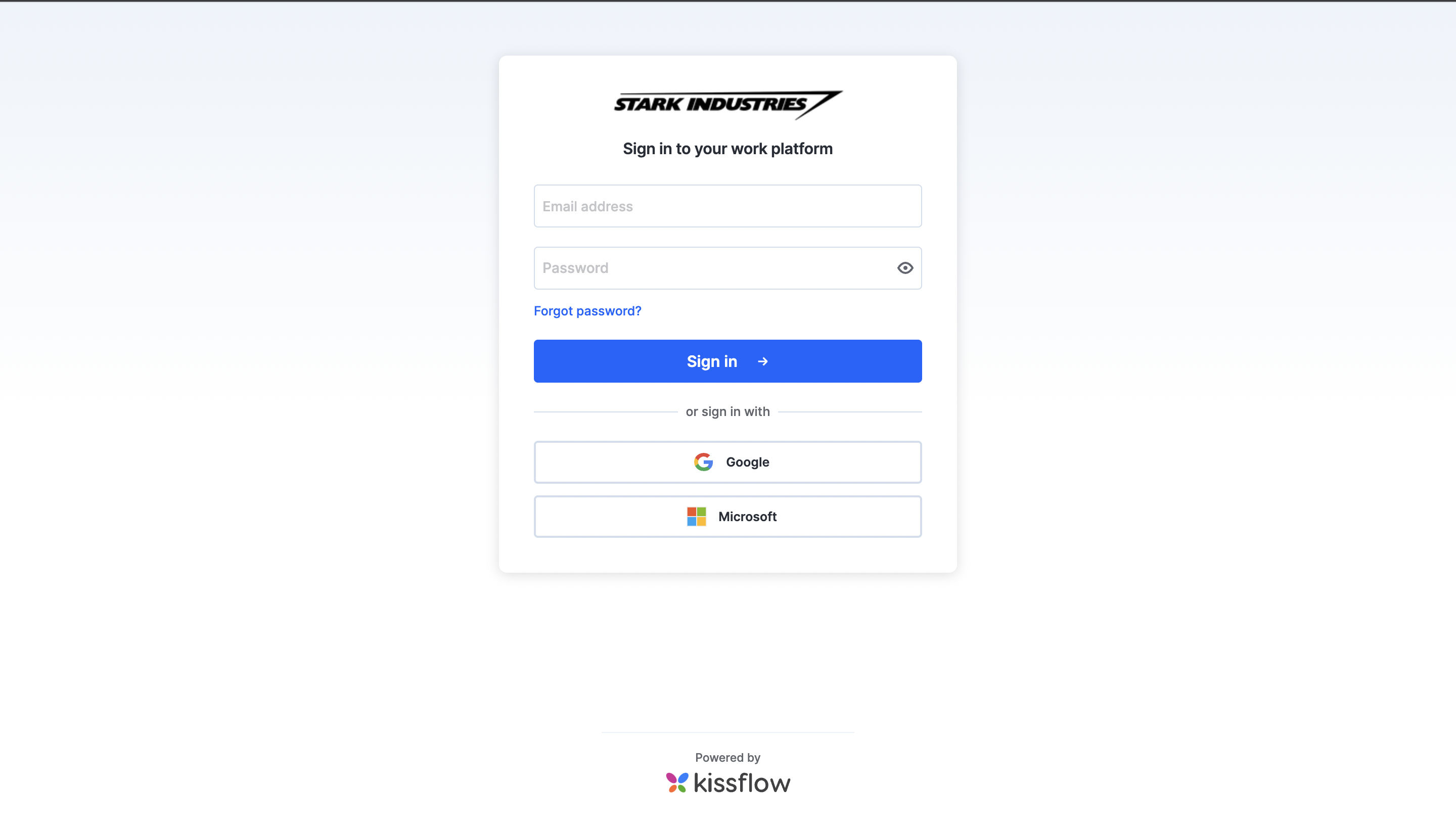
Sign in with Google and Microsoft
Kissflow supports OAuth-based sign-in with Google and Microsoft accounts. On the Sign in preferences page, turn on Google or Microsoft to let users sign in with that account.
Note
Contact Kissflow support if you want to configure another OAuth provider for your account.
Sign in with SAML
Organizations using a SAML-based SSO provider (for example, Okta or OneLogin) can configure it for their Kissflow account.
Click Configure SAML next to Sign in with SAML and enter the following details:
- Identity provider (IdP) URL — the sign-in URL from your SAML provider. Users are redirected here when they click the SSO button on the sign-in page.
- Sign-out URL (optional) — where to send users after they sign out of the SAML provider and Kissflow.
- Security key — the SHA2 fingerprint of the SAML signed token certificate from your SAML server, used to decrypt data from your SAML provider.
- Consumer assertion URL — the URL you give to your SAML provider. It's unique to your account.
- User field where the SAML identifier is stored — the column in User Management where Kissflow stores each user's unique SAML identifier.
- Create users when they exist in the IdP — automatically add users after they verify their identity with your IdP.
Click Save to enable SSO using SAML.
Note
See Setting up SAML-based single sign-on for Microsoft Entra ID for a step-by-step walkthrough with a specific IdP.
Inactive session timeout
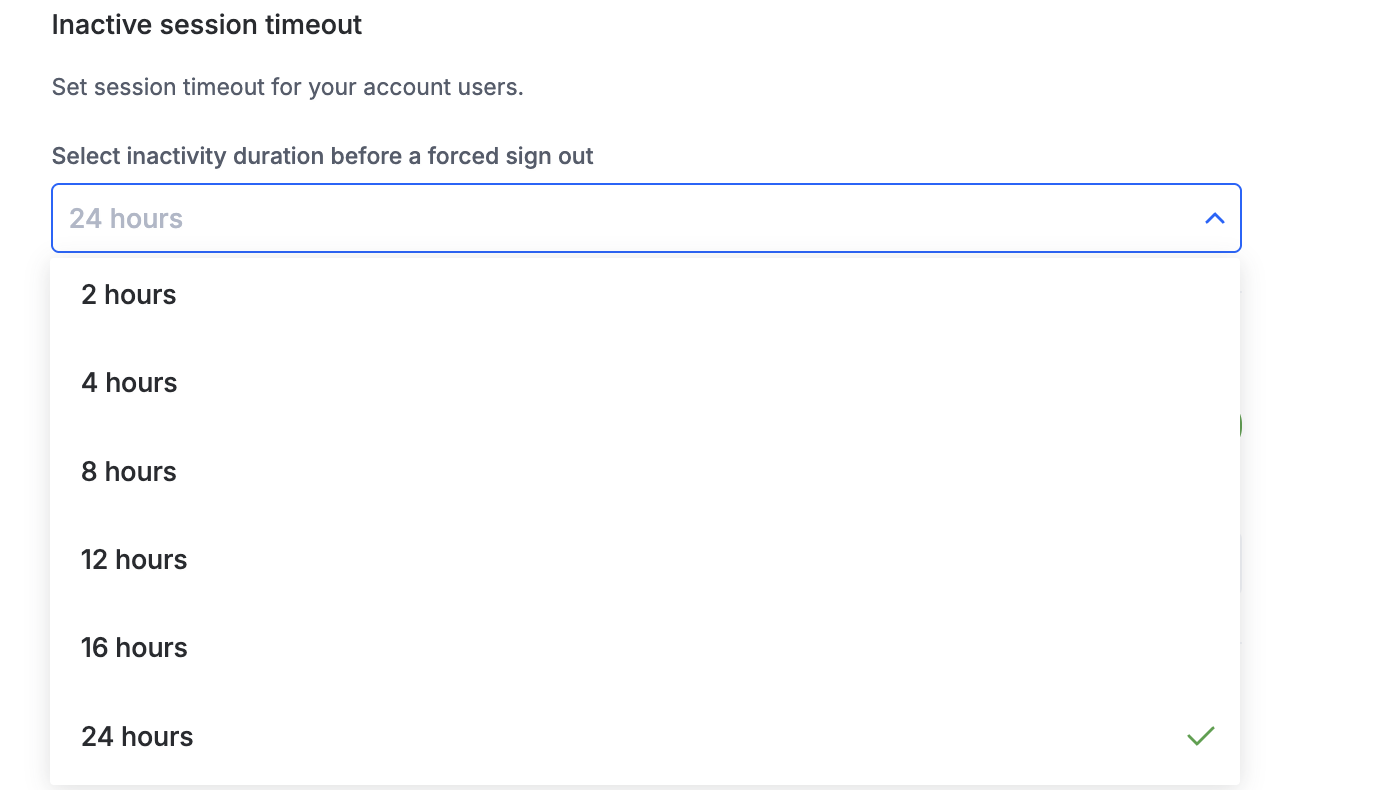
The inactive session timeout setting signs users out automatically after a period of inactivity, reducing the risk of an unattended session being misused.
Kissflow configures this separately for web and for mobile:
- Web — choose an interval from 1 hour up to 24 hours.
- Mobile — choose an interval from 1 day up to 1 month.
The timer only runs while a user is inactive and resets as soon as activity resumes. Once the selected limit is reached, the user is signed out automatically.
Manage sign-up preferences
Instead of inviting users one by one, you can open your Kissflow sign-up process to anyone with the link.
- Go to Account security > Sign-up preferences.
- Turn on Allow new signups.
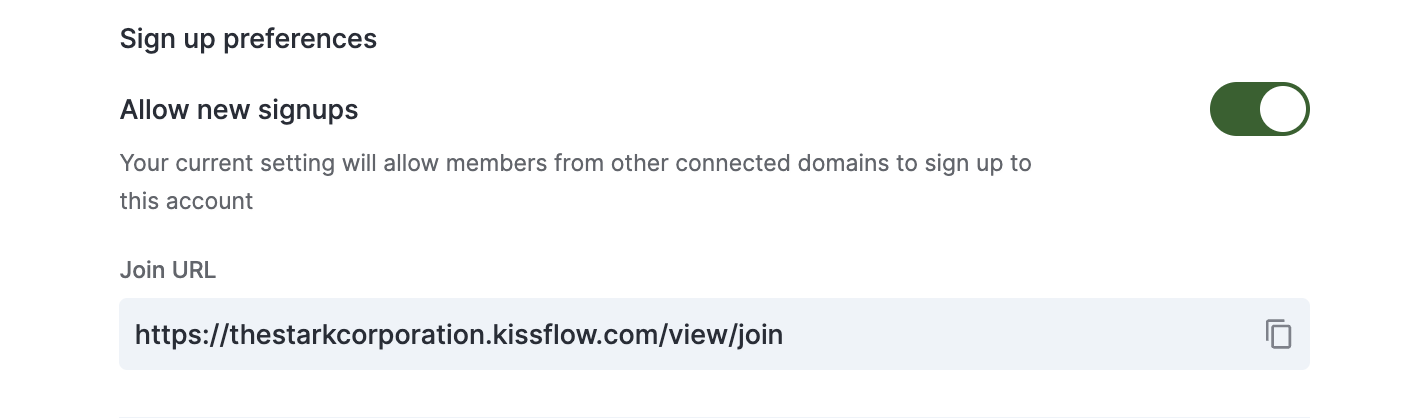
Anyone who visits the sign-up URL is prompted for their name and email address. Depending on your account's approval setting — configured on the same Sign-up preferences page — new sign-ups may need a Super Admin or IAM Admin to review and activate them from User Management before they get an active license.
To stop accepting new sign-ups through this URL, turn off Allow new signups and click Save.
Access key setting
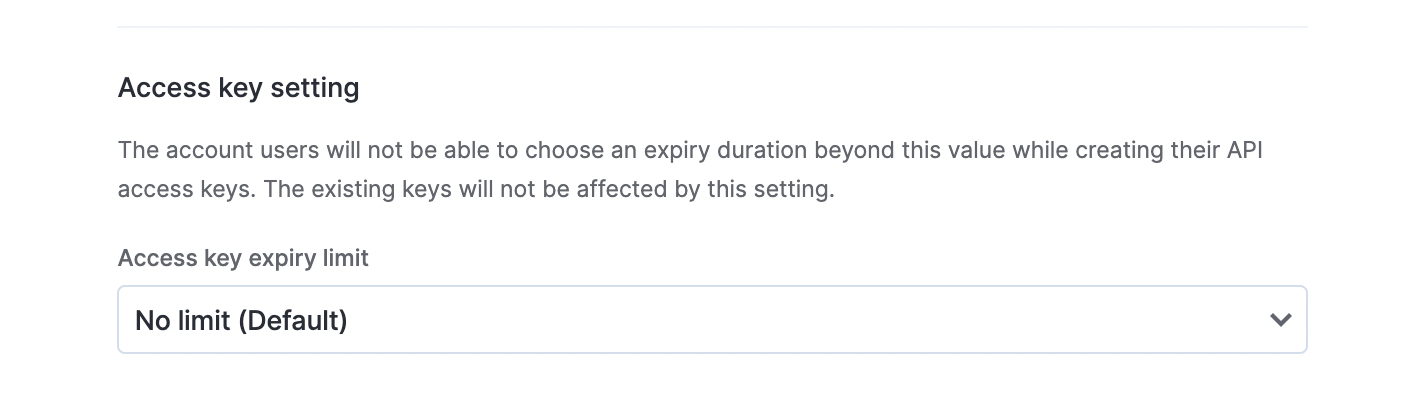
Cap how long an access key can stay valid when it's created for a service account in your Kissflow account.
- Go to Account Administration > Account security > Access key setting.
- Choose an expiry limit: 6 months, 1 year, or 2 years. The default, No limit, leaves expiry uncapped.
Important
This limit applies only to access keys created after you change it. Keys that already exist keep their original expiry.