

User expressions
Date and time the creator was added to the account.
User fields reference a specific user in your system; their details are retrieved from the user management table.
Any custom user field you add to a form can be used in expressions. In addition, you can use the following system-generated user fields:
| System field | Description |
|---|---|
| _created_by | The user who started the item. |
| _modified_by | The last user who modified the form. |
For example, the following expression also returns a user field:
lastcompletedstep().approvers()
Displaying user information in forms
User fields cannot display on their own. You'll need to use the dot operator and then add the field you want to display. Fields must match the user management table. For example:
_created_by.FirstNameHere is a list of default fields you can call up from the user management table:
| Field name | Data type | Sample syntax | Output | Example |
|---|---|---|---|---|
| FirstName | Text | _created_by.FirstName | Creator’s first name. | Pepper |
| LastName | Text | _created_by.LastName | Creator’s last name. | Potts |
| Name | Text | _created_by.Name | Creator’s full name. | Pepper Potts |
| Text | _created_by.Email | Creator’s email address. | pepper.potts@stark-industries.co | |
| Added on | Datetime | _created_by._created_at | Date and time the creator was added to the account. | 2019-05-23 11:49 AM |
| Last signed in | Datetime | _created_by.LastLoggedInAt | Date and time the creator last logged into Kissflow. | 2019-10-31 11:52 AM |
| Manager | User1 | _created_by.Manager | Creator's manager. | Natasha Romanoff |
1. If you want to display information about the Manager in a text field, you must use the dot operator to add an additional field. For example:
_created_by.Manager.NameAssigning steps with user expressions
In the workflow, you can use a formula to assign a step to a user. The data type in this expression must be a User.
You can use:
- the Field ID of any user field in your form
- a system field
- a user field called up from the user management table (such as Manager)
(or)
You can also use the following user functions as per your requirements:
User function
Note
Input: Email address
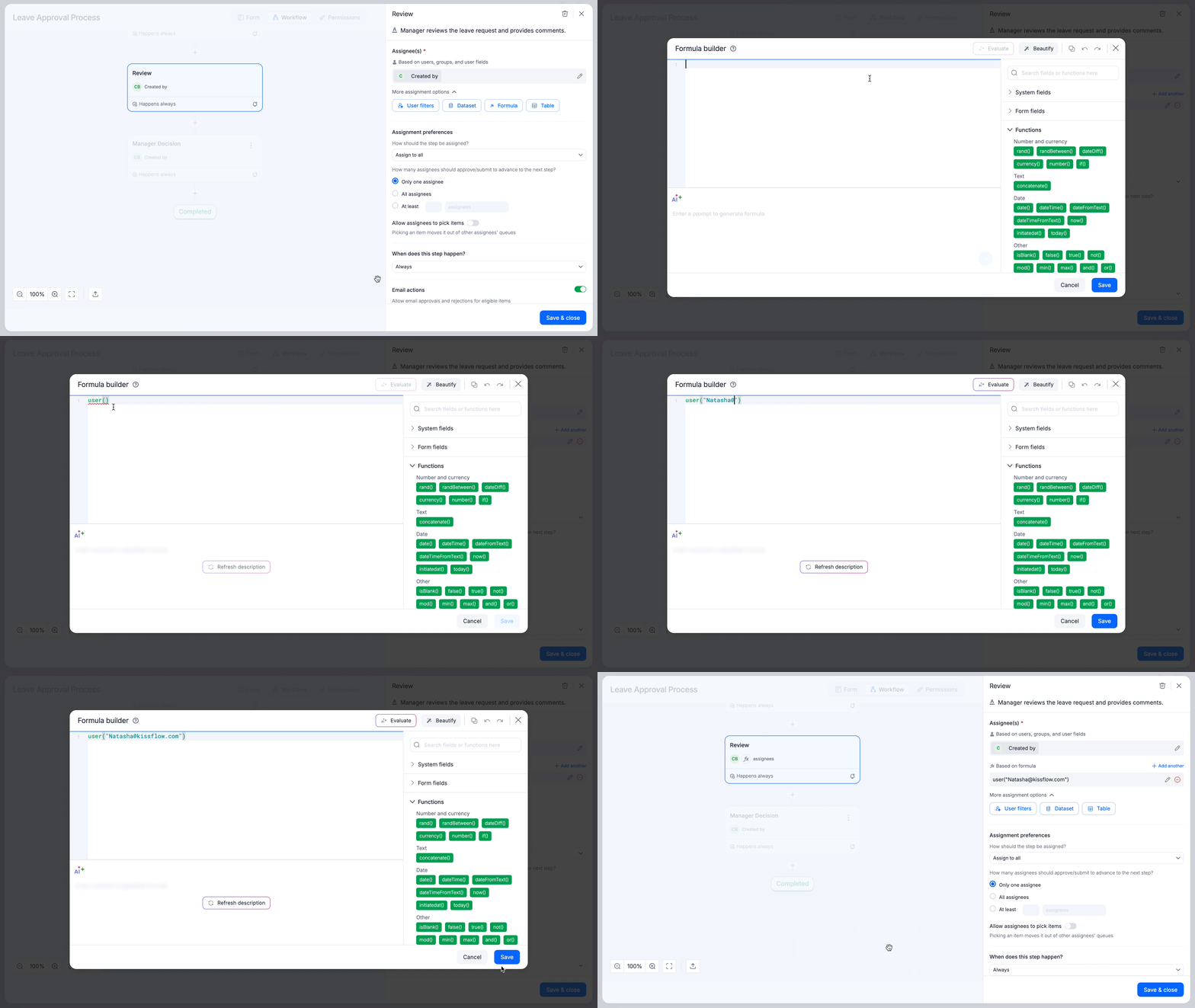
Syntax: user("<email_address>")
This function returns the user information based on the given email address.
If the email address is natasha@kissflow.com, this function will return the user information mapped with this email address. You can also fetch the other attributes of the user by using a dot operator accordingly.
Userandgroup function
Note
Input: Email address or Group name
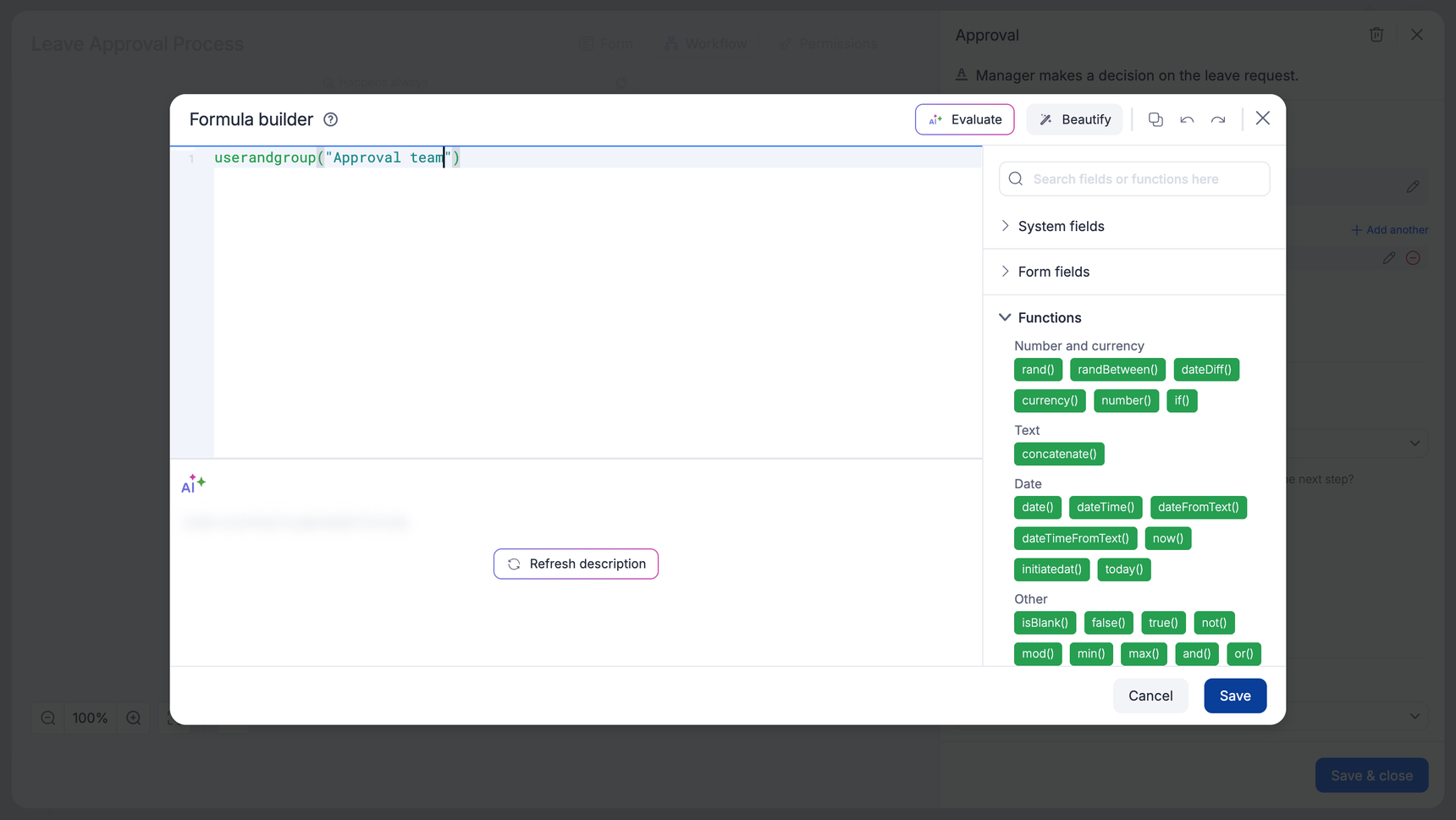
Syntax: userandgroup("<email_address>" \| "<group_name>")
This returns the user information based on the email address or the group name passed in the function.
If the email address is natasha@kissflow.com, this function will return the user information mapped with this email address. If the group name passed is “Approval team”, this function will return the relevant group with the mentioned name.
Userandgrouplist function
Note
Input: List of email addresses or group names
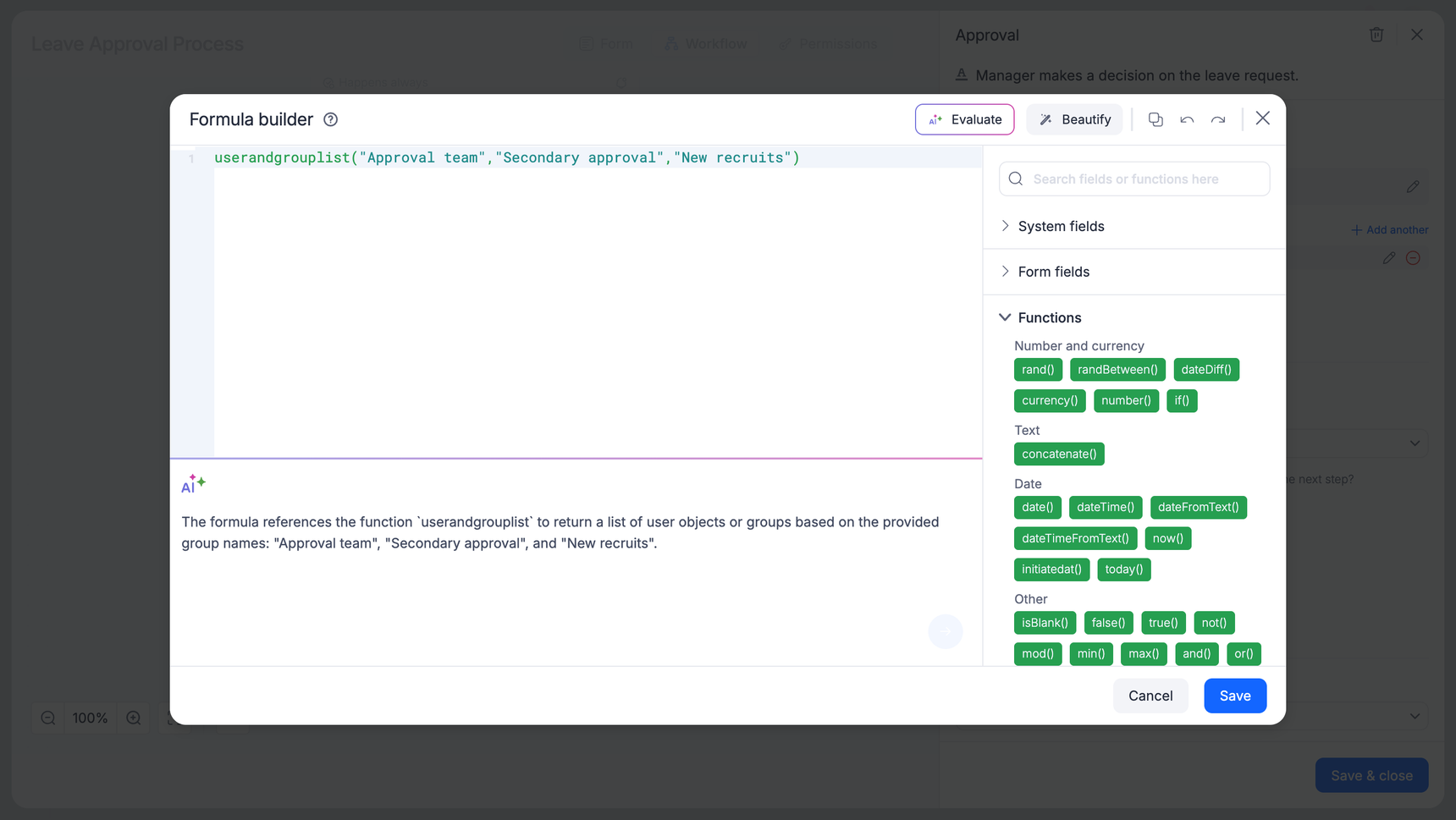
Syntax: userandgrouplist("<email_address01>","<email_address02>","<email_address03>" \| "<group_name01>","<group_name02>","<group_name03>")
This function returns a list of user objects or groups based on the input given.
For example:
userandgrouplist(“tonystark@starkcorp.com”, “jacobs@starkcorp.com”, “elizamendis@starkcorp.com”) will set ‘Tony Stark’, ‘Jacob’, and ‘Eliza Mendis’ as the assignees for the step accordingly.
userandgrouplist(“Approval team”, “Secondary approval”, “New recruits”) will assign the step to the Finance team, HR team, and the New Recruits batch in one go.
Tip
You can also use the IF function to assign a step, but both results must be user fields.
Using comparison operators with user fields
The equal to (=) and not equal to (<>) operators can work with user fields.
Here's a common use case: You have a step in a workflow called Manager approval and, which is assigned to the creator's manager. But what if the manager is the creator?
Create a condition for that step with this expression:
_created_by<>_created_by.Manager