

System fields
Kissflow automatically captures data about every item that goes through a flow.
Kissflow automatically captures data about every item that goes through a flow. For example, when a user creates a new item, Kissflow automatically stores who created the item and what time it was created.
This data is stored in system fields. The values in system fields cannot be manually set or edited, they are only system-generated. However, they can be displayed or used in expressions and reports.
Each type of flow has a specific set of system fields associated with it. If you need any help using these fields, please reach out to our support team.
System fields
| Field ID | Data Type | Description | Processes | Boards |
|---|---|---|---|---|
| Name | Text | The unique Item name given to each item. | Y | Y |
| _flow_name | Text | The name of the flow. | Y | Y |
| _status 1 | Text | The status of an item. | Y | Y |
| _request_number | Number | A sequential count of all the submitted items. | Y | - |
| _counter | Number | A sequential count of all the items including drafts Note: However, for Public forms, the counter will increment only when the item is submitted. | Y | Y |
| _progress | Number | The percent of the workflow that an item has completed. | Y | - |
| _current_step | Text | The step the item is in. | Y | - |
| _stage_name | Text | The stage/step the item is in. | - | Y |
| _state_name 2 | Text | The state of the item. | - | - |
| _resolution_name | Text | The current resolution state. | - | Y |
| _created_by 3 | User | The user who created the item. | Y | Y |
| _created_at | DateTime | The time the item was created as a draft and the time is always displayed in GMT. Note: When used in a table in the form, it will show the date and time on which the row was created. | Y | Y |
| _submitted_at | DateTime | The time the creator submitted the item into the workflow. | Y | - |
| _modified_by 3 | User | The user who last modified the item. | Y | Y |
| _modified_at | DateTime | The time the form was last modified. | Y | Y |
| _completed_at | DateTime | The time the workflow was completed. | Y | - |
Notes
1 Processes have five possible statuses:
- Draft
- In progress
- Completed
- Rejected
- Withdrawn
Projects and cases have four:
- Not started: The item has not been moved to another step yet
- In progress: The item is active on the board
- Archived. The item is not active on the board
- Completed: The item has been moved to the completed step
2 There are three possible states for projects:
- In progress
- On hold
- Done
3 User fields require additional methods to display in forms.
How to display system fields on your form
- Add a new field of the correct type to the form.
- Turn on Is this a computed field?
- Enter the name of the system field as described above.
Viewing system fields in reports
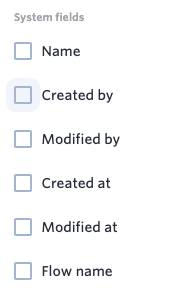
All of the system fields are available to use for your reports. When making a report, there is a special section of fields called System that you can choose from.
Using system fields in expressions
You can use system fields in expressions and the dot operator to call up additional information depending on the data type. Learn more about expressions here.