Variables and parameters in app development
The input parameters are used to provide data to a field. They can be created within a page and passed from one page to another.
Understanding variables in app development
Click here to learn about the types of variables available and how to use them in app development.
Input parameters
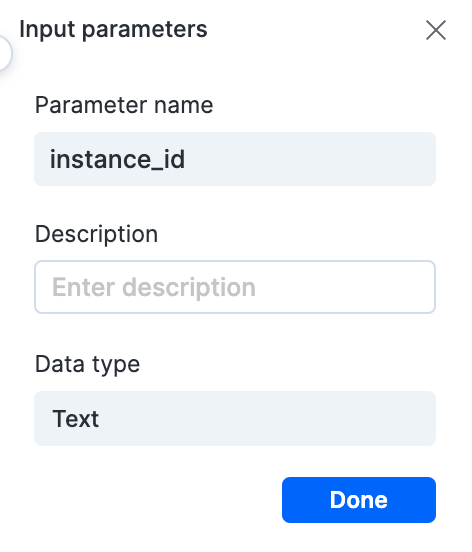
The input parameters are used to provide data to a field. They can be created within a page and passed from one page to another. Input parameters can be used within a page as well as passed to other pages. For example, you can pass an instance ID and activity instance ID to a process form from another process item using input parameters.
In the app builder > pages, the input parameters are found on the right side under the General properties tab ( ).
).
To create an input parameter:
- Click the Add button (
 ).
). - Enter the parameter name.
- Add a description to the parameter if needed.
- Click Add to add the new parameter. You can also edit or delete a parameter later.
Event parameters
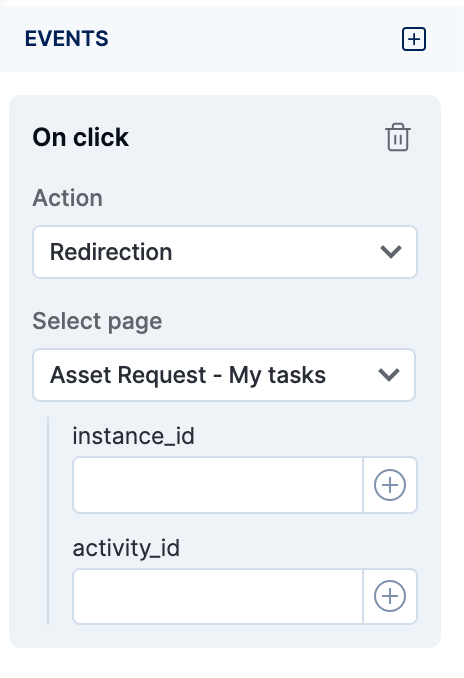
These are parameters passed from an event within a component. An event parameter can be created by selecting a component, going to the Event properties tab, adding an event, and selecting the action and page for redirection.
For example, an instance ID and activity ID can be passed through an on Click event that redirects to another page.
Configuration properties
These are constants that have the same value throughout the app across different environments such as development and production. They can be set with a default value and can be changed during runtime. For example, an API key can be a config property.
Comparing variables and parameters
| Type | Scope | Where can it be defined? | Usage | Example |
|---|---|---|---|---|
| Global variables | Across all environments of the app | Variables section in app builder, inside a page | JavaScript code | User email |
| Local variables | Page | Inside a page | JavaScript code | Page ID |
| Input parameters | Page | General properties of the page body | Used across components, JavaScript code | Application ID |
| Event parameters | Page/app depending upon whether it is passed on | Event properties of a component | JavaScript code, passing values to input parameters of another page | Instance ID |
| Config property | Across all environments of the app | Inside an app, as a constant | JavaScript code | API key |
Usage in JavaScript editor
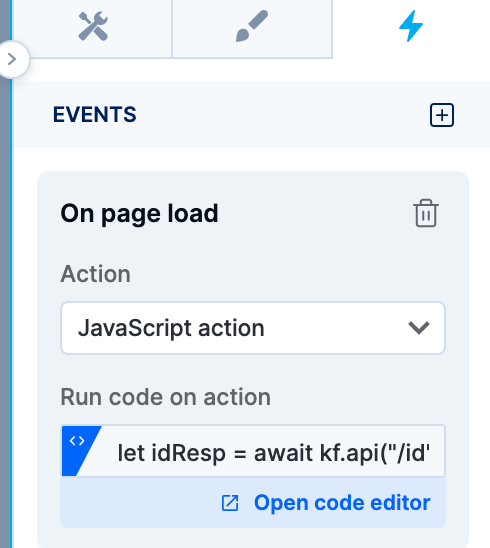
JavaScript code can be added to an event within a component by opening the code editor under the Event properties of the component and selecting the JavaScript action. Once the code editor is open, you can use global and local variables, popups, event parameters, and input parameters by double-clicking on their names to define them within the code.
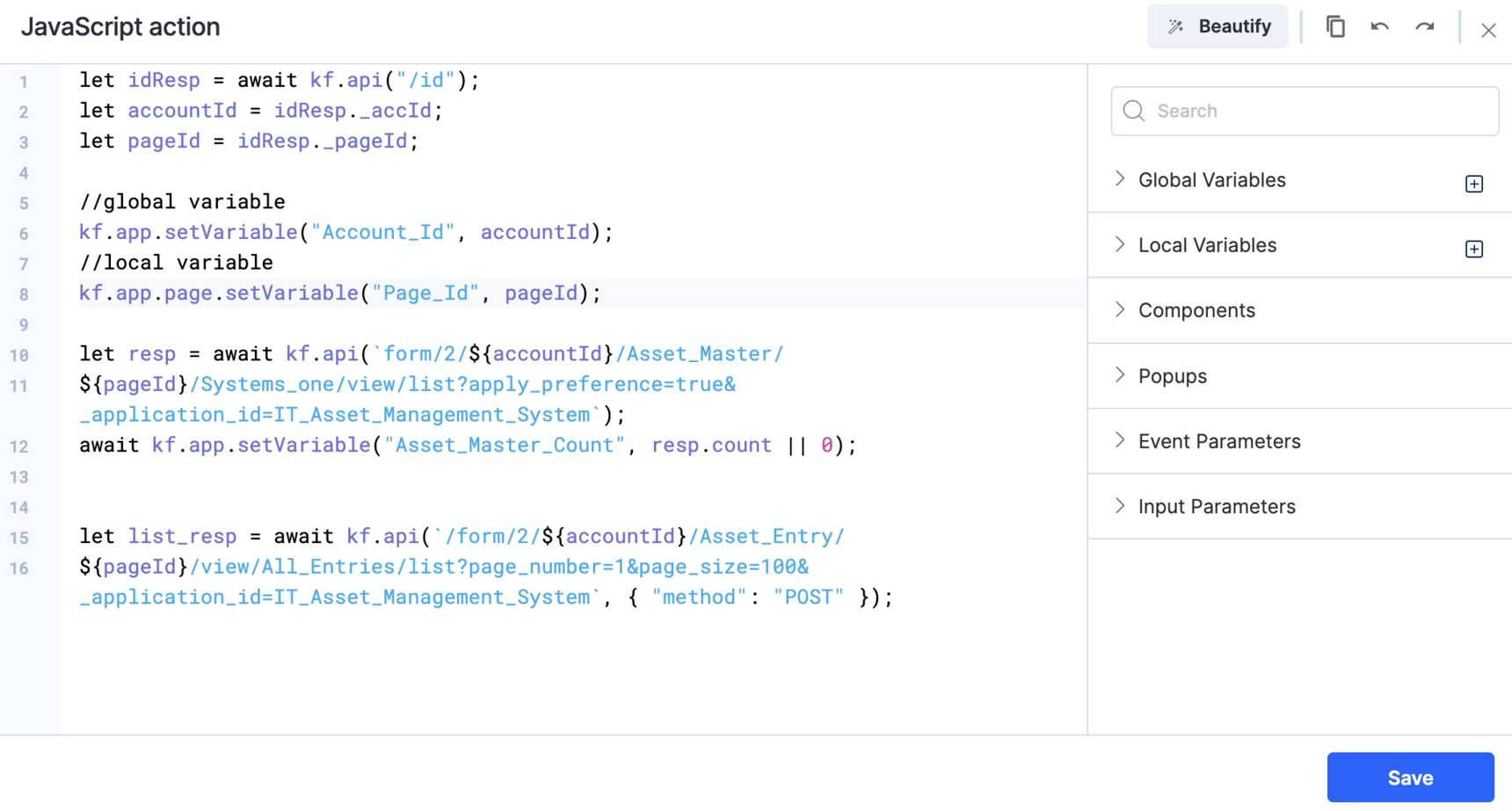
In summary, variables, input parameters, event parameters, and configuration properties are all used in app development to store and pass data within the app. Each has its own scope, usage, and examples of when they might be used in a real-world app.
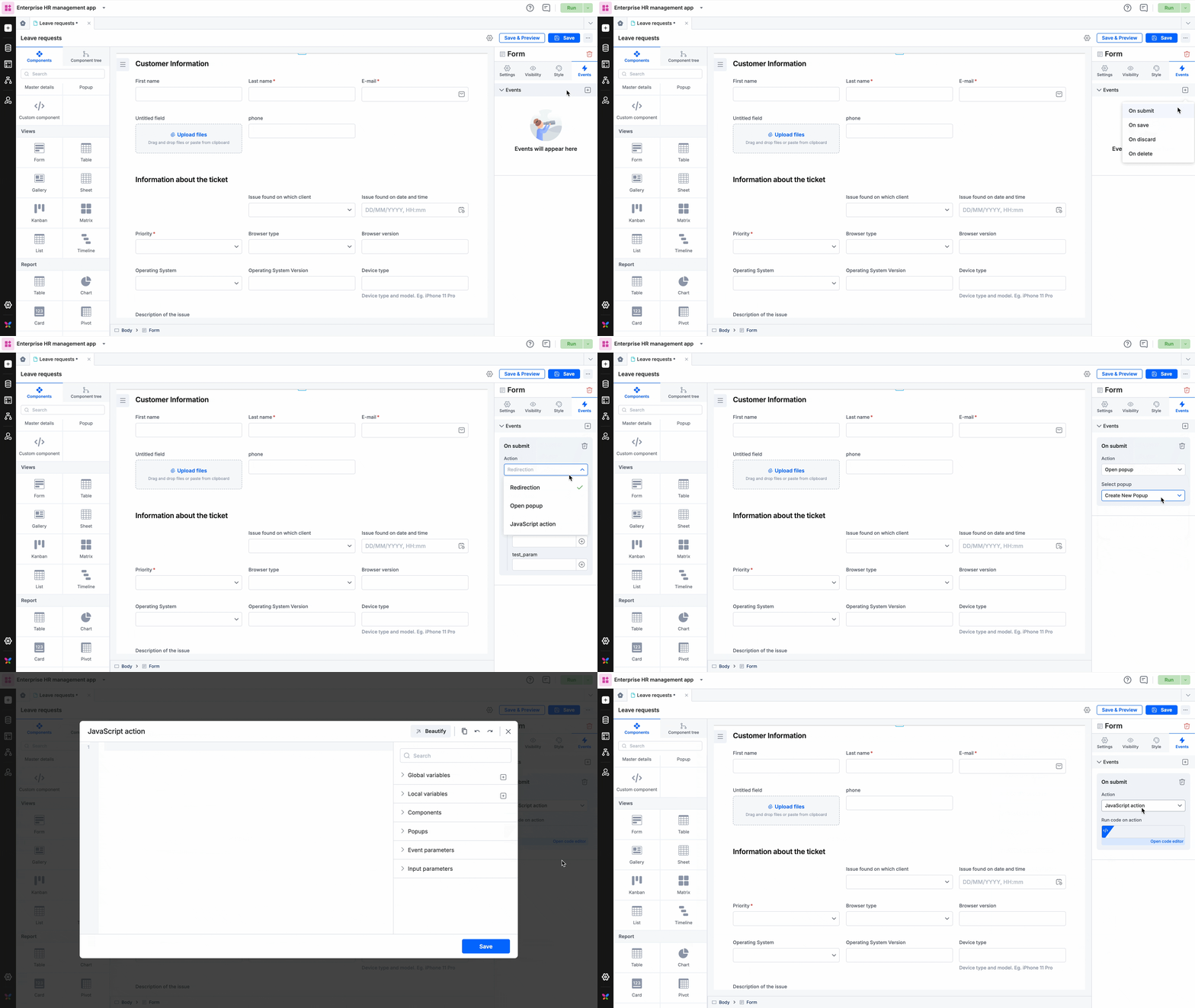
Adding events to dataforms
You can create events for individual dataform component in your app.
-
Select the particular dataform in your apps page
-
Go to the Events tab
-
Choose an event from the drop-down menu
-
On submit
-
On save
-
On discard
-
On delete
-
-
Select the action you want the event to trigger.
-
Redirection: You can guide users to another page.
-
Pop up: Display a pop-up when an event occurs.
-
Custom javascript actions: You can configure custom actions beyond redirection and pop-ups.
-