

Quickstart for builders
Build your first app with Kissflow's no-code tools and AI.
This tutorial takes you from an empty account to a deployed app with one page, a form that captures data, and a workflow that routes it. Those are the four building blocks every Kissflow app is made of. Each step here is the short version; the Go deeper links carry the full detail when you want it.
Before you begin
You need access to the app builder and to the development environment, where all building happens. If you created your Kissflow account, you have both. If someone added you, and the app builder opens but your app won't, ask an admin to map you to the development environment.
1. Create your app
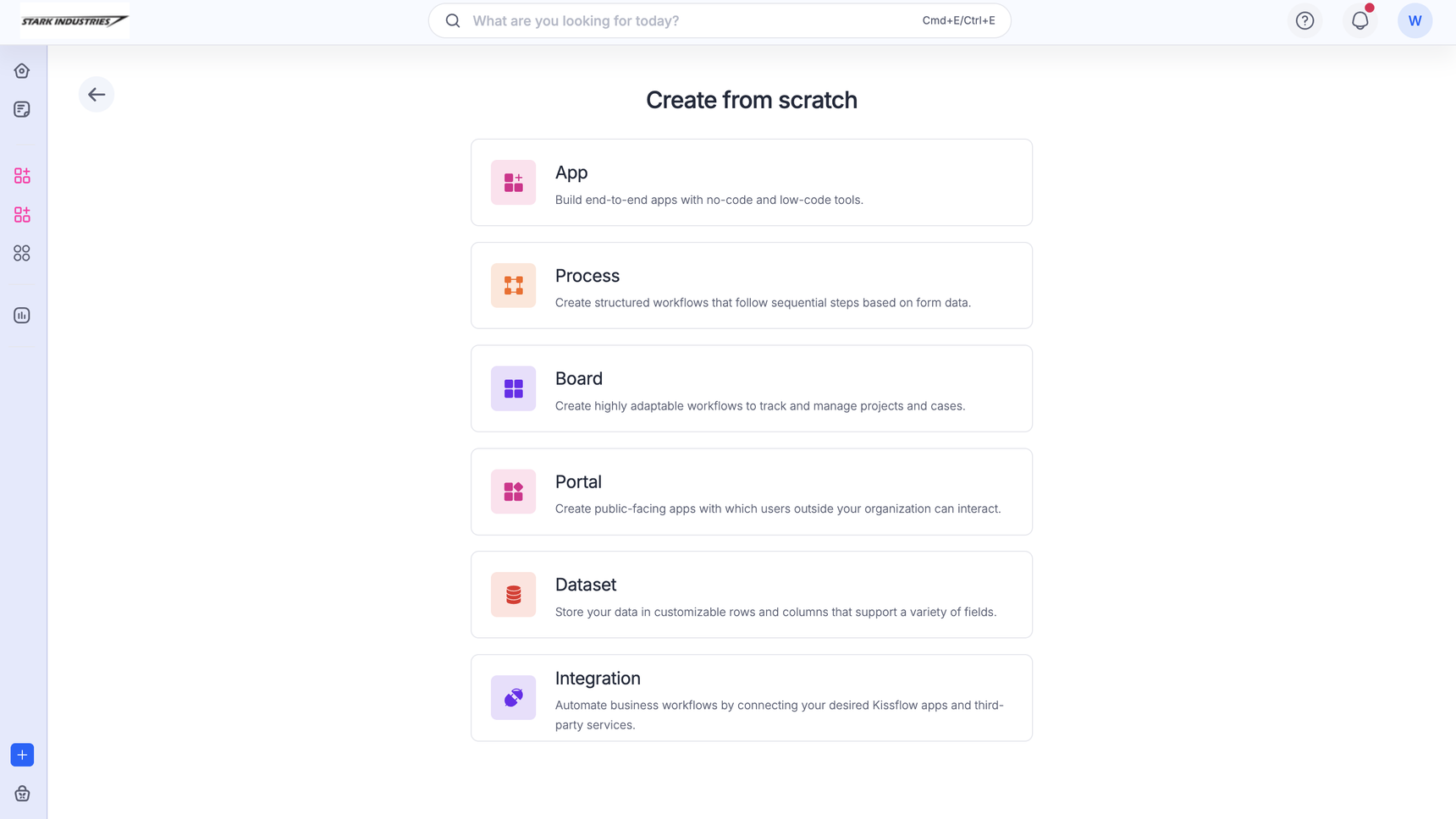
- In the production environment, click the + Create button in the left navigation menu and select App. Alternatively, click Explore > + Create.
- Add your app's name, icon, and description, then click Create.
- Go to Manage > Edit app to open your new app in the app builder.
Note
The app is created in production, but you build in development. Edit app takes you there, and everything you make stays invisible to your users until you deploy in step 5.
Go deeper: Creating an app.
2. Design a page
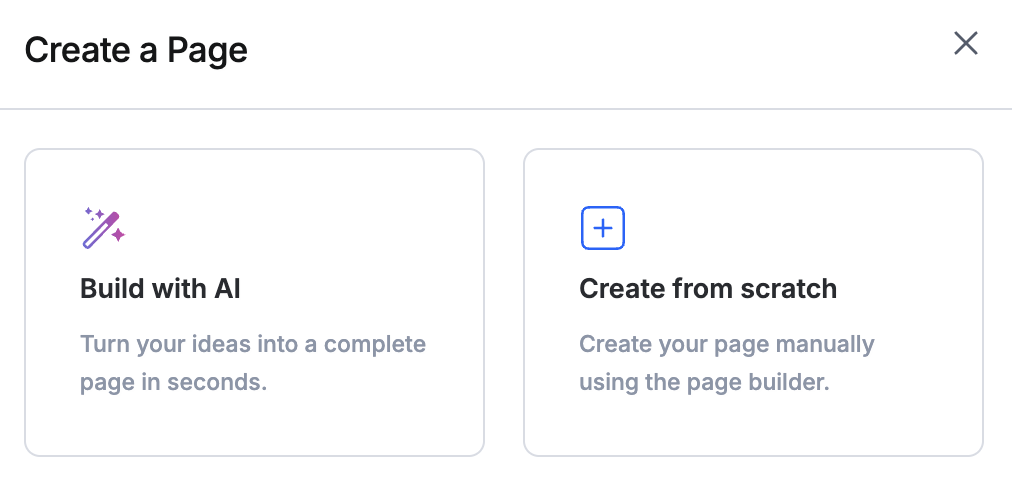
- In the app builder, click the + Quick create icon in the left navigation menu and click Page.
- Select Create from scratch to lay the page out yourself with drag-and-drop components, or select Build with AI, describe the page you want, and select the roles it's for.
Go deeper: Creating and editing pages.
3. Build a form
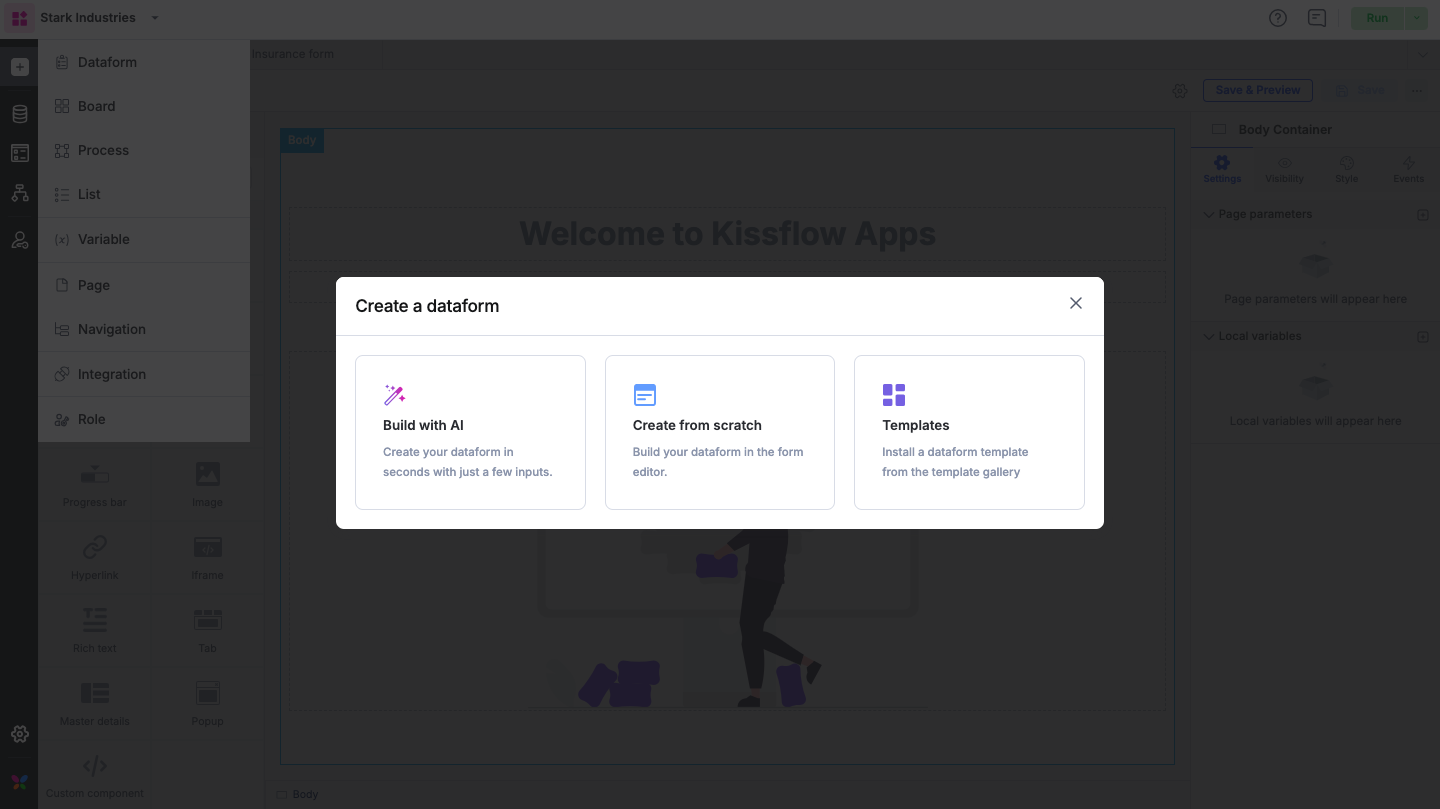
- Click + Quick create and select Dataform.
- Select Create from scratch, enter a name and description, and click Create.
- Add the fields your data needs.
Go deeper: Creating and managing dataforms.
4. Set up a workflow
- Click + Quick create and select Process.
- Select Create from scratch, name it, and click Create.
- Open the Workflow tab and add your steps, such as approvals and inputs, and set who each one is assigned to.
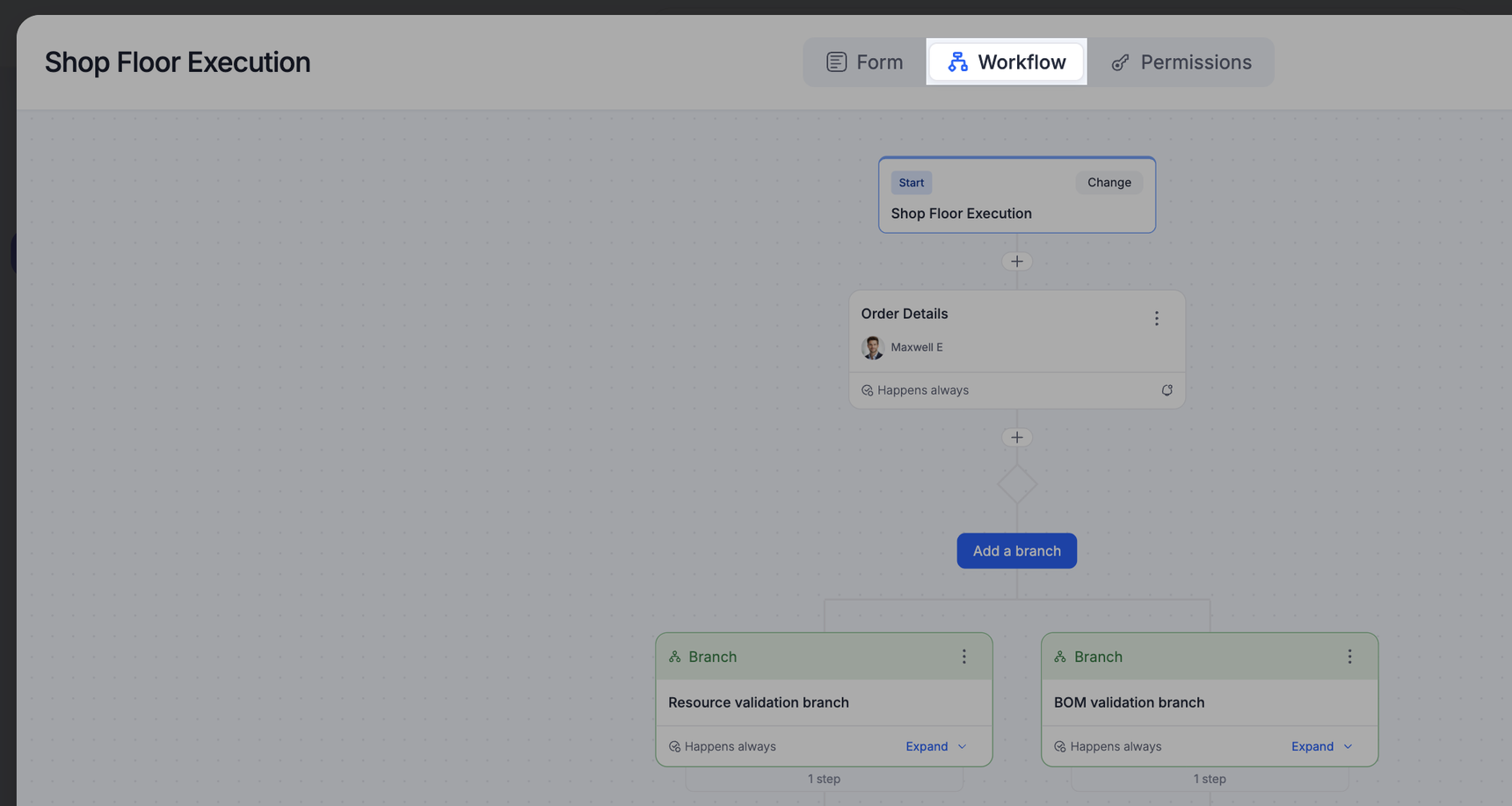
If you'd rather describe the process than diagram it, AI can suggest the workflow and its steps.
Go deeper: Creating a process and Making a process workflow.
5. Deploy your app
Important
A navigation is a mandatory asset for deployment. It defines which pages each role sees, so create one under Interface > Navigation before you deploy.
- Click the arrow icon in the top-right corner of the app builder and click Deploy.
- Review the preview, which lists the core changes going out in this build: your page, dataform, and process. Adjust the version number if needed.
- Click Deploy.
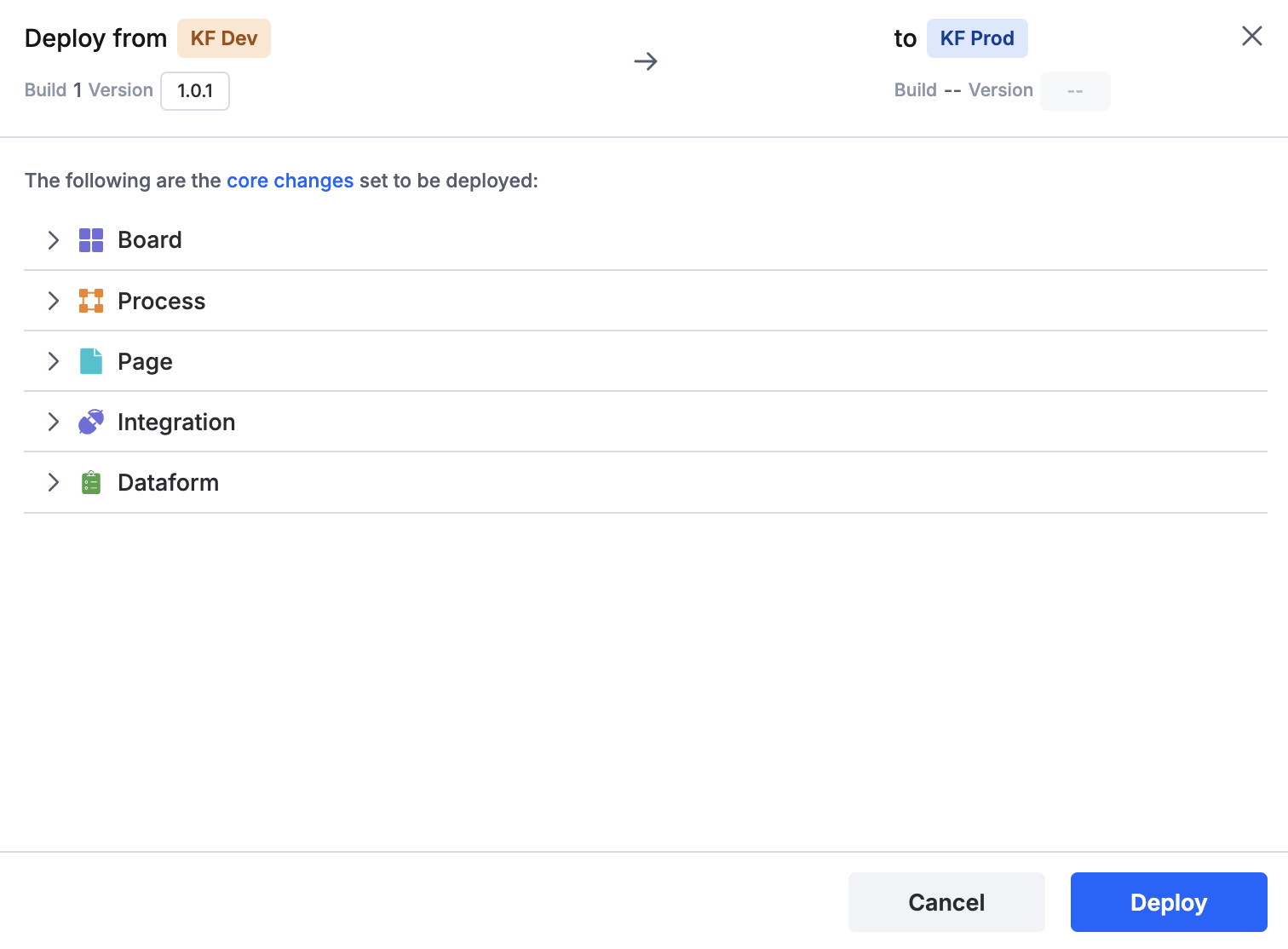
Your app moves from development to the target environment, and its users can open it from Explore.
Go deeper: App deployment and App environments.
Where next
Keep building with these guides:
- Track work visually with a board.
- Connect other systems with an integration.
- Measure what's flowing through with analytics.
- Control who sees what with application roles.