Account details, customization, and connected domains
View and change your account name and domain, customize your logo, theme, and mobile branding, and connect additional email domains to your account.
Account details, customization, and connected domains
Admins can view and manage these settings from your profile picture (top right of the home page) > Account administration > Account settings. From here you can view your account name and domain, customize your logo and theme, brand the mobile app, and connect additional email domains to your account.
Note
Access to Account settings depends on your admin role. Roles with account-level administration access can reach this page.
Account details
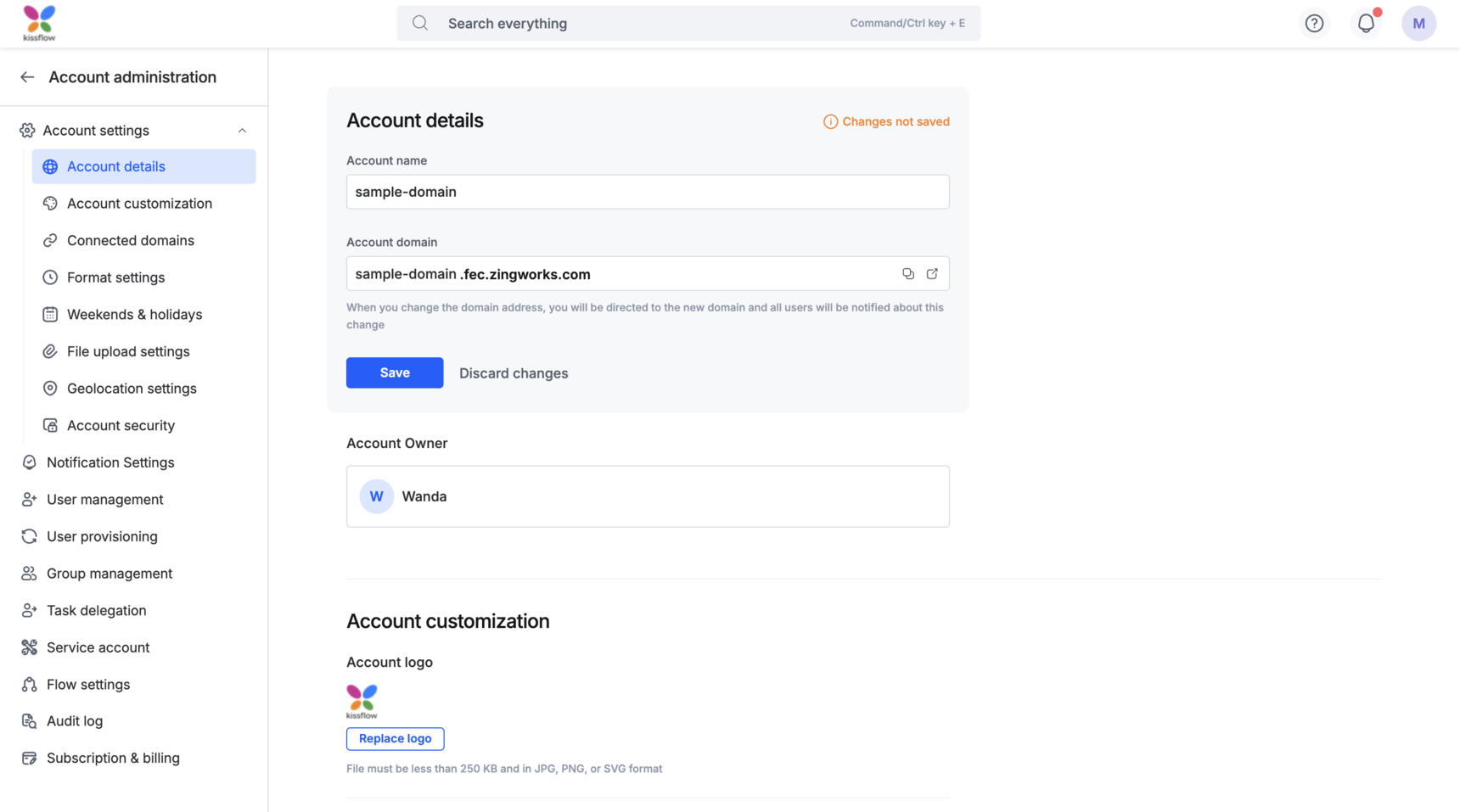
Account name and domain
Your account name and domain are automatically assigned based on the email domain you signed up with. You can change the domain at any time, as long as no other Kissflow organization is already using it.
To change your domain:
- Go to your profile picture > Account administration > Account settings > Account details.
- Click the domain field and enter your new domain.
- Confirm the change.
Important
Changing your domain logs everyone out of their current session, including you. You're redirected to the new domain shortly after; other users need to navigate to the new domain themselves to sign back in — share the new domain with your team before you switch. Once you move off your old domain, it becomes available for another organization to claim.
Note
Want a fully custom domain instead of <your-domain>.kissflow.com? Custom domain mapping isn't self-service — chat with Kissflow support to set it up.
Account owner
The Account Owner is the person responsible for setting up your Kissflow account and is Kissflow's main point of contact for the account. Only one owner is allowed per account, but the current owner can transfer ownership to another admin at any time.
To transfer ownership:
-
Go to Account settings > Account details.
-
Next to Account Owner, click Change.
Note
Only the current Account Owner sees this option.
-
Search for and select the new owner from the admin list.
-
Confirm the change.
Account customization
Account logo
Your account logo is auto-assigned based on the email domain used to sign up, and appears in the top right of your account, on the sign-in screen, and in certain product emails. You can replace it with your own.
- Go to Account settings > Account customization.
- Click Replace logo (or Upload a logo if none is set).
- Choose your image file.
Note
Use a rectangular logo, ideally 240x36 pixels. The file must be under 250 KB and in JPG, PNG, or SVG format.
Mobile app branding
Customize how the Kissflow mobile app (or PWA) looks for your organization.
- Under Account customization, enter a name in the App name field.
- Click Replace icon (or Upload an icon if none is set) and choose your image file.
Note
Use an icon that's 512x512 pixels, under 500 KB, and in PNG format.
Account theme
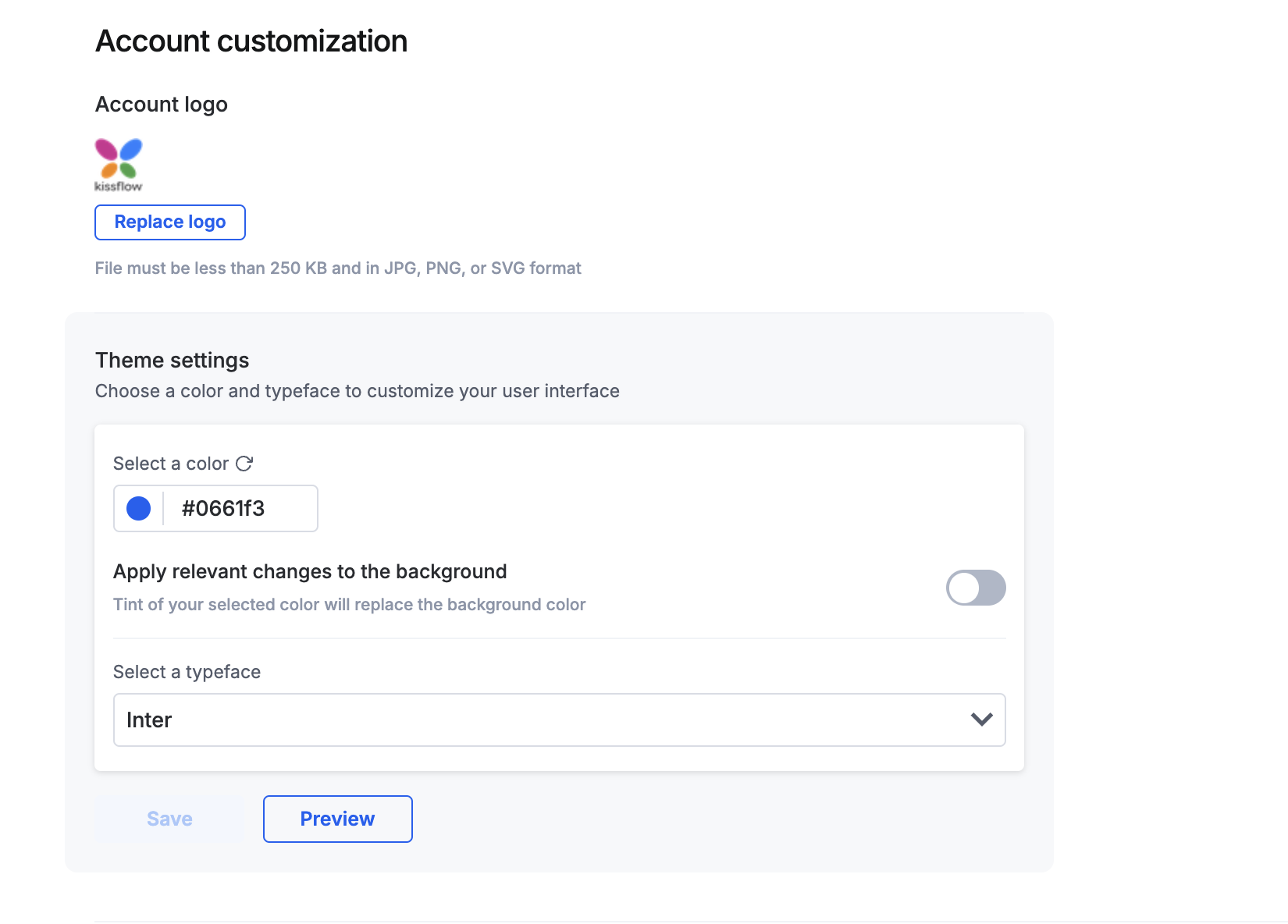
Apply your brand color to header text, links, and backgrounds across your account, and choose an account-wide typeface.
- Go to your profile picture > Account administration > Account settings > Account customization.
- Under Theme settings, pick your brand color from the palette or enter its hex code.
- Toggle Apply relevant changes to the background to also carry the color into background elements.
- Under Select a typeface, choose a font. Once applied, it's used across your entire Kissflow account.
- Click Preview to check how the color and typeface look before committing.
- Click Save to keep the theme, or Discard changes to go back and adjust it.
- To undo a color or font change, click the reset icon next to it and confirm in the Reset to default value popover.
Note
Preview your theme before saving — lighter shades can affect text readability.
Note
Theme settings and mobile app branding are only available if Kissflow has enabled these features for your account. If you don't see these sections, contact Kissflow support.
Connected domains
If your organization uses multiple email domains, you can connect additional domains to your account. Once a domain is connected, no one else can sign up for a new Kissflow account using it.
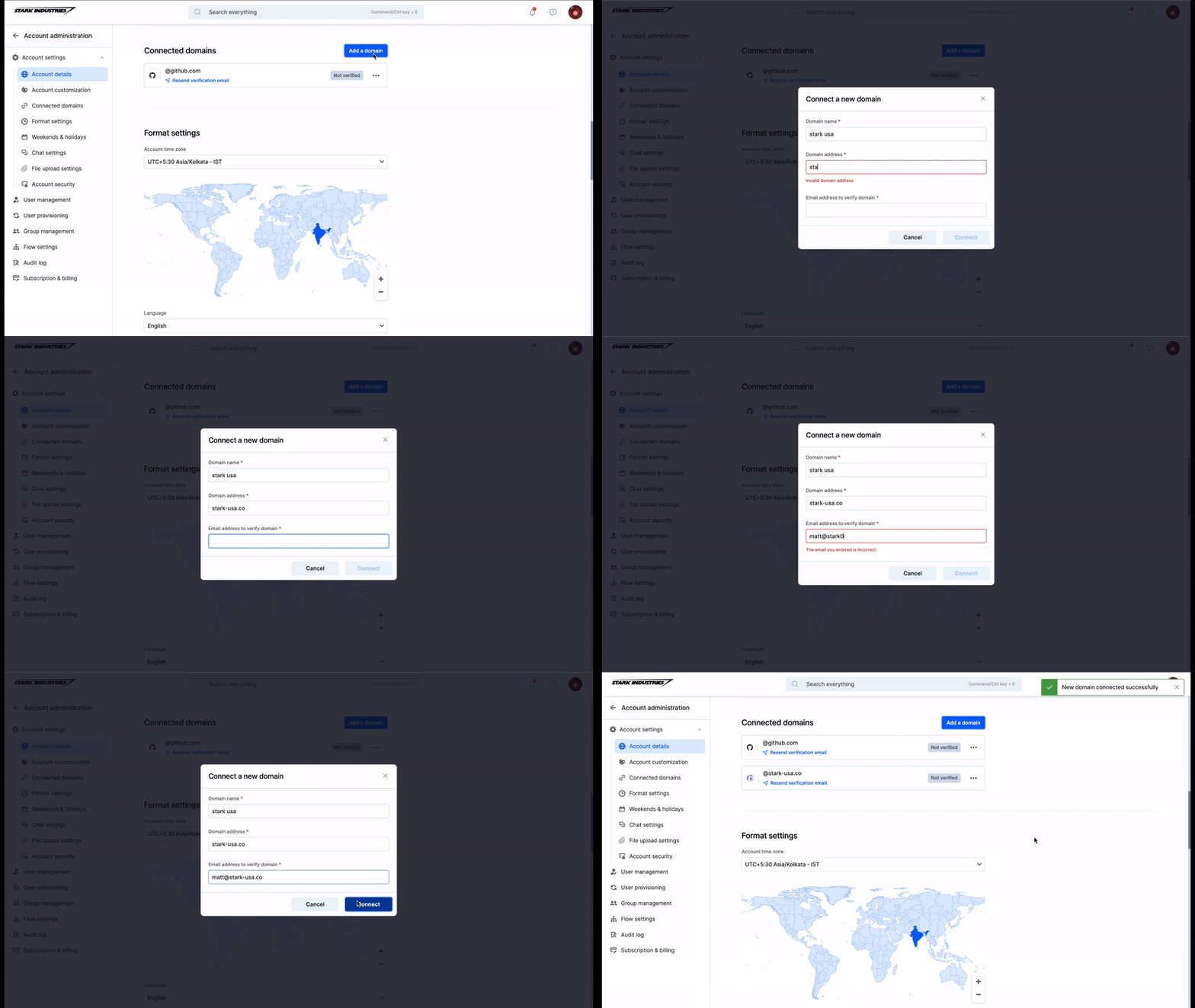
For example, if your organization's domain is starkcorporation.co and you also use stark-usa.co, you can connect the second domain to the same account:
- Click Add a domain.
- Enter the domain name, domain address, and an email address on that domain to verify it.
- Submit the request.
An invite email is sent to that address. Once verified, the domain is connected to your account, and no one else can use it to create a new Kissflow account.
Note
You can connect multiple domains to one account, but each domain can only ever belong to a single Kissflow account.