

Task delegation
As a Super Admin, delegate a user's upcoming process tasks to another user, and override or manage any delegation across the account.
Task delegation
From Account Administration, Super Admins can delegate a user's future process tasks to another user — for example, when someone is out of office. You can delegate all the processes a user is part of, or only specific ones.
Note
Only new process tasks are delegated. Tasks already assigned to the user when you set up the delegation stay with them.
Task delegation table
The task delegation table lists every delegation in the account, split across two tabs:
- Set by admins — delegations Super Admins have created.
- Set by users — delegations users have set up for themselves.
From this table you can create a new delegation, and view, edit, or cancel any existing one.
Add a new delegation
- Click your profile picture > Account administration > Task delegation > + New.
- Select the user whose tasks you want to delegate.
- Select the start and end dates for the delegation.
- Choose whether to delegate tasks from all processes the user is part of, or only specific processes.
- Select who the tasks should go to:
- If you chose All processes, select the single user to delegate to.
- If you chose Specific processes, you can select a different user for each process.
- To delegate several processes to the same user in one go, select their checkboxes, click Delegate to, and choose the user.
- Click Create.
Note
Notifications for delegated process steps are redirected to the delegated user. The Workflow completed notification is the exception — it always goes to the item's original requester or initiator, even if they've delegated their tasks.
You can view and edit an existing delegation any time by selecting it from the Task delegation table and clicking Edit delegation.
When the user returns, they're greeted with a welcome-back message about the delegation. They can review and cancel it from there to resume acting on their items, or cancel it later from My settings > Task delegation.
Override a delegation set by a user
As a Super Admin, you can override a delegation a user has set up for themselves.
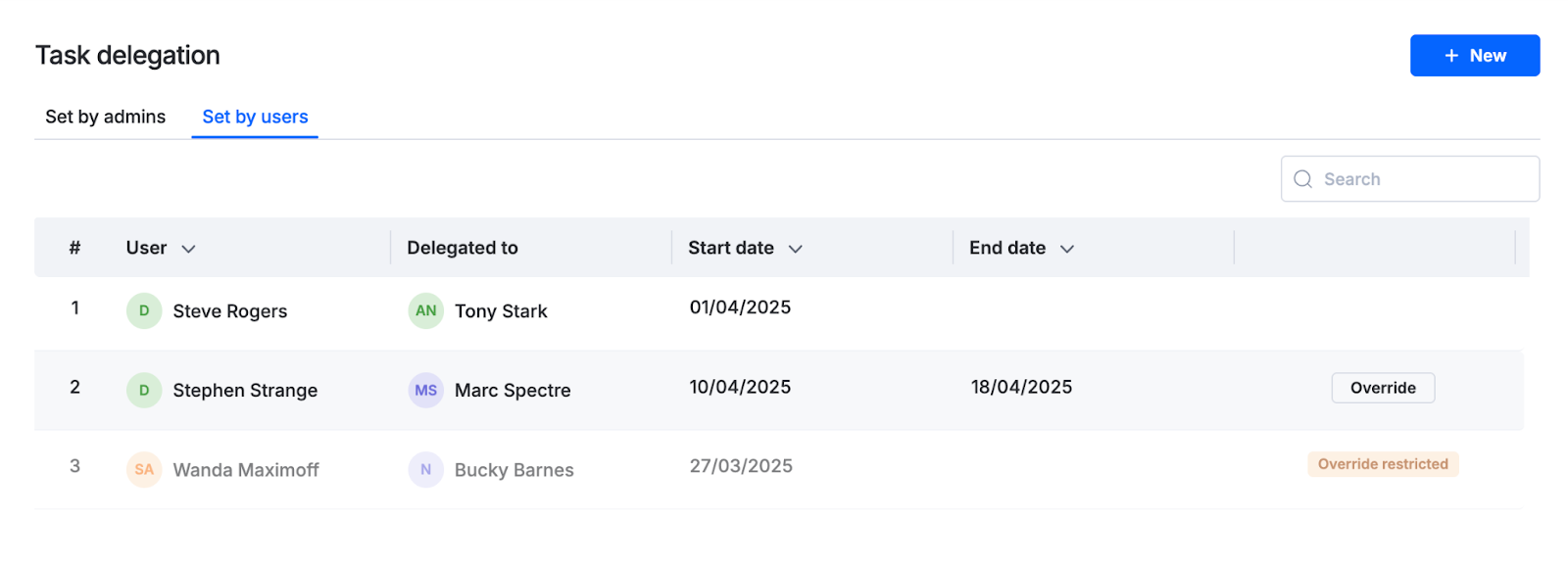
- Under the Set by users tab, hover over the delegation you want to override.
- Click Override.
- Make the changes you need, then click Override again to confirm.
Note
Once you've overridden a user's delegation, that row can't be overridden again — it shows as override-restricted. You can still edit your existing override from the same table.
A Super Admin's override always takes priority over the user's own delegation. Once the override ends, the user's original delegation automatically resumes for whatever duration is left.
Example: A user sets a 15-day delegation. You override it with a 5-day delegation. Your delegation applies first — once those 5 days pass, the user's delegation picks back up automatically for the remaining 10 days.
What's next
- Personal info, format settings, and task delegation — how users set up their own delegations
- User roles and permissions
- Format settings