

Personal info, format settings, and task delegation
Update your personal details and password, set your account's language and date format, and delegate your process tasks while you're away.
Personal info, format settings, and task delegation
The General settings section of My settings is where you manage your own profile, password, display preferences, and task delegation — separate from account-wide settings, which admins manage.
Access your settings
- Click your profile picture in the upper-right corner of the Home screen.
- Click My settings.
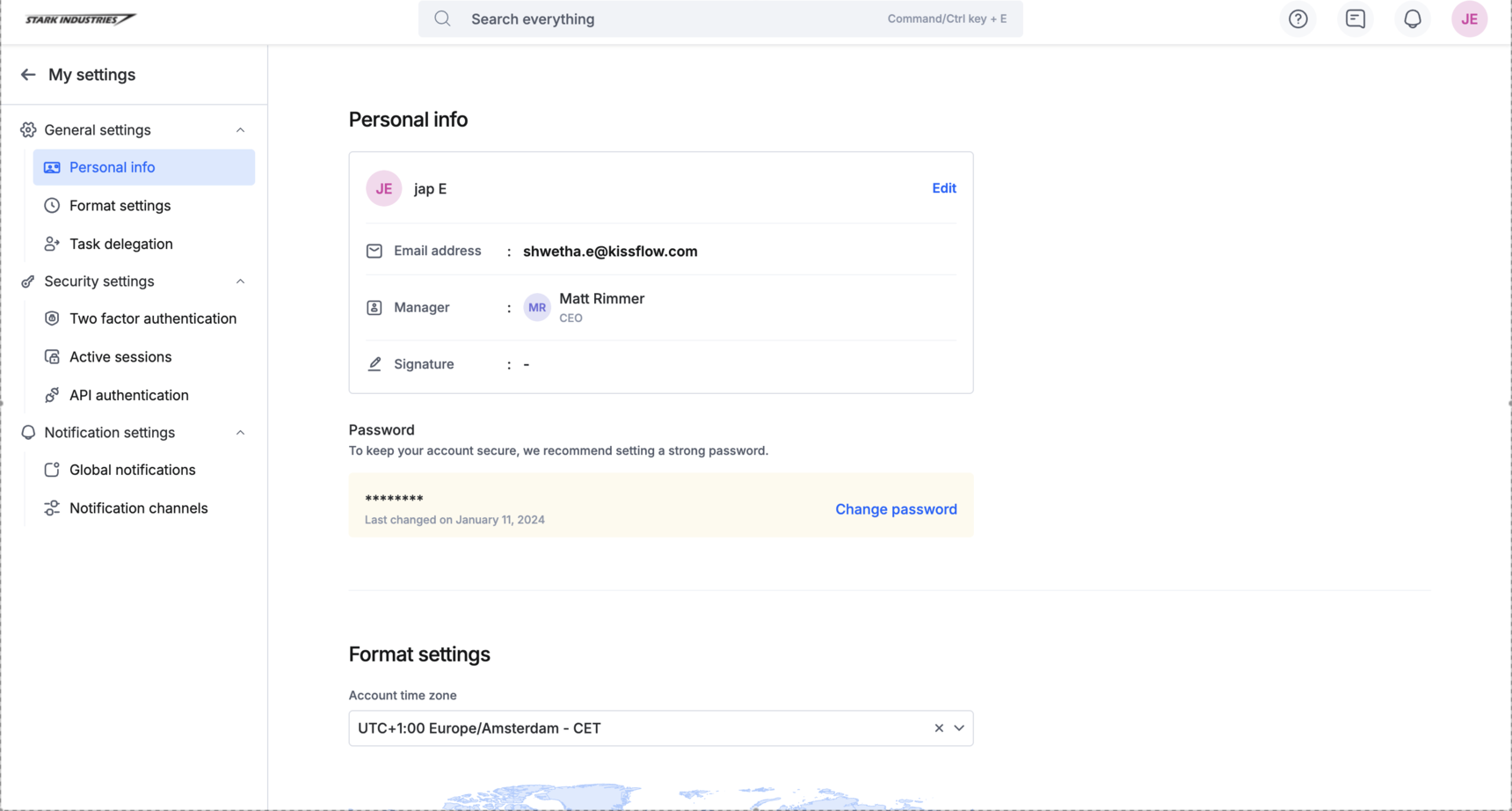
The My settings page has three categories: General, Security, and Notification settings. General settings contains Personal info, Format settings, and Task Delegation.
Personal info
The Personal info page lets you fill in your details, upload a profile picture, add a signature, and manage your email address.
Change your password
- Click Change password.
- Enter your current password and your new password.
- Click Save.
Reset a forgotten password
- Click Change password > Forgot password?
- Click Send email.
You'll receive an email with instructions to reset your password.
Important
The reset link in this email expires after 24 hours. If it expires before you use it, restart the Forgot password? flow to get a new one.
Format settings
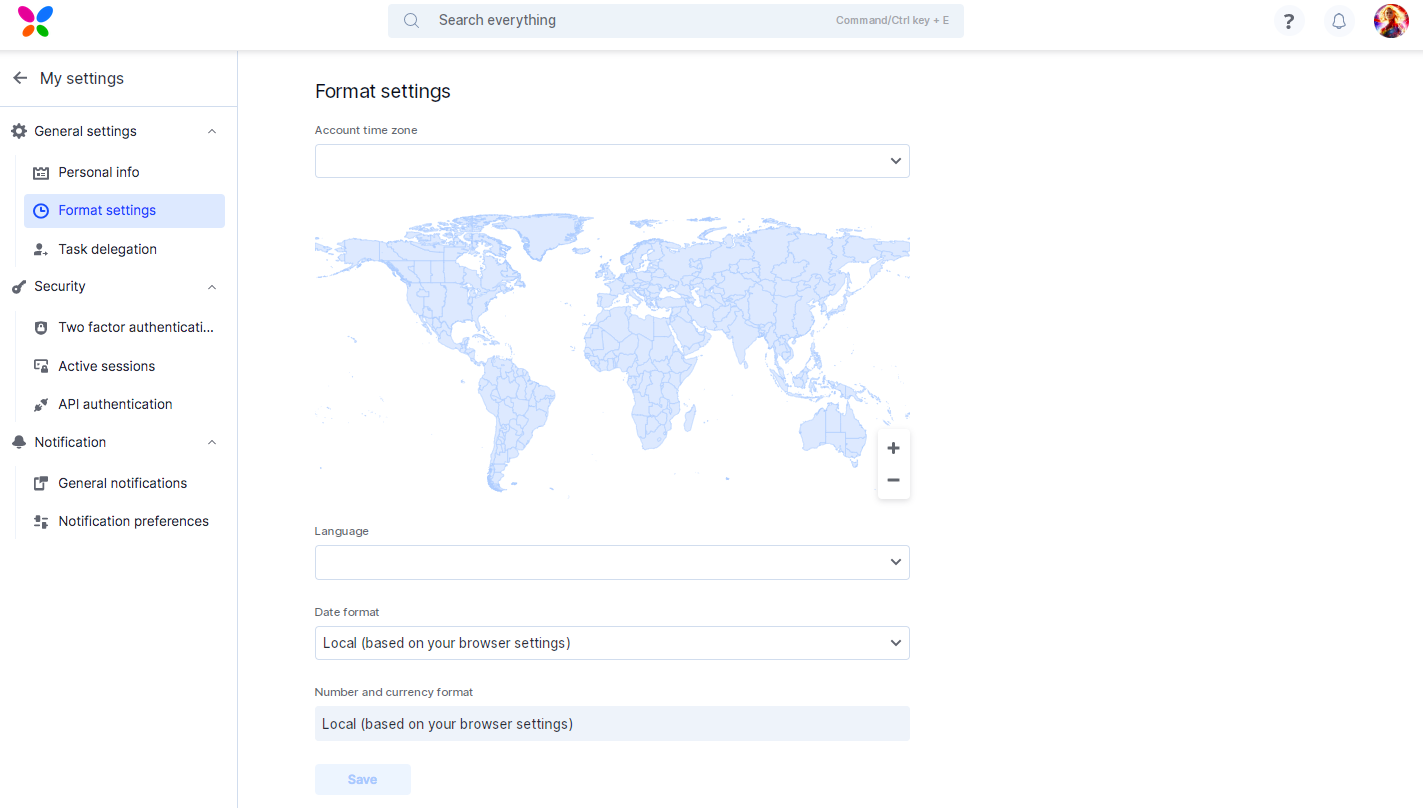
Format settings control how data and time-based values are displayed for your own account. They're separate from the account-wide format settings, which are typically managed by admins with account administration permissions (see Super Admin).
- Account time zone — used when a scheduled action in an integration runs, or when a deadline in a workflow is evaluated. Data from your processes, boards, and apps is displayed in this time zone.
- Language — the display language for your account. Kissflow supports more than 20 languages, including English, French, Spanish, German, Italian, Russian, Korean, Simplified Chinese, Japanese, Vietnamese, Thai, Polish, Portuguese, Slovak, Czech, Ukrainian, Hindi, and Romanian. Arabic is the exception — it's only available if your account has been enabled for it (see Languages supported by Kissflow).
- Date format — the display format for date fields across your account.
Note
Number and currency format aren't configurable — they're always based on your browser's locale settings.
Click Save after choosing your preferences.
Task delegation
Delegate your process tasks to another user when you are not around. Existing items stay with you, and only new tasks go to the user you select. You can cancel a delegation at any time.
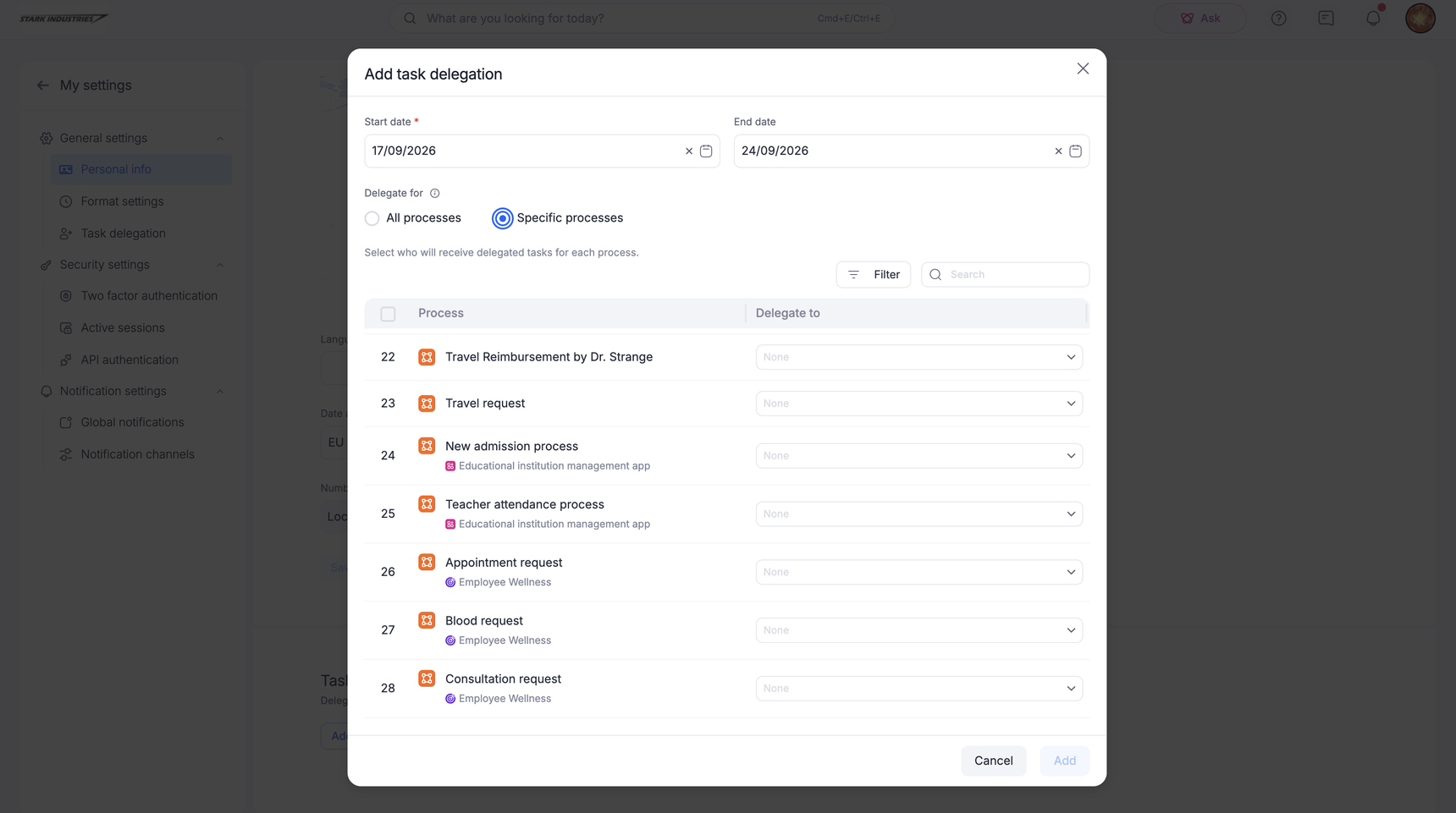
- Click Add delegation.
- Select a Start date. To end the delegation automatically, select an End date.
- Select an option under Delegate for:
- All processes: Every task you receive goes to one user. Select the user under Who do you want to delegate your tasks to?
- Specific processes: Select the processes to delegate, and select a delegate for each one. Approvals from one process go to one colleague, and approvals from another go to someone else, within the same delegation. Processes you leave out stay with you.
- Click Add.
Under Specific processes, the list includes standalone processes and processes inside apps. Each app process carries the name of its parent app. To find a process:
- Search by process name.
- Click Filter to narrow the list by delegated state, process type, or app. The button shows the number of active filters.
- Select several processes, then click Delegate to to assign them to one user, or Cancel delegation to clear the delegates.
The same options are available in the Kissflow mobile app.
Note
Existing process items in your queue will not be delegated. New process items alone will start to be redirected to the delegatee.
Viewing your delegation
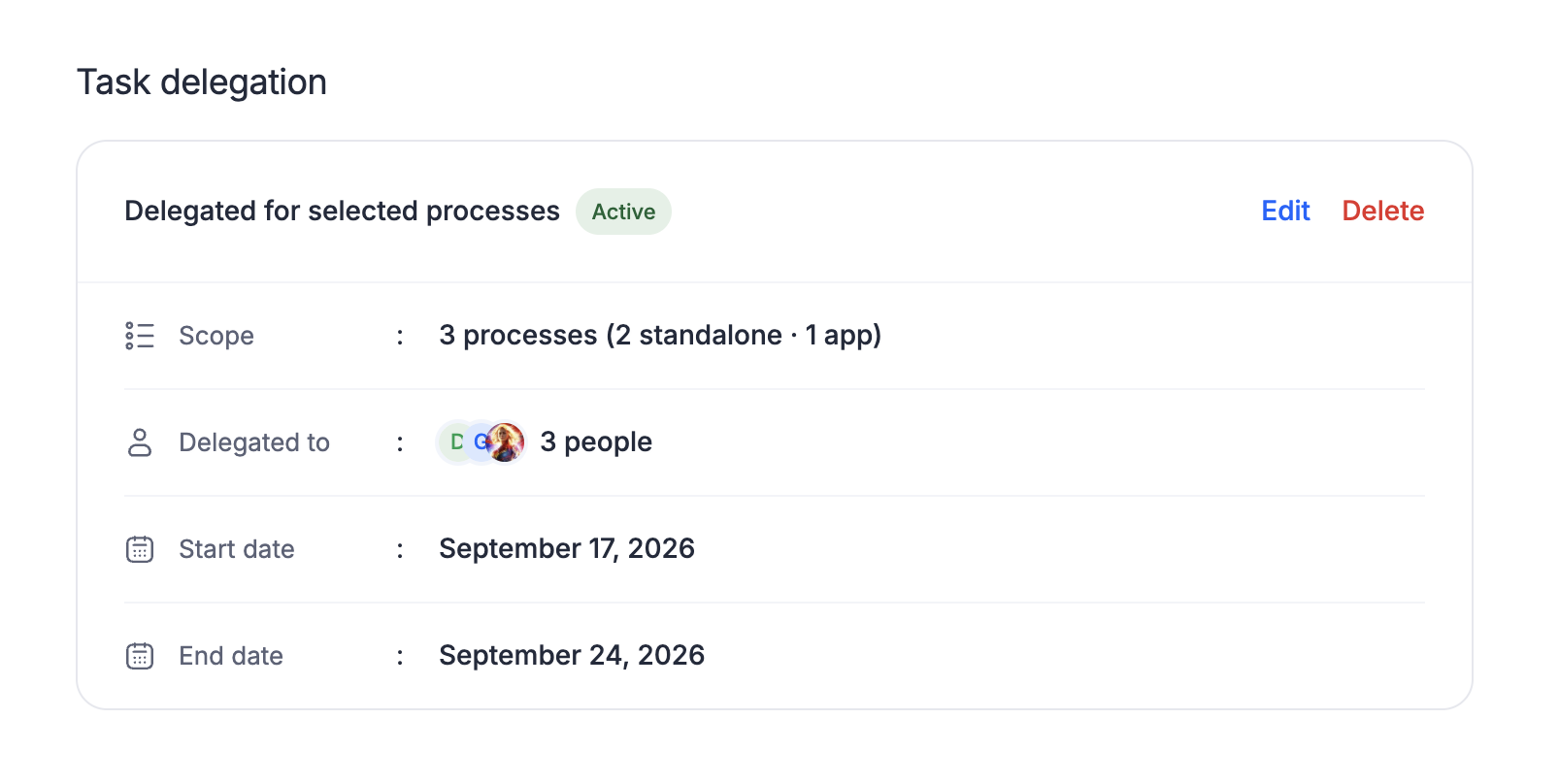
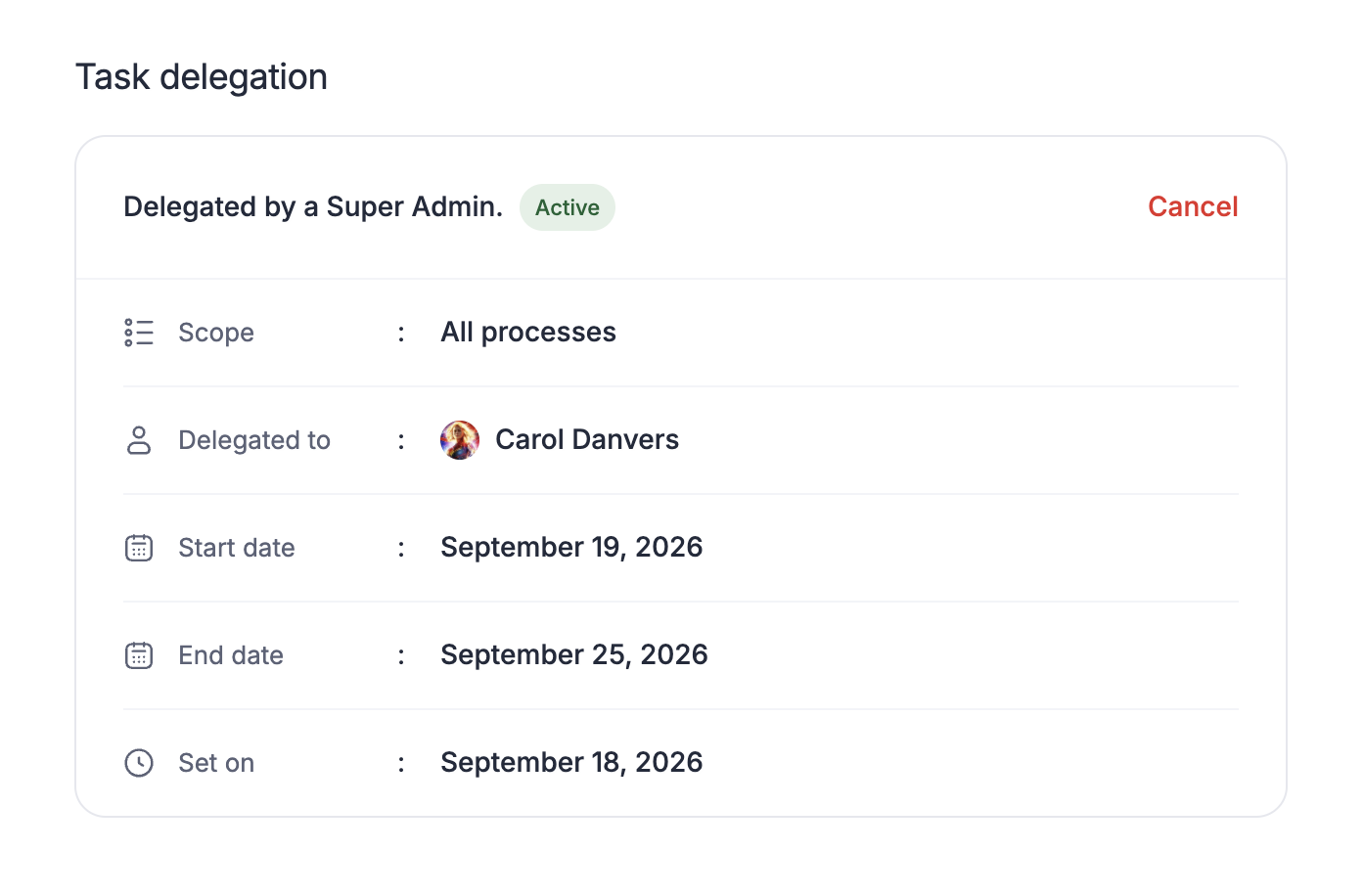
After you save, the delegation appears as a card with these details:
- Scope: All processes, or the number of processes with a breakdown of standalone and app processes, such as 3 processes (2 standalone · 1 app).
- Delegated to: The user who receives your tasks. When processes go to different users, the card lists everyone.
- Start date and End date.
A chip beside the card title shows Active when the delegation has begun, or Scheduled when it starts on a later date.
Modifying the delegation information
To change a delegation, click Edit on the card. To remove it, click Delete. New tasks return to you, and tasks that are already delegated stay with the user who received them.
When a Super Admin sets a delegation for you, the card title reads Delegated by a Super Admin, and only Cancel is available.
Note
Super Admins can override any delegation set by a user under My settings. They cannot override a delegation that has been already overridden but can edit it.