

Associated flows for processes
See which flows look up data from a process or trigger automation with it, so you understand its dependencies before making changes.
Associated flows for processes
The Associated flows section shows how a process depends on, and is depended on by, other flows in your account — giving you a map of relationships to check before you rename fields, change permissions, or archive the process.
View a process's associated flows
-
Open the process and click the Manage button at the top right.
-
Click Associated flows.
Note
Associated flows is available only to process admins and editors, and only while the process is Live.
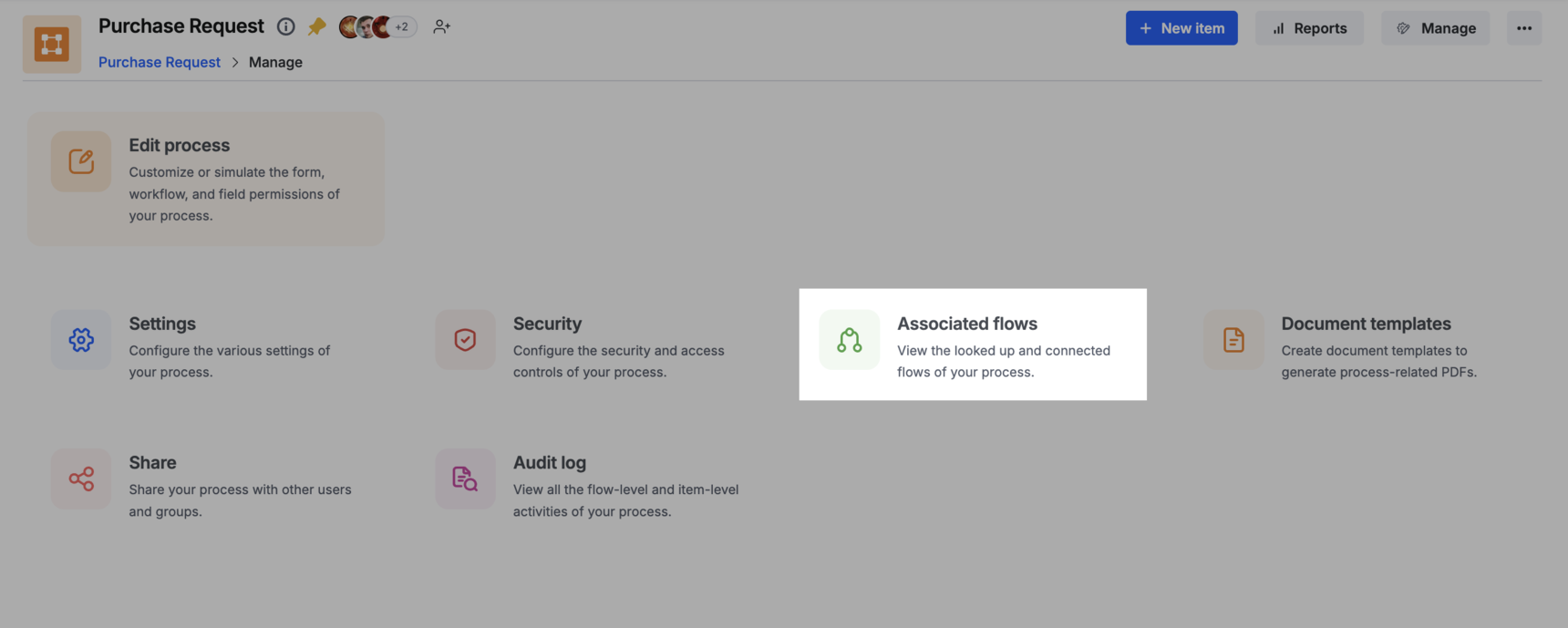
There are two types of associations, shown as tabs on this page: Looked up flows and Connected flows.
Looked up flows
Lookup fields let a process pull and display data from other flows. The Looked up flows tab shows both directions of that relationship.
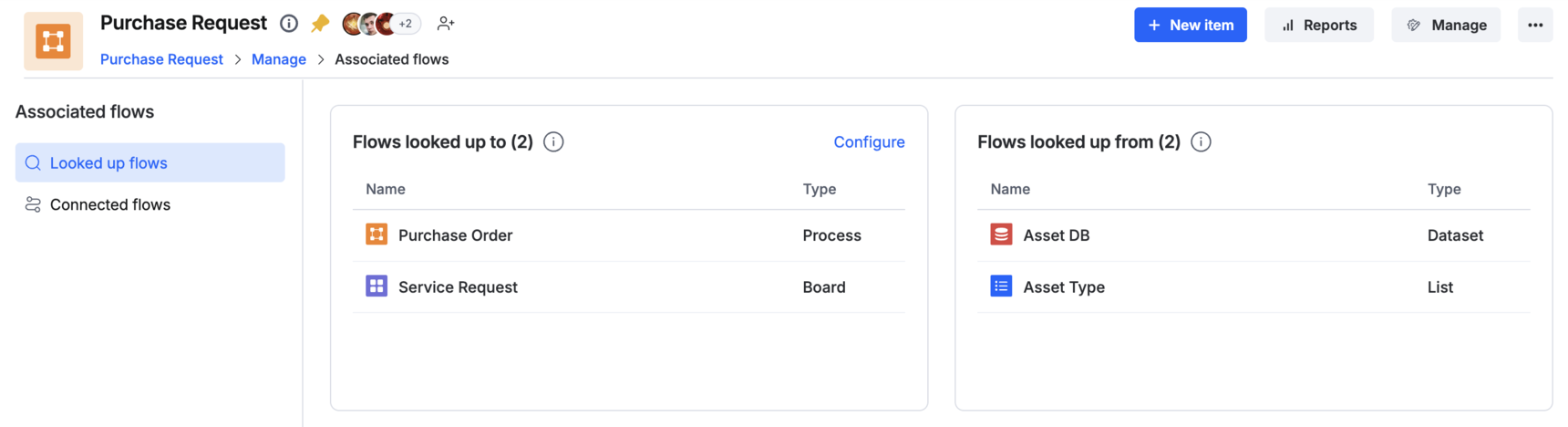
Flows looked up to
Shows which flows are looking up this process to fetch and display information.
Example: If another process references details like Purchase Order IDs or Vendor Names from the current process, that process appears under Flows looked up to.
Click Configure next to a flow in this list to open this process's security settings, where lookup permissions are managed.
Note
The Configure action is available only under Flows looked up to. To manage what the current process looks up from other flows, open the security settings of that other flow instead.
Flows looked up from
Shows the flows that the current process is looking up.
Example: If your Purchase Request process pulls Asset Types or Budget Codes from a master dataset, that dataset appears under Flows looked up from.
Connected flows
Note
Connected flows require the Enterprise plan.
Connected processes let actions in one process automatically create or update an item in another process. The Connected flows tab shows both directions of that relationship.
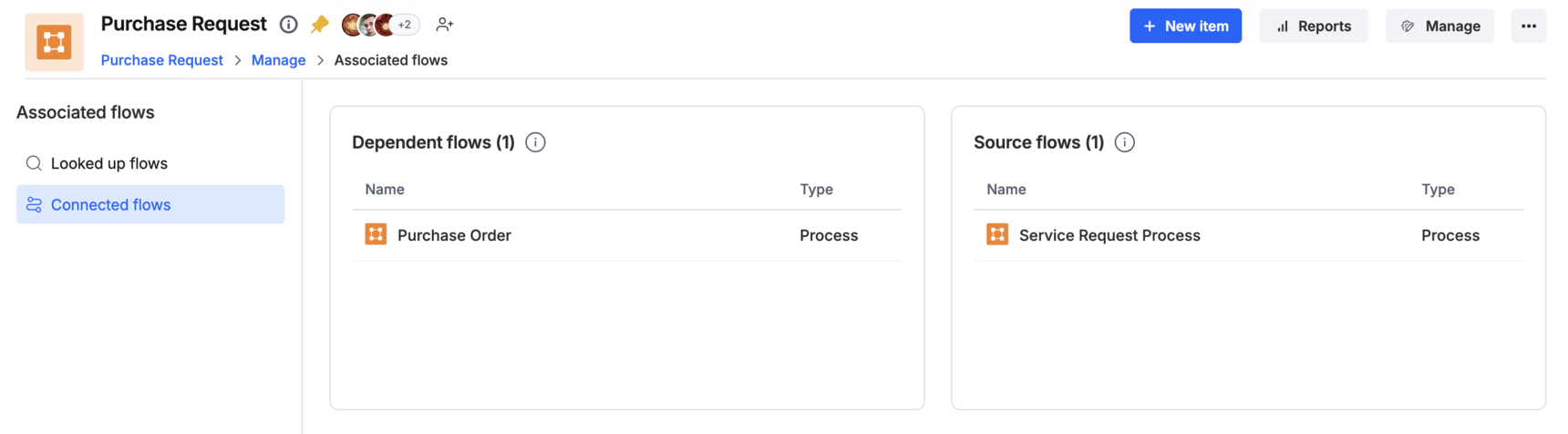
Dependent flows
Shows the connected processes that can automatically initiate new items based on items created or updated in this process.
Example: When a Purchase Request item is approved, it can automatically create an item in a connected Purchase Order process.
Source flows
Shows the connected processes that can initiate new items inside this process.
Example: A Service Request process can trigger this process to create a hardware request.
What's next
- Connected processes overview
- Connecting processes — set up a connected step, map fields, and configure conditions
- Lookup field
- Security settings for flows