

Connecting processes
Connect two processes so completing a step in one automatically creates and links dependent items in another, with field mapping and conditions.
Connecting processes
Connecting processes lets a step in one process (the source) automatically create and link an item in another process (the connected process) — for example, automatically creating a Purchase Order item when a Purchase Request is approved. This article covers adding the connection, mapping fields between the two processes, and viewing connected items.
Note
For a walkthrough of why and when to connect processes, see Connected processes - overview.
Connect a process
-
Click Manage at the top right of your process home page, then click Edit process.
-
In the Workflow tab, click the Add button (
 ) at the point in the workflow where you want the connection, and select Run a process.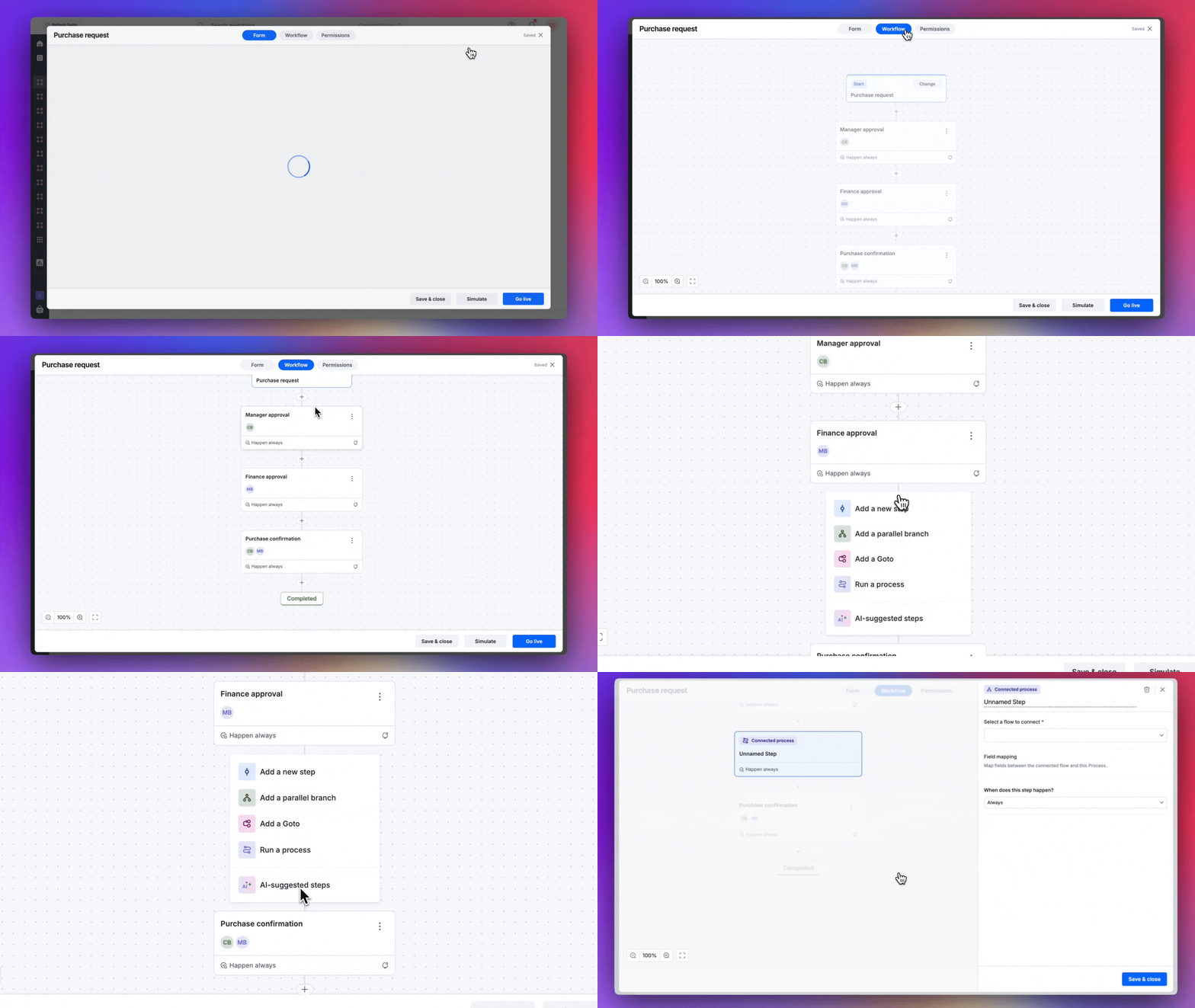
-
In the panel that opens on the right:
-
Enter a name and, optionally, a description for the step.
-
Select the process you want to connect to. Items are initiated in this process whenever the source item reaches this step.
-
Map fields — map fields between the connected processes so the source item's field values are inherited by the dependent item(s). You can also apply functions or expressions while mapping a field.
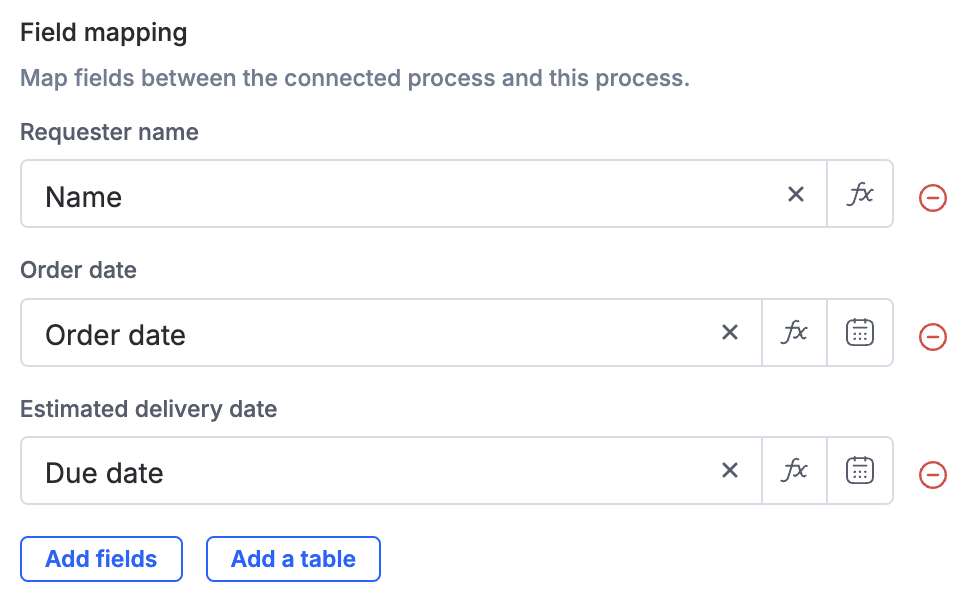
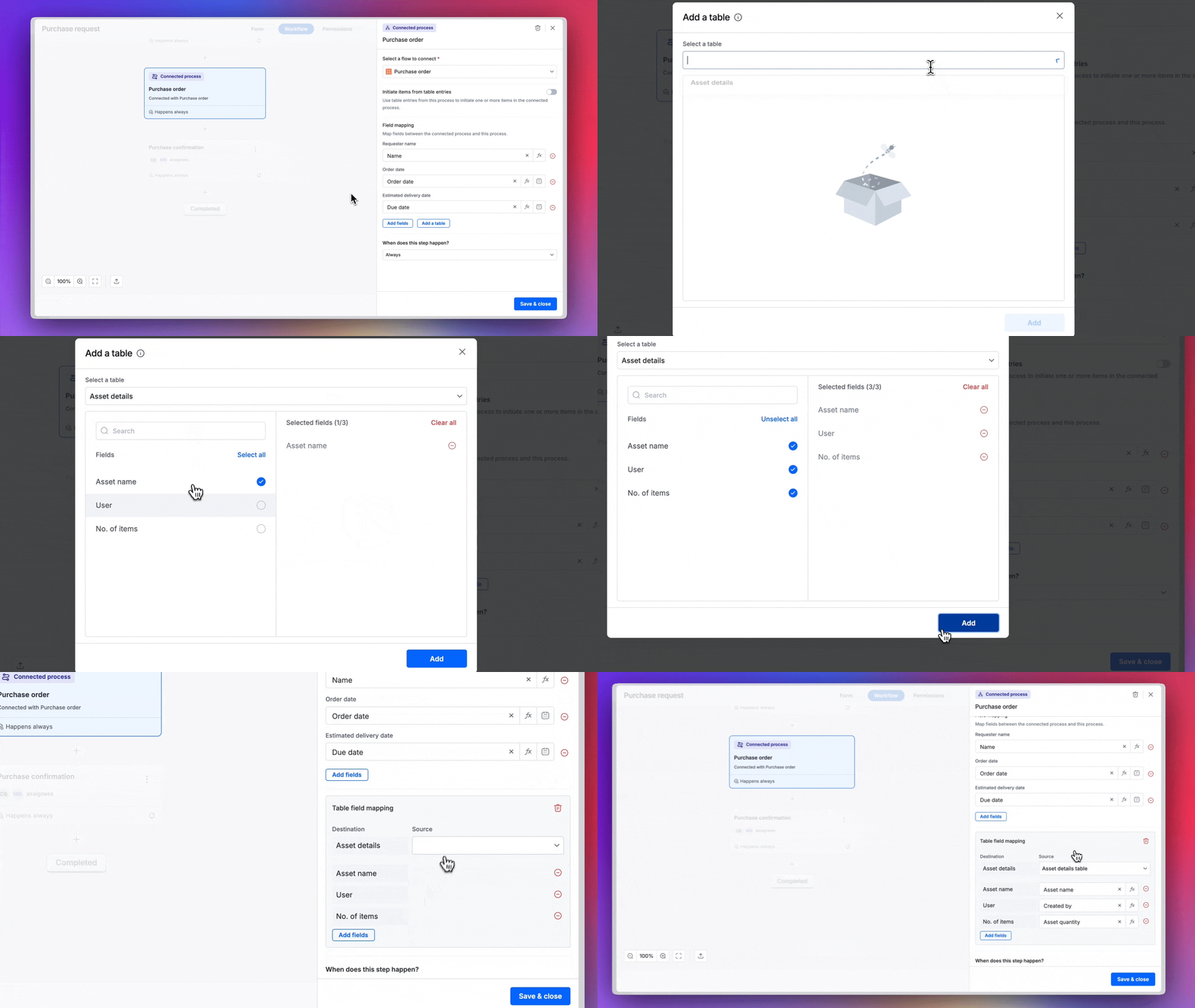
To map fields between a table in the source process and a table in the connected process, click Add a table, select the table, and add the fields you want to map.
Note
These field types can't be mapped: Attachment, Smart attachment, Image, Signature, Aggregation, Remote lookup, Lookup, JSON, Object, Object list, and String list.
-
Set conditions (optional) for creating dependent items in the connected process. Only items that match the conditions enter the connected step.
-
-
Click Go live to publish the changes.
View connected items
In the process's Administration section, process admins can find the source and dependent items of any item from the Connected item(s) tab.
Initiate multiple dependent items from a table
Instead of creating a single dependent item, you can initiate one dependent item per row in a source item's table — for example, one dependent item per row in a table of line items.
-
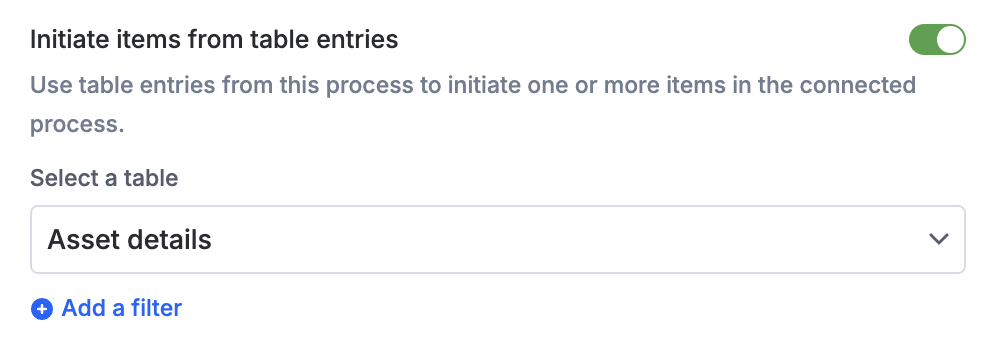
In the connected step's configuration panel, toggle on Initiate items from table entries.
-
Select the table whose rows should each initiate a dependent item.
Note
You can select only one table to initiate multiple dependent items.
-
Optionally, click Add a filter to set conditions — only rows that match the filter initiate a dependent item.
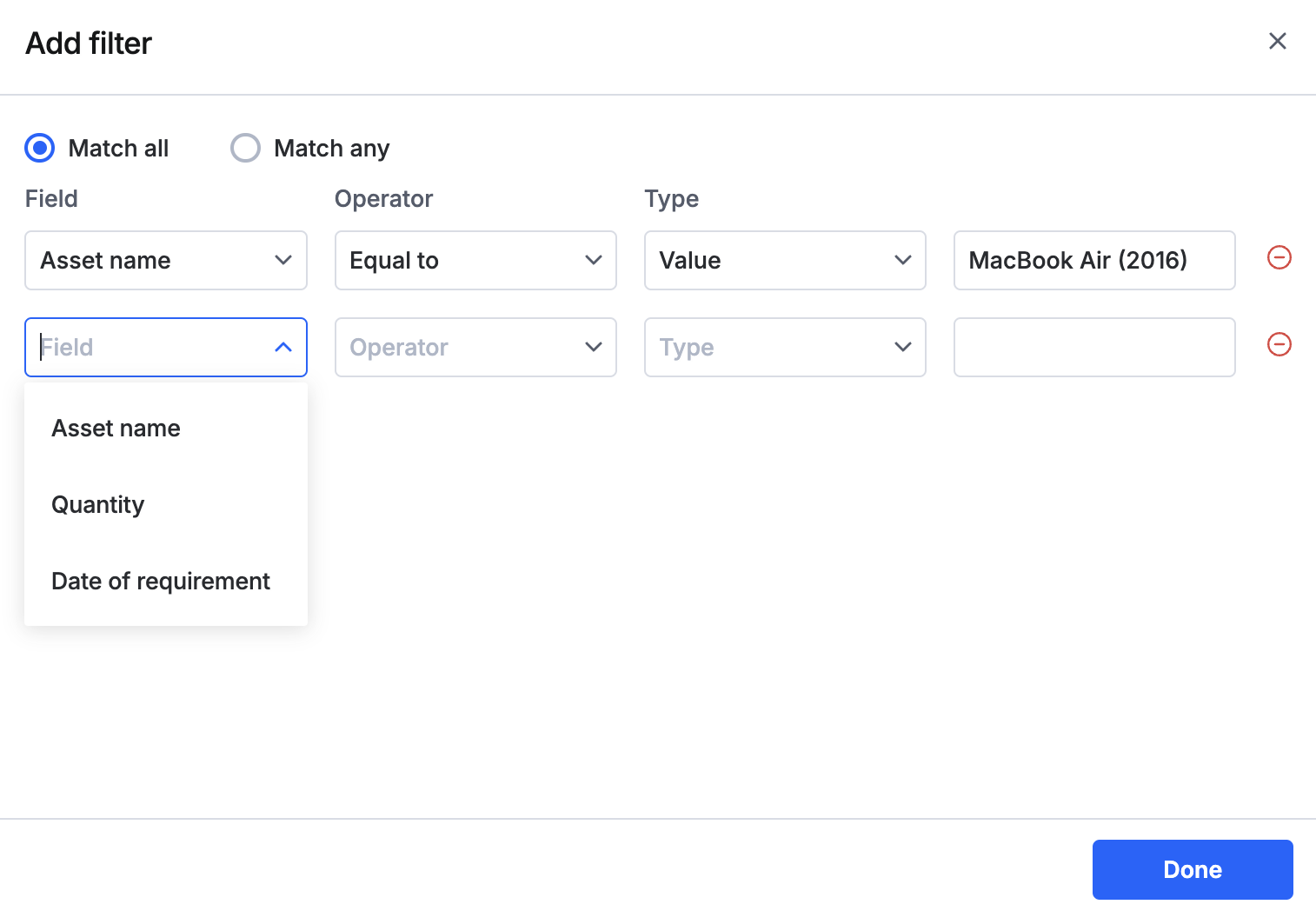
Once this toggle is on, the selected table's fields also become available for field mapping.