

Process settings
Configure form titles, submission locking, notifications, public forms, sequence numbers, and multilingual support for a process.
Process settings
When you create a process, you become its Process Admin. Process settings let you control how the process behaves — from the form title and submission locking to notifications, public forms, sequence numbers, and multilingual support.
To open process settings, click the Manage button on the process, then Settings.
General settings
The General tab covers the form title, submission locking, and the process's quick link.
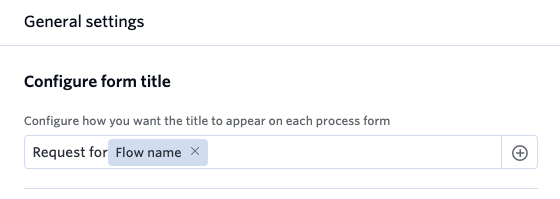
Configure the form title
The form title is the name given to each item as it moves through the process workflow.
- On the General tab, click the Add button (+).
- Choose the system fields or form fields you want, and arrange them in the order you want the title to read.
- Click Save.
Based on this format, titles are generated automatically and shown at the top of each process form.
Lock submissions
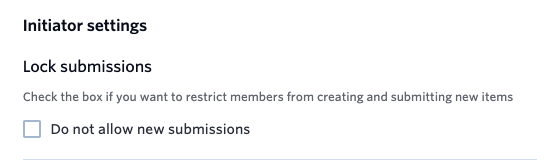
When you're making significant changes to a process, you may want to stop members from starting new items while you work.
- On the General tab, check the Lock submissions checkbox.
- Click Save.
Note
Locking submissions restricts members from creating and submitting new items. Items already in progress continue through the workflow as normal.
Share the quick link
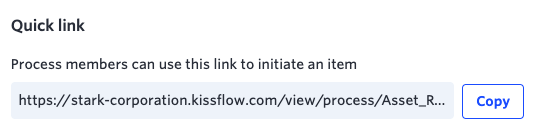
Share the process's quick link with members so they can start a new item directly. Logged-in members go straight to the form; anyone not logged in is directed to the login page first.
Notification settings
On the Notification settings tab, enable or disable notifications, preview them, and customize the templates for the long and short notifications sent to users for the different events in your process.
Learn more about process notifications.
Public form settings
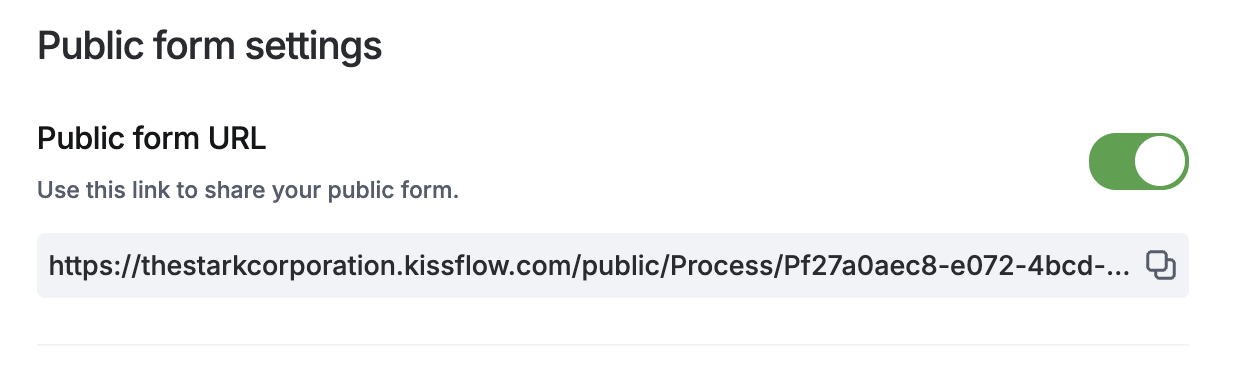
On the Public form settings tab, you can enable or disable the public form for a process.
- To enable it, turn on Public form URL, then copy the URL and share it with anyone outside your organization.
- To disable it, turn off Public form URL. External users will no longer be able to start new items from the public form, though items already in progress continue through the workflow.
Learn more about configuring a public form.
Sequence numbers
The Sequence numbers tab lists every configured sequence number prefix for this process.
- Total sequence number — the count of active prefixes for your sequence number field.
- Prefix — the prefix configured in the form. A dynamic field, such as Department, produces a different sequence for each value it generates.
- Current number — the current value for each prefix.
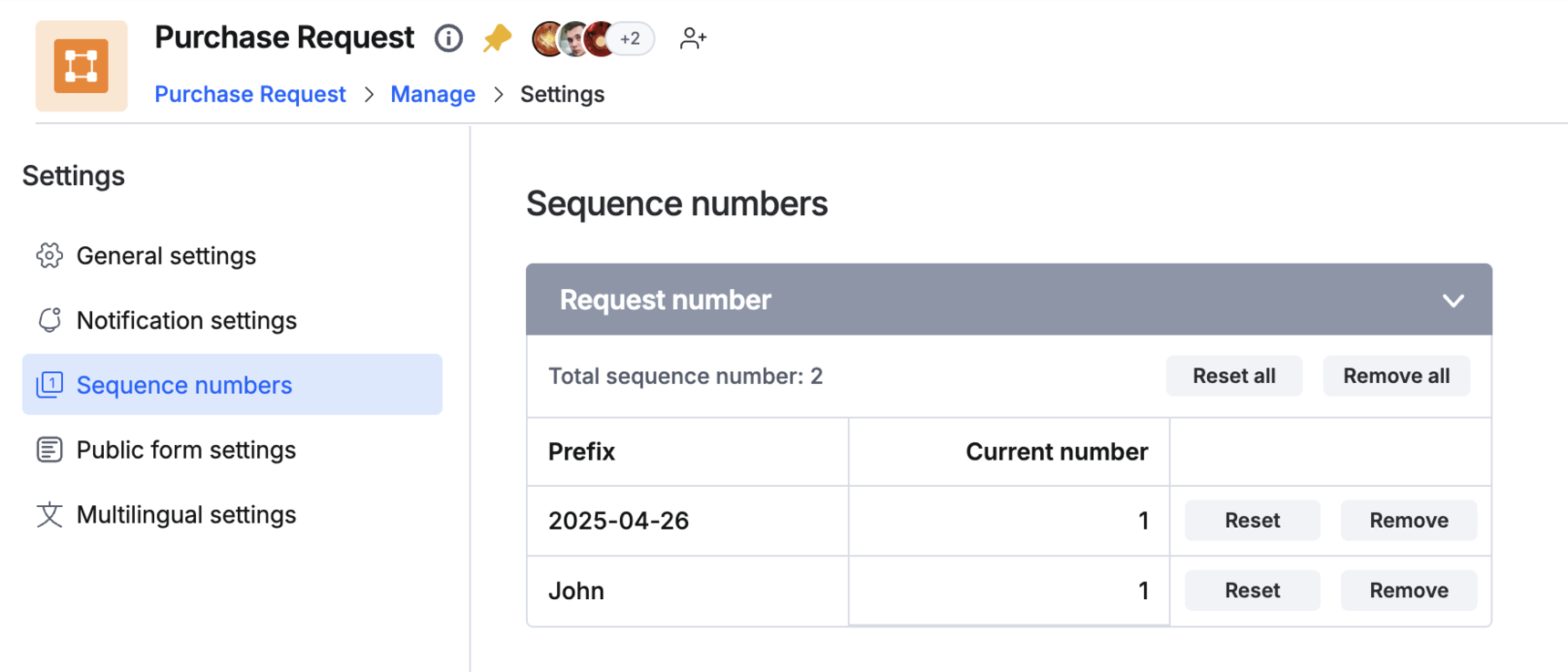
Each prefix row has two actions, and there are two more that apply to all prefixes at once:
- Reset — enter a number for that prefix. The prefix's current value is set to the number you enter, so the next item raised for that prefix gets that number plus one.
- Remove — deletes that prefix entirely. The next item raised for it starts a fresh sequence from 1.
- Reset all — enter a number to apply to every active prefix at once, the same way Reset does for a single prefix. This does not delete any prefixes.
- Remove all — deletes every active prefix for the field. The next item for each one starts a fresh sequence from 1.
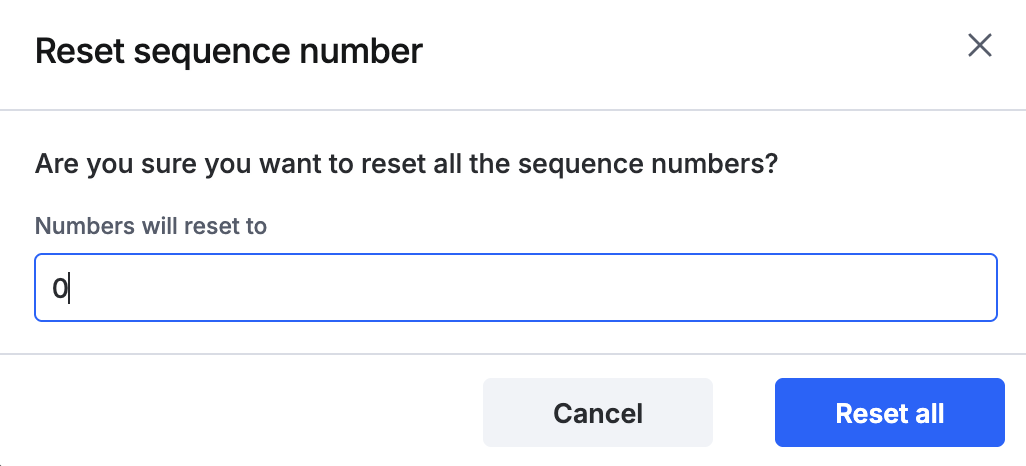
Important
Reset and Remove are separate actions. Reset only changes the current value of an existing prefix — use Remove (or Remove all) if you want to delete a prefix so it starts over from 1.
Multilingual settings
Multilingual settings let process and board admins present workflow forms in multiple languages by translating form labels, either manually or with AI translation.
For example, if you've built a form in English but want to support Chinese speakers:
- Select the language.
- Download the form labels.
- Manually translate the labels, or use AI translation.
- Import the translated labels back into the form.
Once set up, the form automatically switches to Chinese for users who've selected Chinese in their profile settings, while English speakers continue to see the English version.
Note
Multilingual settings are also available for Boards and for apps built on the Kissflow Apps builder, not only standalone Processes. Only languages supported at the platform level can be used within forms.
Learn more about multilingual settings in forms.