

Managing process members and permissions
Assign roles to process members, control what each role can do, and add, change, or remove members and their permissions.
Managing process members and permissions
Every member added to a process is assigned a role that determines what they can do — from initiating items to editing the workflow itself. This article covers the available roles, what each one can do, and how to add members, change their roles, and manage their permissions.
Whoever creates a process becomes its Process Admin by default. From there, only a Process Admin can add other members and assign them a role.
Roles in a process
Process Admin
A Process Admin has the highest privilege in a process. They can perform any operation on the process, including adding, removing, or modifying the roles of other members. As a Process Admin, you can:
- Edit the form and workflow.
- Assign a role to a member while adding them to the process.
- Add Process Admins, Developers, Data Admins, Report Admins, and Members at any point in the process's lifecycle.
- Remove any member, regardless of their role.
- Grant or revoke permissions for a member.
- Share reports with members or with anyone outside the process.
- Manage process settings and perform bulk actions and view the process administration table.
Data Admin
A Data Admin can view, edit, and delete process data, and create reports.
Note
Data Admin is available on the Enterprise plan only.
As a Data Admin, you can:
- View, edit, and delete process data.
- View all reports, open a process form from a specific report, and access the process's metrics report.
- Perform bulk actions and view the process administration table.
- Initiate items (optional — a Process Admin must grant this separately).
Note
A Data Admin cannot add members to a process.
Report Admin
A Report Admin can create, edit, and share reports in a process, including reports created by other members. They can delete only the reports they created themselves.
Note
Report Admin is available on the Enterprise plan only.
As a Report Admin, you can:
- View, create, edit, and share any report in the process, and delete reports you've created.
- Open a process form and its comments from a report.
- Keep access to your reports even if your role is later downgraded — unless a Process Admin explicitly revokes it.
- Initiate items (optional — a Process Admin must grant this separately).
Note
A Report Admin cannot add members to a process.
Developer
A Developer builds and modifies a process. As a Developer, you can:
- Edit the form and workflow.
- Access and edit the process, and initiate items.
- Add initiators to the process while editing or modifying the workflow.
- Create, edit, share, and delete reports you've created (report creation is optional — a Process Admin must grant it separately).
- Keep access to your reports even if your role is later downgraded — unless a Process Admin explicitly revokes it.
- Publish the process (optional — a Process Admin must grant this separately, from the More permissions menu).
Member
A Member can access a process and initiate items. As a Member, you can:
- Initiate items in the process.
- Create reports if a Process Admin grants that permission, and access reports you've created or that were shared with you.
Permissions by role
| Permission | Process Admin | Data Admin | Report Admin | Developer | Member |
|---|---|---|---|---|---|
| Access process | ✓ | ✓ | ✓ | ✓ | ✓ |
| Initiate an item | ✓ | Optional | Optional | ✓ | ✓ |
| Manage process settings | ✓ | X | X | ✓ | X |
| Add or remove members | ✓ | X | X | X | X |
| Edit process | ✓ | X | X | ✓ | X |
| Perform bulk actions | ✓ | ✓ | X | X | X |
| View audit log | ✓ | X | X | X | X |
| Archive and delete process | ✓ | X | X | X | X |
| Duplicate a process | ✓ | X | X | X | X |
| Create reports | ✓ | ✓ | ✓ | Optional | Optional |
| Share reports | ✓ | Own reports only | ✓ | Own reports only | Own reports only |
| Delete reports | ✓ | Own reports only | Own reports only | Own reports only | — |
| View all reports | ✓ | ✓ | ✓ | X | X |
| View Metrics report | ✓ | ✓ | ✓ | X | X |
| View process administration table | ✓ | ✓ | X | X | X |
| Modify item | ✓ | ✓ | X | X | X |
| Delete item | ✓ | ✓ | X | X | X |
| Go live (publish a process) | ✓ | X | X | Optional | X |
Add a member to a process
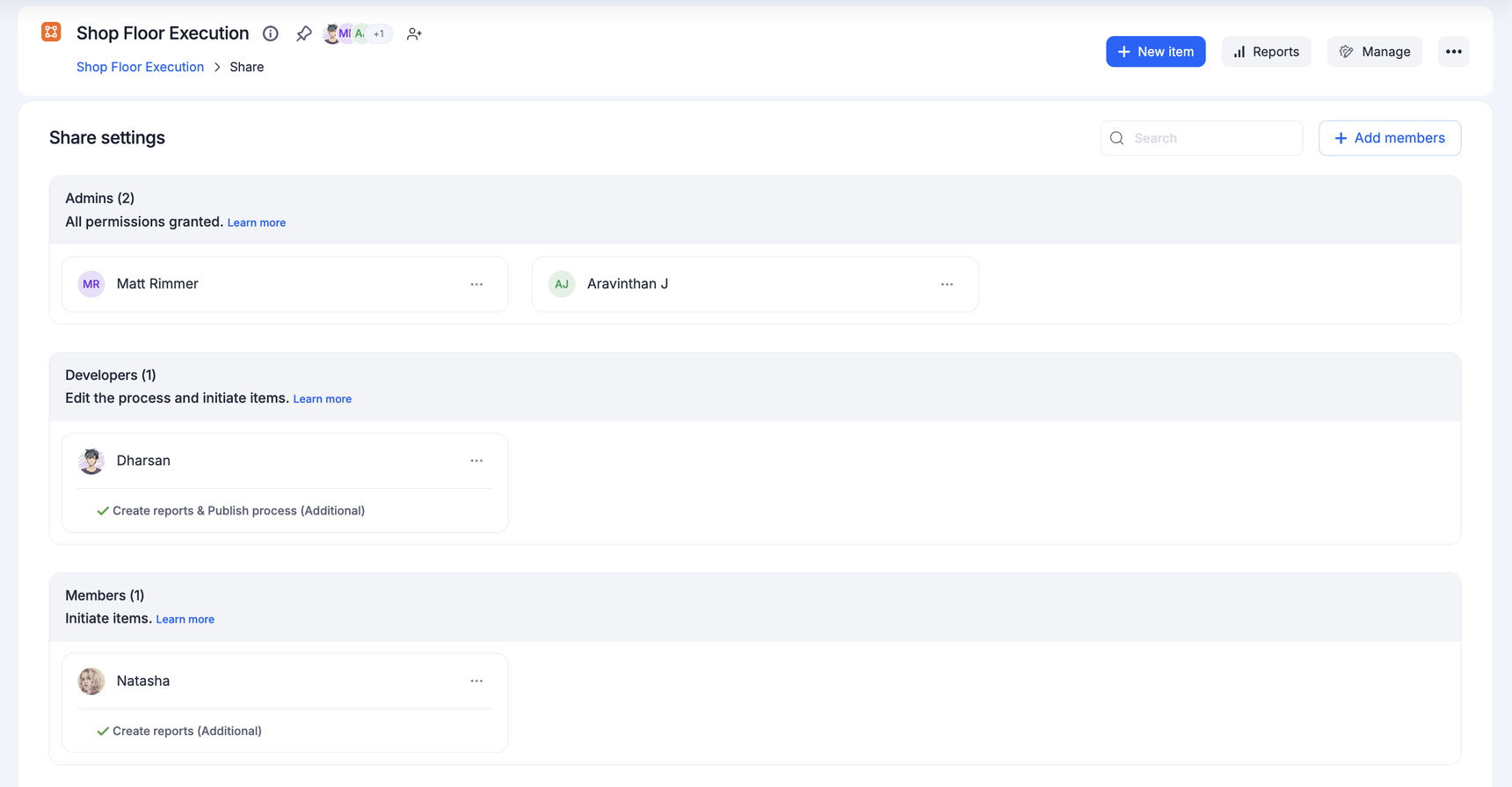
You can share a process with any flow member or group in your organization.
-
Navigate to the process you want to add members to.
-
Click Manage > Share.
-
Click + Add members.
-
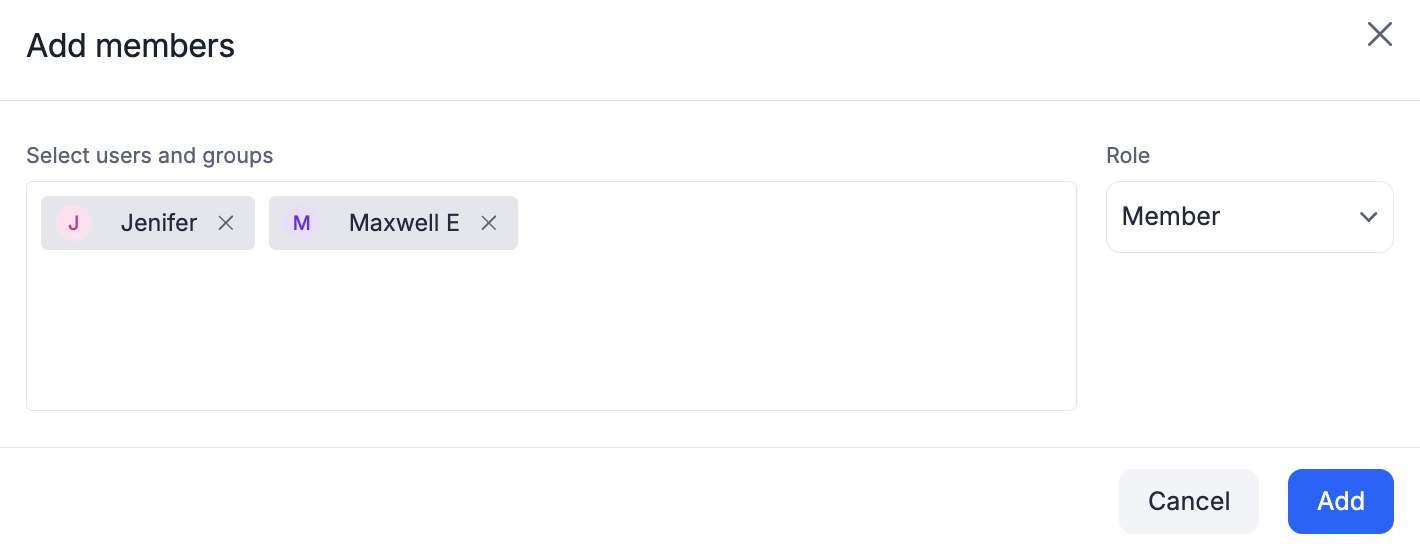
Type the name or email address of the user or group under Select users and groups.
-
Select a role from the Role dropdown.
Note
Data Admin and Report Admin are available on the Enterprise plan only. Reach out to Kissflow support to upgrade your plan and enable these roles.
-
Click Add.
Note
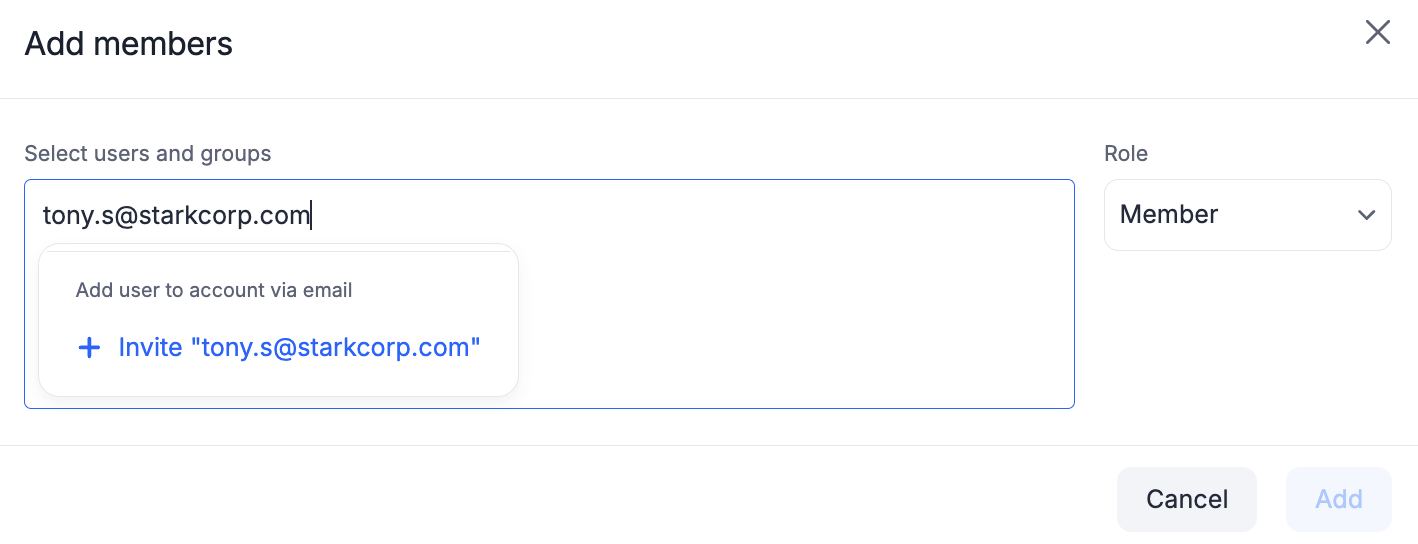
Only account Super Admins can invite an external user who isn't part of your organization directly from the Share settings screen — a Process Admin without Super Admin access won't see this option. If you have access, type the external user's email address, then click the Invite link that appears below it to send the invite.
Change a member's role
A member loses their current privileges when downgraded to a role with fewer of them. They may still be able to access reports they created or were given access to before the change — you can choose to revoke that access as part of the role change.
-
Navigate to the process, then click Manage > Share.
-
Click the More options button (
 ) beside the member's name and select Change role.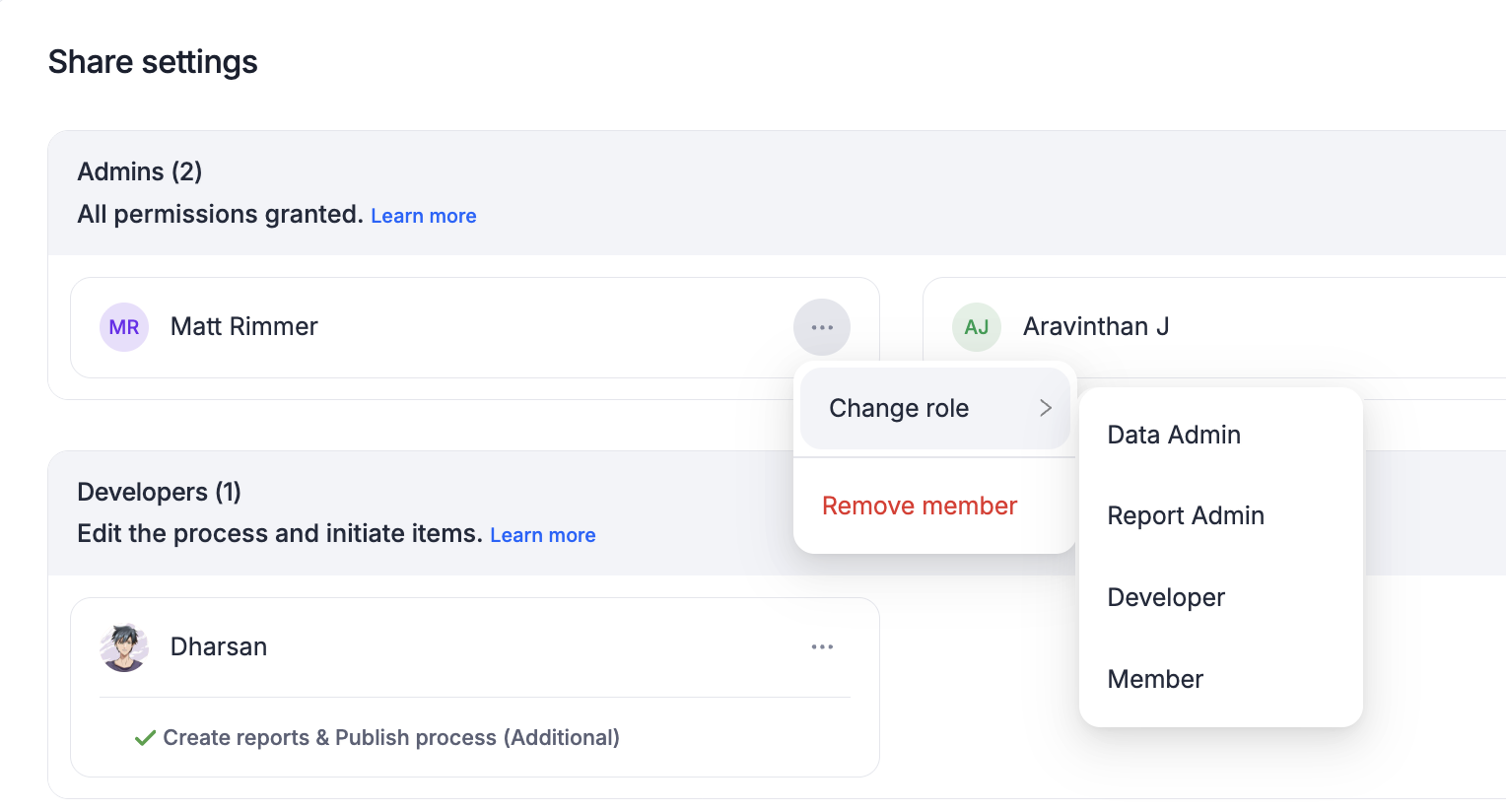
-
Select the new role from the list.
-
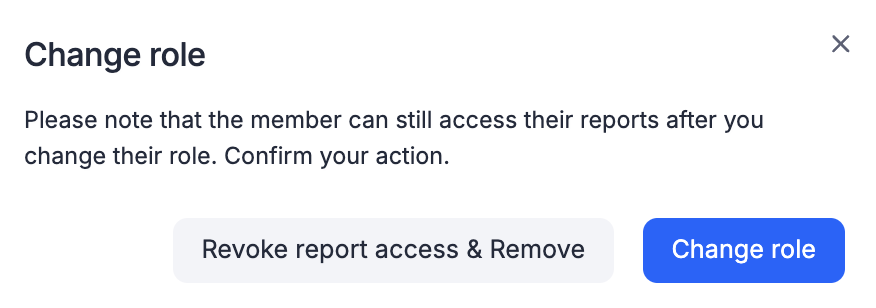
Read the alert and confirm your action.
-
Click Change role to apply the new role while keeping the member's existing report access, or Revoke report access & Change to also remove access to reports they created or accessed under their previous role.
Note
This choice only appears when the new role would reduce the member's report access. If it wouldn't, confirming the role change applies it directly.
Grant additional permissions to a member
Use this to give a member a permission outside their role's normal scope — for example, letting a Member create reports, or letting a Developer publish the process.
-
Navigate to the process, then click Manage > Share.
-
Click the More options button (
) beside the member's name.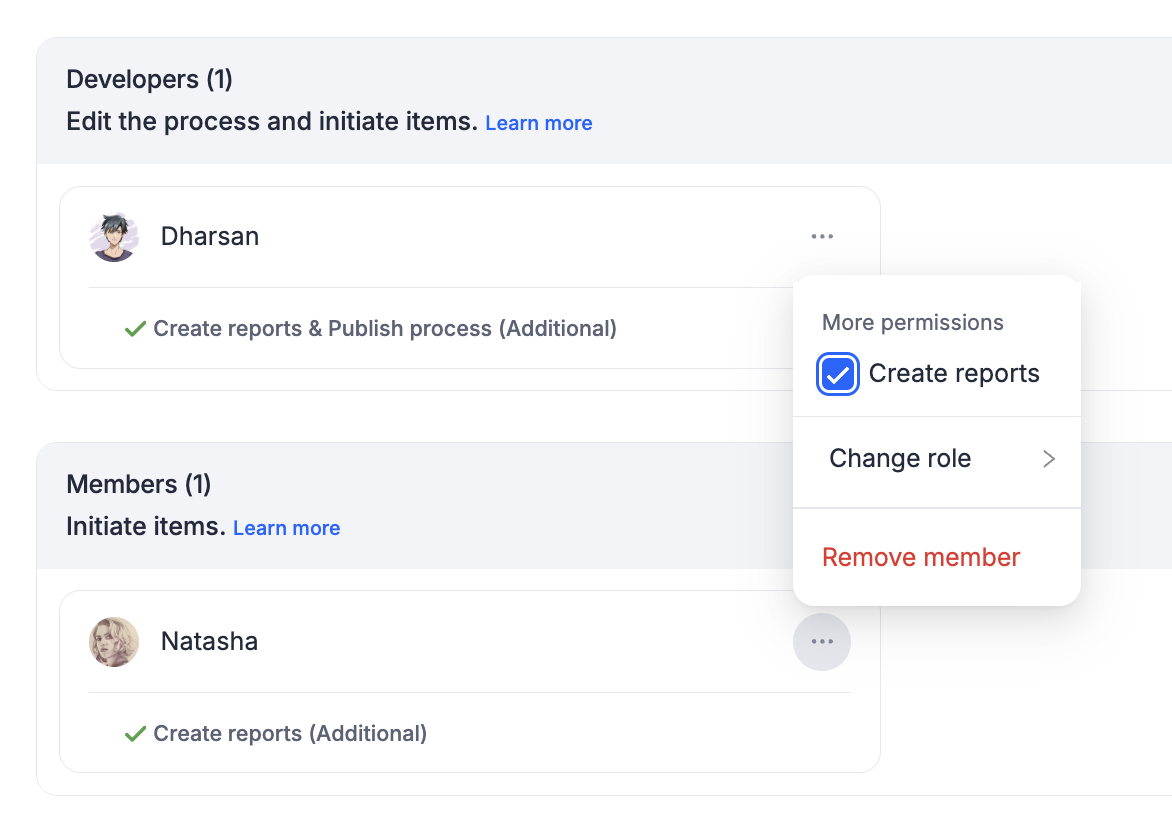
-
Under More permissions, select the checkbox for each permission you want to grant. Clear a checkbox to remove a permission you'd previously granted.
Remove a member from a process
A removed member keeps access to reports they created or accessed while part of the process, unless you revoke that access as part of the removal.
-
Navigate to the process, then click Manage > Share.
-
Click the More options button (
) beside the member you want to remove. -
Click Remove member.
-
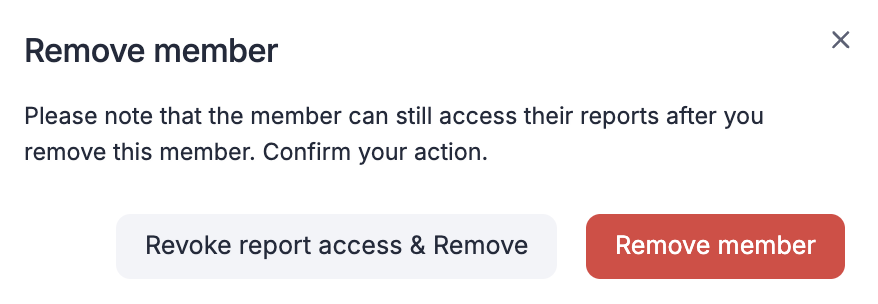
Read the alert and confirm your action.
-
Click Remove member to remove them while keeping their report access, or Revoke report access & Remove to also remove access to reports they created or accessed.