

Quickstart for developers
Authenticate to the Kissflow API, make your first call, and extend the product with a custom component built on the SDK.
Kissflow gives you two ways in as a developer: a REST API for reading and writing your account's data from outside, and a JavaScript SDK for extending what people see inside the product. This tutorial covers both, starting with the credentials they share. Each step is the short version; the Go deeper links carry the full detail when you want it.
Before you begin
You need a Kissflow account you can sign in to, and the ability to create access keys. Creating them for yourself needs the access key feature turned on for your account. Creating them for a service account, which is what anything running unattended should use, needs a Super Admin or IAM Admin role.
1. Get your credentials
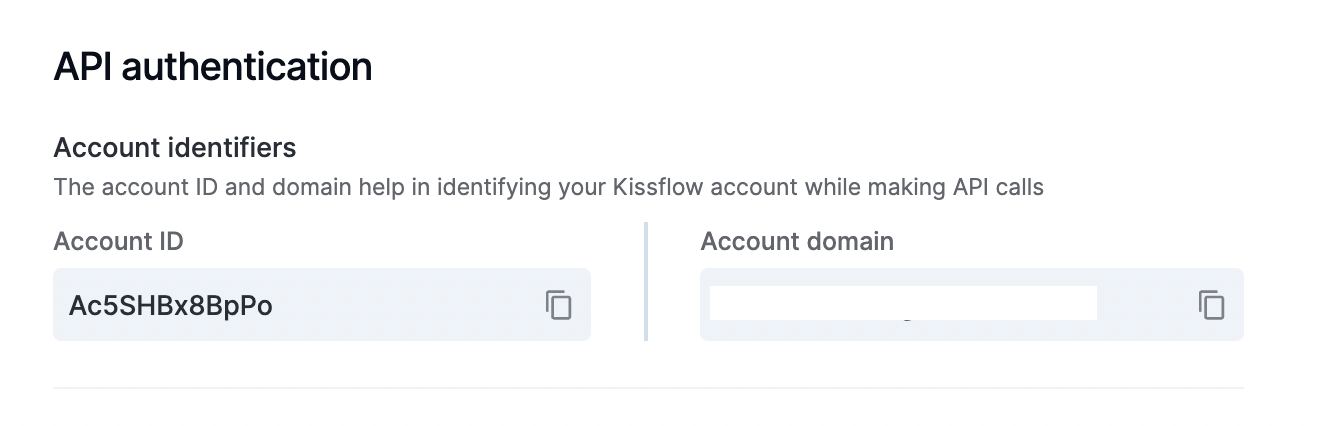
- Click your profile picture in the upper-right corner, then select My settings > API authentication.
- Copy your Account ID from Account identifiers. Every request carries it, and your account domain is the host you send requests to.
- Under Access keys, click Create access key, name it, and set an expiry period.
- Copy the access key ID and secret, or click Download credentials to save them as a file, then click Done.
Important
Anyone holding an access key ID and secret can do everything you can. Store both securely, never share them, and prefer short expiry periods you rotate often.
Go deeper: API authentication and Creating and managing access keys.
2. Make your first call
Kissflow's APIs are REST services hosted on your own account domain. Every request authenticates with two headers: X-Access-Key-Id and X-Access-Key-Secret.
This call lists the active and invited users in your account. Substitute your account subdomain, your account ID, and your key pair:
curl "https://your-account.kissflow.com/user/2/your-account-id/" \
  -H "X-Access-Key-Id: your-access-key-id" \
  -H "X-Access-Key-Secret: your-access-key-secret"
A successful call returns JSON. From there, the same key pair reaches every other resource: processes, boards, dataforms, datasets, portals, and reports.
Browse every endpoint, with parameters, schemas, and a try-it console that runs against your own account.
Go deeper: API and SDK documentation.
3. Set up the SDK
The Kissflow JavaScript SDK is how you extend the product's own UI rather than call it from outside. Its methods back custom page components, custom form field components, field events, and the scripts you run inside integrations.
- Read the SDK documentation for installation and the available methods.
- Clone or browse the JavaScript SDK repository for the package source.
- Note the reference for the surface you're building against: page components or form field components.
Go deeper: API and SDK documentation.
4. Build a custom component
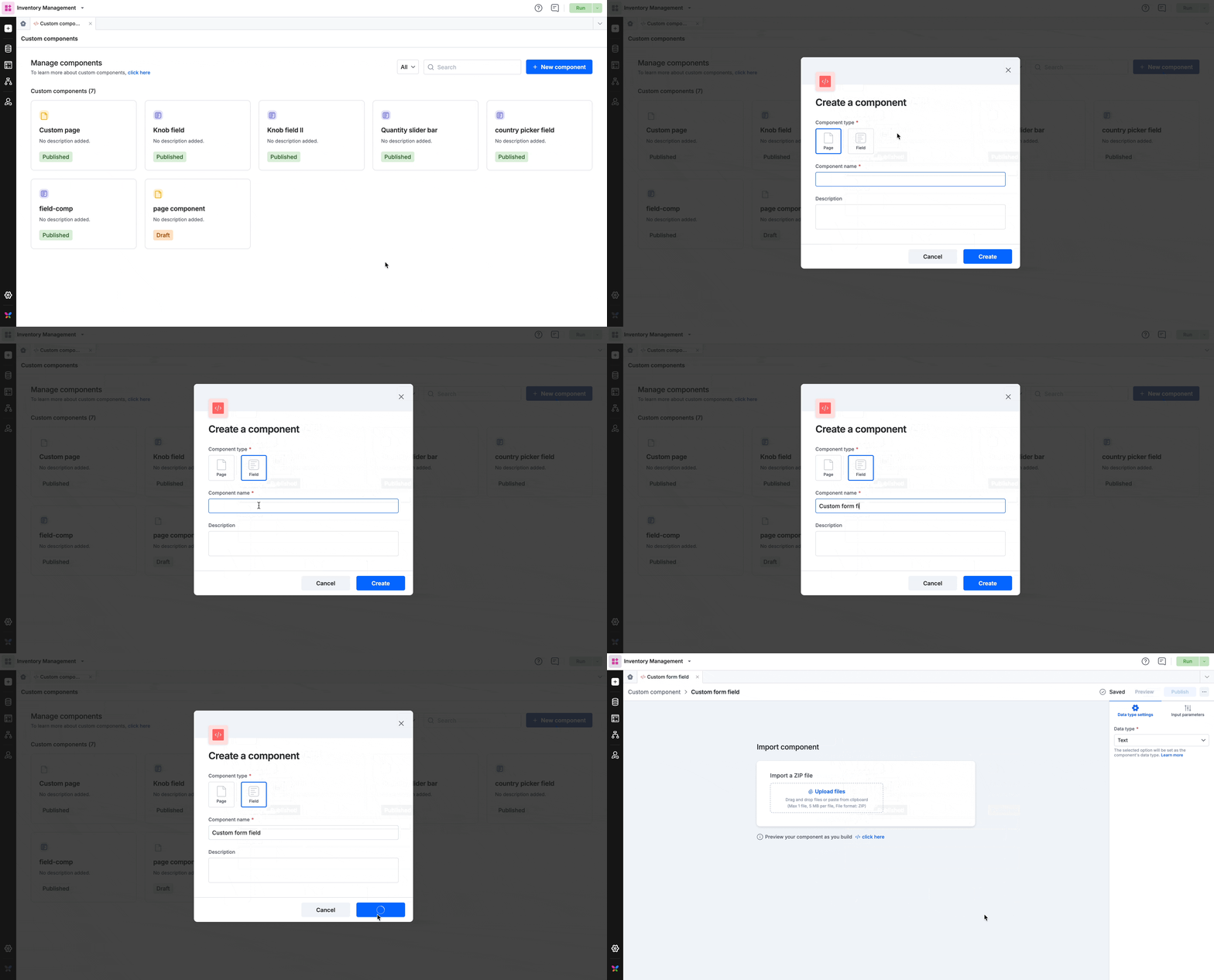
- In the app builder, click Interface in the left navigation panel and select Components.
- Click New component, select Page or Field, enter a name and description, and click Create.
- Build the component with the SDK and package it as a .zip file that includes an index.html file.
- Click the component's name to open the Import component page, then upload the .zip file or select Import from URL and paste the address it is hosted at.
- Click Preview to render it in runtime mode, then click Publish.
Note
A component must be published before a page or form can use it, and every component name must be unique, including against archived ones. While you build, Live preview points the app builder at your dev server so you see changes as you make them.
To use it, drag Custom component onto a page and select yours from the Select custom component dropdown.
Go deeper: Working with custom components in Kissflow Apps and Working with custom page components.
Where next
Keep going with these guides:
- Build a form field of your own with custom form field components.
- Trigger logic as people fill a form with field events.
- Run JavaScript inside an integration with the run script connector.
- Pull data from an external service into a form with a remote lookup field.
- Give unattended automation its own identity with a service account.