

API Authentication
Find your account identifiers, retrieve your debug session key, and manage the API keys and access keys used to authenticate calls to Kissflow.
API Authentication
The API authentication page in your personal settings brings together everything you need to authenticate API calls to Kissflow — your account identifiers, your debug session key, and the API keys or access keys used to authorize requests.
Access API authentication settings
- Click your profile picture in the upper-right corner, then click My settings.
- Click API authentication.
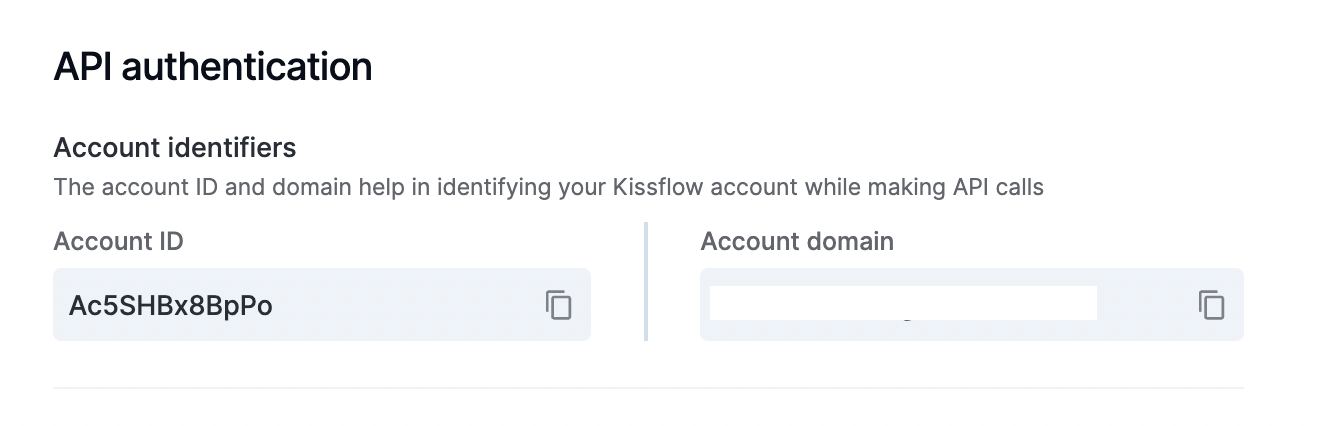
Account identifiers
Account identifiers help you uniquely identify your Kissflow account when making API calls or establishing sessions.
| Identifier | Description |
|---|---|
| Account ID | A unique alphanumeric key that identifies your Kissflow account. Copy it and use it to identify your account while making API calls. |
| Account domain | The domain address you use to access your Kissflow account directly in a web browser. |
Debug session key
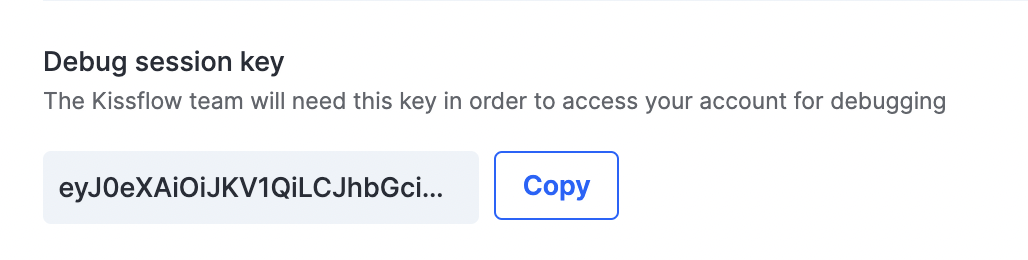
If there's an issue with your account, the Kissflow team may need your debug session key to troubleshoot it.
- Under Debug session key, click Show to reveal your unique key.
- Click Copy and share the key with the Kissflow team to help them troubleshoot.
Important
Share your debug session key only with the Kissflow team. Avoid sharing it anywhere else.
API keys
API keys were Kissflow's original form of API authentication. Kissflow has since moved to the access key system for better security, so creating new API keys is no longer available.
Important
Kissflow is phasing out API keys for all accounts on or after July 15, 2023. If you're still using API keys, create their equivalent access keys before then — existing API keys will continue to work only until they're deprecated.
Deleting an API key
- Navigate to the API key you want to delete and click the More options button.
- Click Delete to remove it permanently.
Access keys
An access key is a unique identifier used to authenticate a user, developer, or program calling the Kissflow API. Each access key consists of an access key ID and an access key secret — an ID-secret pair that grants programmatic access to Kissflow.
Important
Anyone with your access key ID and secret can perform the same operations you can. Keep both values secure and never share them.
Creating an access key
Note
Creating access keys requires the access key feature to be enabled for your account. Each user is limited to a maximum of 20 access keys.
-
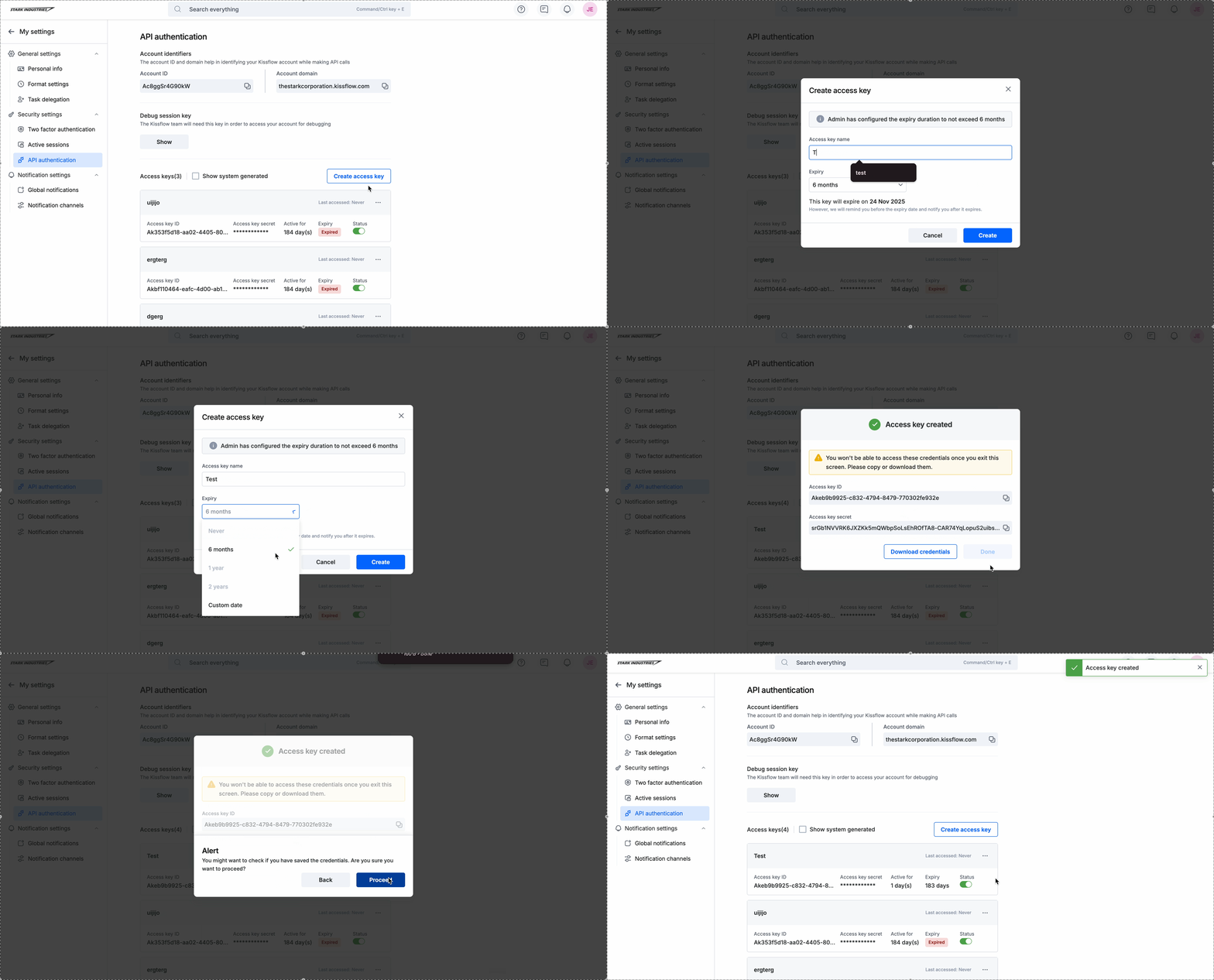
Click your profile picture > My settings > API authentication > Access keys.
-
Click Create access key.
-
Enter a name for the access key.
-
Set an expiry period for the key. Learn how to configure the maximum expiry period at the account level.
-
Copy the access key ID and secret and store them somewhere secure, or click Download credentials to save them as a file.
-
Click Done.
-
Review the confirmation message and click Proceed.
Your access key is now ready to use.
Viewing system-generated access keys
Some access keys are created automatically by Kissflow — for example, when you set up certain integrations. These system-generated keys are hidden by default.
- Go to API authentication > Access keys.
- Select the Show system-generated checkbox to view them.
System-generated keys are marked with a System flag beside their name and appear first in the list, ahead of the keys you've created yourself.
Managing an access key
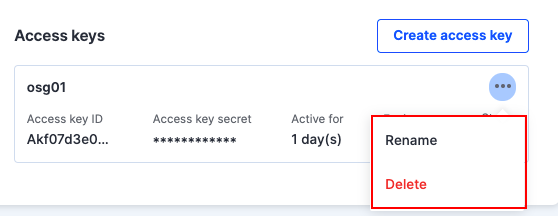
- Navigate to the access key you want to rename or delete and click the More options button.
- Click Rename to change the key's name, or click Delete to remove it permanently.
Important
Deleting an access key automatically revokes any connections established using that key.