

Importing items from a CSV file
Bulk-create items in a Kissflow board by importing a CSV file, with column mapping and duplicate handling options.
Importing items from a CSV file
CSV import lets you transfer items from a CSV file or a spreadsheet saved with a .csv extension into a Kissflow board. You can also use it to bring in data from other work management tools.
Once imported, each row in your CSV file becomes an item in your board, and each mapped column fills in a field on those items.
Prepare your CSV file
Follow these guidelines when preparing a CSV file for import:
- Mandatory fields — if your board form has mandatory fields, you must map at least one CSV column to each of them.
- Field types — you can map CSV columns to these field types: Text, Text area, Number, Rating, Date, Date & time, Email, Currency, Yes/No, User, Multiple users, Single-select dropdown, Multi-select dropdown, Slider, and Checkbox.
- Delimiter — use only the comma (
,) as the delimiter. - Rows — the file can have up to 500 rows, excluding the header.
- Encoding — the file must have a
.csvextension and use UTF-8 encoding.
Import a CSV file
-
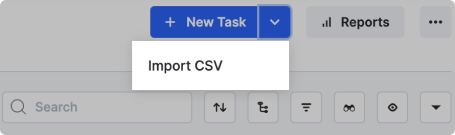
On the top-right section of the board, click the down arrow next to the New item button and select Import CSV.
Note
The New item button is named differently depending on the item type configured for the board.
-
Choose your
.csvfile from the file picker. Kissflow checks the file for corruption and delimiter errors — if an error is reported, fix it in the CSV file and upload it again.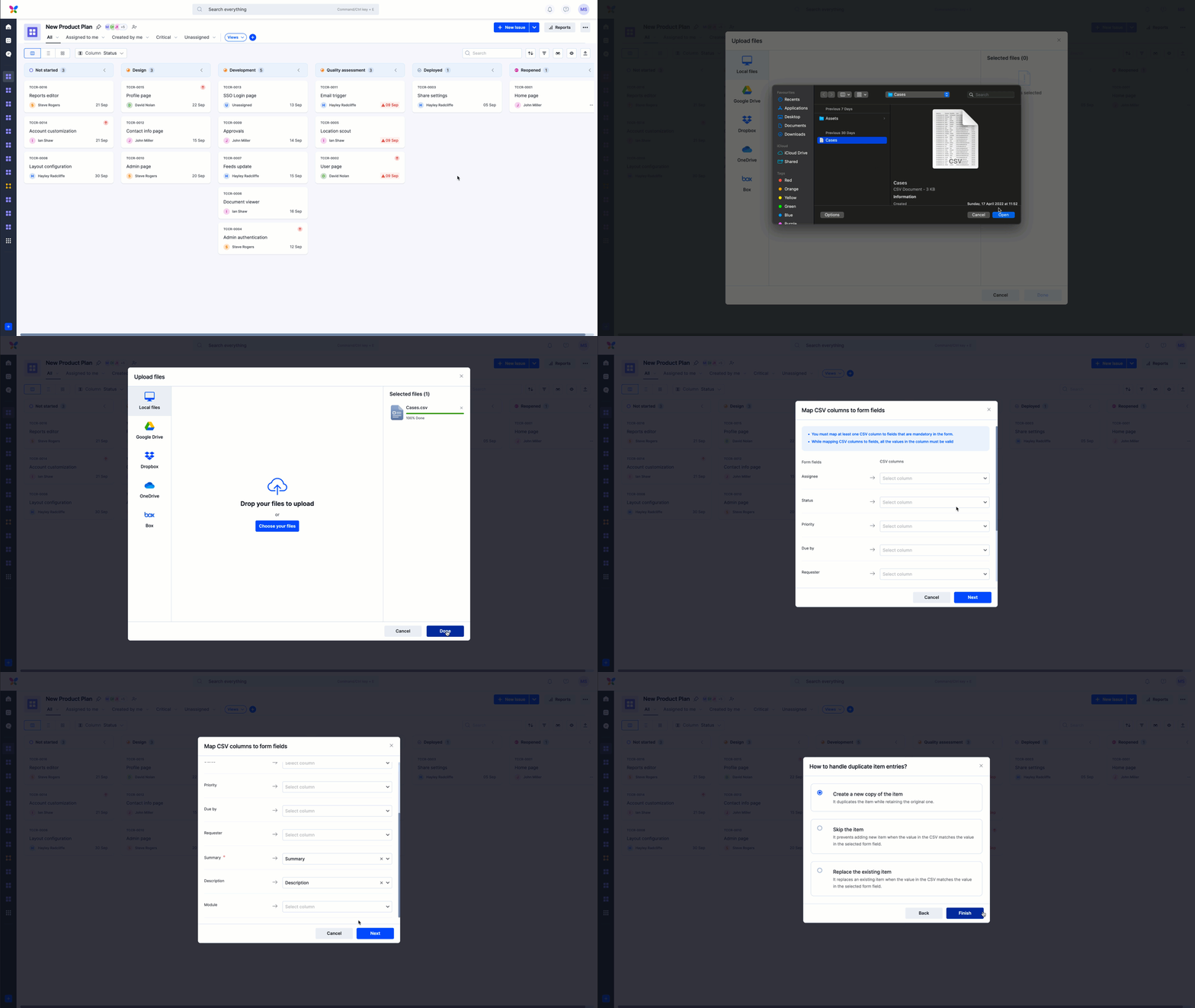
-
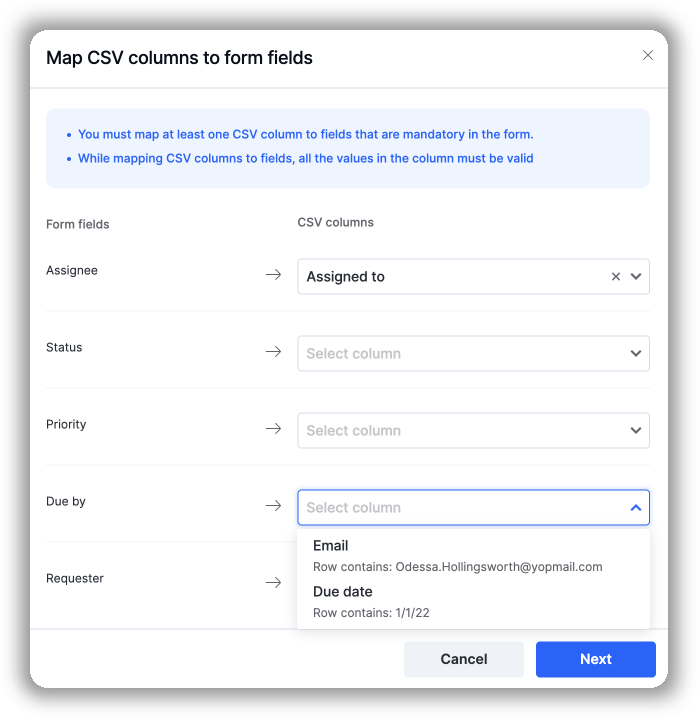
Click Next, then map the columns in your CSV file to the fields in your board. For example, map the email addresses in your CSV file to the Email field in your board.
Note
A CSV column can only be mapped to a board field of the same data type.
-
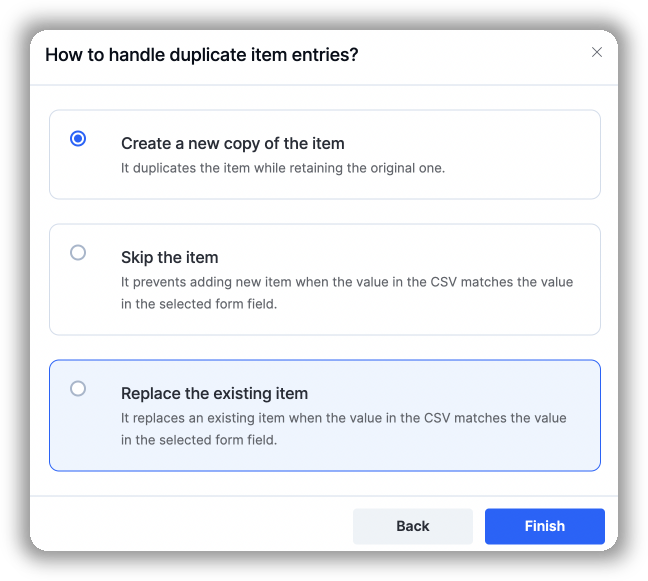
Choose how to handle duplicate items:
-
Create a new copy of the item — adds the data as new items and keeps the original items in the board.
-
Skip the item — skips rows that match existing items, based on a column you choose. Pick a column with distinct values (for example, Item ID or Phone number) so the system can tell whether an item already exists.
Note
Email isn't available as a duplicate-matching column — choose a different distinct-value field.
-
Replace the existing item — overwrites existing items that match, based on a column with distinct values that you choose.
-
-
Click Finish. Your items begin importing — you can close the window and keep working while the import runs. You'll be notified by email when it completes.