

Changing the background theme
Switch your Kissflow interface between System default, Light, Dark, and Dim themes.
Changing the background theme
BasicEnterprise
You can switch the background theme of your Kissflow account between System default, Light, Dark, and Dim modes from the Themes section.
Change your theme
-
Click your profile picture in the upper-right corner of the page.
-
Select Themes.
-
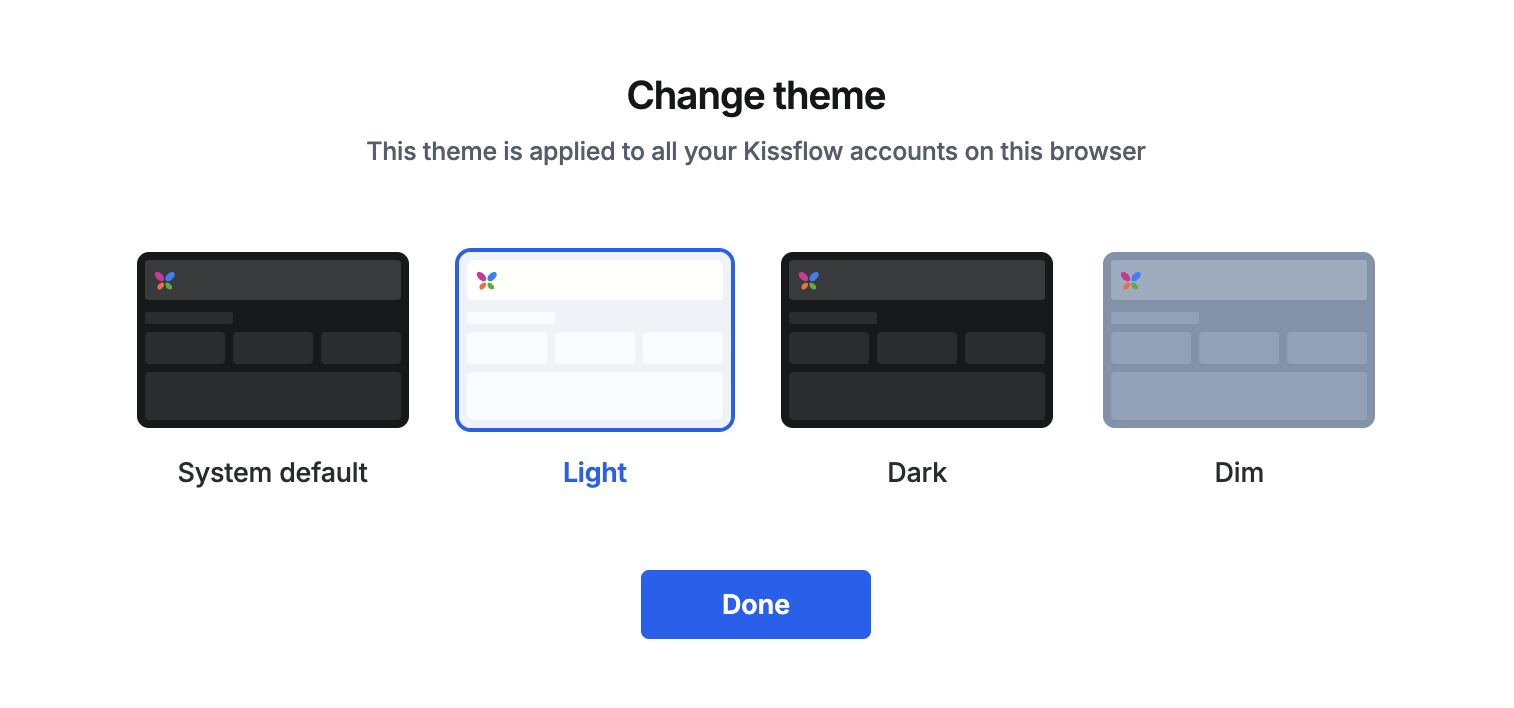
Choose a theme. Your selection is applied immediately.
-
Click Done to close the dialog.
The available themes are:
- System default — matches the theme set on your local device or browser.
- Light — a white background with dark text.
- Dark — a near-black background with light text.
- Dim — a dark grey background with light text.
Note
The theme is applied as soon as you select it — Done only closes the dialog, so you can preview a theme before dismissing it.
Note
The theme you select applies to all Kissflow accounts you access from the same browser.