

Viewing notifications
View, scroll through, and manage your notifications from the bell icon, or open the full-screen notifications page to see everything in one place.
Viewing notifications
Kissflow notifies you whenever there's activity on items assigned to you, mentions, and other updates across your account. You can review these from the notification bell in the top navigation bar, or open the full-screen notifications page to see everything in one place.
View your notifications
Click the bell icon ( ) in the upper-right corner of the screen to open your notification pop-up.
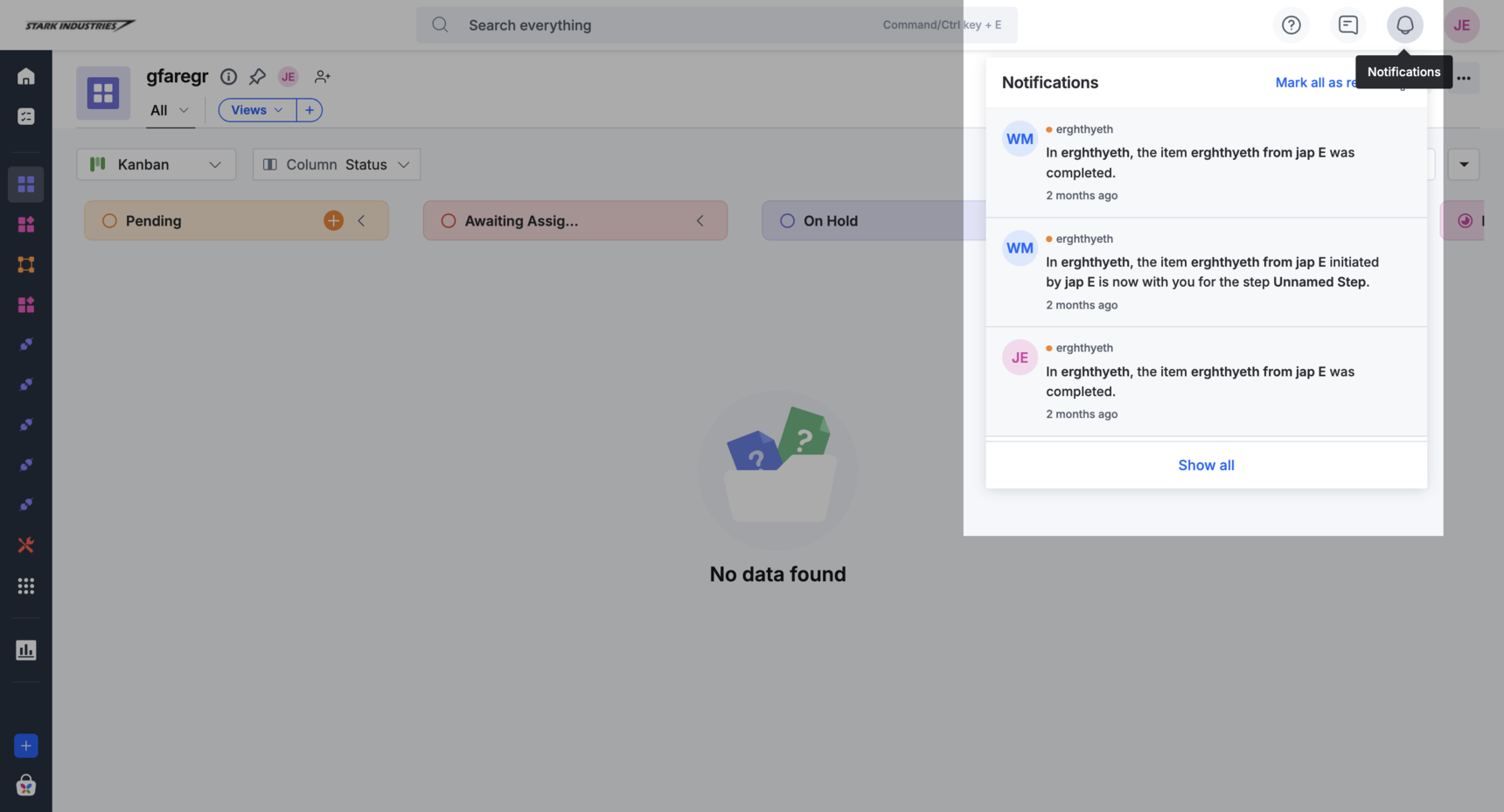
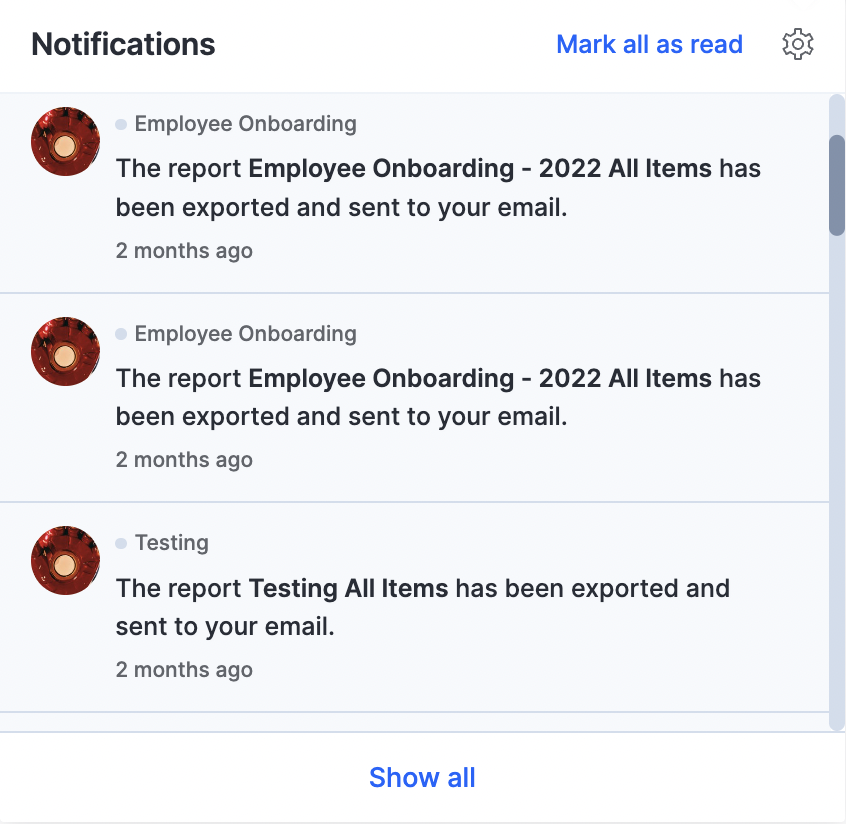
From the pop-up, you can scroll through all your notifications. New notifications are highlighted, and an unread count appears next to the bell icon. Click a notification card to go to the page associated with it.
Note
Notification order is set by the server, so it may not always match the exact order events occurred in.
Manage your notifications
- Mark a notification as read — Hover over a notification card and click the grey-filled circle that appears on its right side. The circle turns into an outline once the notification is read; click it again to mark it unread.
- Mark all as read — Click Mark all as read at the top of the pop-up. This link only appears when you have at least one unread notification, and it marks every notification currently loaded as read.
- Manage notification preferences — Click the Settings button (
 ) to open your notification settings, where you can turn notifications on or off for each flow you're part of.
View all notifications
Click Show all at the bottom of the pop-up to open the full-screen notifications page.
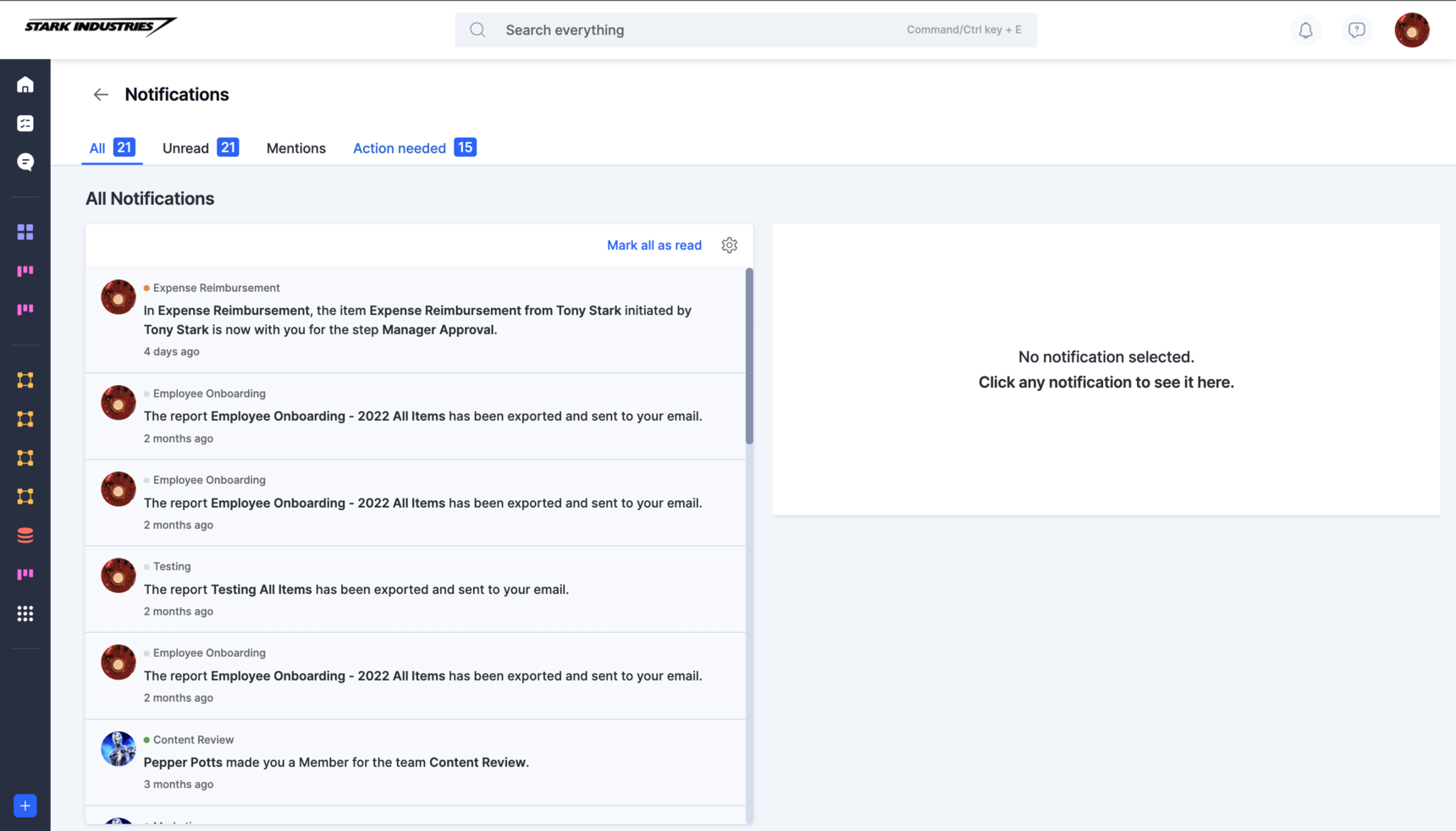
Use the tabs at the top of the page to filter your notifications:
| Tab | Shows |
|---|---|
| All | Every notification you've received |
| Unread | Notifications you haven't marked as read |
| Mentions | Notifications where someone @mentioned you |
Click a notification card to go directly to its associated page, just like in the pop-up.