Backing up data to Amazon S3
Authenticate your Amazon S3 bucket, configure file size and encryption preferences, and choose which data categories to include in your Kissflow backup.
Backing up data to Amazon S3
Amazon Simple Storage Service (S3) is one of the storage destinations you can configure for Kissflow's data backup feature, alongside Google Drive, Google Cloud Storage, and email delivery. Once configured, Kissflow exports your account data as JSON files, packages them into ZIP files, and uploads them directly to the S3 bucket you specify.
Note
Data backup is available on request. Contact Kissflow support to enable it for your account.
To configure backup preferences, you need admin access to the Data backup section of your account — see User roles and permissions for how backup access is granted.
Before you start
Grant the following Amazon S3 bucket permissions in your IAM policy:
- s3:PutObject — allows Kissflow to add backup files to your bucket.
- s3:GetObject — allows Kissflow to fetch objects from your bucket.
- s3:ListBucket — allows Kissflow to list the objects in your bucket.
You'll also need an AWS access key ID and secret access key for authentication. Copy these to your clipboard, or download them as a CSV file — either works when you authenticate inside Kissflow.
Start a backup configuration
-
Sign in to Kissflow.
-
Click your profile picture at the top right of the page, then click Account administration > Data backup.
-
Click Start configuration on the Data backup page.
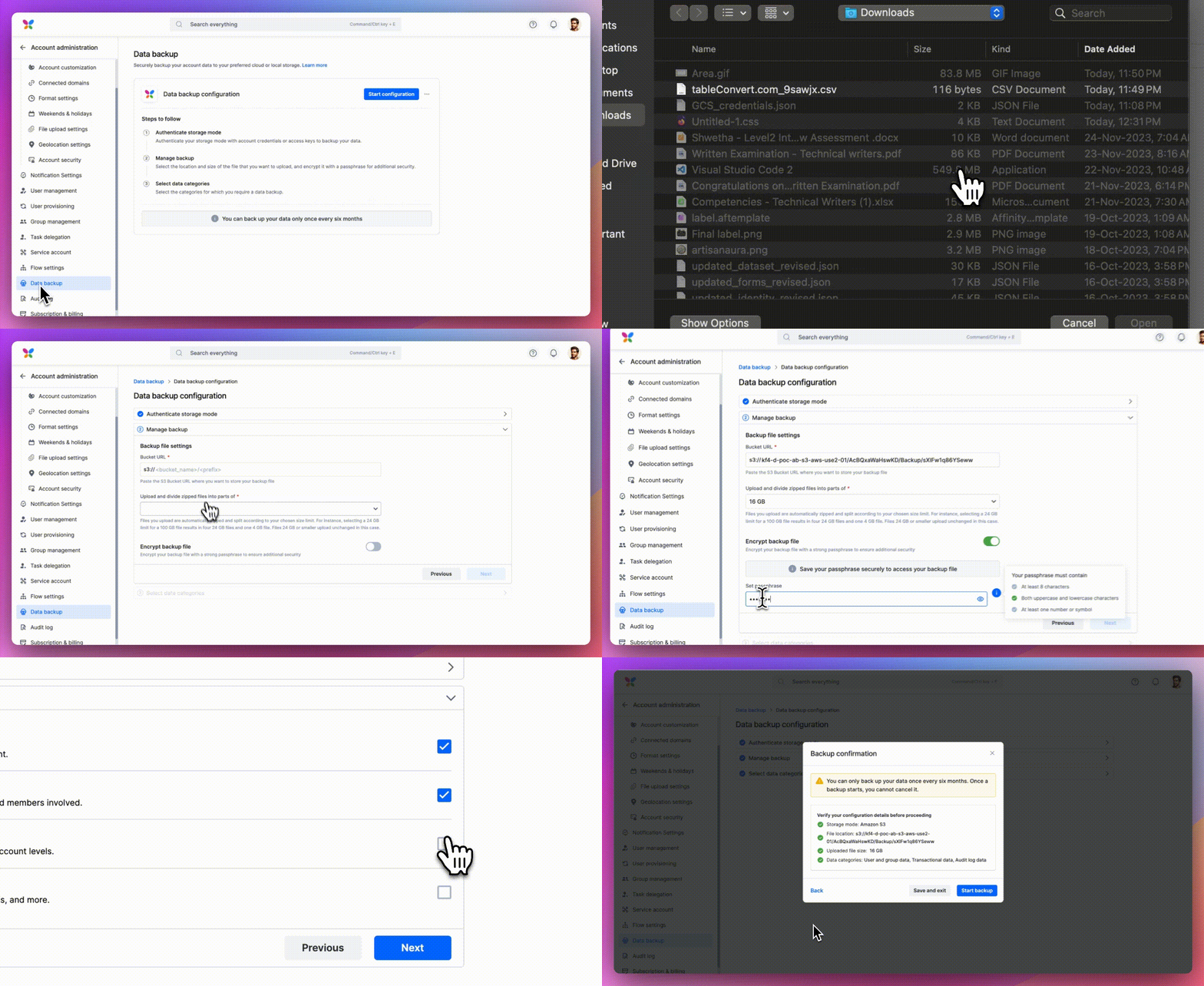
Setting up a backup involves three steps: authenticating your storage destination, managing backup preferences, and selecting the data categories to include.
Authenticate your Amazon S3 account
-
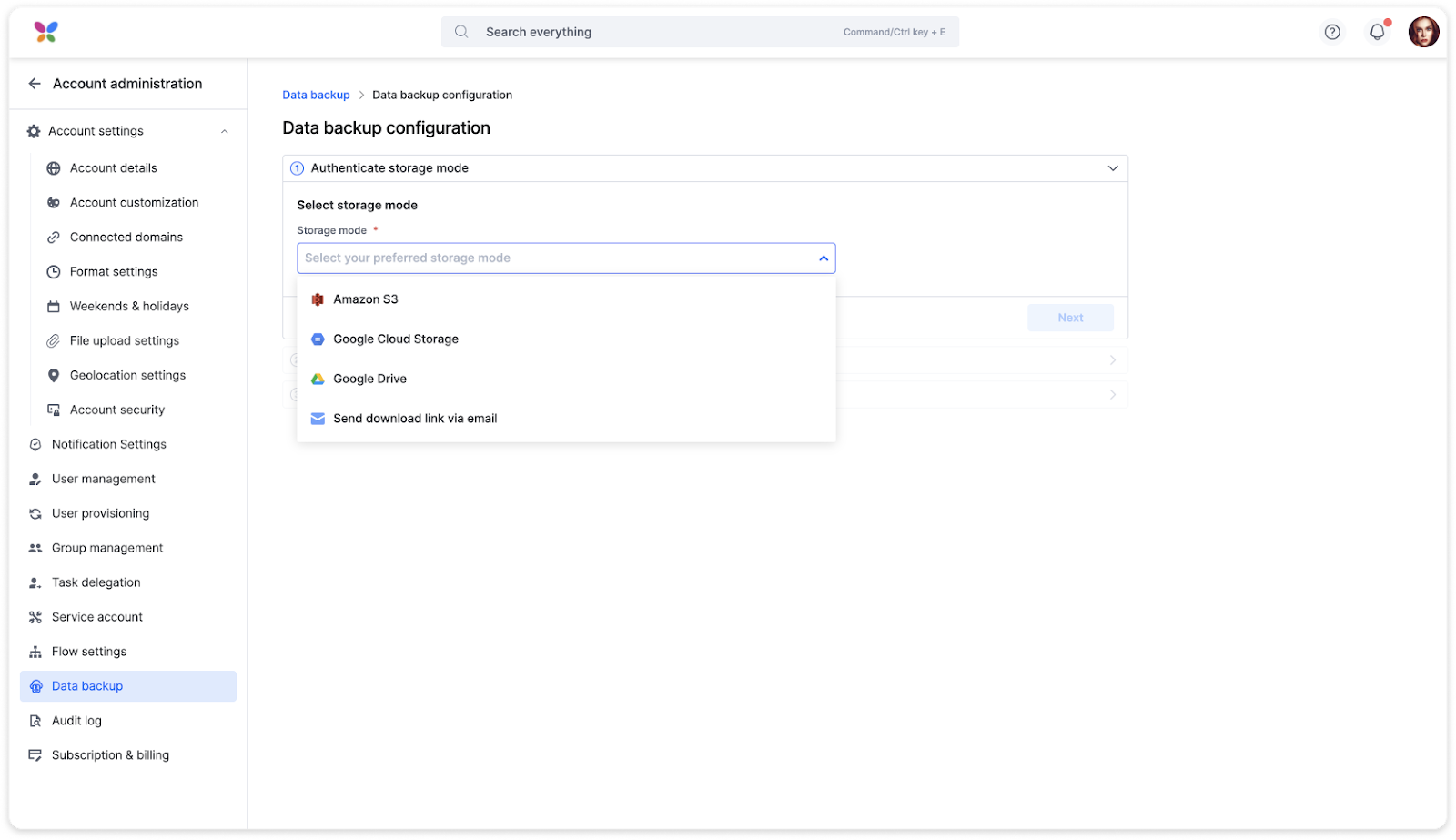
Select Amazon S3 as the storage mode from the dropdown.
-
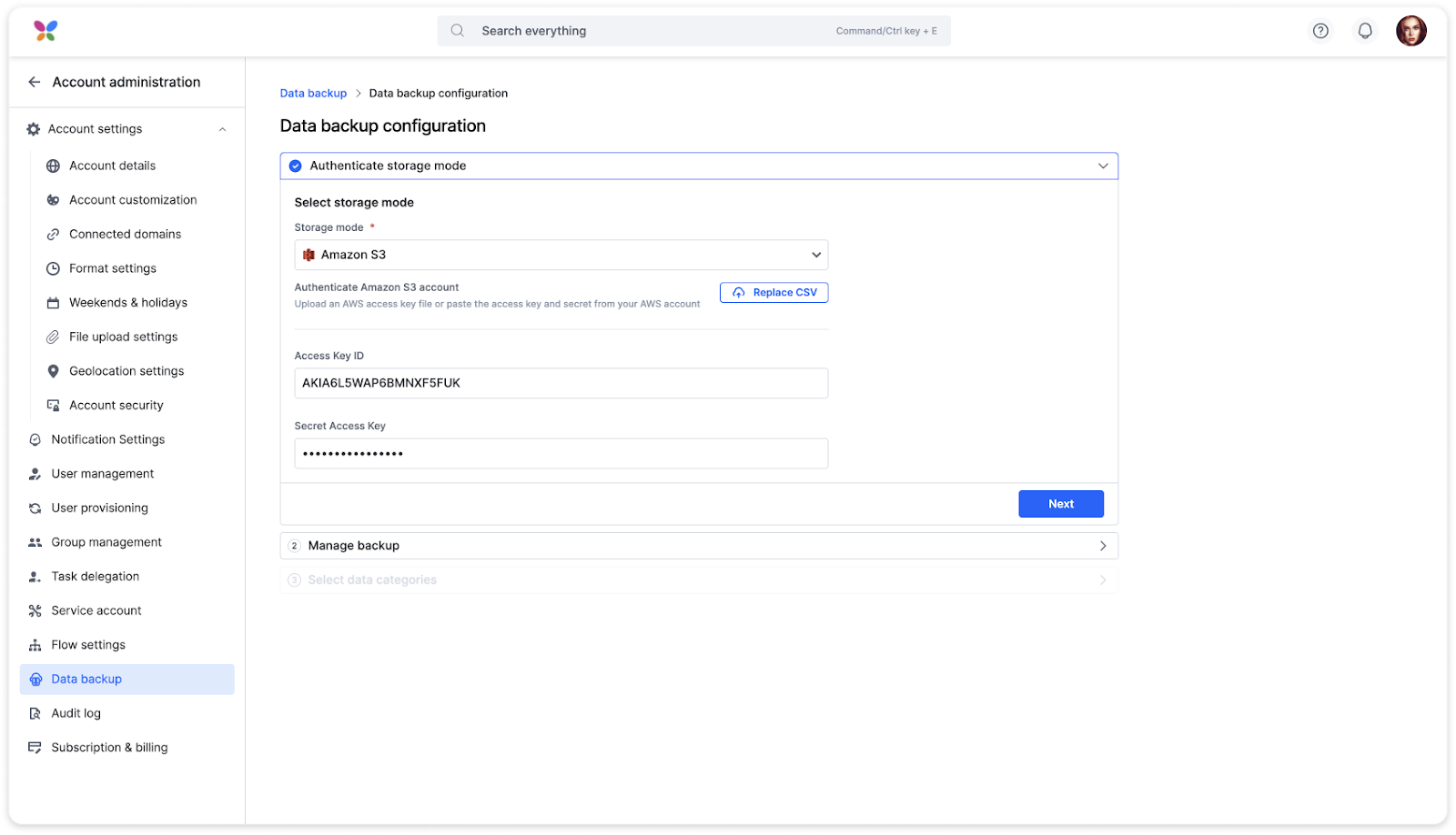
Click Upload CSV to auto-populate your AWS access key ID and secret access key.
Note
You can alternatively paste your copied credentials directly into the Access Key ID and Secret Access Key fields instead of uploading a CSV.
-
Click Next.
Note
To change your AWS credentials later, click Replace CSV and upload a new CSV file with a different access key ID and secret access key.
Manage backup preferences
-
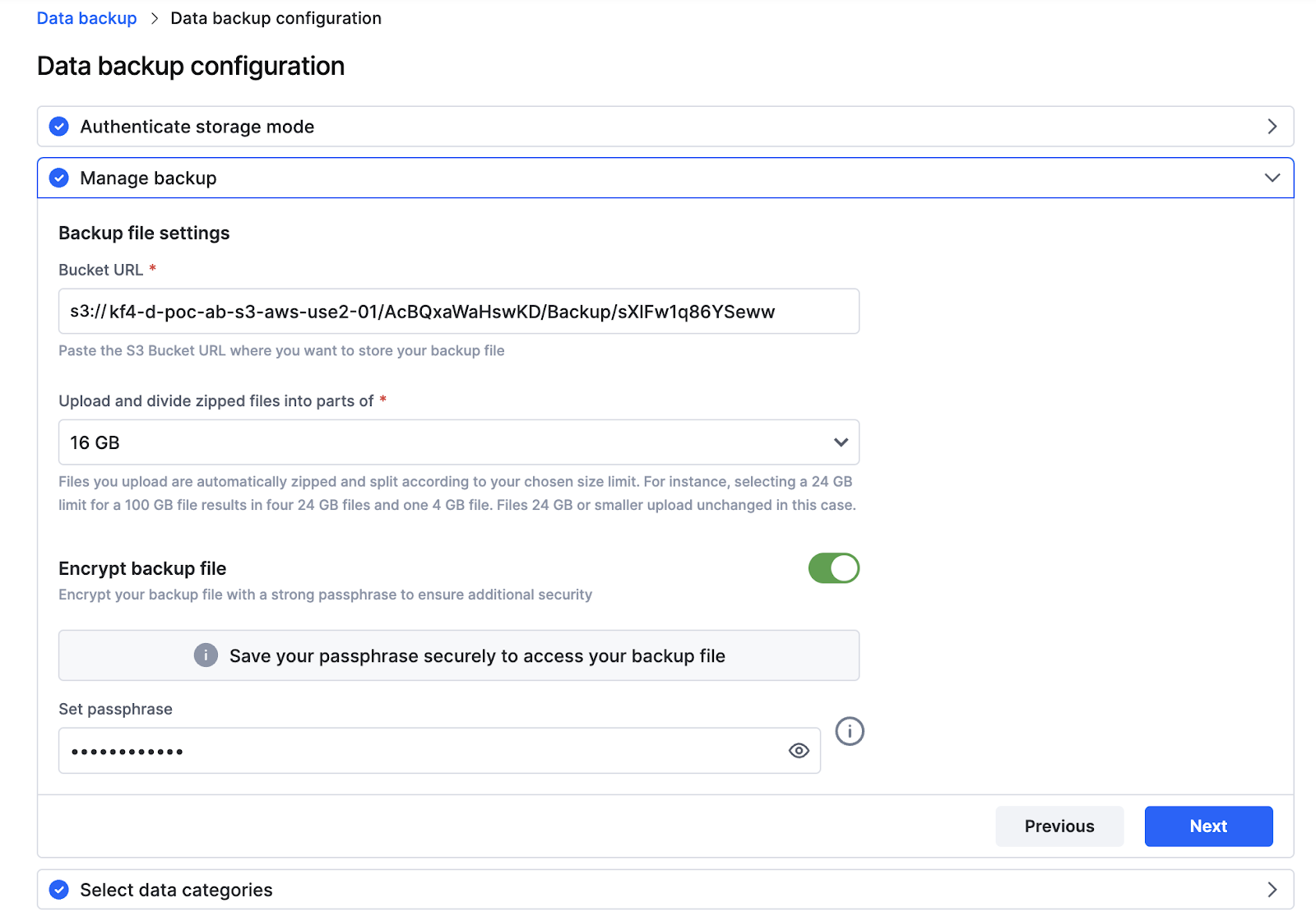
Set the file location. Paste the S3 bucket URI where you want your backup files stored, in the form
s3://your-bucket-name. You can copy this from the bucket's details page in the AWS console. -
Choose a ZIP file size. Select 4 GB, 8 GB, 16 GB, or 24 GB. Kissflow automatically zips and splits your backup according to the limit you choose — for example, a 24 GB limit applied to a 100 GB backup produces four 24 GB files and one 4 GB file. Files 24 GB or smaller upload unchanged.
-
Encrypt the backup file (optional). Turn on the switch to add a passphrase that encrypts your backup for additional security. Your passphrase must:
- Contain at least eight characters.
- Contain both upper and lower case letters.
- Contain at least one numeric character or symbol.
Important
Save your passphrase securely. You'll need it to access your backup file later, and Kissflow can't recover it for you.
-
Click Next.
Select data categories to back up
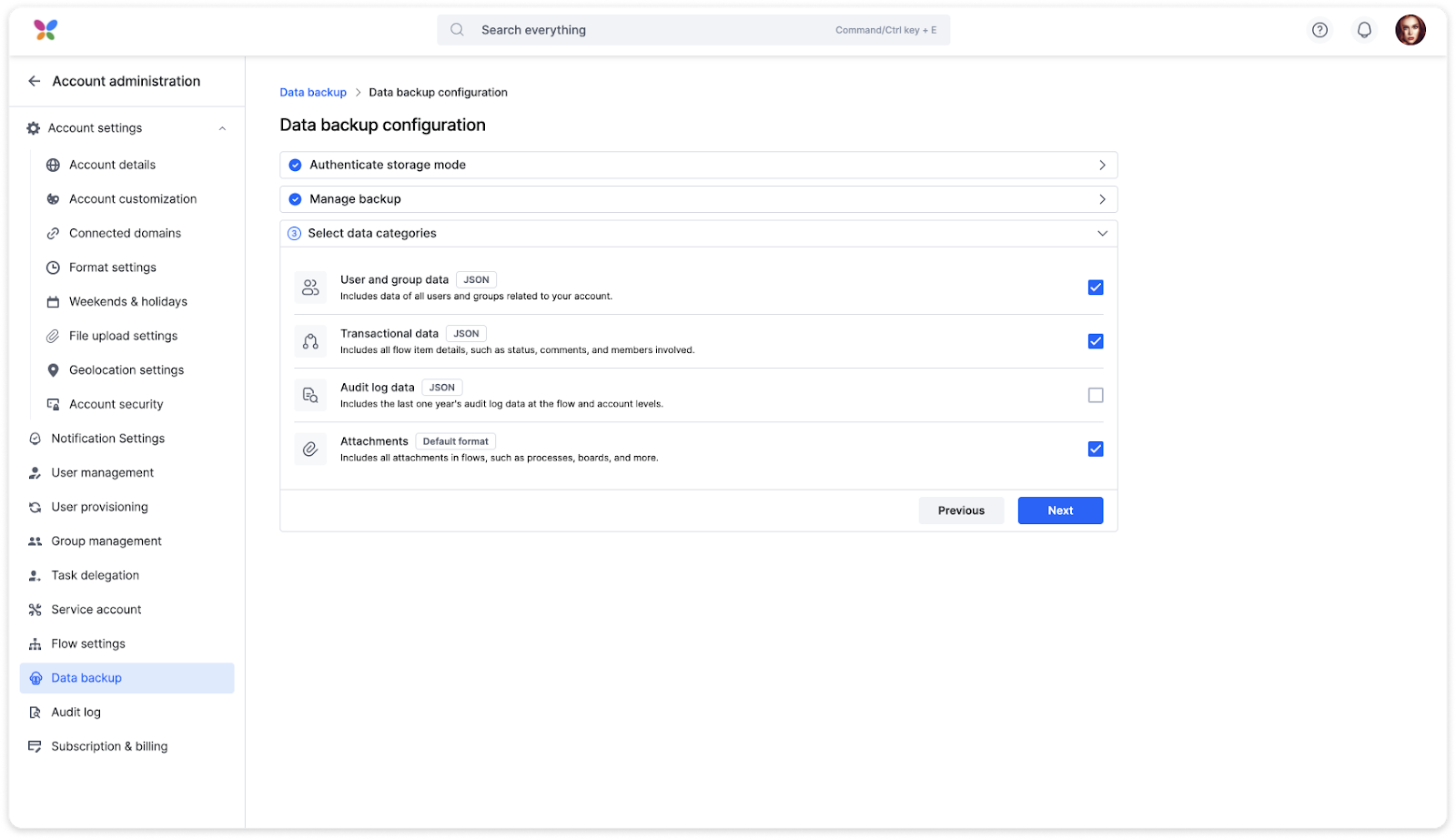
Choose one or more categories to include in your backup:
- User and group data — all account user and group data.
- Transactional data — flow item details such as status, comments, and members involved.
- Audit log data — the last year of audit logs at both the flow and account levels.
- Attachments — attachments in flows such as processes, boards, and more.
Review and start the backup
-
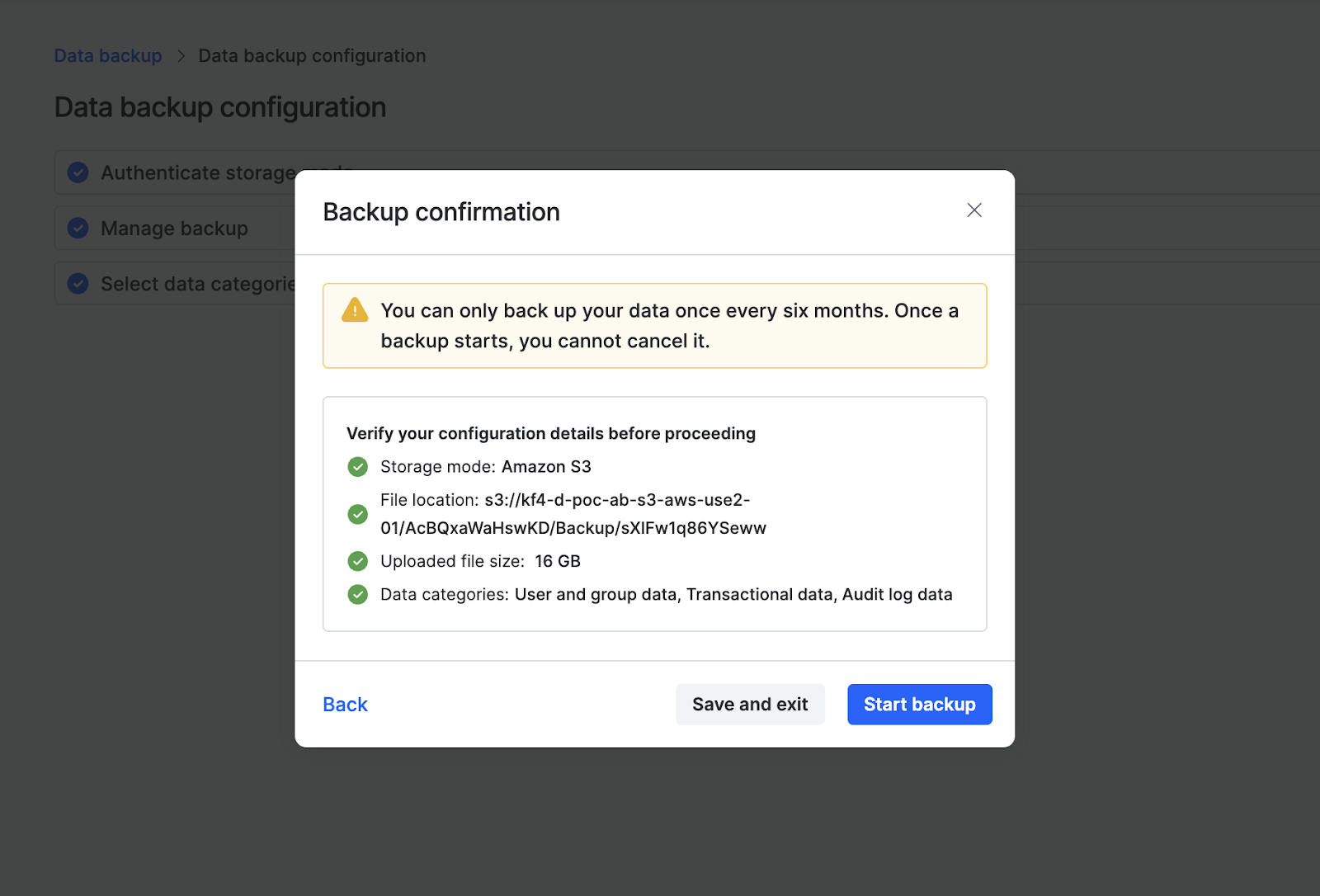
Select your data categories and click Next. A backup confirmation popup opens, summarizing your storage mode, file location, uploaded file size, and selected data categories.
-
Verify the details and click Start backup.
Important
You can only back up your data once every six months, and a backup can't be canceled once it starts. Review your configuration carefully before clicking Start backup.
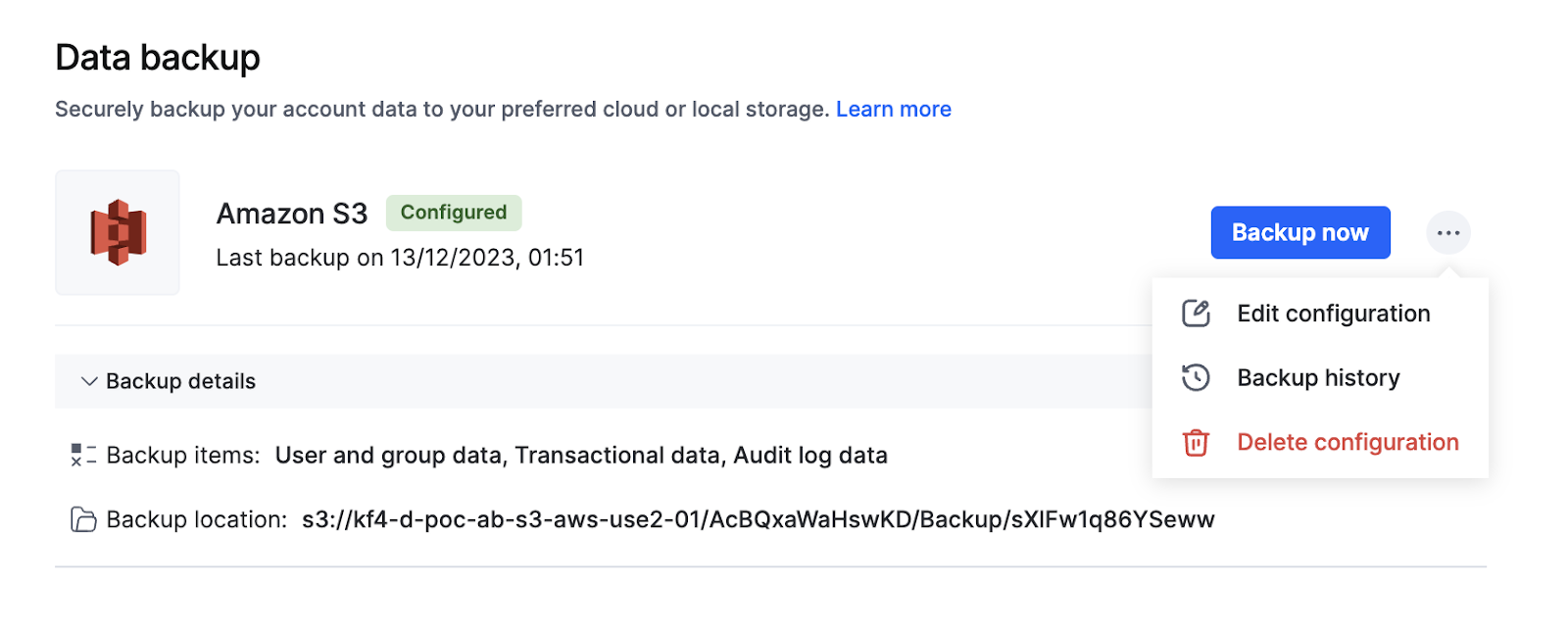
If you save your configuration and exit without starting the backup, you can resume it later from the same page. From there, you can also edit or delete a configuration, or view your backup history.