

AI-powered solution overview
Generate a readable, AI-written breakdown of a process's form, workflow, and connections so admins and developers can understand its design without digging through every setting.
AI-powered solution overview
A solution overview gives you a complete, AI-generated breakdown of a process in a readable, structured format that highlights how its different components come together to solve a business problem. It helps process admins and developers understand the overall structure and logic behind a process without having to manually explore every configuration detail.
Generate a solution overview
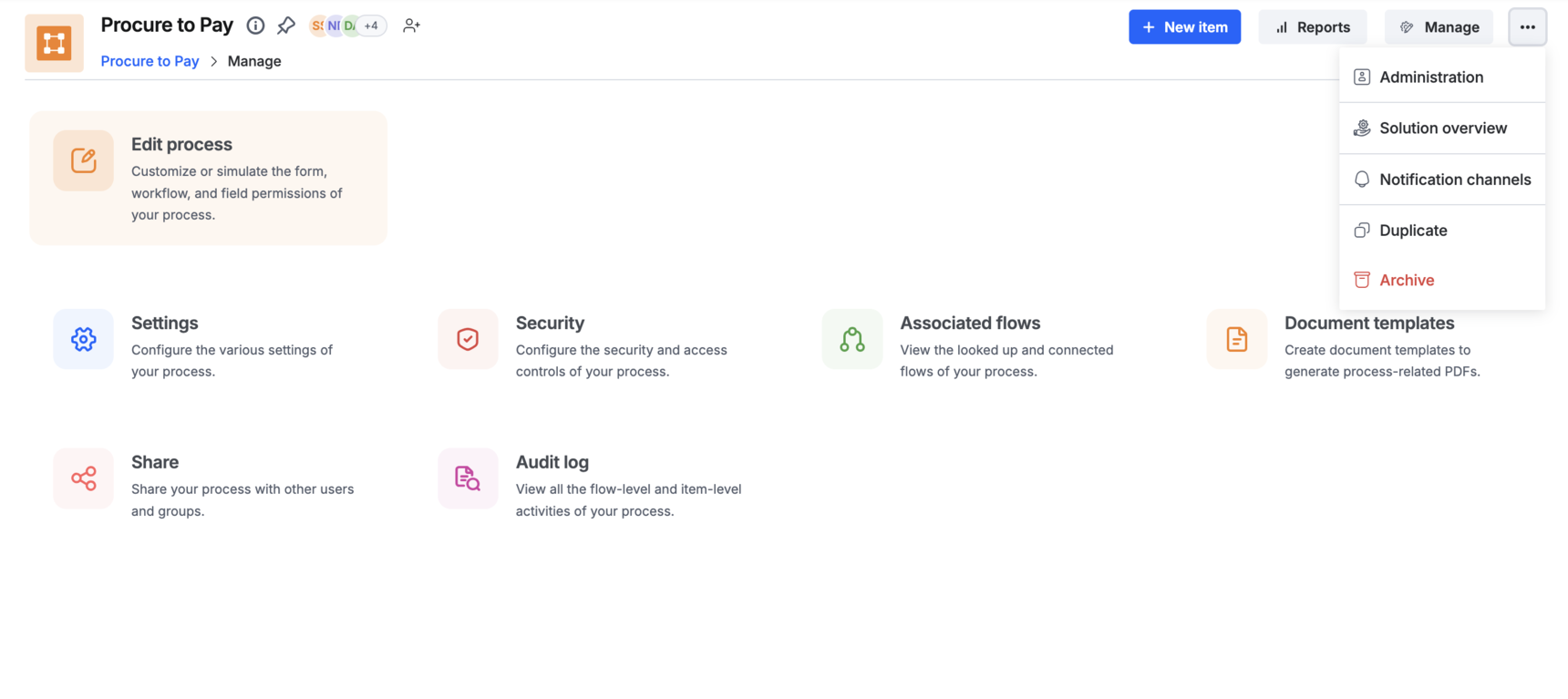
To access the solution overview of a process, click the More options button ( ) at the top right and select Solution overview.
Note
Solution overview only appears for a published (live) process. It isn't available while you're still working on a draft version.
Generating the overview can take a moment since it's written fresh by AI based on your process's current design. While it's generating, you can safely navigate away or continue other work — come back later and the completed overview will be waiting for you.
Sections of the solution overview
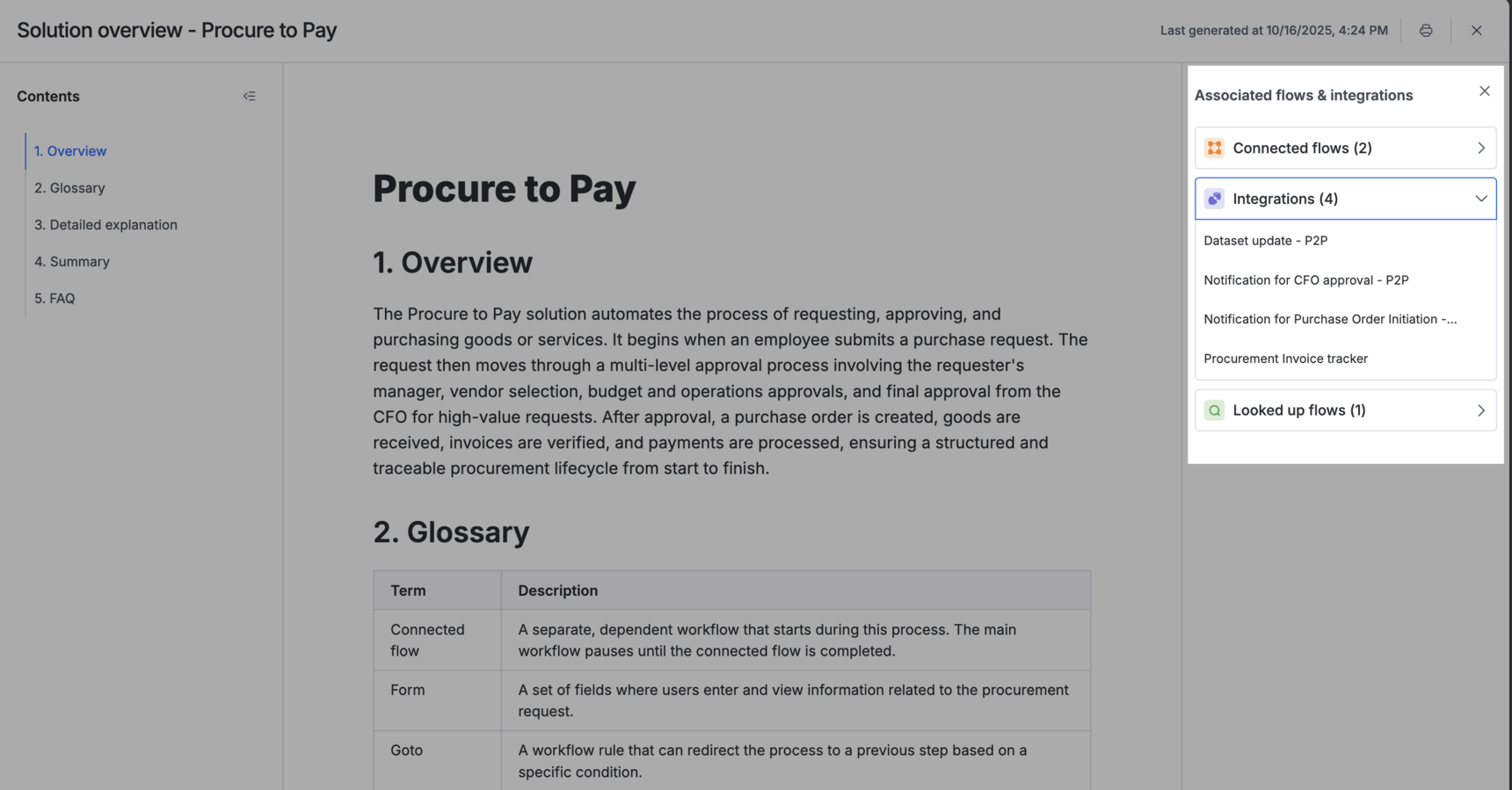
The generated overview is organized into five sections:
- Overview — a brief description of what the process is designed to do.
- Glossary — definitions of the terms and components used in the solution, such as connected flow, form, integration, goto, parallel branch, section, and workflow, so that business users can easily interpret the rest of the overview.
- Detailed explanation — an end-to-end walkthrough of how the process works:
- Form — lists all sections and the type of information each collects, along with required and computed fields.
- Workflow — explains each step in order, showing who it's assigned to, deadlines, editable or hidden sections, and any connected flows or integrations it triggers.
- Summary — a concise, start-to-finish walkthrough of the process, highlighting key transitions, decision points, and how data moves through the flow.
- FAQ — answers to a handful of common questions a business user might have about the process, such as who initiates it, what triggers connected flows, and how permissions are set.
Associated flows and integrations
The right panel of the solution overview lists the process's connected flows, integrations, and looked-up flows. Click any of them to open the corresponding flow or integration in a new tab.
Keep the overview up to date
A solution overview reflects the process design at the time it was generated. If you publish changes to the process afterward — or update an integration it uses — a banner appears at the top of the overview prompting you to refresh it.
Note
There's no separate manual regenerate control — refresh only appears once changes are actually detected, so you always know whether the overview you're reading matches the live process.
Print or save as a PDF
You can print the solution overview or save it as a PDF. Click the Print button ( ) in the top right corner of the overview and choose your desired options from your browser's print dialog.
What's next
- AI solution analyzer — catch form, workflow, and permission issues before you publish.
- Connected processes overview
- Associated flows for processes
- Publishing, editing, duplicating, archiving, and deleting a process