AI solution analyzer
Run the AI-powered solution analyzer to catch form, workflow, and permission issues in a process before you publish it live.
AI solution analyzer
Solution analyzer is an AI-powered tool for process admins and developers who build and manage a solution. It reviews your form fields, workflow steps, and permissions against the intent it infers from your process design, then flags potential issues before you take the process live.
Note
These are AI-generated findings — always review them against your process's actual requirements before acting on them.
Important
Solution analyzer is currently available only for no-code processes. It isn't supported inside apps or portals.
When to run it
We recommend running the analyzer after you finish building your process, to check that:
- Forms have the required validations.
- Workflow steps are assigned to the right people.
- Permissions match your intent.
Run the analyzer
- Open your process.
- Click Manage > Edit process to open the Form builder.
- Click Analyze at the top right of the builder.
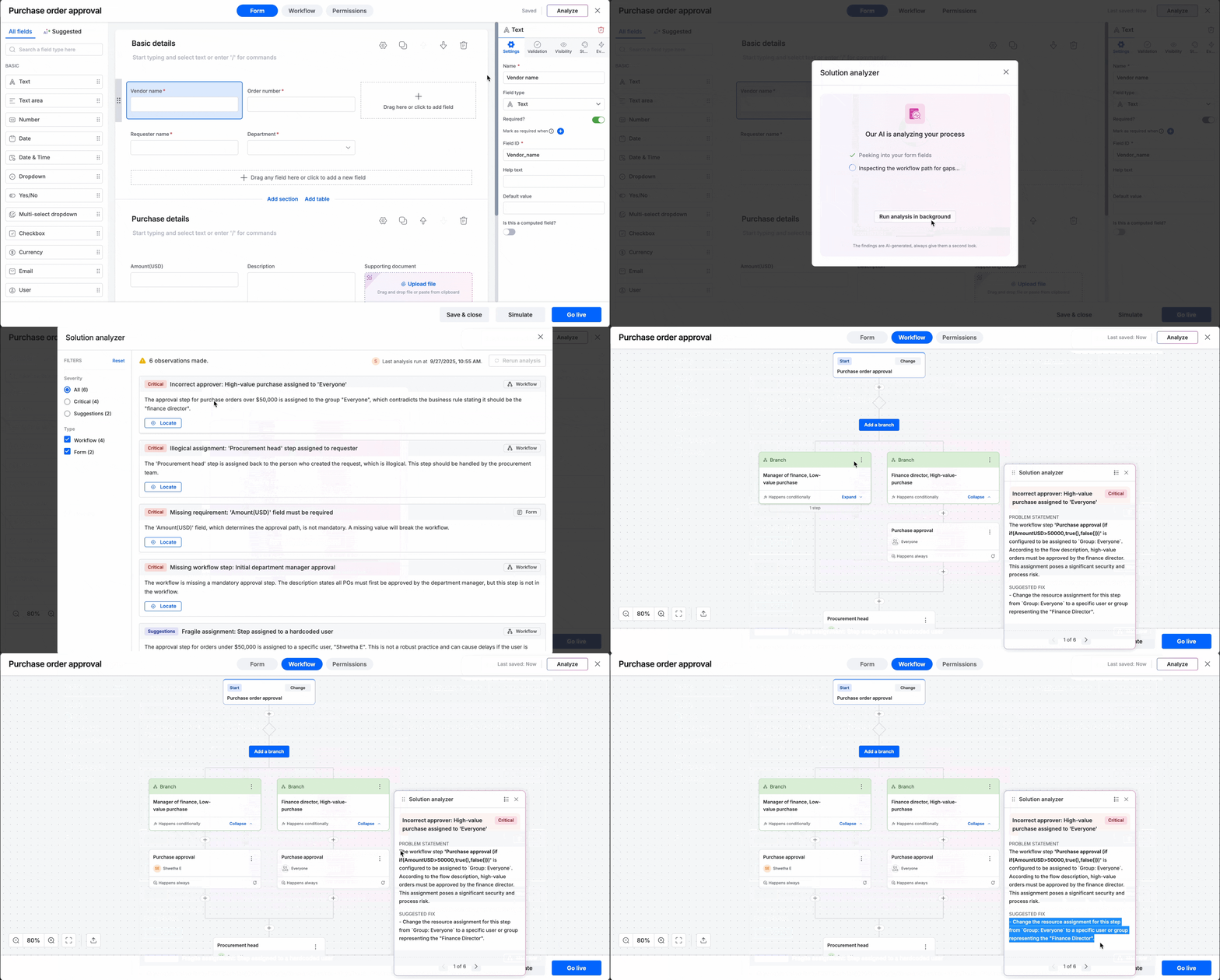
The analyzer runs automatically and displays the results.
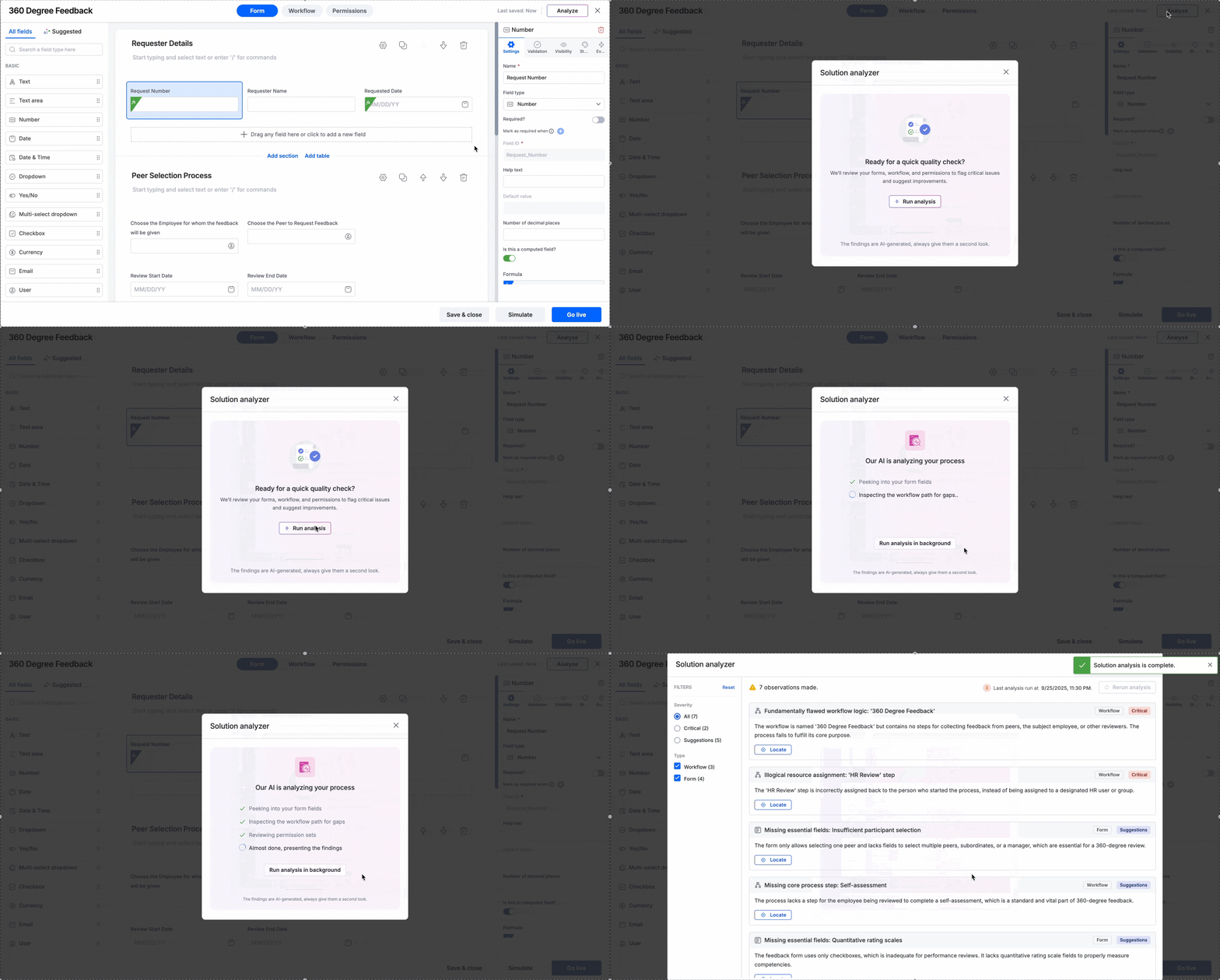
Note
You don't have to wait around for the analysis to finish. Close the analysis window, or click Run analysis in background, and you'll get a toast notification once it's complete.
Review the results
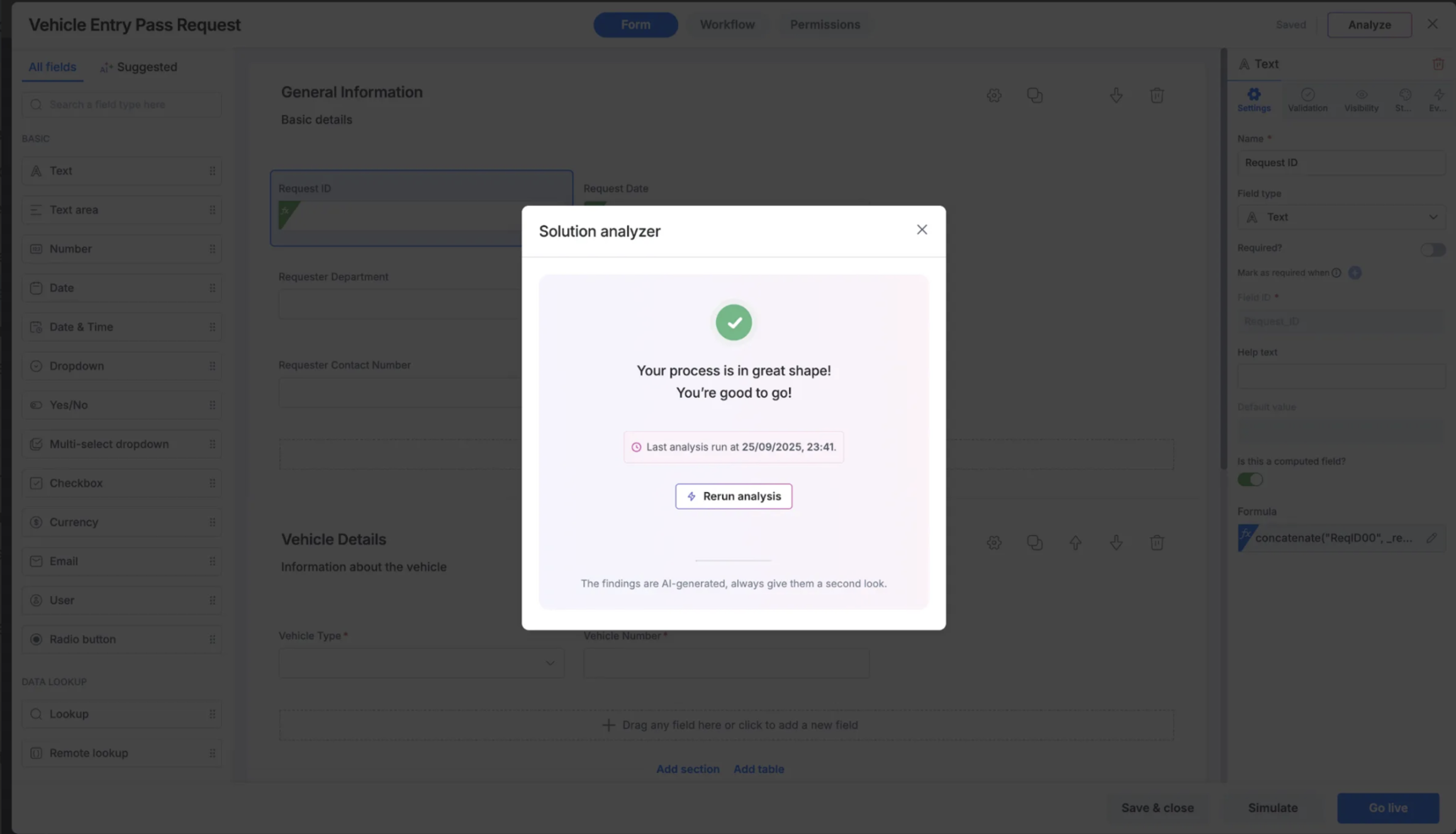
If no issues are found, you'll see a success message confirming that your form, workflow, and permissions align with your process's intent.
If issues are detected, you'll see a list of observations instead.
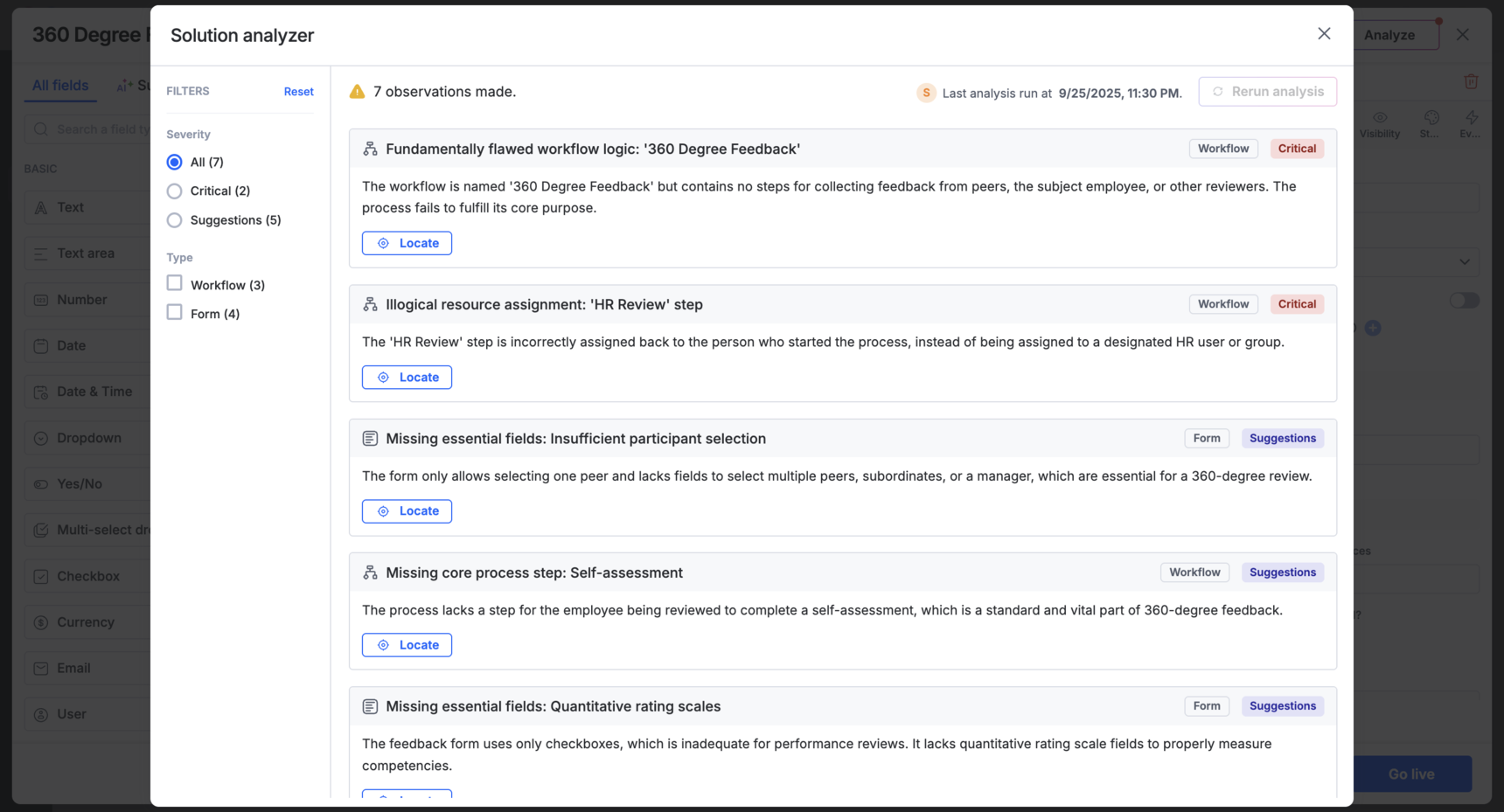
Each observation shows:
- Title — a short description of the issue.
- Tags — whether it relates to the workflow, permissions, or form.
- Severity — Critical or Suggestion. Critical findings point to issues more likely to break the process or expose data, such as a misassigned approval step or an overly permissive field. Suggestions are best-practice recommendations that won't break the process but are still worth reviewing.
- Locate — jumps to the exact spot in the form, workflow, or permissions where the issue was found.
At the top of the results, you'll also see the total number of observations (for example, 7 observations made) and the timestamp of the last analysis run. Use the filters to narrow the list by severity or scope.
Locate and navigate between issues
Click Locate on an observation to jump to the exact spot where it was found. The list narrows to that single observation, with previous and next controls so you can step through the remaining issues one at a time.
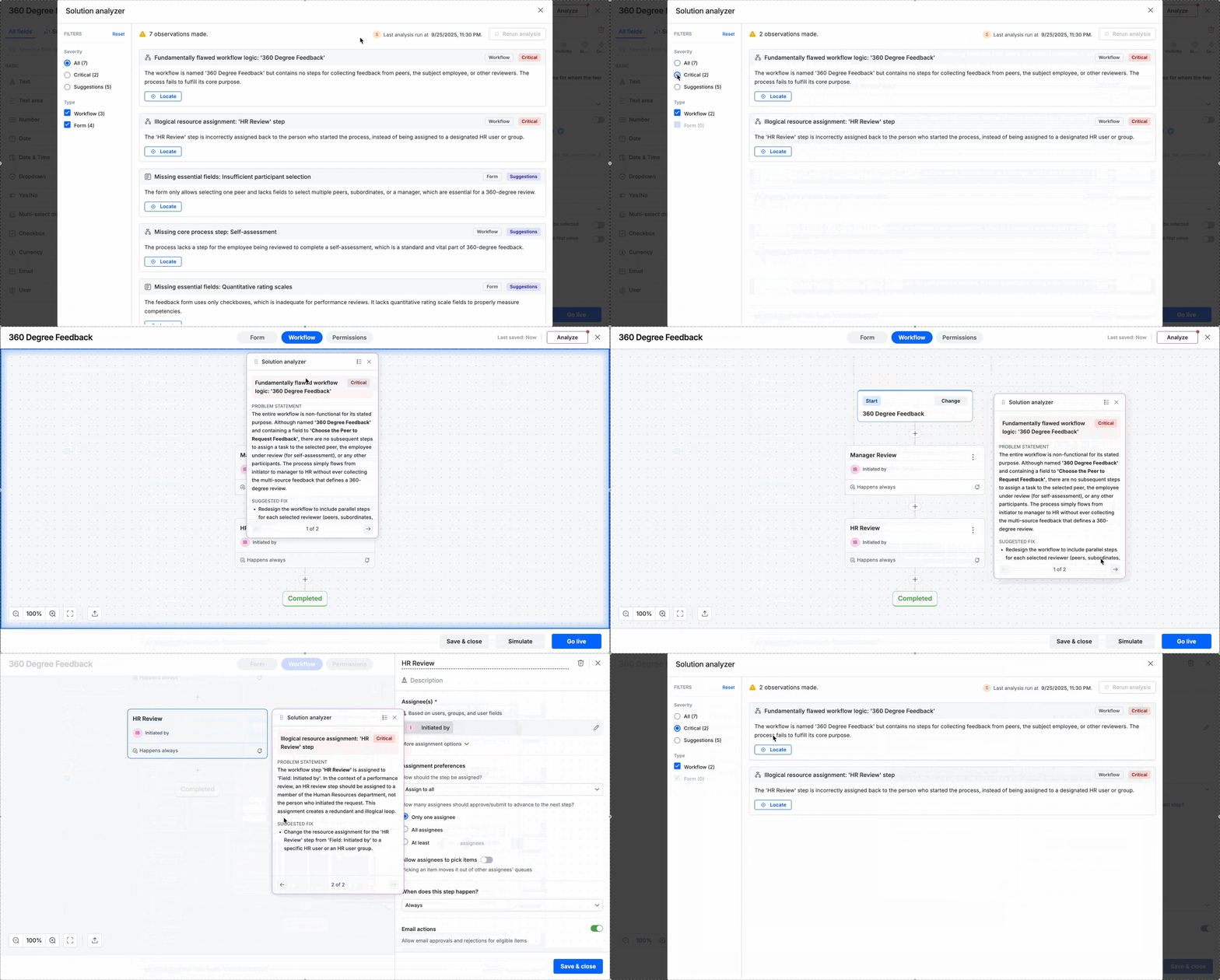
Click Back to return to the full list of observations.
Rerun the analyzer
You can rerun the analyzer only after you make changes to your process. The timestamp of the last run stays visible in the analyzer window until you do.
Important
Rerunning can change the results — existing issues might resolve, new ones might appear, and some might disappear entirely. Review the current observations before you click Rerun analysis, since you may not see the same results again.
Examples
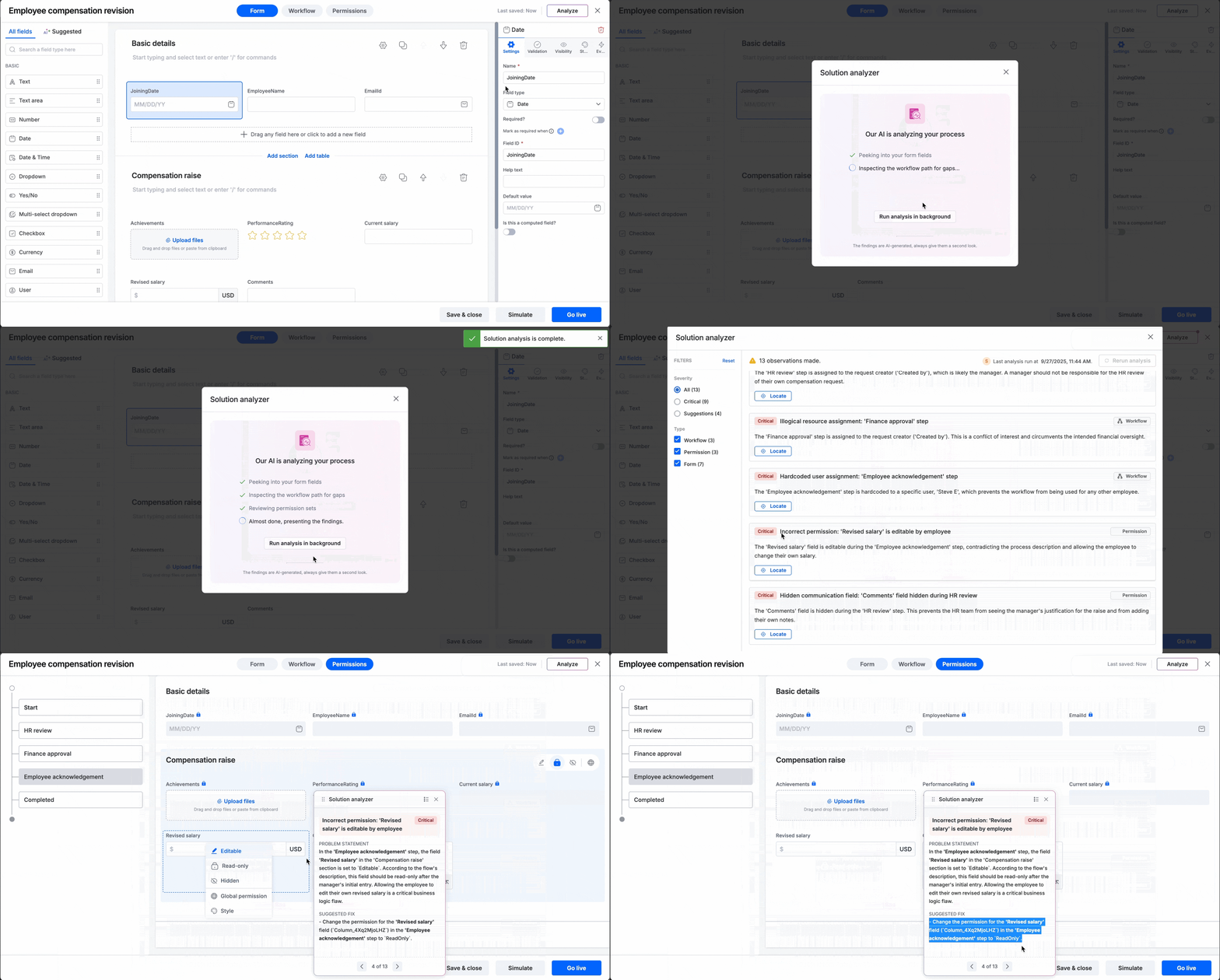
Workflow issue — An approval step meant for a specific role, such as a finance director, gets assigned to Everyone by mistake. Solution analyzer flags this as a critical workflow issue and recommends reassigning the step to the correct role.
Permissions issue — A field that should stay read-only after an initial entry, such as a compensation amount, gets left editable at a later step. Solution analyzer flags this as a critical permissions issue and recommends making the field read-only again.