

Publishing, editing, duplicating, archiving, and deleting a process
Publish a process live, resolve editing conflicts with other admins, duplicate an existing process, and archive or delete a process you no longer need.
Publishing, editing, duplicating, archiving, and deleting a process
Process Admins and Developers manage a process through its full lifecycle — from publishing it live, to editing it later, to duplicating, archiving, or deleting it when it's no longer needed.
Publish a process
-
Run the AI Solution analyzer to check for potential errors in your design. This step is optional but recommended.
-
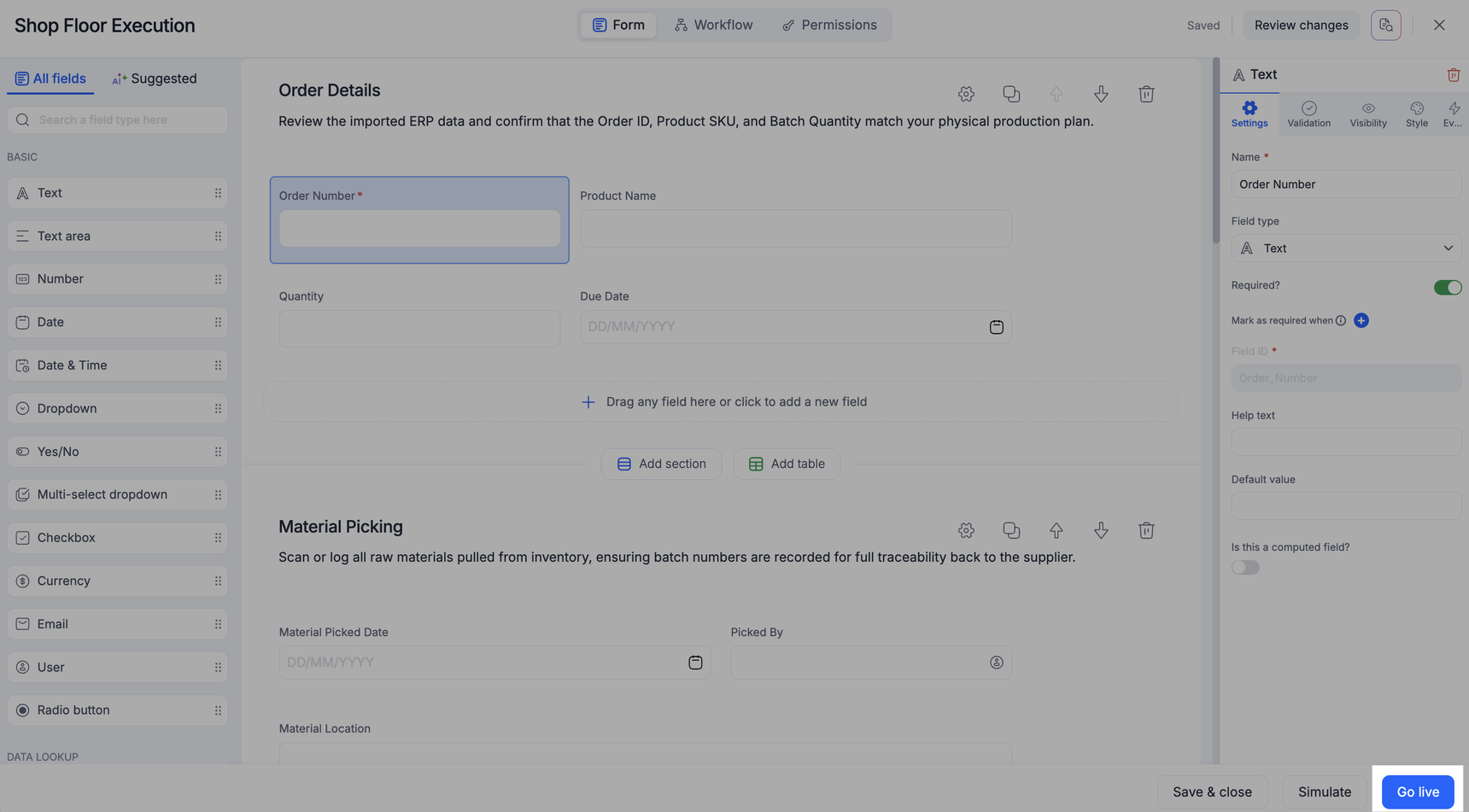
Click Go live at the bottom right of the process editor.
Note
Going live publishes the process in one step — all of your latest changes to the form, workflow, and permissions go live together.
Important
The previous version of a process can't be restored once you publish. Review your changes carefully before clicking Go live.
Changes you make in the process editor are saved automatically as you work. If you've made unwanted changes before publishing, you can ask another Process Admin to open the process and discard your changes while they take over editing.
Important
Changing a field's type isn't recommended once the field already has data in it. If the field existed before the process's last publish, Kissflow restricts which type changes are allowed to avoid data conflicts when you publish again.
Edit a process
-
Click Manage at the top right of the process.
-
Click Edit process.
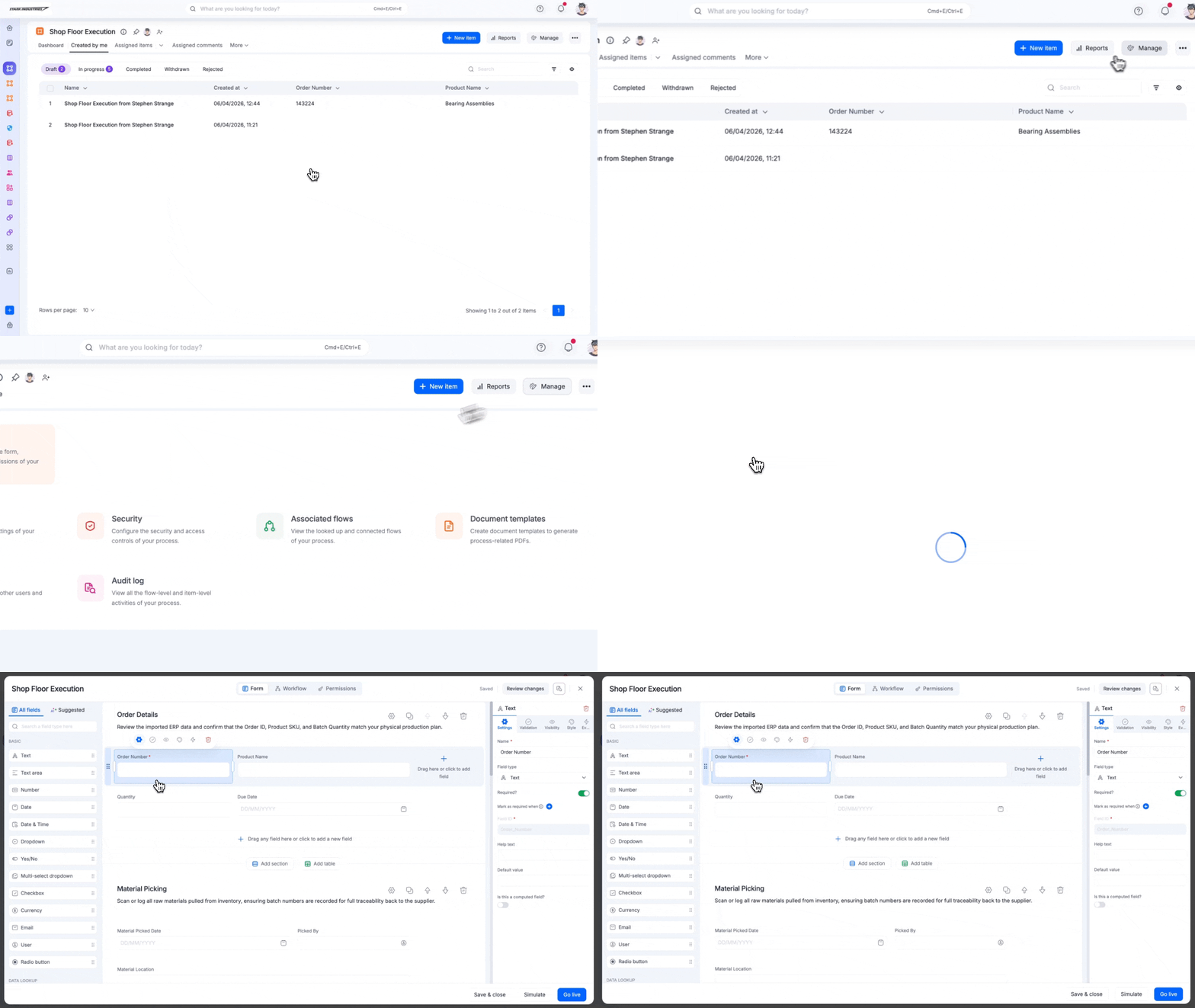
If another Process Admin or Developer is currently editing the process, you'll see a message letting you know.
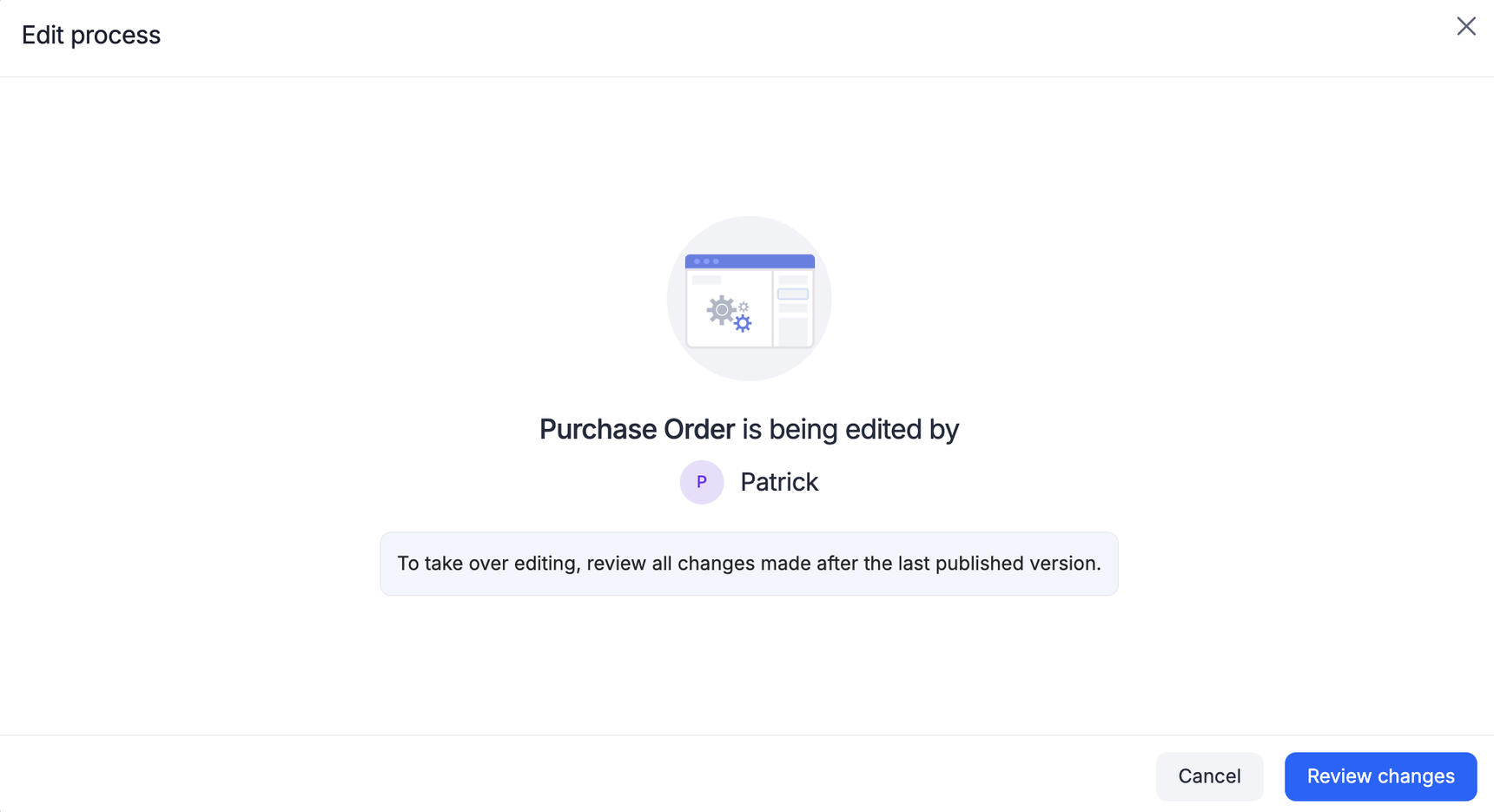
You can review their changes and choose one of the following:
- Discard their changes and take over editing — removes any unpublished changes made by the other user, so you start fresh.
- Save their changes and take over editing — saves the other user's changes first, then hands editing over to you.
Note
If you'd rather not interrupt their work, ask the other user to publish their changes instead.
Duplicate a process
Duplicating a process creates a copy with the same fields, sections, tables, workflow, and permissions as the original. Items and data are not carried over.
-
Click the More options button (
 ) and select Duplicate.
 -
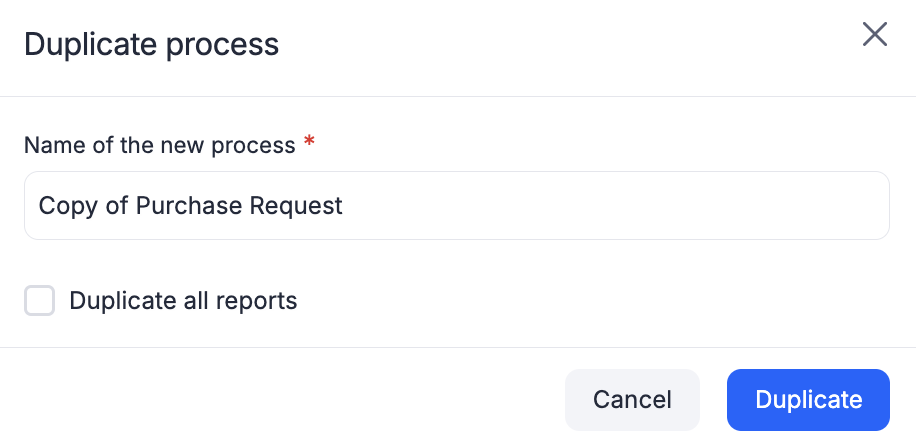
The new process is named Copy of <original process name> by default — you can rename it later.
-
Choose whether to duplicate the original process's reports.
-
Click Duplicate.
Note
A newly duplicated process is typically locked for submissions, so no one can initiate items until you've had a chance to check its reports and settings. A Process Admin can unlock it for submissions when it's ready.
Important
Integrations associated with the original process aren't duplicated. Duplicate those integrations separately.
Archive a process
Archive a process you don't need active anymore. Its data is retained, but no one can view or act on its items while it's archived.
- Click the More options button () at the top right of the process.
- Click Archive.
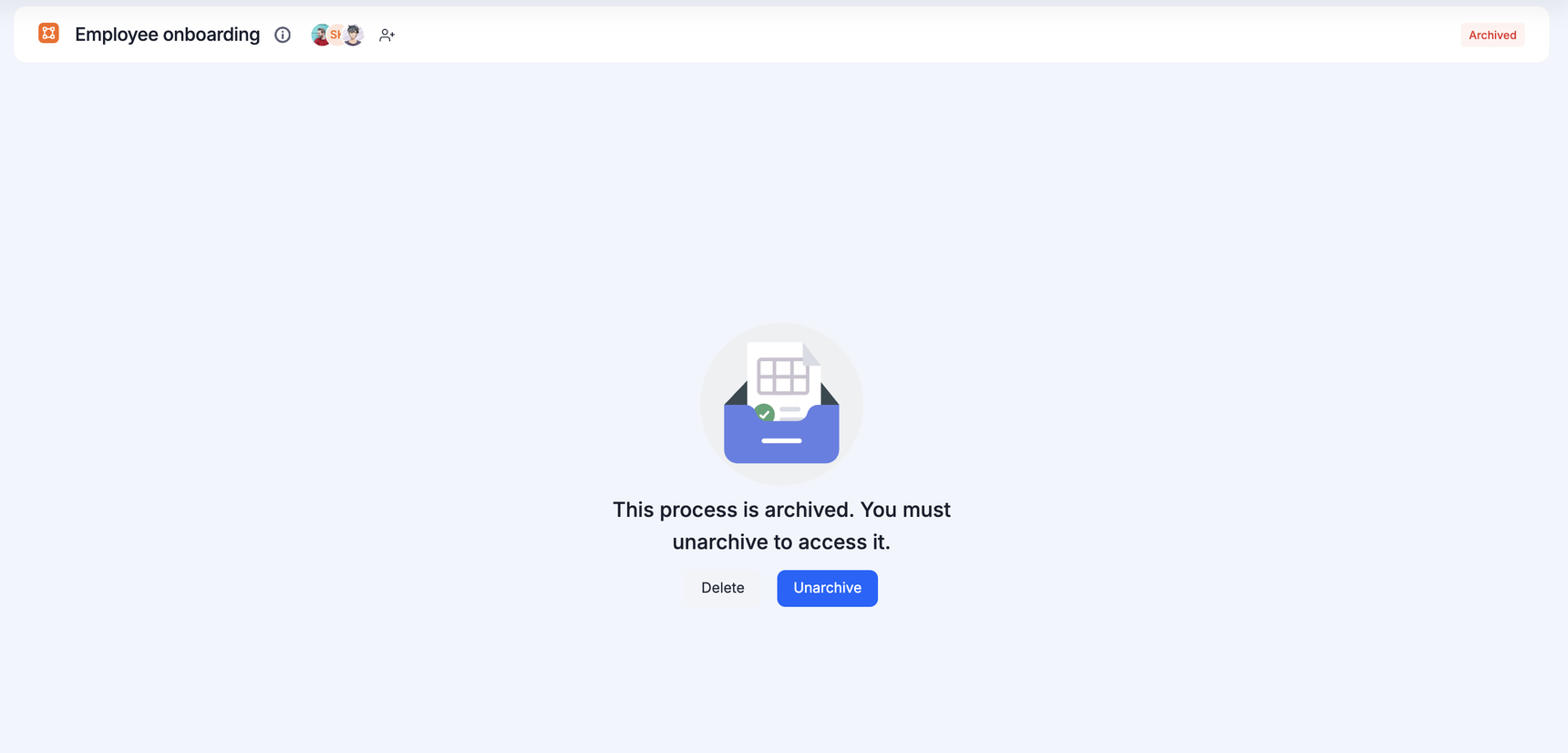
Process Admins can access the audit log for an archived process and unarchive or delete it.
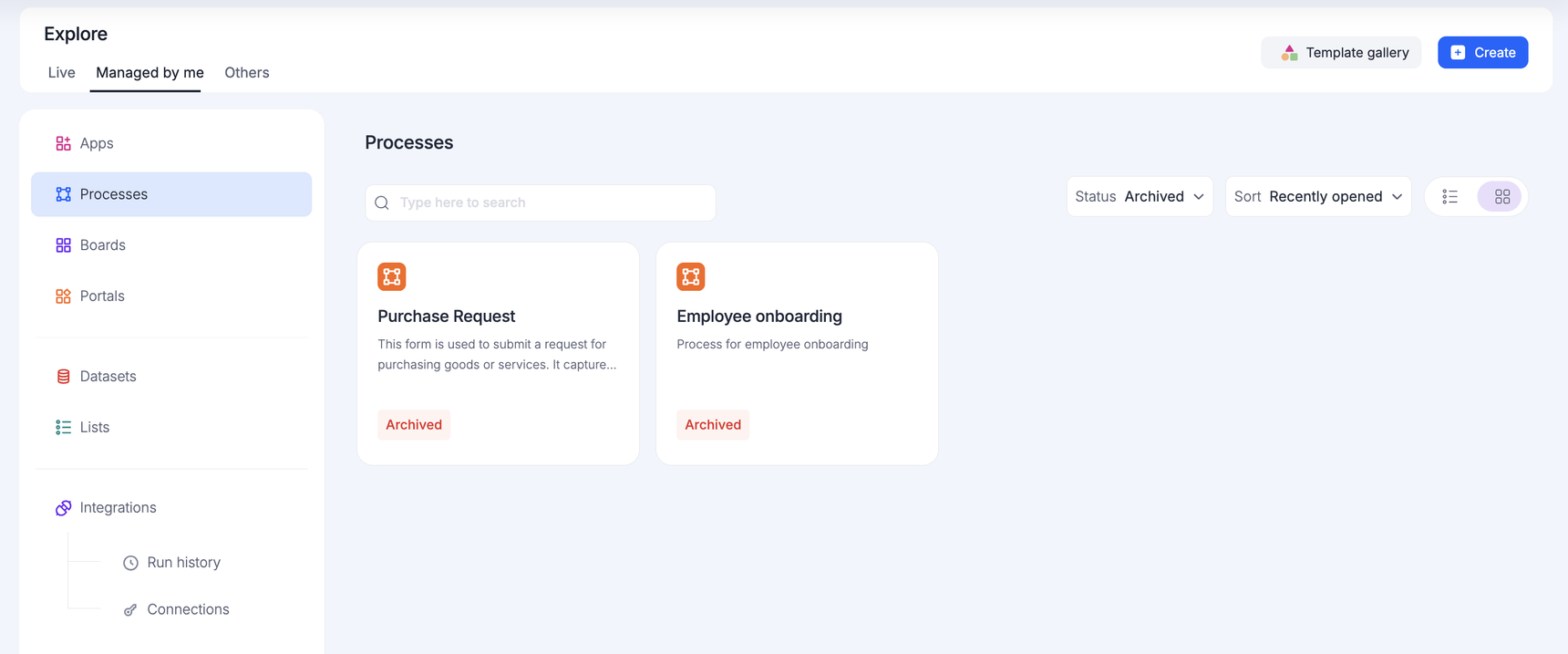
To find an archived process you manage, go to Explore > Managed by me > Processes, then filter the status to Archived. To find archived processes managed by others, use the Others tab instead.
Unarchive a process
-
Go to Explore > Managed by me (or Others) > Processes, and filter the status to Archived.
-
Select the process and click Unarchive.
Delete a process
A process must be archived before it can be deleted. From the archived process, click the More options button and select Delete.
Important
Deleting a process removes it and all of its data permanently — this can't be undone. Before you delete, review who the process is shared with and check for any other processes connected to it.