

Process audit log
View, sort, filter, and export the audit trail of flow-level and item-level changes made in a process.
Process audit log
The audit log stores the history of all activity related to a process, and lets Process Admins search flow-level and item-level changes made by users in the process.
Note
The audit log is available only to Process Admins. If you don't see it, check with your Process Admin.
Open the audit log
- Open the process and click the Manage button.
- Click Audit log.
- Go to Flow-level logs to see changes to the process itself (settings, publishing, permissions), or Item-level logs to see changes to individual items within it.
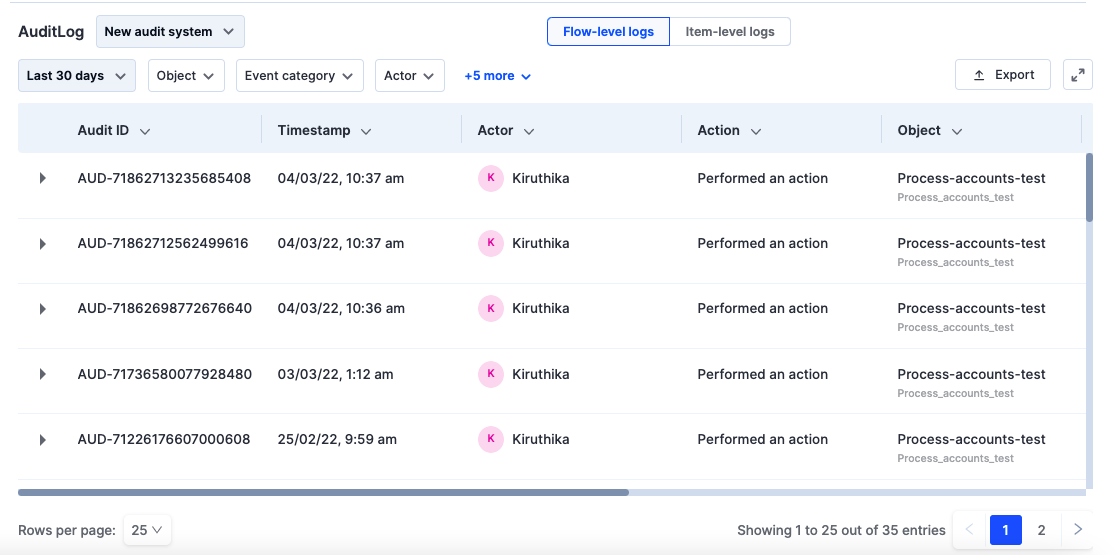
The sorting, filtering, and export instructions below apply to both views. Each entry shows the following columns:
- Audit ID — a unique ID the system generates automatically for every recorded event.
- Time — when the action happened.
- Acted by — the user who performed the action.
- Event — the kind of activity that took place, for example Process published, Item created, or Item deleted.
- Object — the resource that was changed.
- Event category — a common name for a set of events, useful for filtering down to similar events. Examples include Process Administration and Process Settings.
- Platform — the device or OS the event was recorded from.
- IP — the IP address the event was recorded from.
- Batch ID — a unique ID the system generates automatically for a group of related events. Unlike Audit ID, every event in the same batch shares the same Batch ID.
Sort the log
- Click the down-arrow beside the Time column header.
- Select Ascending or Descending to sort the log by time.
Note
Sorting is available only on the Time column. The down-arrow on other columns lets you pin or unpin them instead, so key details stay visible while you scroll horizontally.
Search a filter
Some filters — Audit ID, Batch ID, and IP — search by exact value:
- Click the down-arrow beside the filter.
- Enter the exact value in the search area that appears and apply it.
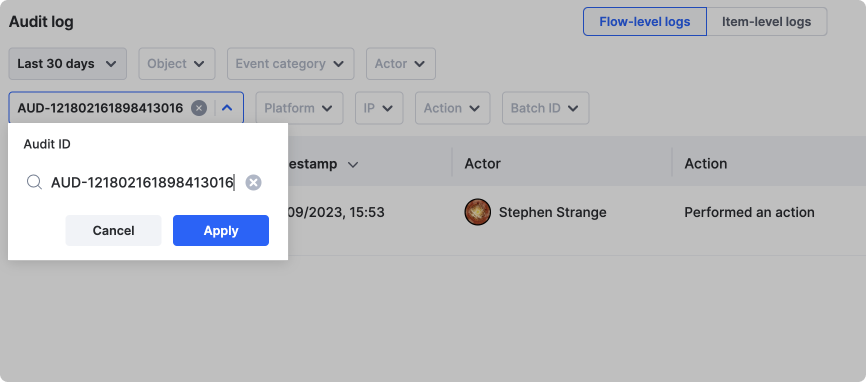
Filter the log
You can filter audit log events on the following fields:
-
Audit period — choose Last 7 days, Last 30 days, Last 90 days, or a Custom date range.
Note
Last 30 days may not be available on every account. If you don't see it, contact Kissflow support to check whether extended log retention can be enabled for your account.
-
Object — select one or more objects from the suggestions, or enter the exact object name.
-
Event category — filtering by event category is one of the recommended ways to narrow down results. If you're not sure which category to pick, search for a flow name like "process" and the field lists every category relevant to it.
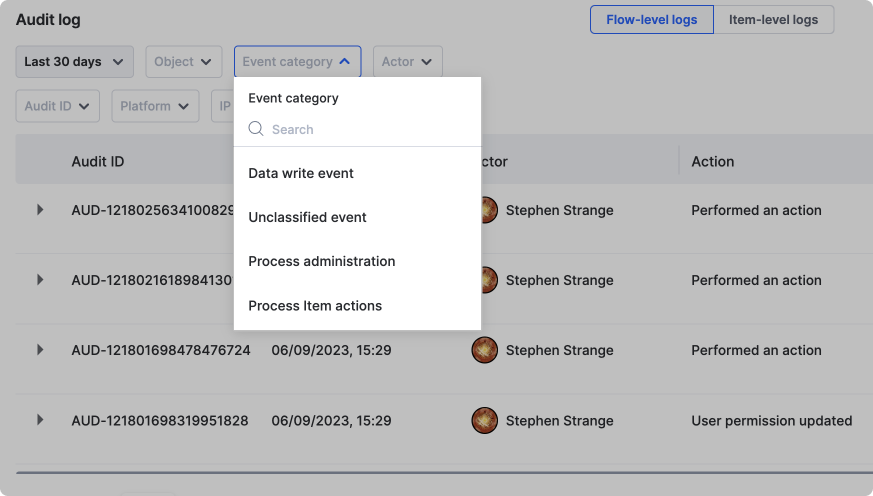
-
Acted by — select one or more account users to filter events by who performed them.
-
Event — enter or select one action from the suggested list. This filter accepts only one value at a time.
-
Audit ID, Batch ID, and IP — enter the exact value to filter events, mainly useful to backtrace a specific event's history.
Each applied filter shows a control to clear it, and you can click Clear all to reset every filter at once.
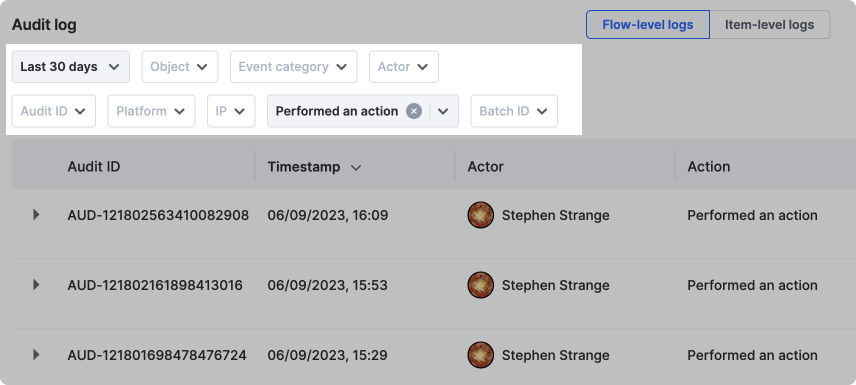
Export the audit log
You can export up to 90 days of the audit log at a time.
- Open the process and click Manage > Audit log.
- Go to Flow-level logs or Item-level logs, depending on which log you want to export — see Open the audit log above for what each view covers.
- Click the Export button and confirm the export.
Note
Export runs as a background job. Once it finishes, you'll receive an email with the download link at your registered email address — this can take a few minutes rather than being instant.