

My items
Find every item assigned to you or created by you across processes, boards, and apps in one place, and handle admin actions like reassignments and approvals.
My items
My items brings together every item you've created or that's waiting on you for approval, across all your processes, boards, and apps — so you don't have to open each flow individually to check on your work.
Items are grouped under two tabs:
- Assigned to me — items from any process, board, or app that need your attention.
- Created by me — items you've submitted or created, wherever they live.
If you're an Account Admin or a flow approver, you'll also see an Admin actions tab with pending Item reassignment, Flow approvals, Admin assignment, and Join request actions that need your attention.
Finding items assigned to me
The Assigned to me tab lists items from every process, board, and app you have pending work on. Use the navigation panel to move between flows, or apply the Due by filter to narrow the list.
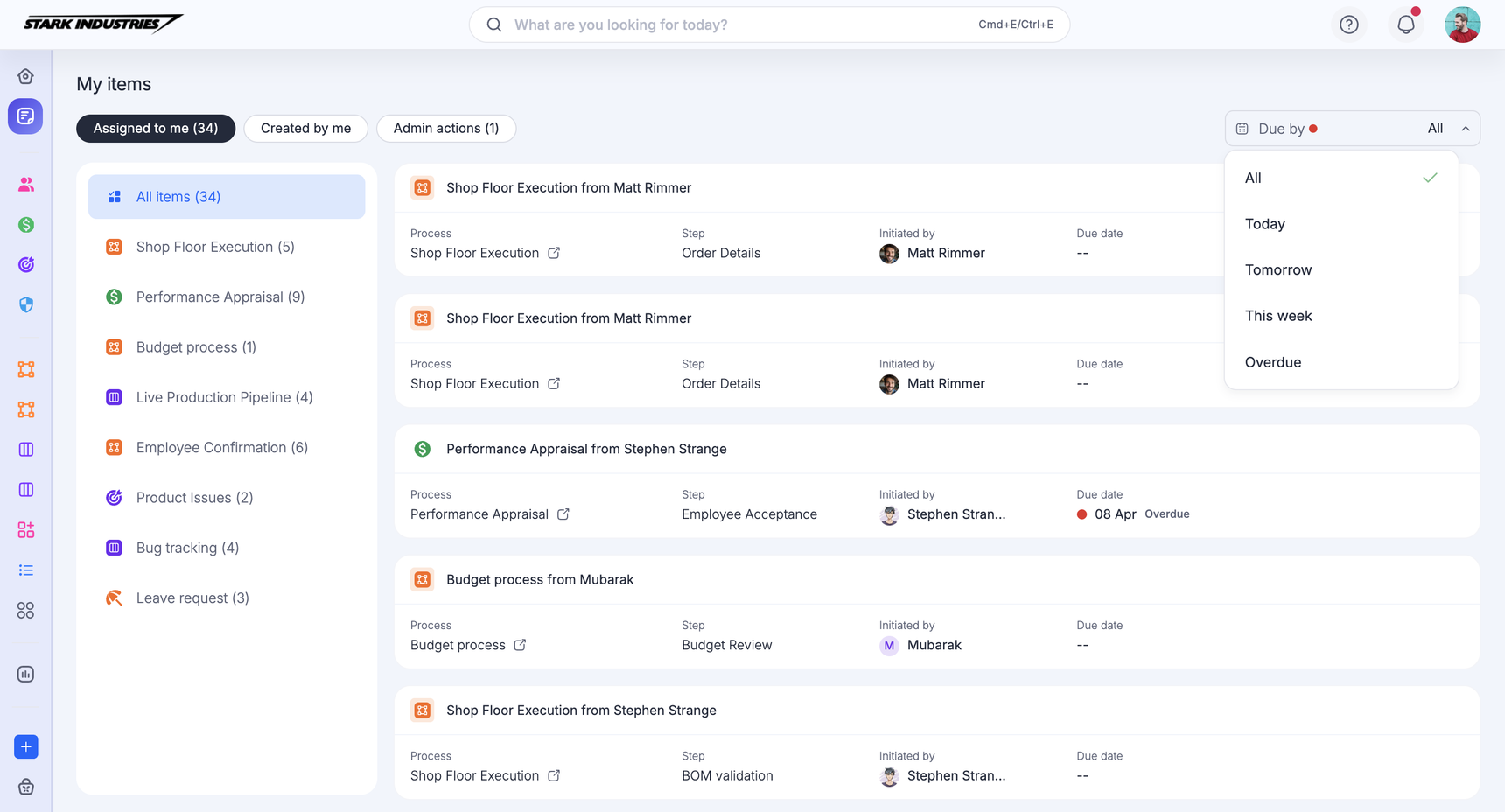
Click any item to open its process or board form. Closing the item returns you to the Assigned to me list.
Filter the list using the Due by field:
- All — every item assigned to you, regardless of due date.
- Today — items due today.
- Tomorrow — items due the following day.
- This week — items due sometime this week.
- Overdue — items whose due date has passed.
Finding items created by me
The Created by me tab lists every item you've created, across processes, boards, and apps, in the left navigation panel. Click an item to open its process or board form.
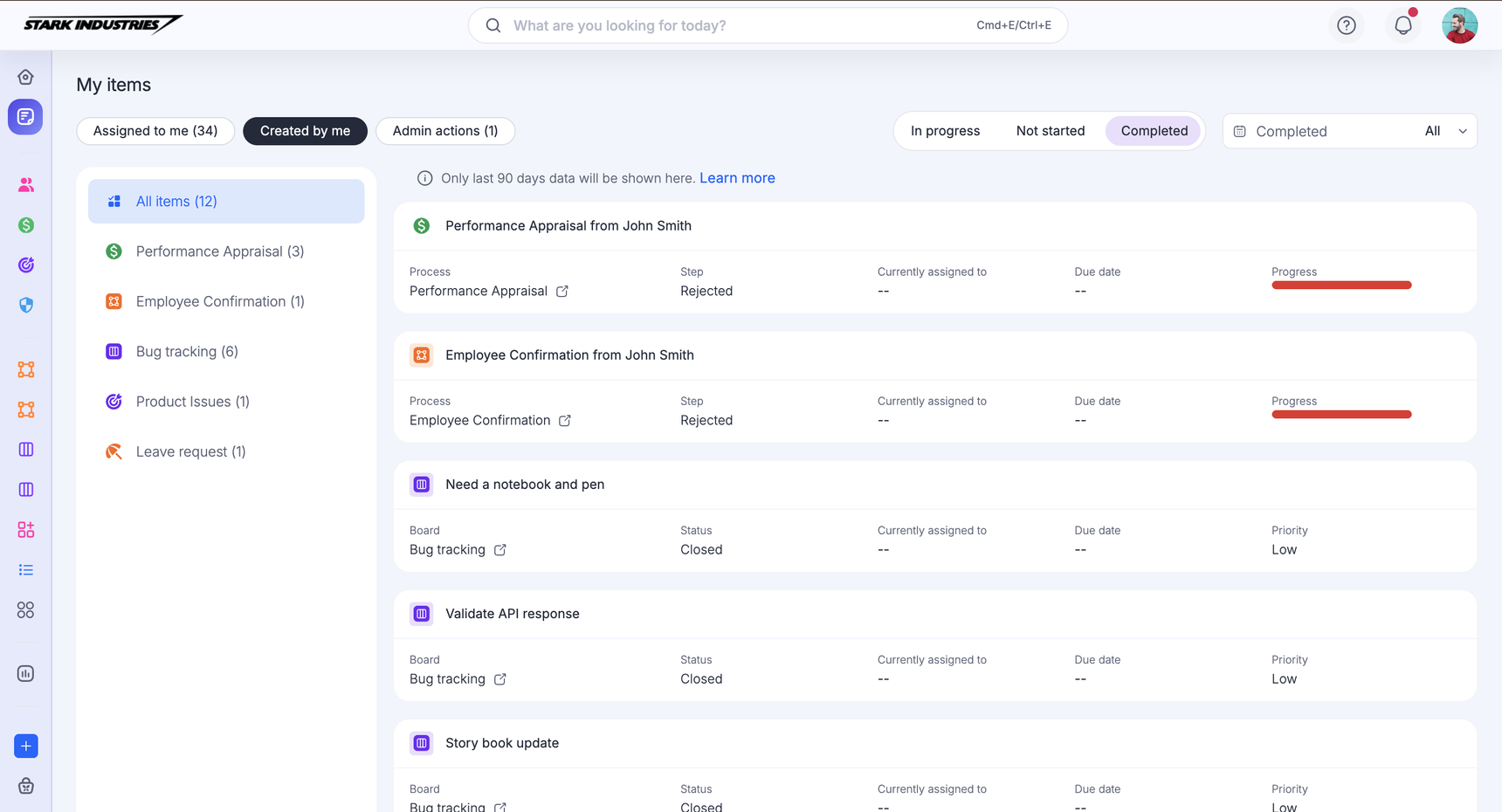
Filter created items by status:
- In progress — items in the In progress status, for both processes and boards.
- Not started — items in the Draft status on processes, and items in the Not started or Reopened status on boards.
- Completed — items in the Completed, Withdrawn, or Rejected status on processes, and items in the Done or Closed status on boards, from the last 90 days.
Note
Only items completed in the last 90 days appear when you filter by Completed.
Depending on the status filter you choose, you can further narrow the list using the Created or Completed date field:
- All — items created or completed at any time.
- Today — items created or completed today.
- Yesterday — items created or completed the previous day.
- Past week — items created or completed in the last 7 days.
- Past 14 days — items created or completed in the last 14 days.
- This month — items created or completed during the current calendar month.
- Past 30 days — items created or completed in the last 30 days.
- Custom date range — items created or completed within a date range you specify.
Admin actions
The Admin actions tab appears only when there's something pending that needs an Account Admin's or flow approver's attention. If your account has several Account Admins or flow approvers, they all see the same pending actions — once one admin completes an action, it disappears from everyone else's list.
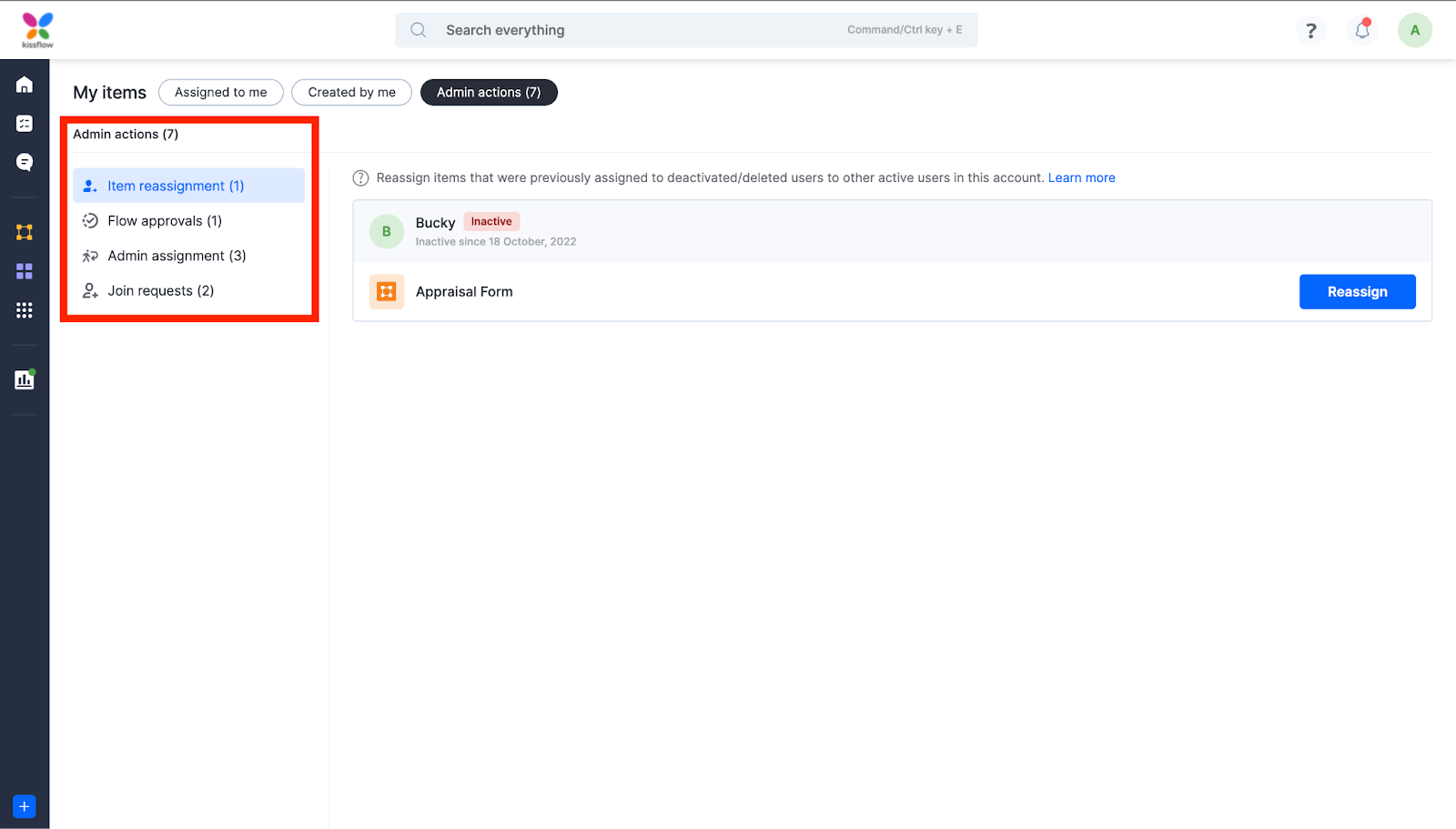
Under Admin actions, you'll find four sections: Item reassignment, Flow approvals, Admin assignment, and Join requests.
Item reassignment
Items assigned to a user who's since been deactivated or deleted are left with no one to act on them. These items show up under Item reassignment, where an Account Admin or Flow Admin can hand them off to an active user.
To reassign an item:
-
Click My items > Admin actions > Item reassignment.
-
Select an item from the list and click Reassign.
-
In the dialog that opens, review the item's process and current step, select an active user to reassign it to, add a note if needed, and click Reassign.
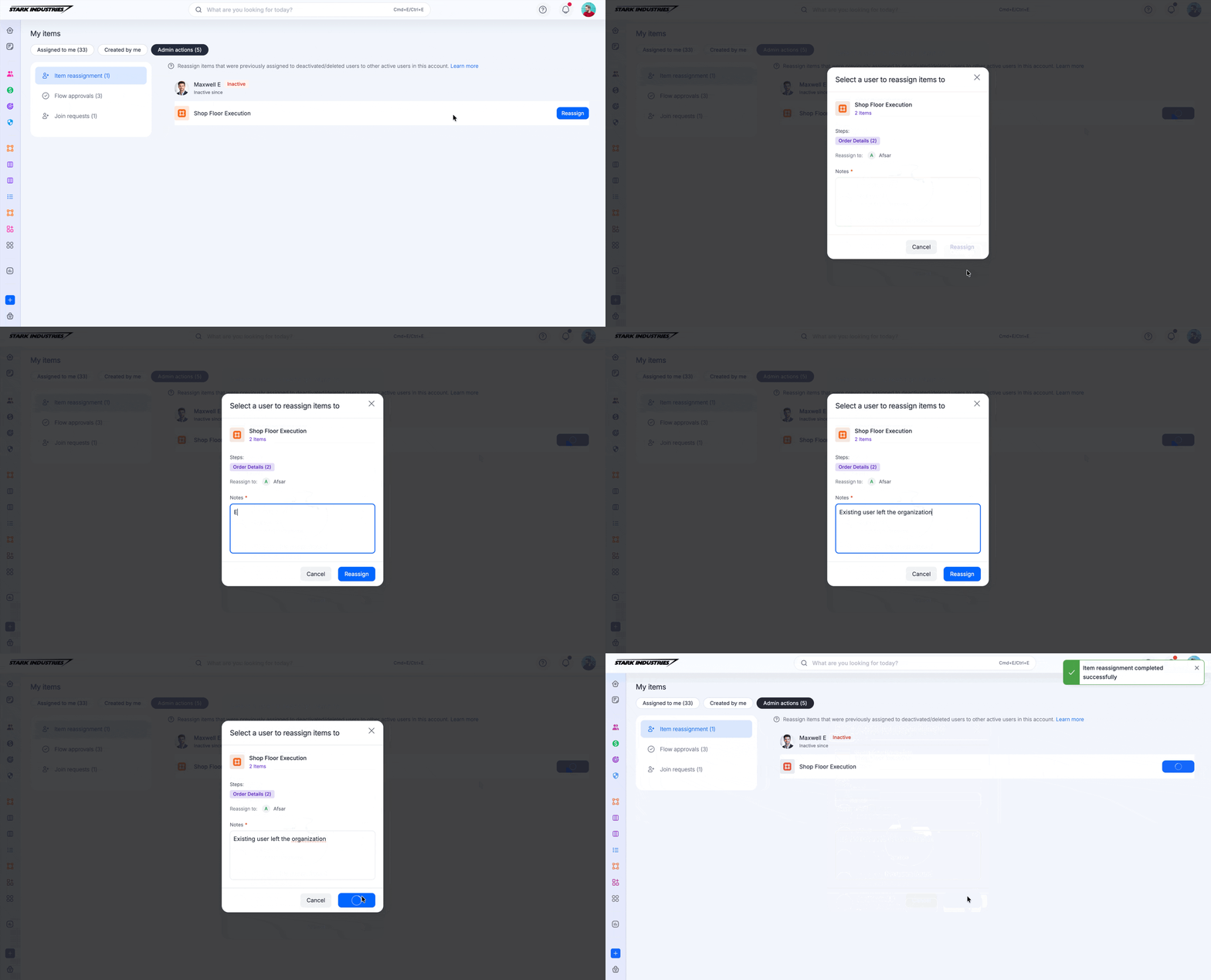
The item moves to the new user and drops off the Item reassignment list. Reassignment happens one item at a time.
Flow approvals
By default, anyone in your account can create processes, boards, and datasets. If your account's flow settings require approval before a new flow can be created, requests from users land under Flow approvals for the specified approvers.
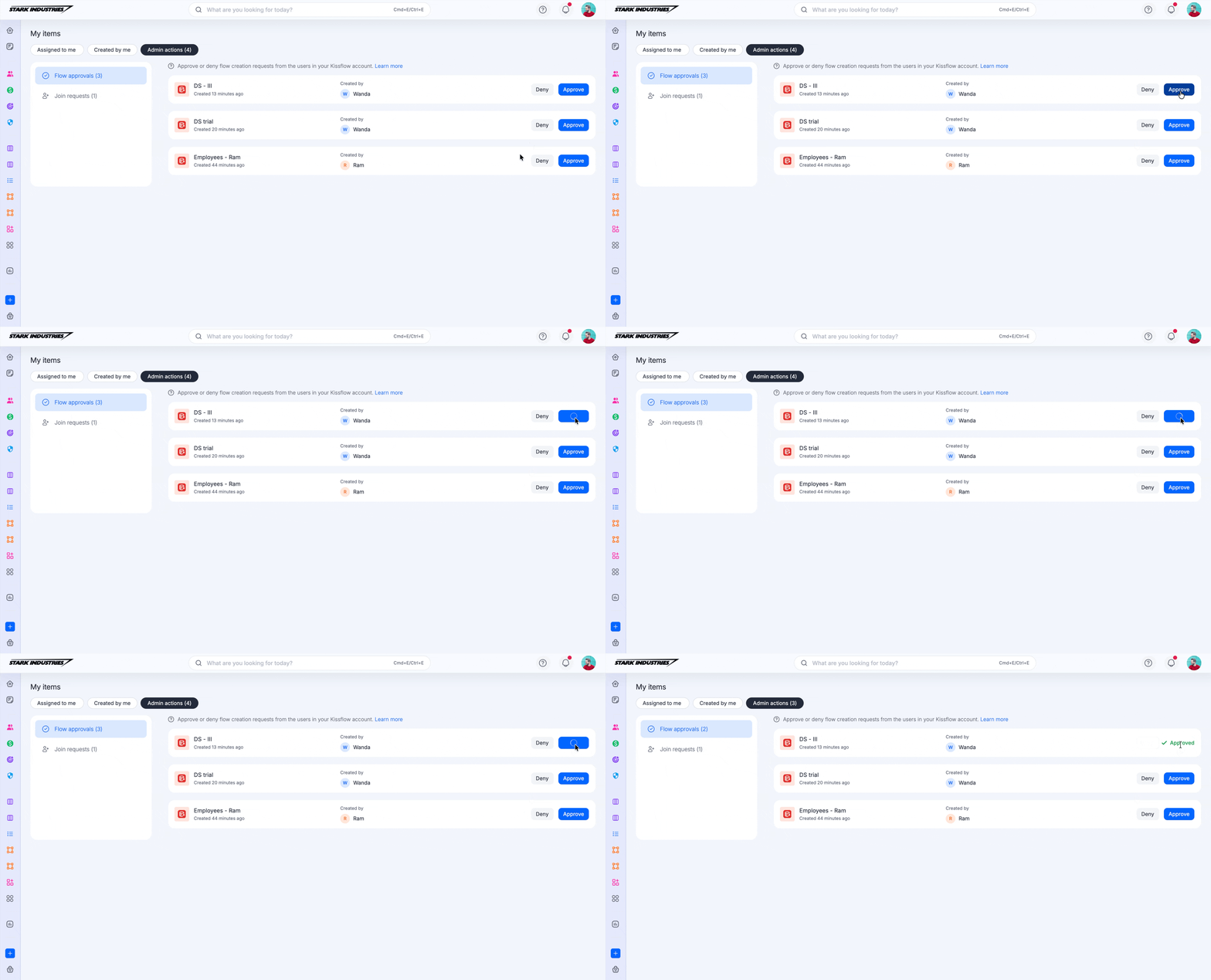
Approvers can Approve or Deny each request from here.
Admin assignment
Every process and board needs at least one admin. If a flow's only admin is deactivated or deleted, the flow is left without one — Admin assignment lists these flows so you can assign a replacement.
To assign an admin:
-
Click My items > Admin actions > Admin assignment.
-
Select the process or board that needs an admin and click Assign admin.
-
Select a user and click Assign to make them the admin.
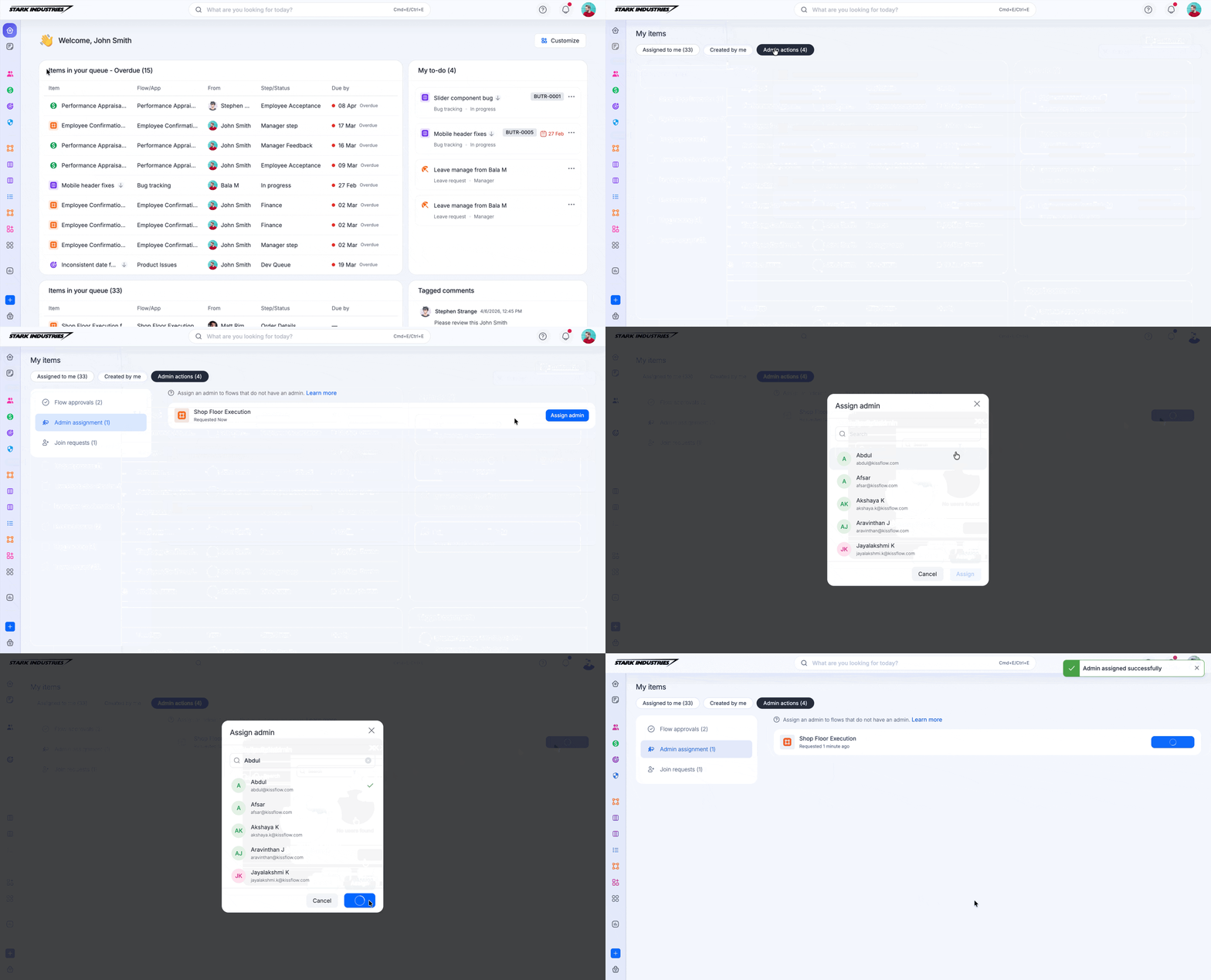
Note
If a flow needs more than one admin, repeat this action for each additional admin — the dialog assigns one user at a time.
Join requests
If your account allows new signups, people outside your account can request to join using your account's unique join URL. These requests show up under Join requests for Account Admins to Approve or Deny.
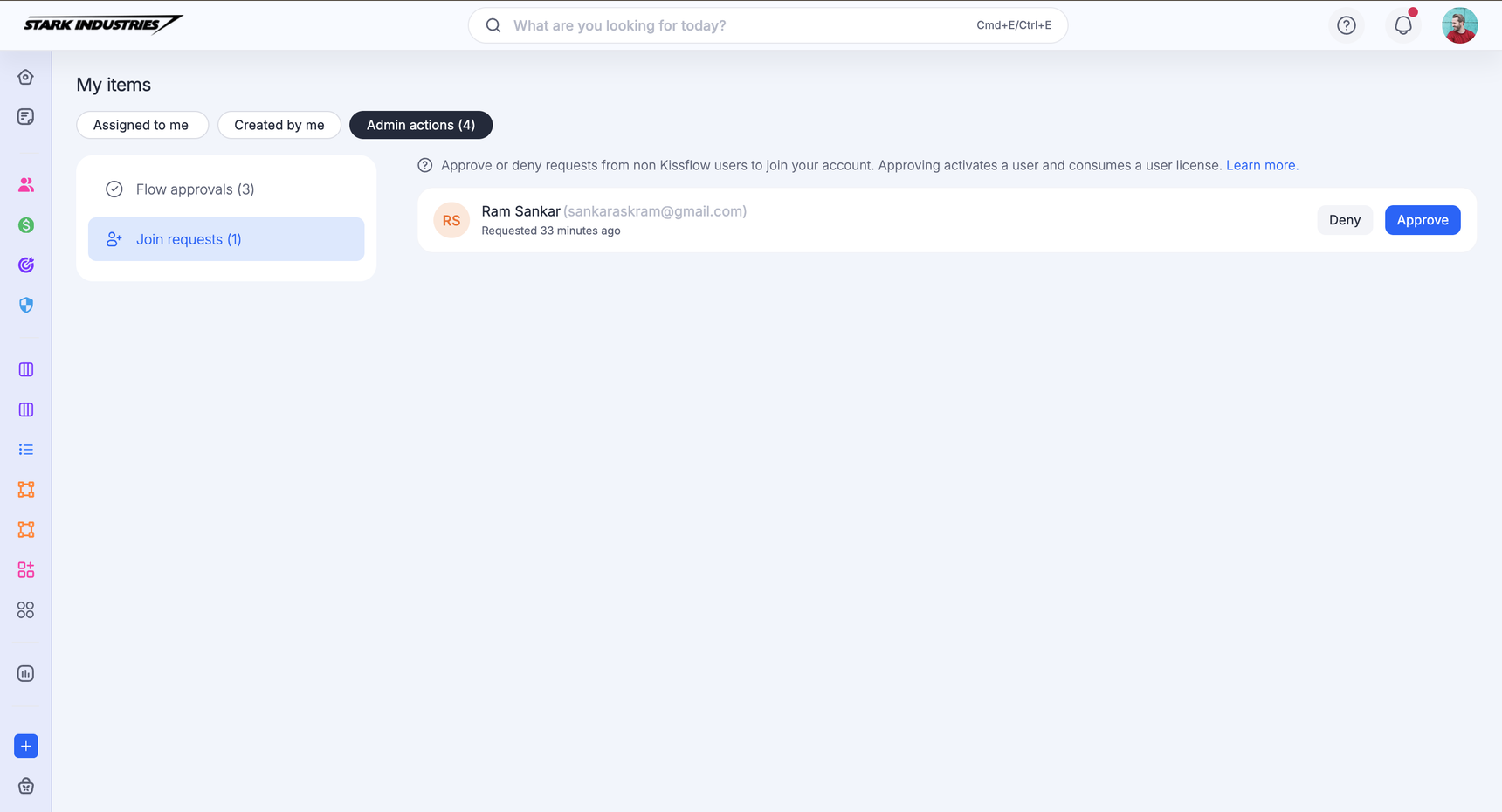
Approving a request activates the user in your account.
Important
If your account has no user licenses available, activating the user fails and they stay in a requested state until a license frees up.