

Watching a process item
Add watchers to a process item so people can follow its progress and comments without taking part in the workflow.
Watching a process item
Watchers can stay informed about a process item without participating in its workflow. As an item initiator, if you need someone to have visibility into an item's progress but don't need them to approve, reject, or act on it, you can add them as a watcher.
Note
For example, an employee submits a purchase request and wants their manager to stay informed about its progress and final outcome, without the manager taking part in the approval workflow. Adding the manager as a watcher lets them track the item and join the conversation without being assigned any workflow tasks.
Before anyone can add watchers to an item, a process admin must turn on Allow process members to watch items under the process's Security settings. Only users who are already part of the process — in any role — can be added as watchers.
Add a watcher
Only the item's initiator can add watchers to it.
-
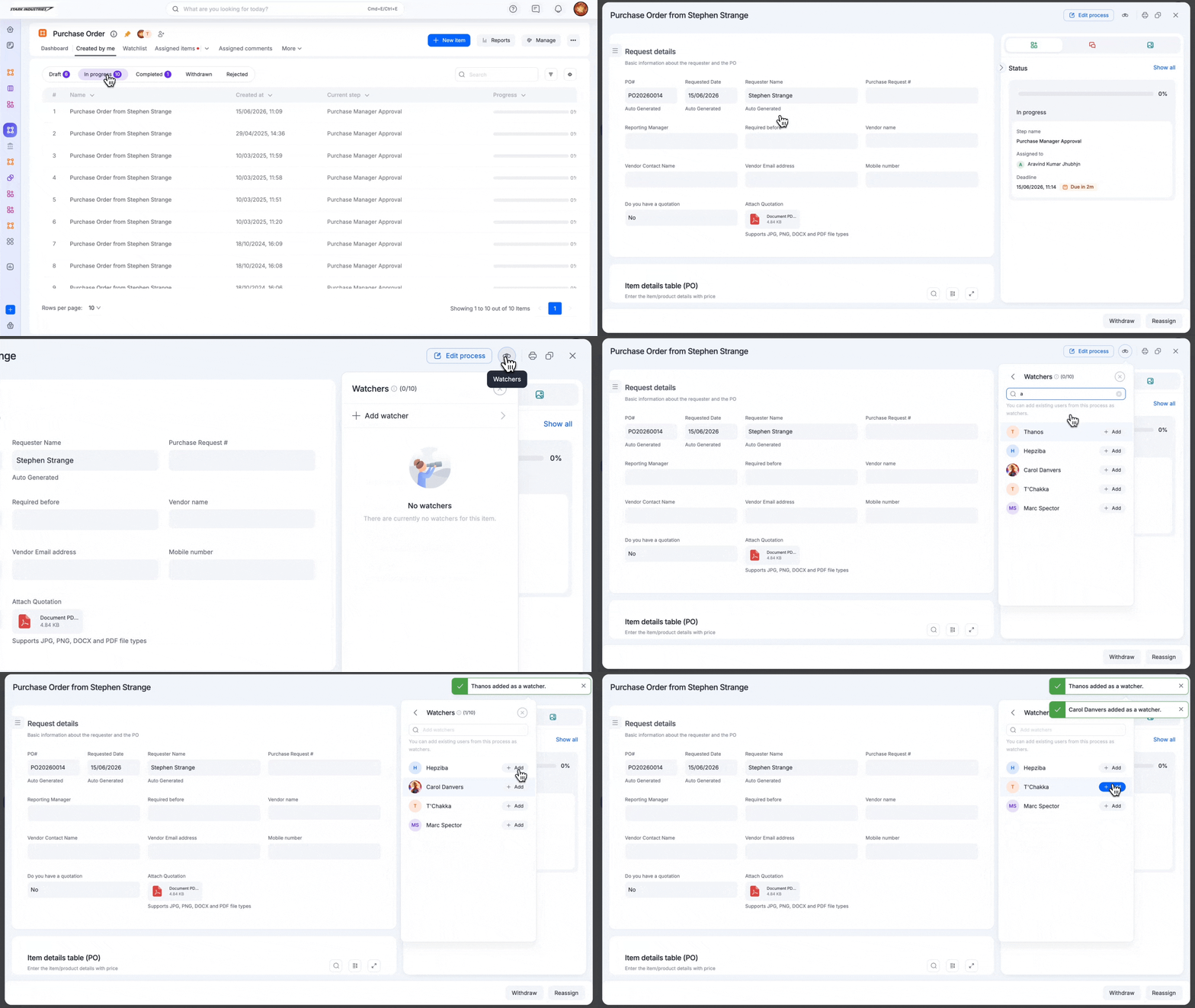
Open the process item.
-
Click the Watchers button (
 ) on the item form.
 -
Search for and select a process user.
-
Click Add.
Note
An item can have a maximum of 10 watchers.
Remove a watcher
The item's initiator can remove any watcher; a watcher can only remove themselves.
As the item initiator:
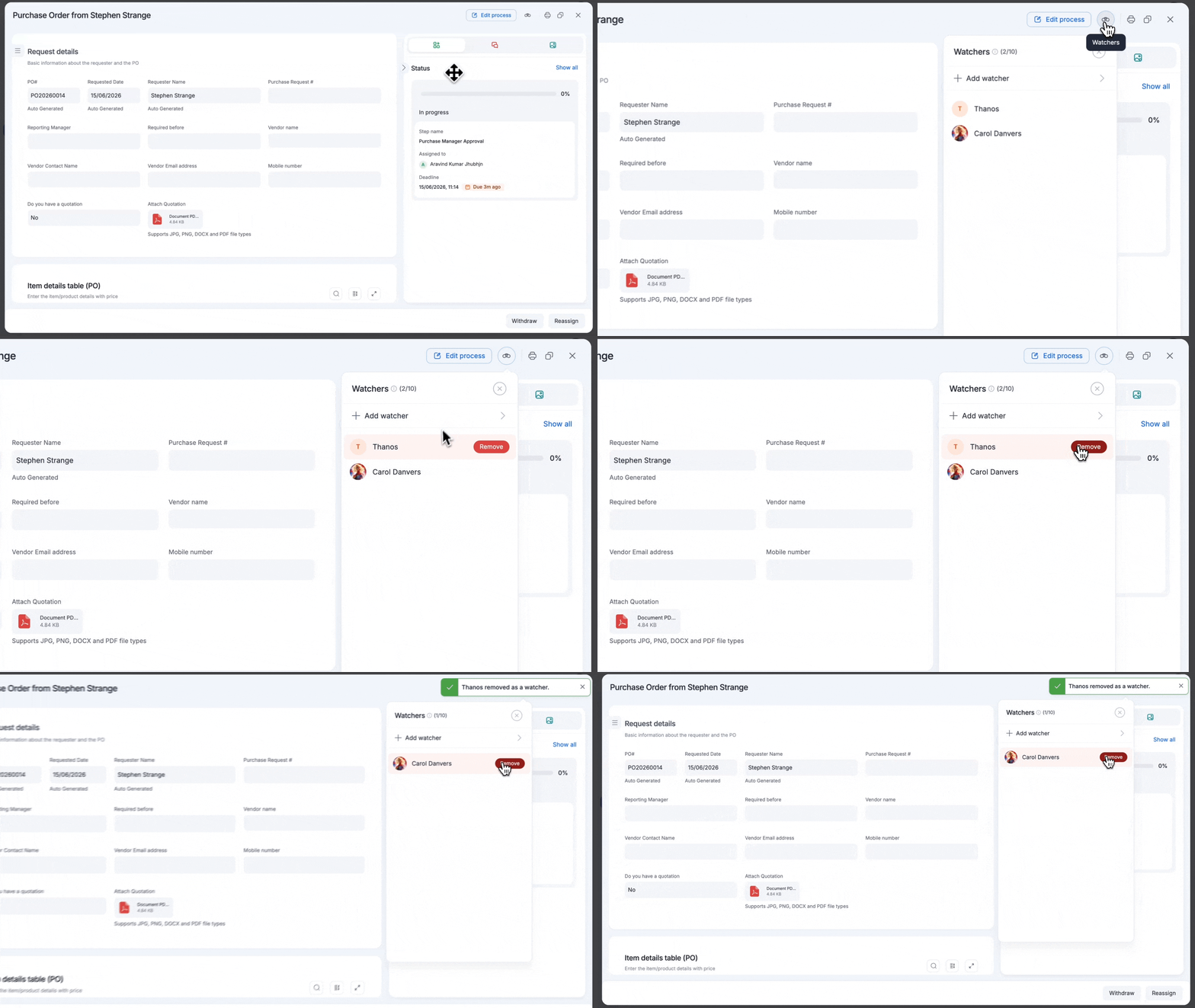
- Open the process item.
- Click the Watchers button on the item form.
- Hover over the watcher's name.
- Click Remove.
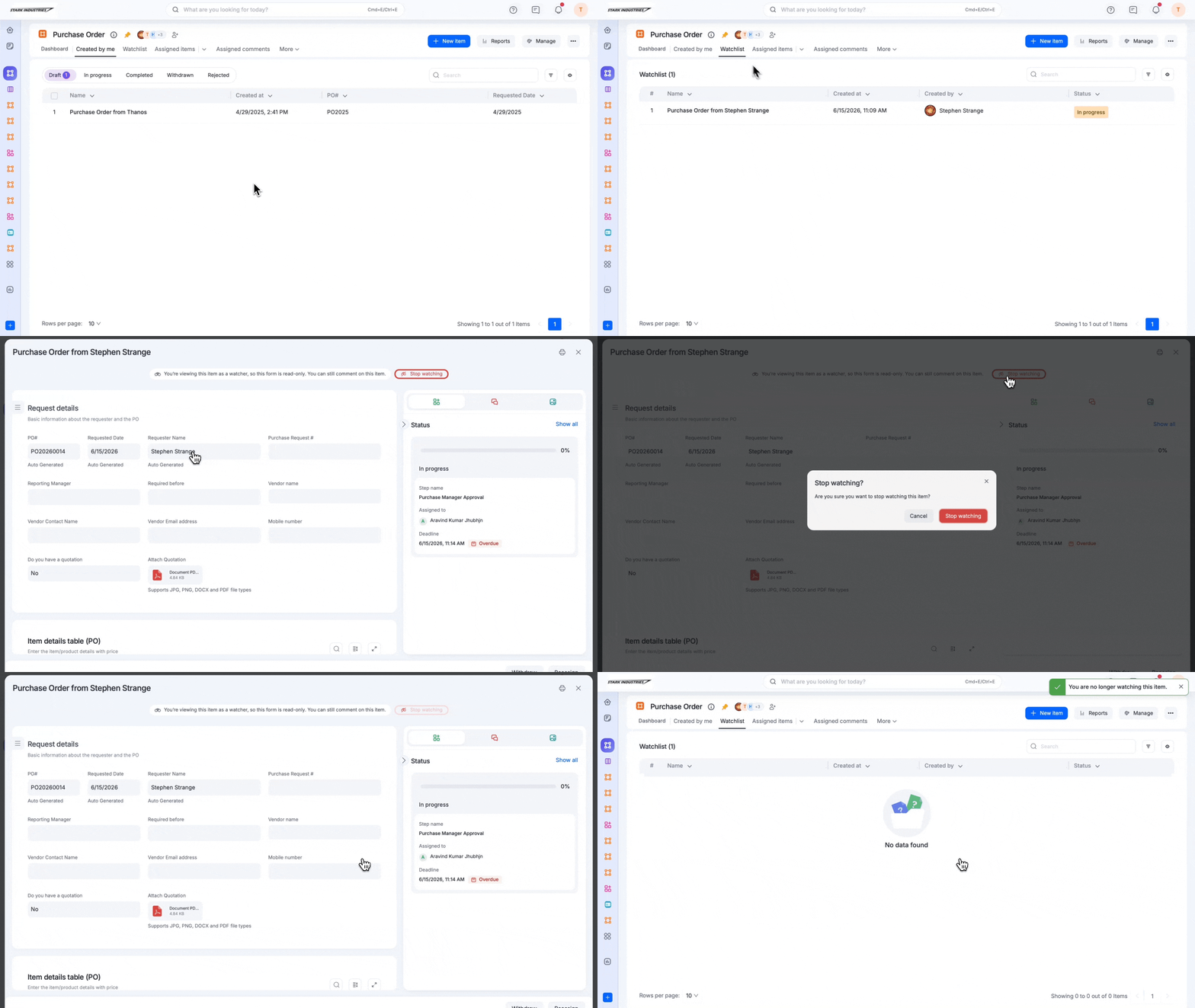
If you're already a watcher, you can stop watching an item at any time. Open the item and click Stop watching. You're removed from the watcher list and no longer receive notifications for that item.
What watchers can and can't do
| Watchers can | Watchers cannot |
|---|---|
| View fields in read-only mode | Edit the form |
| Track workflow progress | Approve or reject items |
| View item history and status | Reassign tasks |
| View and add comments | Perform any workflow action |
| Mention participants and other watchers in comments | Mention external commenters in comments |
Notifications for watchers
Watchers receive notifications when they're added or removed as a watcher.
Note
Watchers may also be notified about other item events — such as being mentioned in a comment, someone reacting to their comment, or the item completing, being rejected, or withdrawn — depending on how the process's notification templates are configured. Check with your process admin if you're unsure which events trigger a notification for watchers in a specific process.
View your watched items
As a watcher, you can access items you're watching from:
-
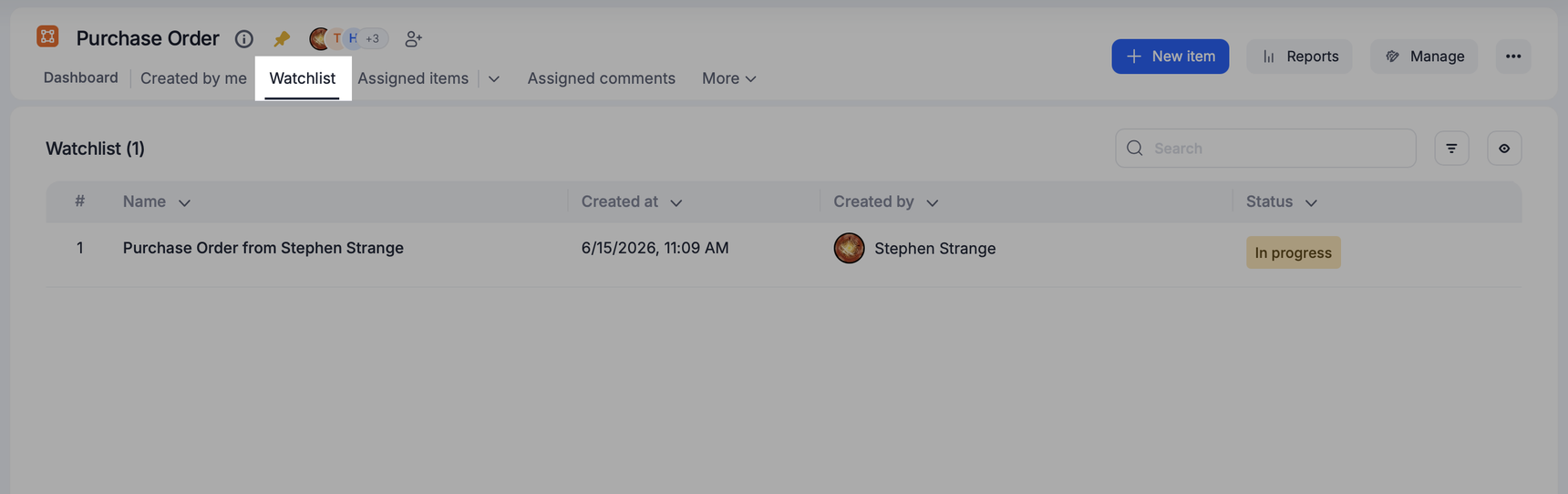
The Watchlist tab within the process.
-
The Watchlist tab in My items.
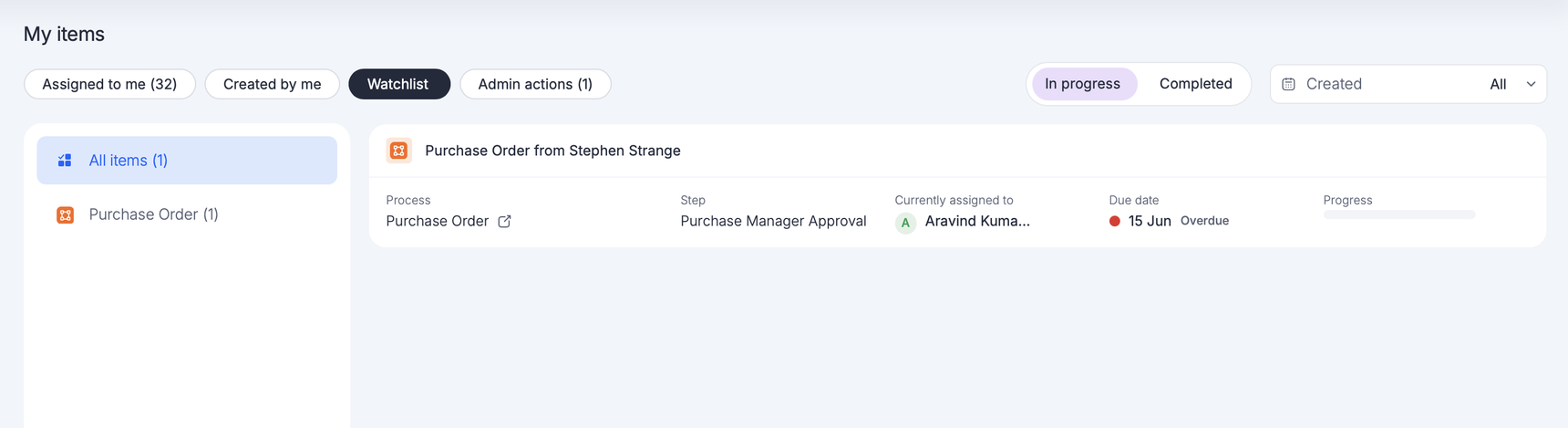
These views help you track items across processes without needing to participate in their workflow.
Limitations
- Watchers can't be added to draft items.
Important
Whether restarted items retain their previous watchers, and whether removing a user from a process automatically removes them as a watcher on in-progress items, could not be confirmed against current product behavior. Verify these cases directly in your environment before relying on them.