

Using board layouts
Reference for the four board layouts — list, kanban, matrix, and timeline — what each is best for, and how settings carry over when you switch.
Using board layouts
A board's layout makes it easy to locate and navigate between items. Three default tabs let you quickly switch between the most commonly used groups of items:
- All — the default tab that displays all the items in the board.
- Assigned to me — all the items assigned to you for action.
- Created by me — all the items you have created.
More system views — such as Critical, Due this week, Overdue, Unassigned, and Archived items — are available from the Views menu, and you can save your own with Save as a new view.
How your items are displayed depends on the layout you choose. There are four:
| Layout | Best for |
|---|---|
| List | Spreadsheet-style review and bulk updates |
| Kanban | Visualizing progress across statuses |
| Matrix | Slicing data across two dimensions |
| Timeline | Planning items against dates |
List
The list layout shows your items in a tabular format: rows are items, and columns are fields from the board form. Click a row to open the item's form. This layout is ideal if you're used to managing tasks in spreadsheets — you can review a lot of information in one go.
Click the Show fields button to select the fields displayed as columns, and drag and drop columns to arrange them. The list layout also supports bulk actions: select multiple items to delete them or update most custom field values.
In the list layout you can:
- Search for items using keywords.
- Sort items by a field value in ascending or descending order.
- Export items as a CSV file.
- Perform bulk updates to items.
- Configure the fields displayed as columns.
Kanban
The kanban layout is a visual system divided into columns that represent the statuses in your workflow. Each item appears as a card, placed in the column matching its status. Drag and drop cards across columns to change status; click a card to make any other change in the form.
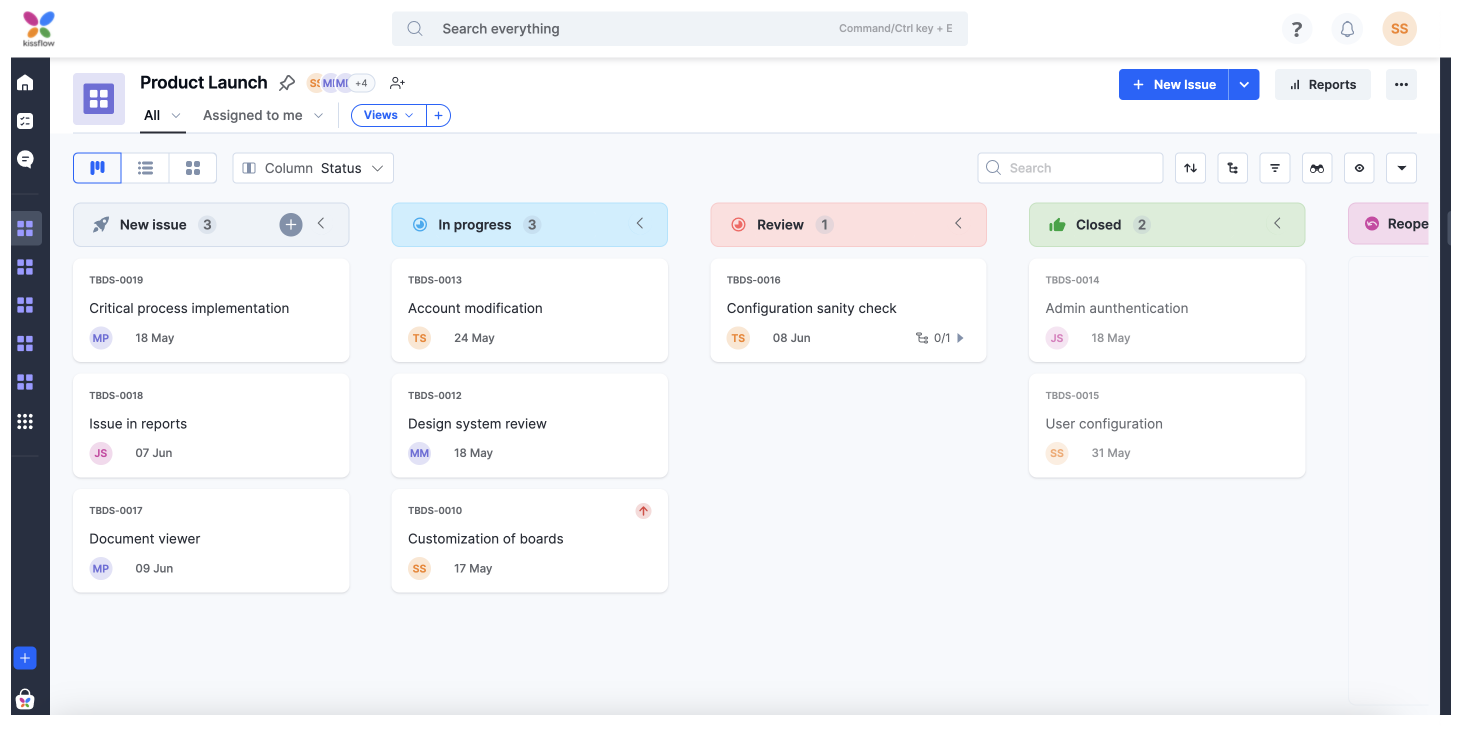
Kanbans show an item's progress as cards move through columns to completion, and they make bottlenecks visible — for example, items piling up in a particular status.
Unlike the list layout, columns can't be configured because they represent statuses. However, you can choose the fields displayed on a card with the Show fields button. The ID, Title, Assignee, Status, Start date, Due date, and Priority fields are always shown and cannot be removed.
Note
The Priority field is hidden if priority has been turned off in the board's settings.
In the kanban layout you can:
- Search for items using keywords.
- Sort items by a field value in ascending or descending order.
- Drag and drop cards to change status.
- Configure the fields displayed on a card.
- Perform bulk updates to items.
- Collapse columns you're not actively using.
Matrix
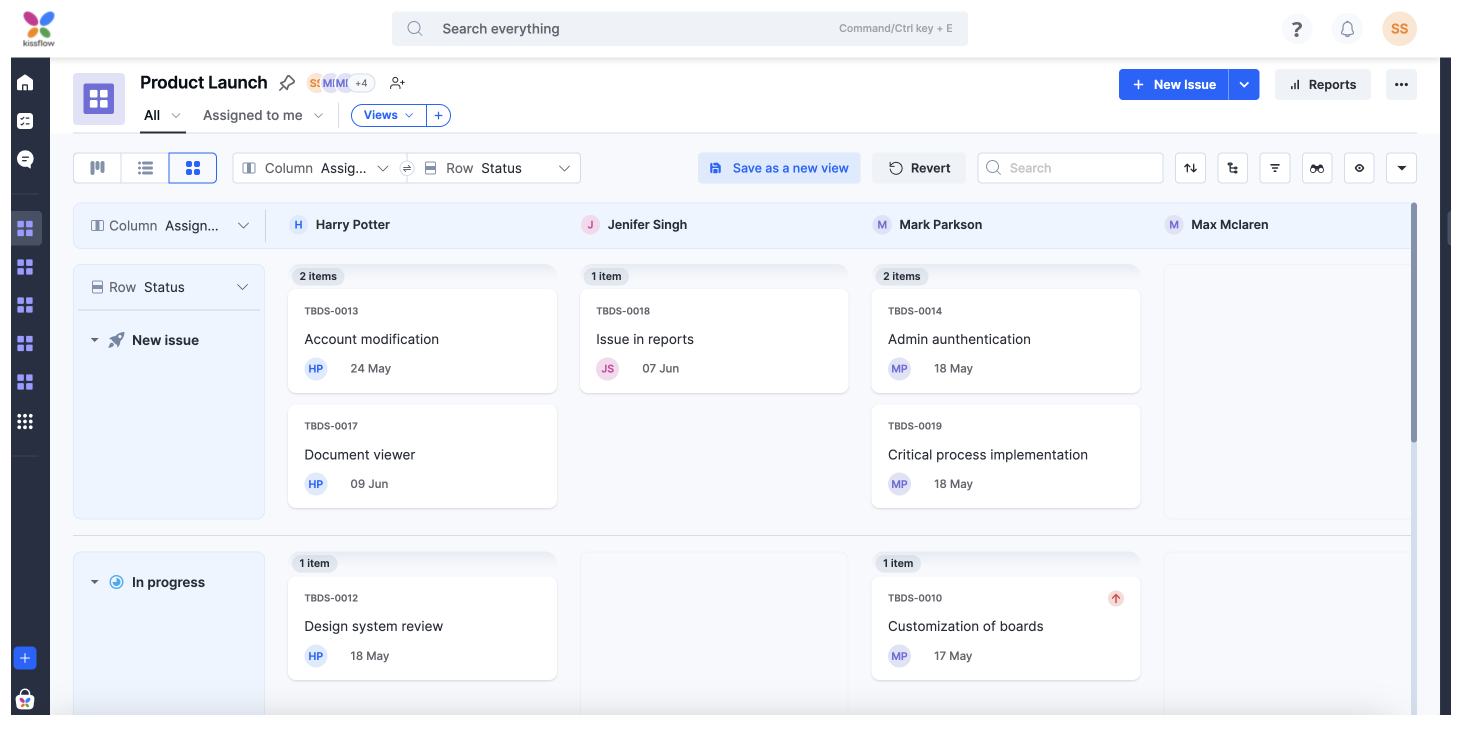
Matrix is like kanban with a secondary categorization through rows. You plot items on a grid, choosing fields for both the horizontal and vertical pivots. This layout is best suited for slicing and dicing board data, and for resource balancing and reallocation.
You can group rows and columns by status, assignee, or custom user fields. Items that don't fit any group are pooled under Uncategorized.

Timeline
The timeline layout gives a panoramic view of your board items against time, so you can see what's coming up next, plan items and subitems ahead, and meet deadlines comfortably.
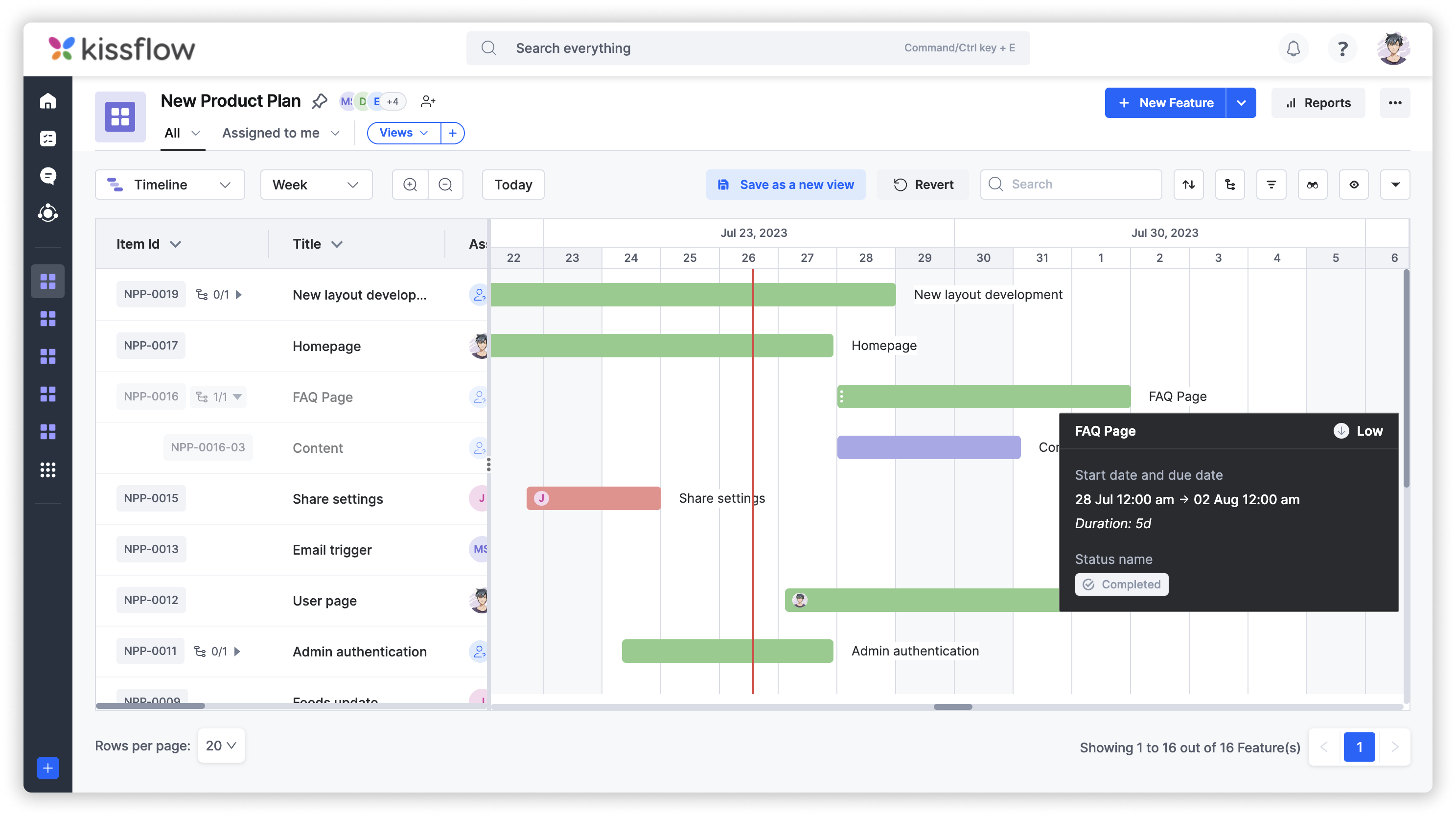
The left panel displays the ID, title, assignee, status, priority, start date, and due date of items and subitems by default — click the Show fields button to change what's shown. On the right, vertical columns represent time, and each item appears as a horizontal bar positioned between its start and due dates. Overdue items, completed items, and items without dates are shown in distinct colors.
You can change an item's dates from its form, drag a bar to a different time range, or grab the ends of a bar to adjust its start and due dates. Hover over a bar to see the item's details.
Timeline intervals and actions
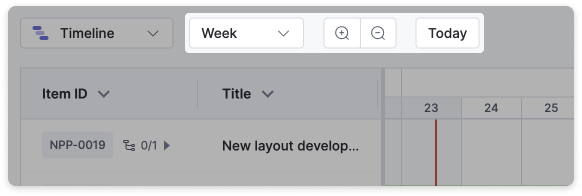
Set the timeline's interval from the dropdown near the layout selector: Hour, Day, Week, Month, Quarter, or Year.
- Day — the most granular day-to-day view, best for tracking daily progress.
- Week — optimal for planning the week ahead.
- Month — ideal for looking ahead to the month and identifying long-term goals.
- Quarter — for boards that track strategic initiatives or long-term goals.
- Year — for tracking items that change on a yearly basis.
Click Zoom in or Zoom out to scale the layout, and Today to snap to the current date. You can also:
- Search for items and subitems using keywords.
- Sort items in ascending or descending order.
- Export items as a CSV file.
- Save the current setup with Save as a new view.
Timeline layout in practice
Consider a board for managing blog production. Creating a new blog post involves a sequence of tasks: the content writer drafts the post, the copyeditor edits it, the manager approves it, and the social media manager promotes it. As board items on a timeline, the plan might look like this:
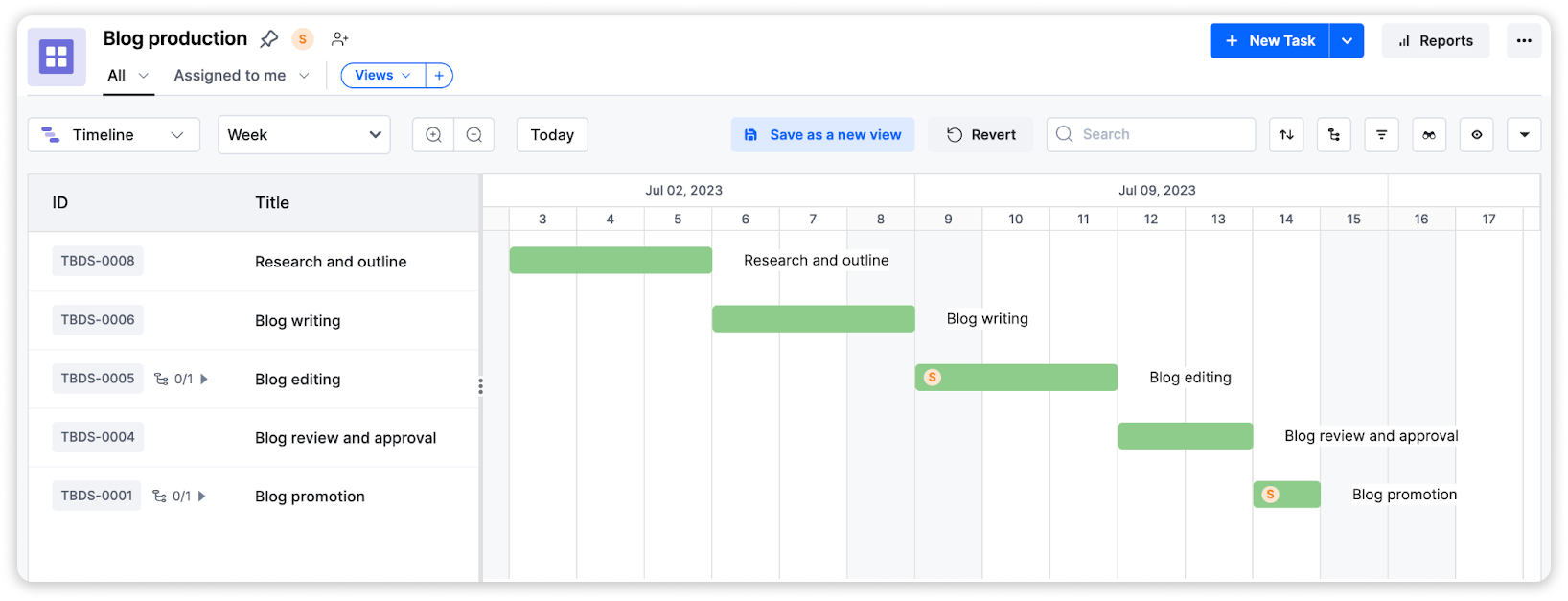
Week 1
- Research and outline of the blog post (Assignee: Content writer).
- Blog writing (Assignee: Content writer).
Week 2
- Blog editing (Assignee: Copyeditor).
- Blog review and approval (Assignee: Manager).
- Blog promotion (Assignee: Marketing team).
Looking at the timeline, the team can spot and avoid two common bottlenecks:
- Dependencies and overlaps — each step depends on the preceding one. If the writer can't finish the draft by the end of week 1, the team sees immediately that the downstream tasks need rescheduling.
- Resource allocation — tasks overcrowded within a timeframe indicate that a teammate may be overallocated. The team can reallocate tasks or extend the timelines of low-priority work to prevent burnout.
The same approach works for event planning, product development, construction, manufacturing, and agile project management — anywhere increased visibility, advance planning, and accountability matter.
Switching between layouts
You can switch between layouts at any time without losing data. A few things to note:
- Sorting does not carry over. If you sort items in the list layout, that order won't apply to cards in the kanban layout.
- Field configuration does not carry over. The columns in the list layout and the fields on kanban cards are configured independently.
- Filters apply everywhere. A filter applied in one layout filters the same items in every other layout, displayed with whatever sorting that layout currently uses.