

Notes, status logs, and activity logs in boards
Collaborate on board items using notes, and track status and field changes through the status and activity logs.
Every item in a board carries its own conversation and history. Use notes to discuss work with stakeholders, and the status and activity logs to trace what changed and when.
Notes
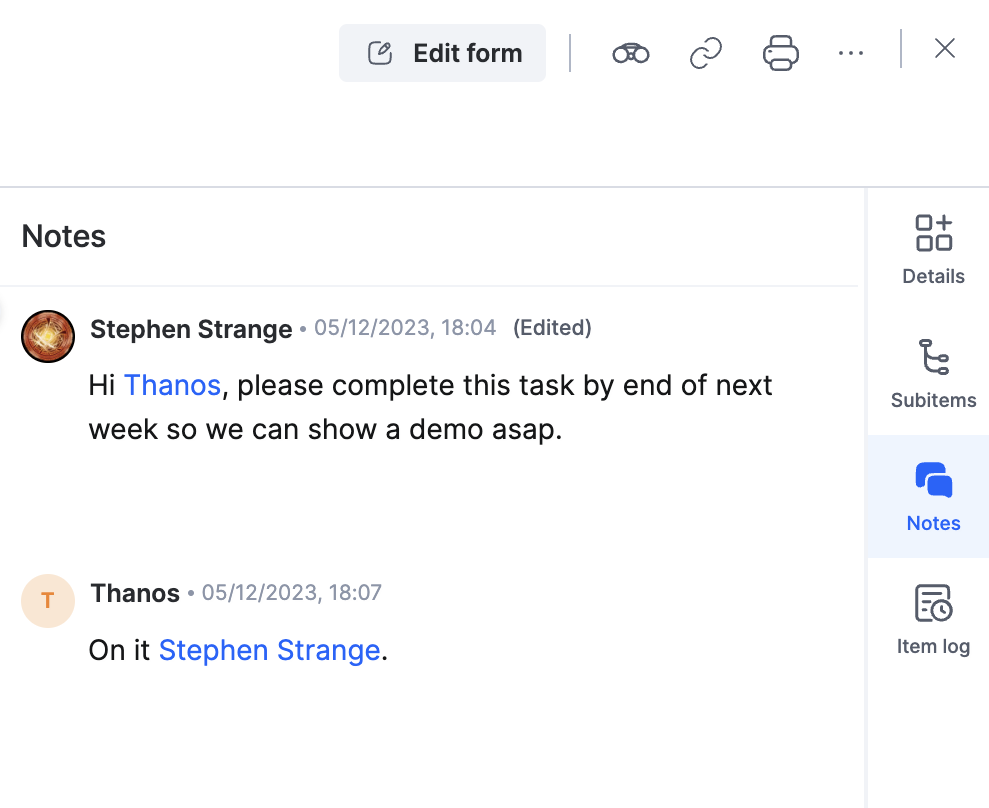
Notes offer an easy way to collaborate with different stakeholders on an item. Use them to add comments, log updates or action items, and react to notes added by others. They are visible to anyone collaborating on the item.
To add a note, open an item on your board, click the Notes tab in the right navigation strip, and type your comment in the text area.
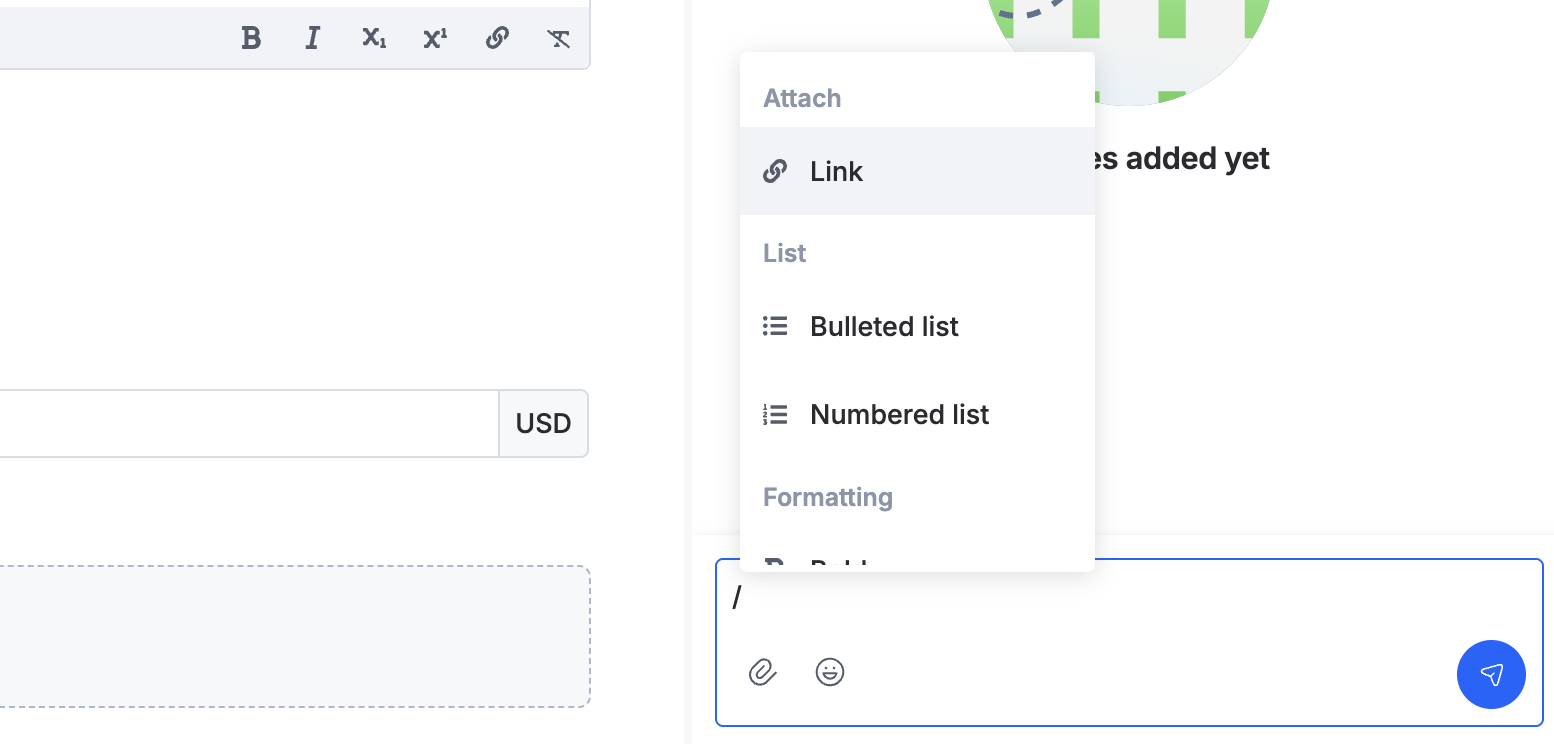
Type / in a note to open the formatting menu:
- Attach — add a link, image, or video clip.
- List — add a bulleted or numbered list.
- Formatting — Bold, Italic, Underline, Strikethrough, Code snippet, and Blockquote.
In addition to formatting, you can add emojis, attach files, images, and audio, and annotate uploaded images. Audio files play directly in Kissflow without being downloaded.
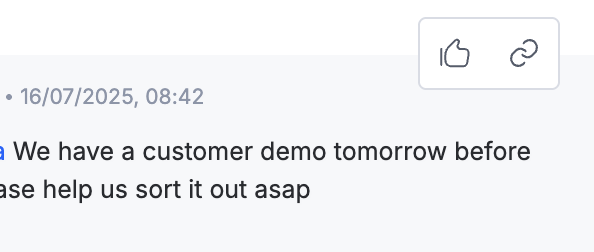
Tag someone by typing @ and their name. The tagged user gets a notification about the note. You can acknowledge others' notes by clicking the thumbs-up icon, and copy a note's link to share with people so they land right on that note.
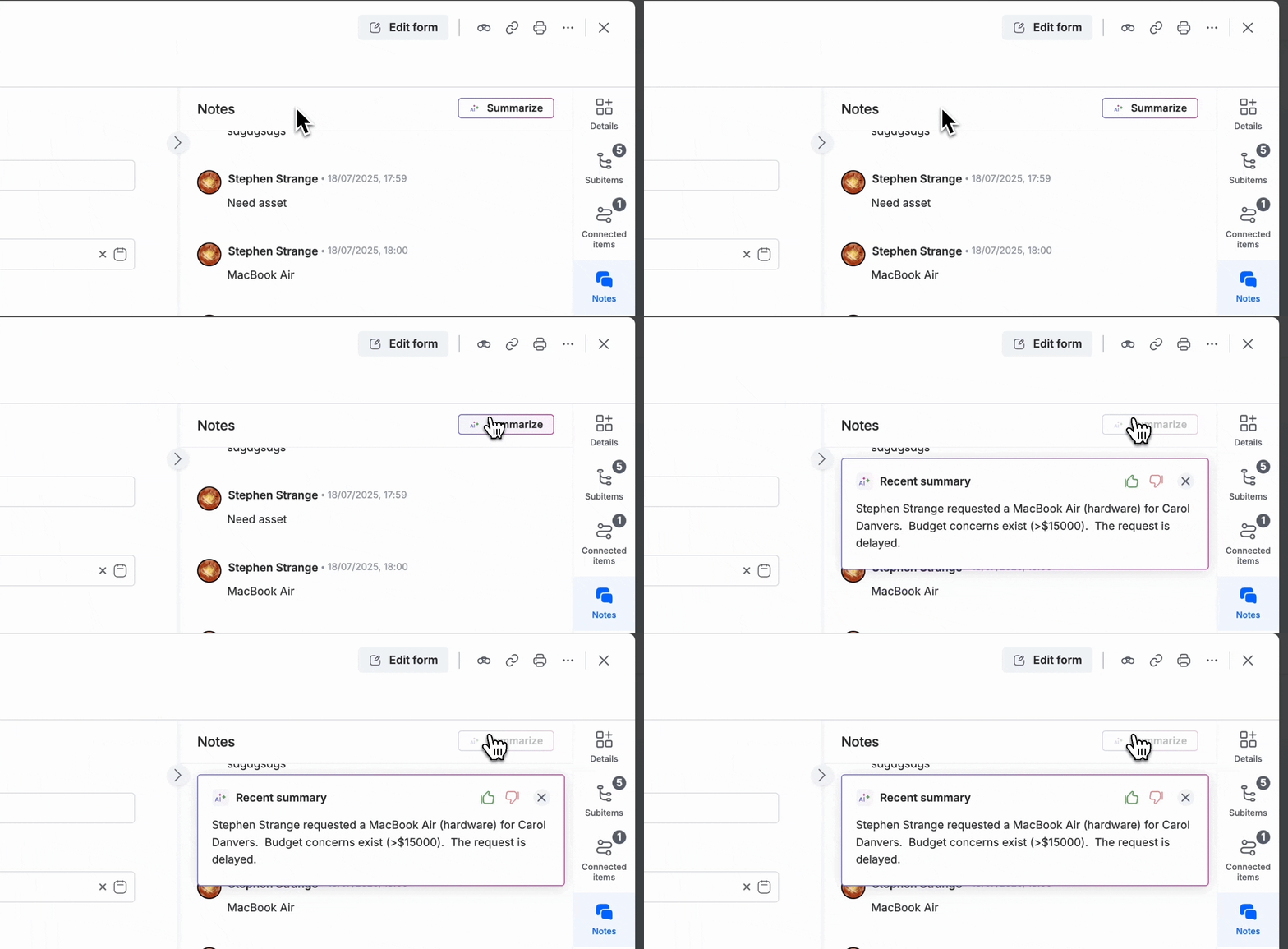
AI summary of notes
Once an item has at least 10 notes, a Summarize button appears at the top of the Notes tab. Click it to generate a quick summary of the recently added notes.
Status log
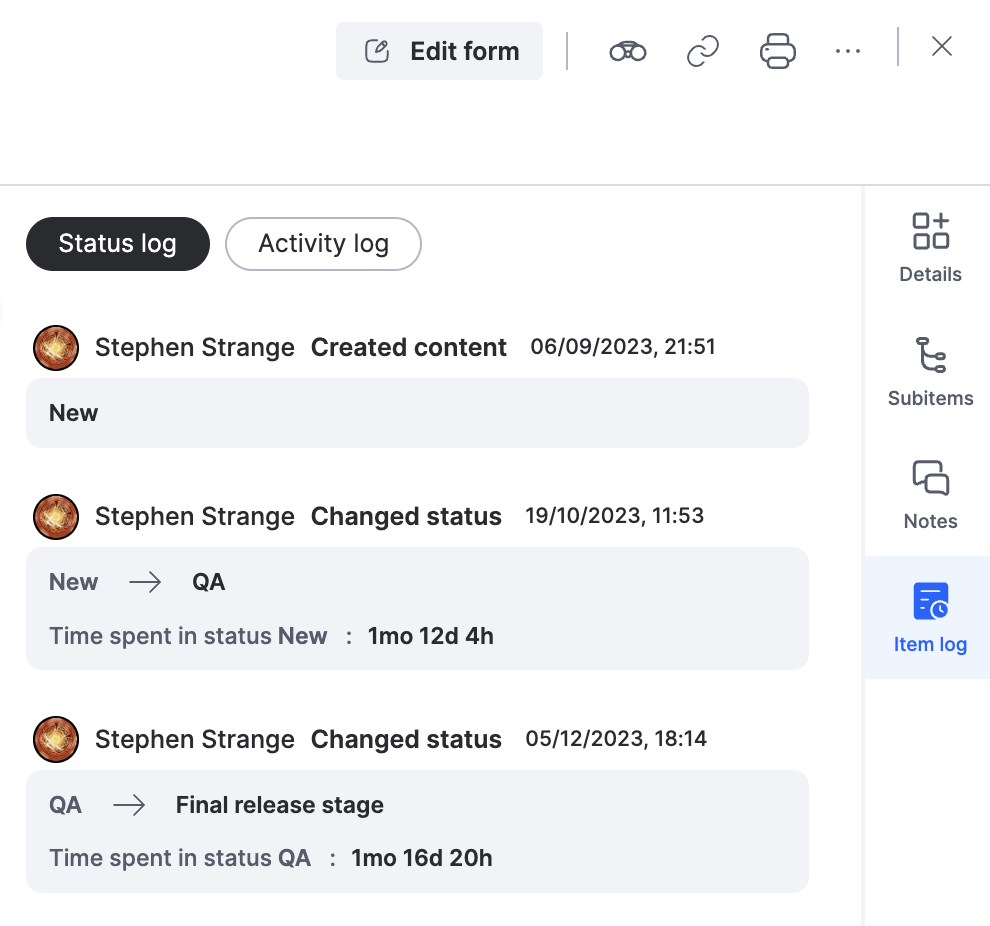
The status log captures every status change for an item, along with the time spent in each status. Open an item, click the Item log tab in the right navigation strip, and select the Status log subtab.
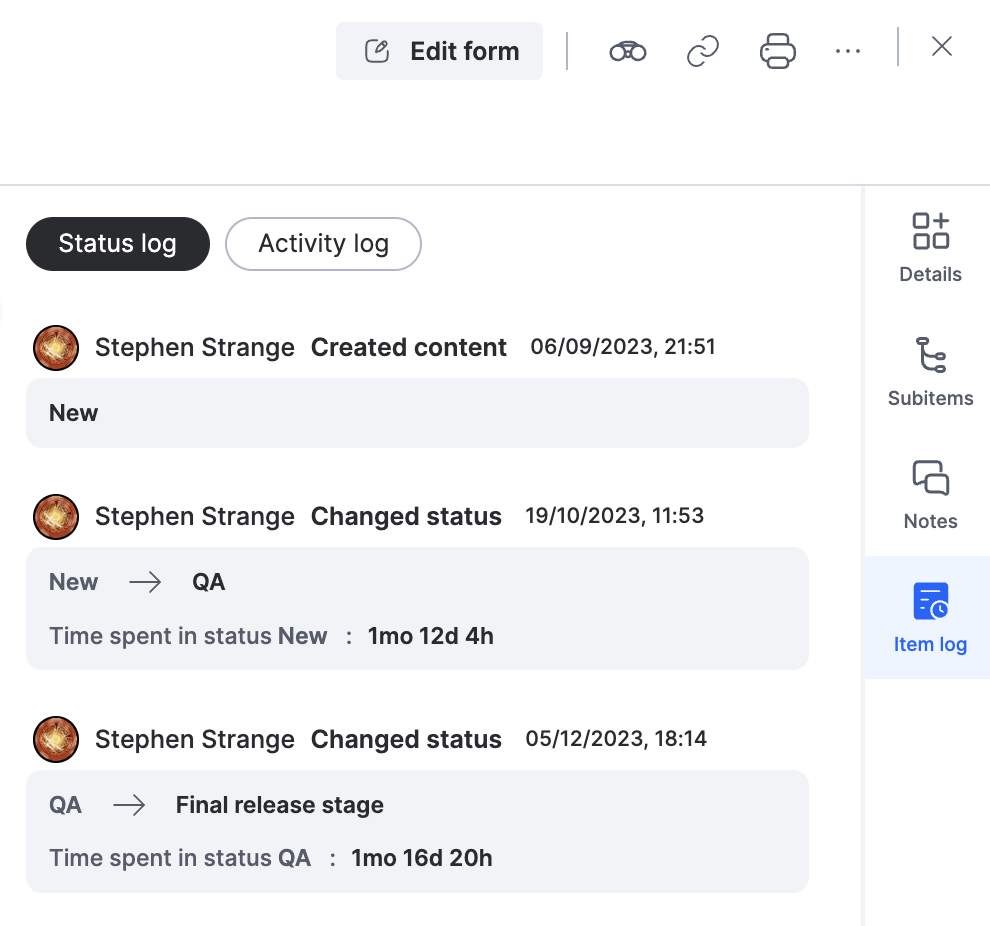
Use the time spent in each status to spot items that are stuck, especially critical ones, so they get resolved without delays.
Activity log
The Activity log subtab of the Item log tab lists the key actions performed on an item: changes to system fields such as Priority, Assignee, Start date, and Due date, along with when the item was created, closed, or cloned. For each field change, the value before and after the change is shown. Changes to custom fields are not displayed here.
Each entry shows:
- Timestamp — the exact time the action was performed.
- Performed by — the member who performed the action.
- Activity — the type of action, with details of any changes it caused.