

Creating and managing subitems
Break board items into subitems, track their states and assignees, and convert or move subitems between items.
Creating and managing subitems
Subitems help you break down complex tasks into smaller pieces and track them efficiently. Like an item, a subitem has an assignee, a state, a start date, and a due date. Breaking down items into subitems helps you estimate the scope and duration of a task, which can significantly improve turnaround time.
Create a subitem
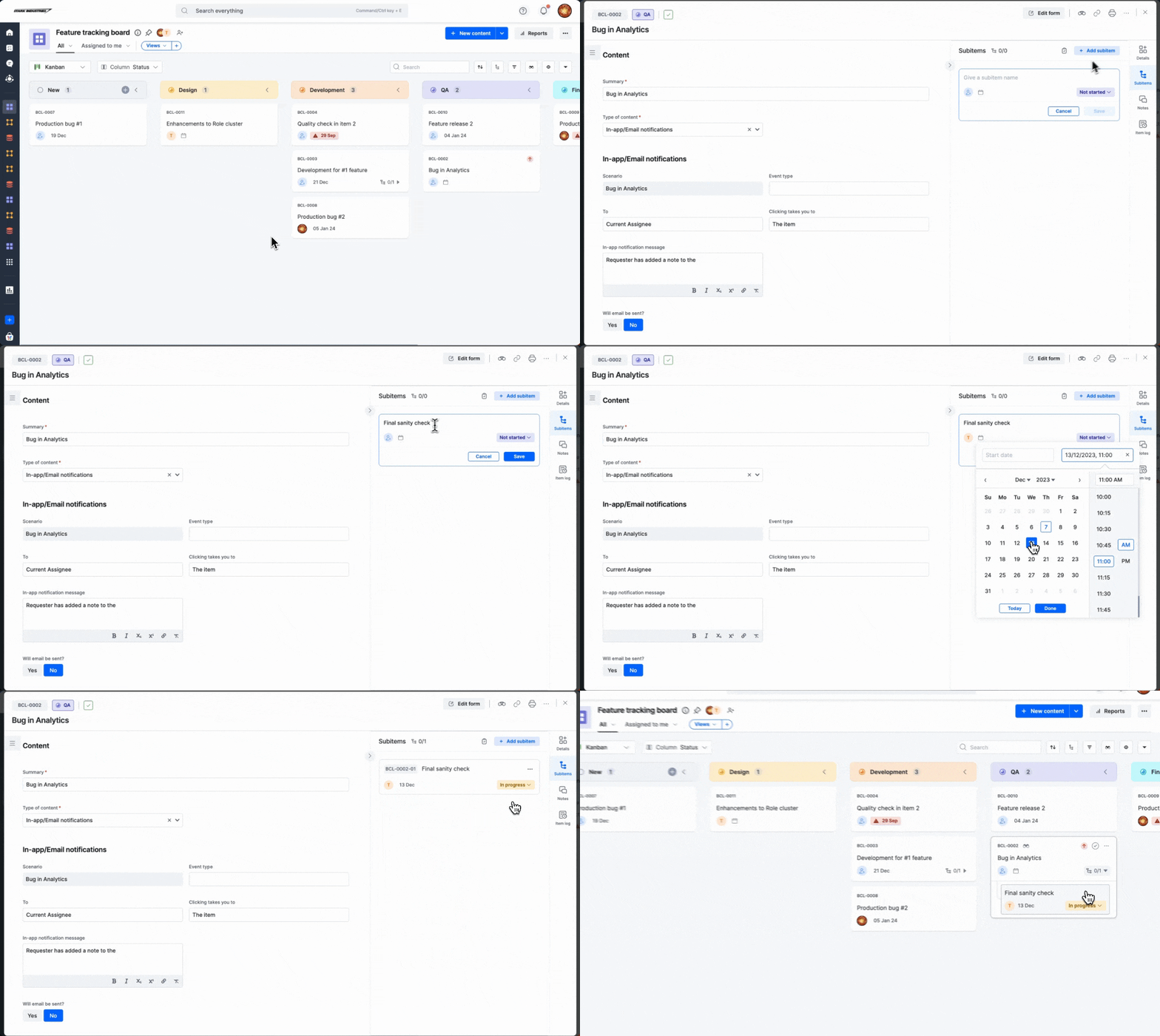
- Open the item from the board and click Subitems in the right navigation strip.
- Click Add subitem.
- Type a title for the subitem.
You can also create subitems in other ways:
- Paste text — copy a list of text and click the Paste subitems button inside the item. You can paste up to 20 subitems at a time.
- Generate with AI — let AI suggest subitems related to your main item, then click Generate to create them.
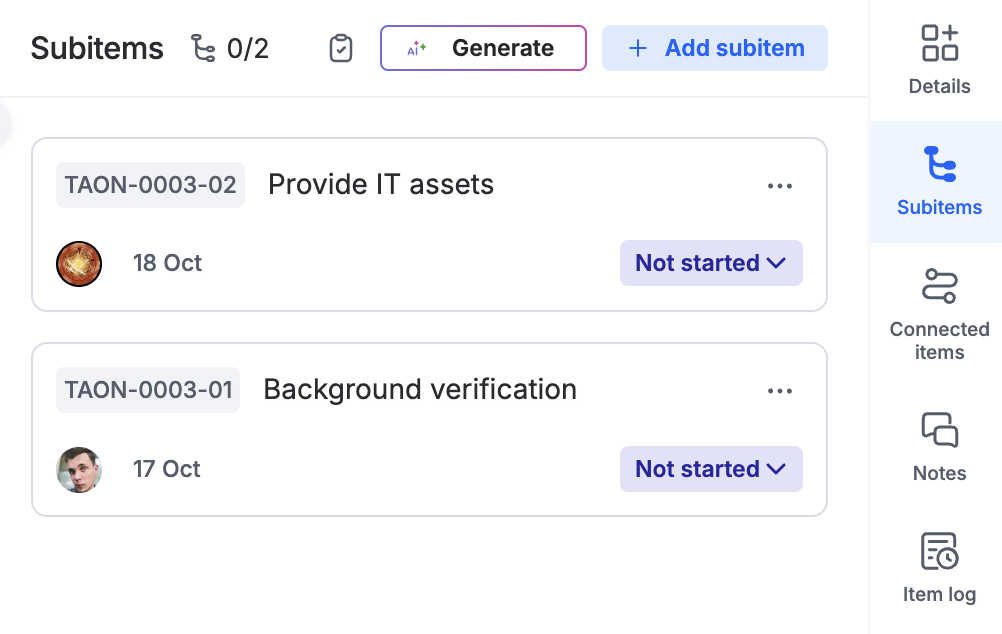
While creating a subitem, you can set its state, assignee, and start and due dates right from the item form — or configure them later. Click a subitem to open its form and add a description, which gives other users more context.
Note
An item can have up to 100 subitems.
To rename a subitem, hover over it and click the Edit title button, or open the subitem and rename it in its form.
Manage a subitem
- Set the state — choose a state from the dropdown to indicate progress: Not started (the default), In progress, On hold, or Done.
- Set an assignee — click the Set an assignee button and choose a user. Restricted members can be assigned to a subitem only if they're the assignee of the item.
- Set dates — click the Set start and due dates button and select the dates.
- Copy the URL — click the More options button (
 ) > Copy URL to share or reference the subitem.
 - Clone — click the More options button () > Clone. The clone inherits all the properties and information of the original.
- Delete — click the More options button () > Delete.
- Reorder — drag and drop subitems into the positions you want.
Find subitems in a board
- Search — enter the name of the subitem.
- Expand or collapse — use the Expand subitems / Collapse subitems button to show or hide all subitems in the board, or expand a single item to see just its subitems.
- Filter — enable Apply filter to subitems in the filter pane to include subitems in your filtered results.
Convert and move subitems
Sometimes a subitem grows into work that needs to be tracked separately, or scattered items belong under a common parent. You can convert in both directions, and move subitems between items.
Convert a subitem to an item
Click the More options button () on the subitem > Convert to item. In the dialog, map the title (mandatory) and description (optional) of the subitem to fields in the board form, then click Continue.
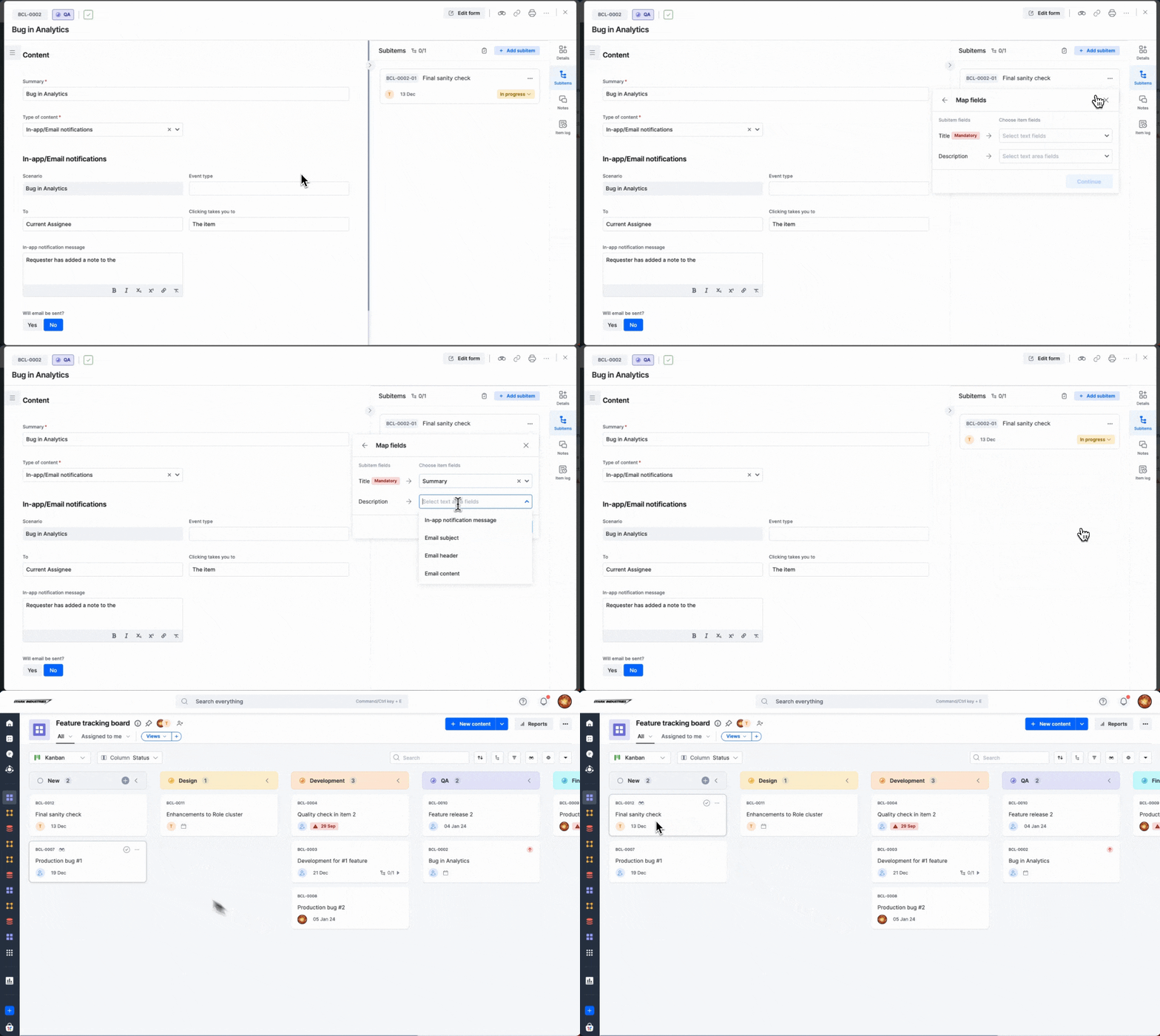
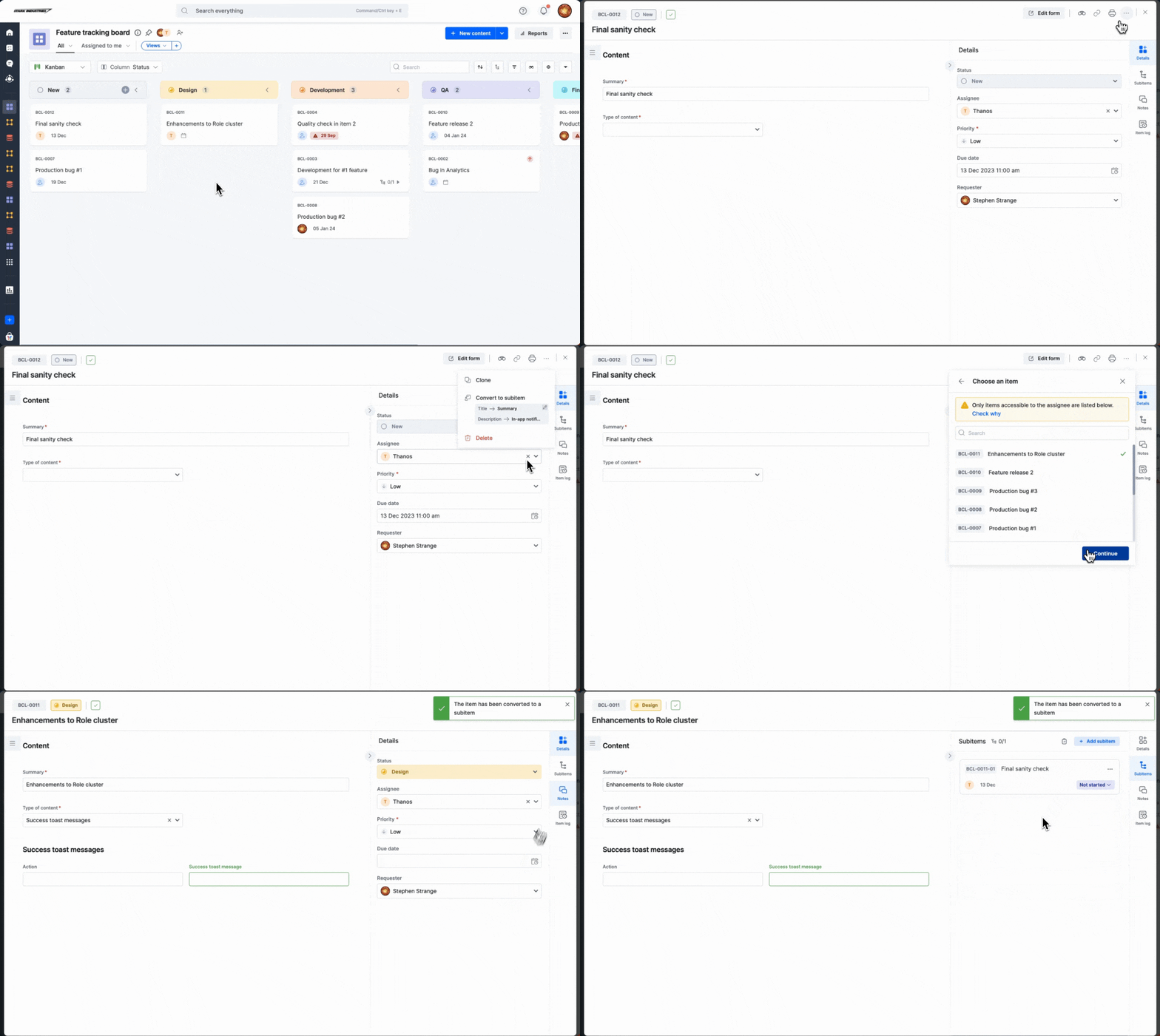
Convert an item to a subitem
Open the item, click the More options button () at the top right of the form, and select Convert to subitem. Select the target item, map the title and description fields, and click Continue. If you convert an item that has subitems, the item and its subitems all become subitems of the selected item.
Move a subitem to another item
Click the More options button () on the subitem > Move to other item, then select the target item.
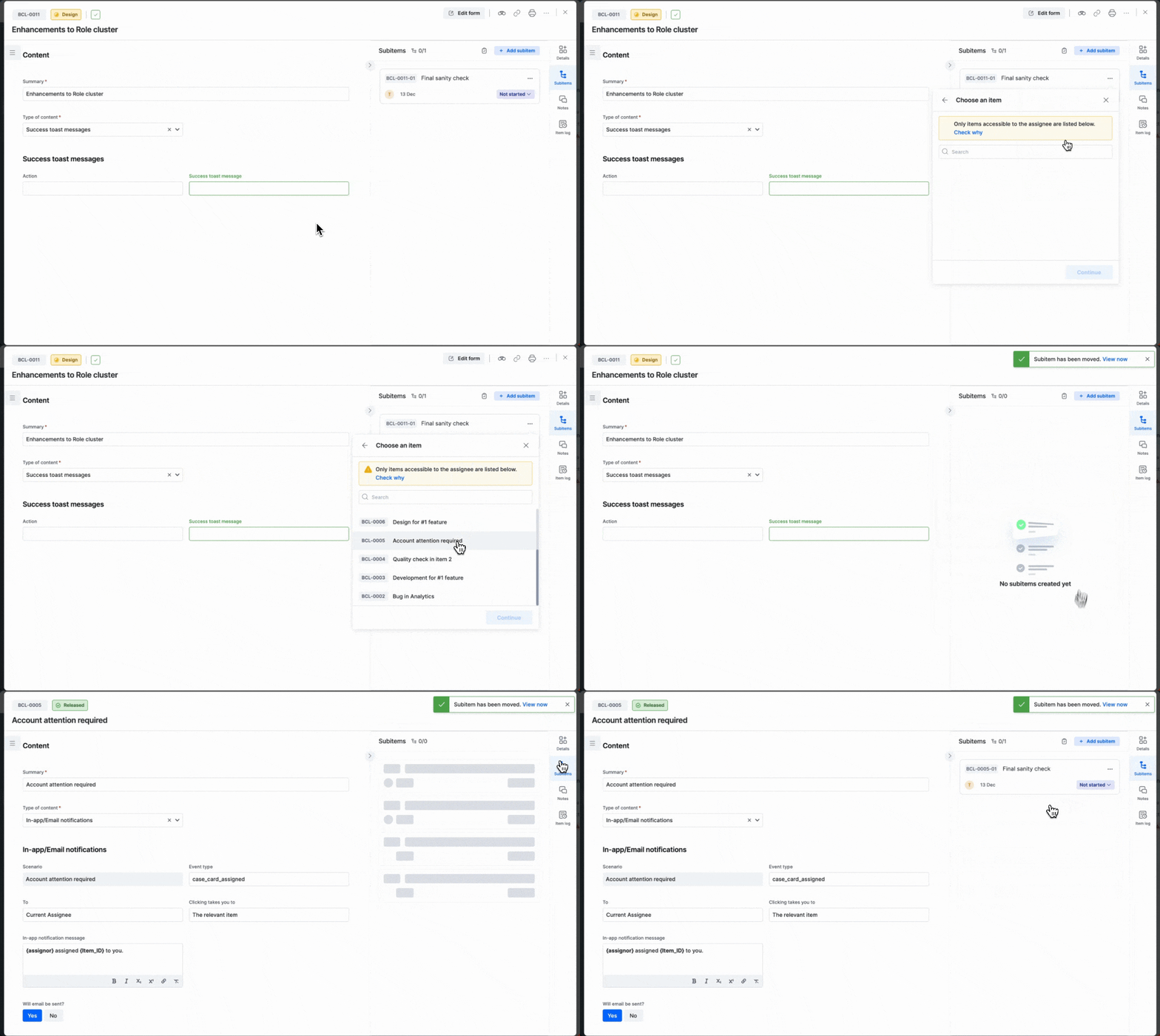
Note
If an item's assignee is a restricted member, only items assigned to that restricted member are listed when an admin or member converts items to subitems or moves subitems.