

Form child tables in the PWA and native mobile app
View and edit child tables on Kissflow's PWA and native mobile apps, switching between tabular and accordion layouts, reordering columns, and deleting rows in bulk.
Form child tables in the PWA and native mobile app
Kissflow's PWA and native Android and iOS apps let you view and edit child tables inside process forms, board forms, and data forms. You can switch between two display modes depending on how you want to work with the data:
- Tabular view — the default view. Shows multiple rows at once as a table, making it easy to compare entries and edit several rows without expanding each one individually.
- Accordion view — keeps the child table compact by collapsing each row into its own expandable section, so you can focus on one row at a time.
Switch between display modes
- Sign in to your Kissflow account using a PWA or native mobile app.
- Open any form that contains a child table.
- Tap the More options button at the top of the child table.
- Tap Change display mode.
- Select Tabular or Accordion.

Edit data in a child table
- Tap any cell in the child table to open the editing modal.
- Update the field values as needed. Use the previous and next buttons in the modal to move between rows without closing it.
- Changes are saved automatically as you edit.
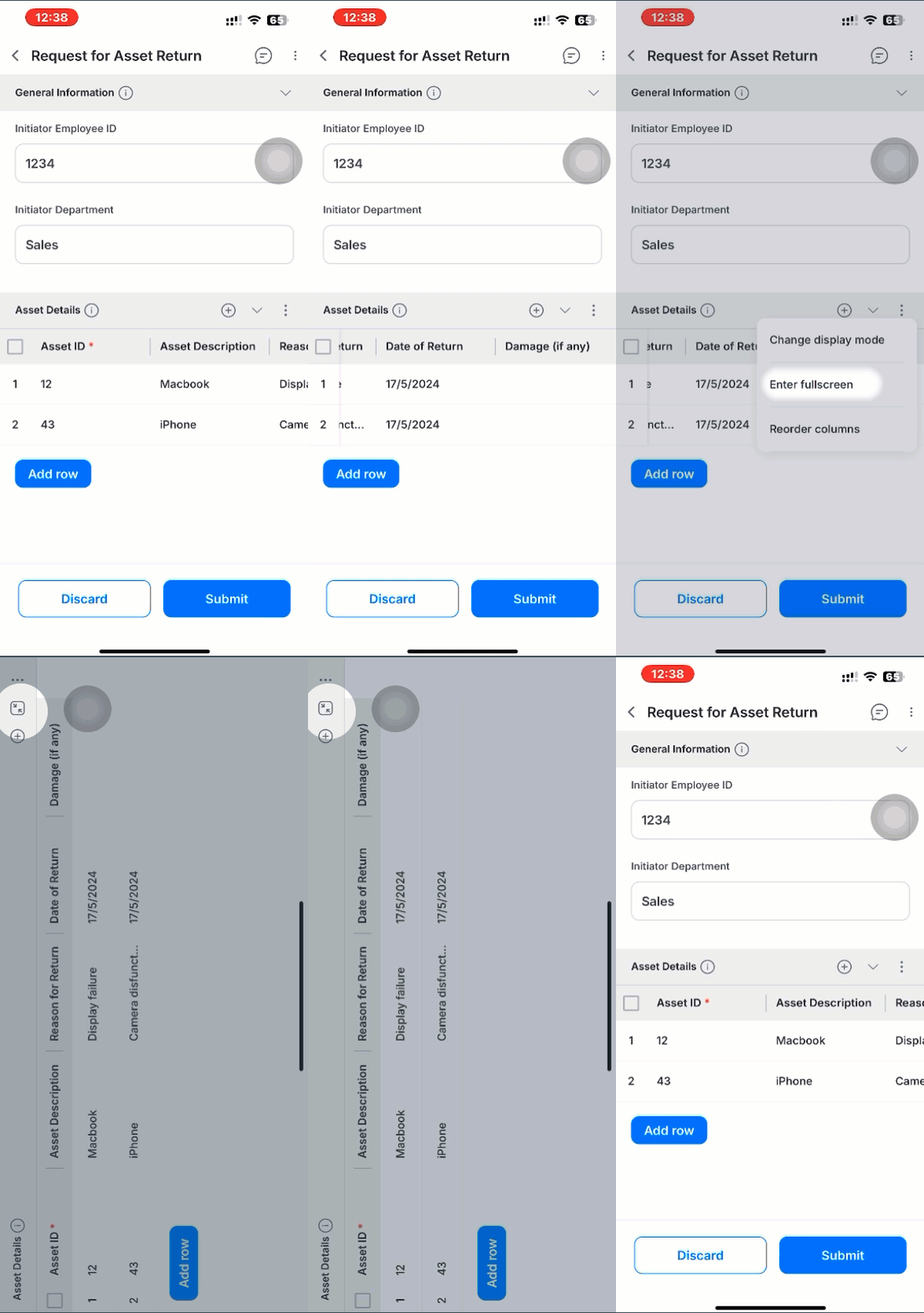
View in fullscreen (native apps only)
Note
Fullscreen view is only available on the native Android and iOS apps. It isn't available on the PWA.
Fullscreen view rotates the child table into landscape mode so you can see more columns at once — useful on devices with limited screen space.
- Sign in to your Kissflow account using a native mobile app.
- Open any form that contains a child table.
- Tap the More options button at the top of the child table.
- Tap Enter fullscreen.
- When you're done, tap the Exit fullscreen button (
 ) to rotate the screen back to portrait mode.
Reorder columns
- Sign in to your Kissflow account using a PWA or native mobile app.
- Open any form that contains a child table.
- Tap the More options button at the top of the child table.
- Tap Reorder columns.
- Press and hold the column header you want to move, then drag it to the desired position.
- Release to drop the column in its new position, then tap Save.
Note
Tap Reset at any point to restore the columns to their original order.
Delete rows in bulk
You can select and delete multiple rows at once from the tabular view.
-
Sign in to your Kissflow account using a PWA or native mobile app.
-
Open any form that contains a child table.
-
In the tabular view, long-press any row to turn on row selection. A selection checkbox appears on the left of every row.
-
Tap the checkbox on each additional row you want to delete.

-
Tap the Delete button (
 ) at the top of the table.
 -
Confirm the deletion to remove the selected rows.