Managing processes in the PWA
Act on tasks and track items you've initiated from the My tasks and My items dashboard widgets in the Kissflow PWA.
Managing processes in the PWA
The dashboard in the Kissflow Progressive Web App (PWA) has two widgets for working with process items: My tasks and My items.
My tasks
A task is an item that's awaiting your approval or some other action. The My tasks widget on the Home page shows your ongoing and overdue tasks, and you can add filters based on due date. Tap Show all in the My tasks section to open a detailed list of all your tasks.
Managing approvals
-
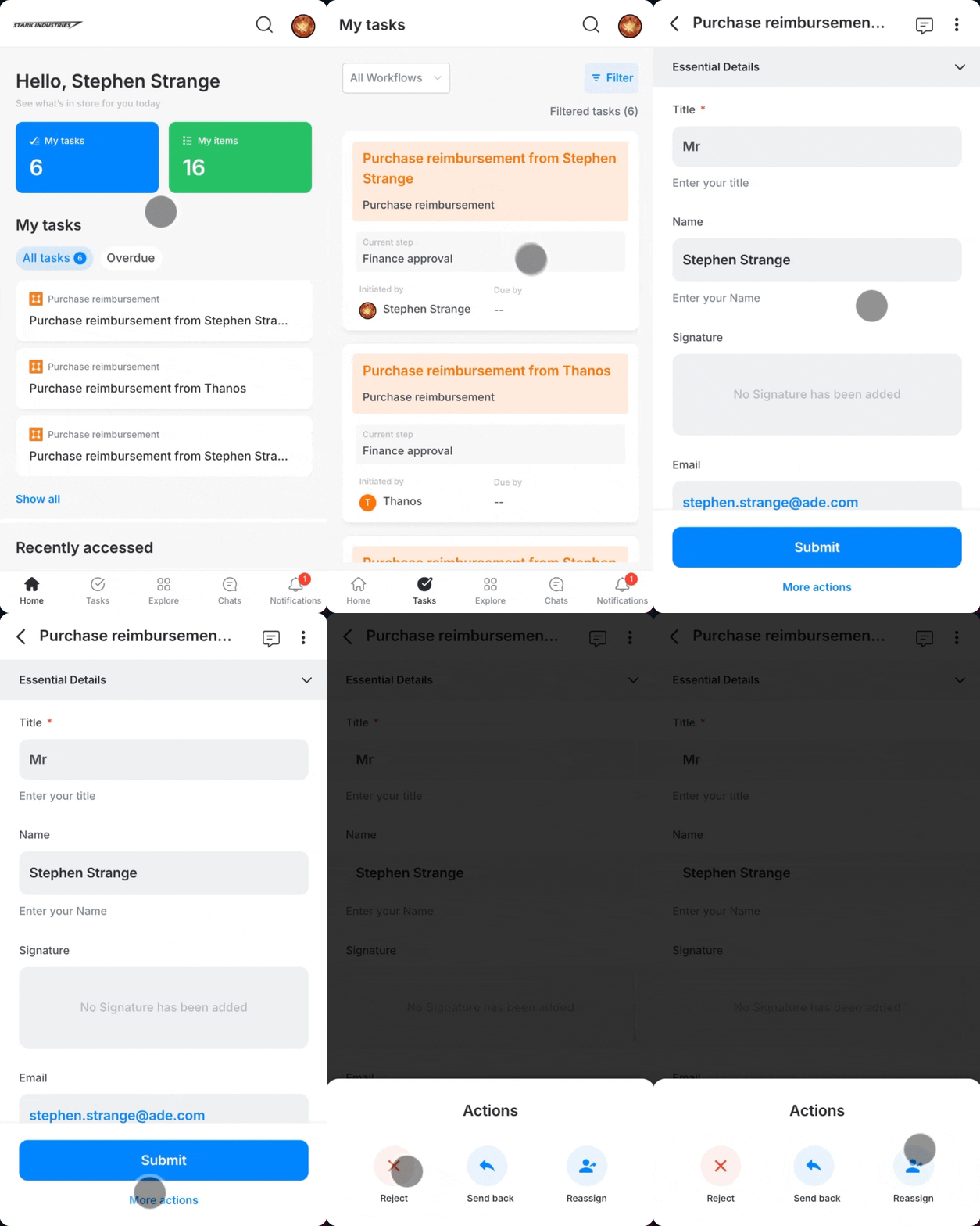
Tap the My tasks widget on the dashboard.
-
Tap a task from the list.
-
Tap Approve to approve the item.
-
Tap More actions to perform another action instead. From here you can reject, send back, or reassign the item.
Note
Withdraw isn't available from More actions on a task. Withdrawing an item is only available to the person who initiated it, from the My items widget.
Other actions
-
Tap the My tasks widget on the dashboard.
-
Tap a task card from the list.
-
Tap the More options menu in the upper-right corner of the task.
-
Tap Progress to view the workflow and the task's current status.
-
Tap the Comments button (
 ) to leave a comment about the task.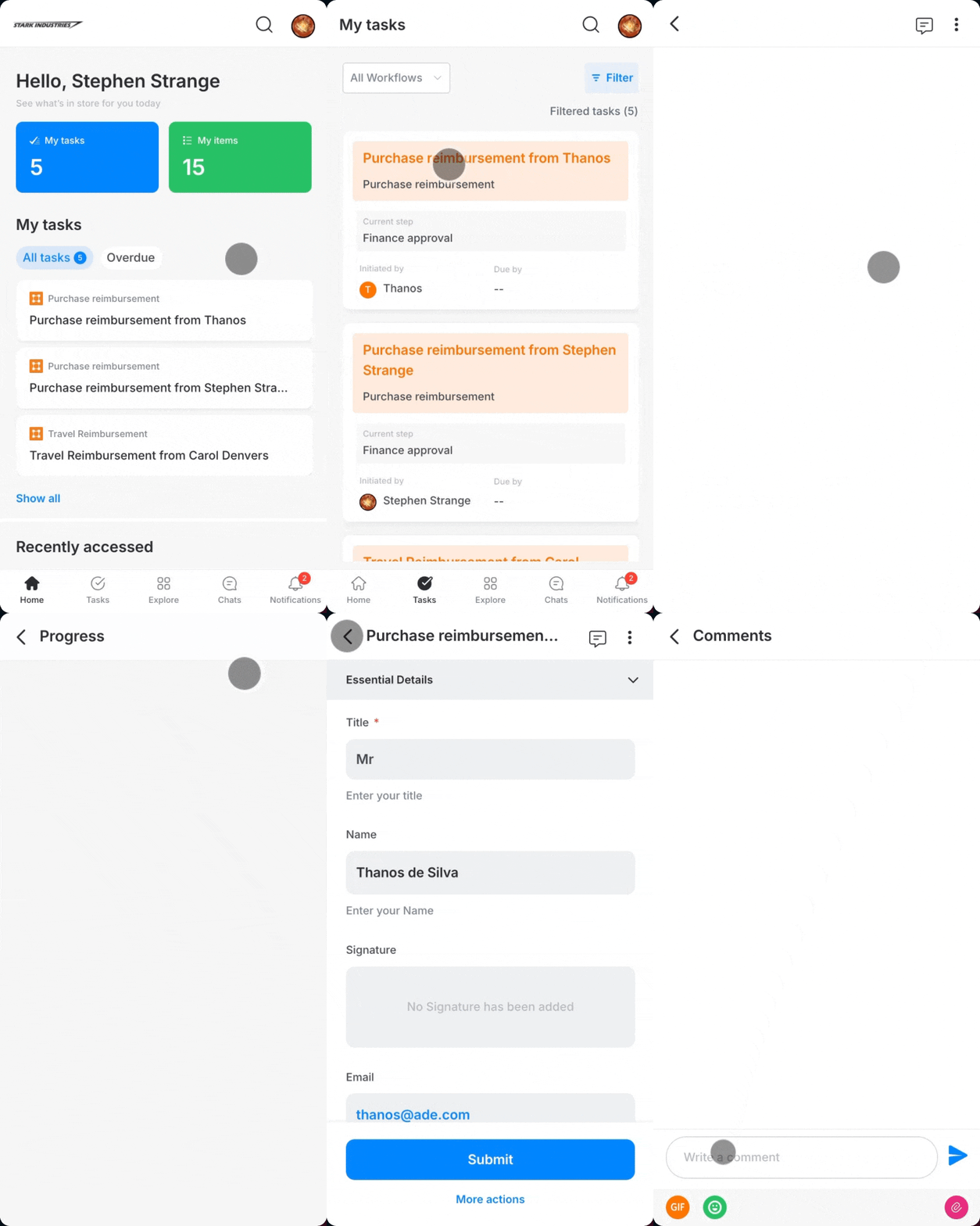
Note
If you don't have any tasks assigned yet, you can still stay updated by enabling push notifications.
My items
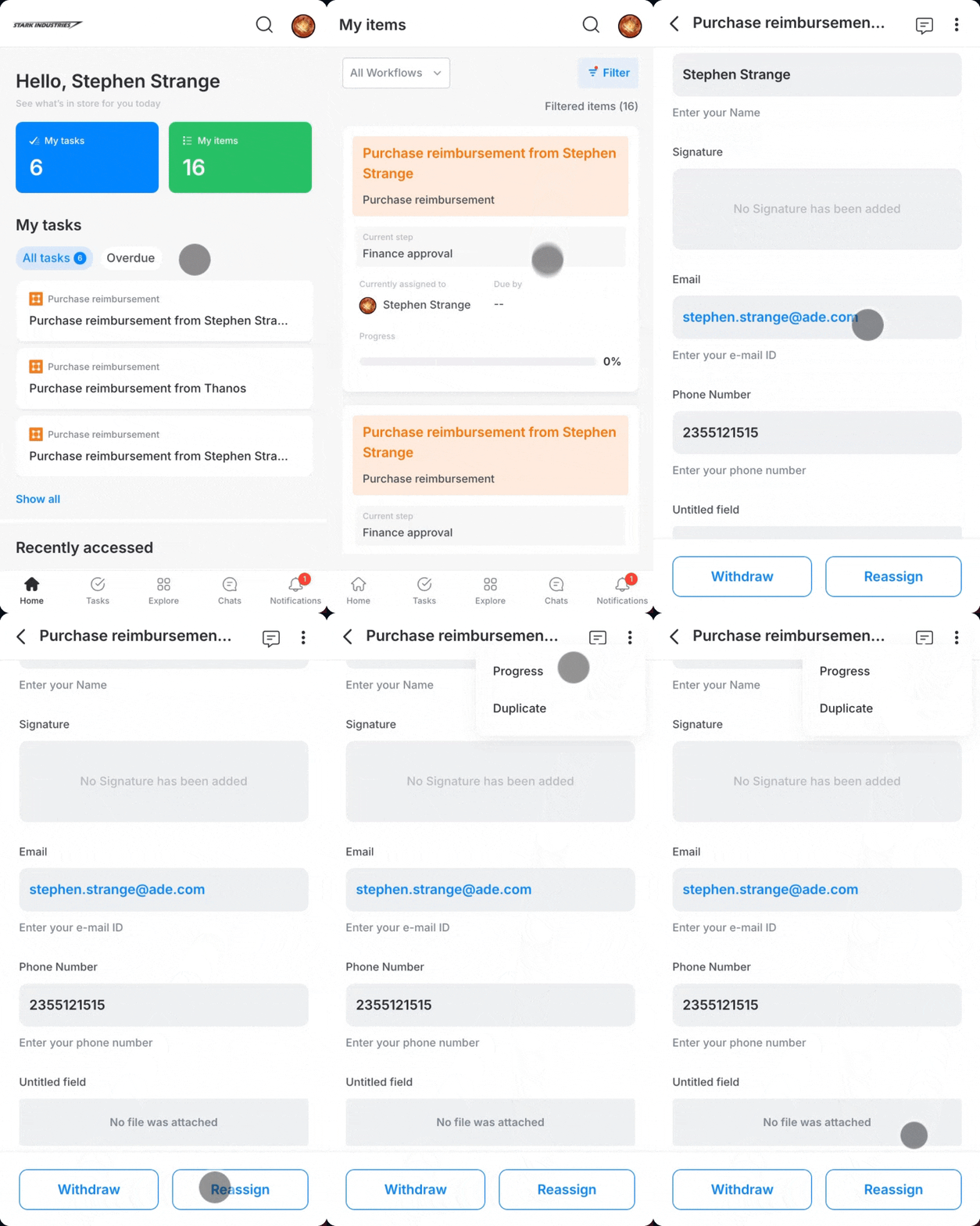
The My items widget shows the items you've initiated. You can filter them by status and creation timeline.
- Tap the My items widget on the dashboard.
- Tap an item card from the list.
- Tap Withdraw or Reassign, based on what you want to do.
- Tap the More options menu in the upper-right corner of the item to view its progress or duplicate it.