

Managing active sessions
View every device where your Kissflow account is currently signed in, and sign out of a single session or all sessions at once.
Managing active sessions
BasicEnterprise
The Active sessions page lists every device your account is currently signed in from, along with the browser, operating system, and IP address used for each session. Use it to spot sessions you don't recognize and sign them out.
Access active sessions
- Sign in to Kissflow and click your profile picture in the upper-right corner of the home page.
- Click My settings > Security settings > Active sessions.
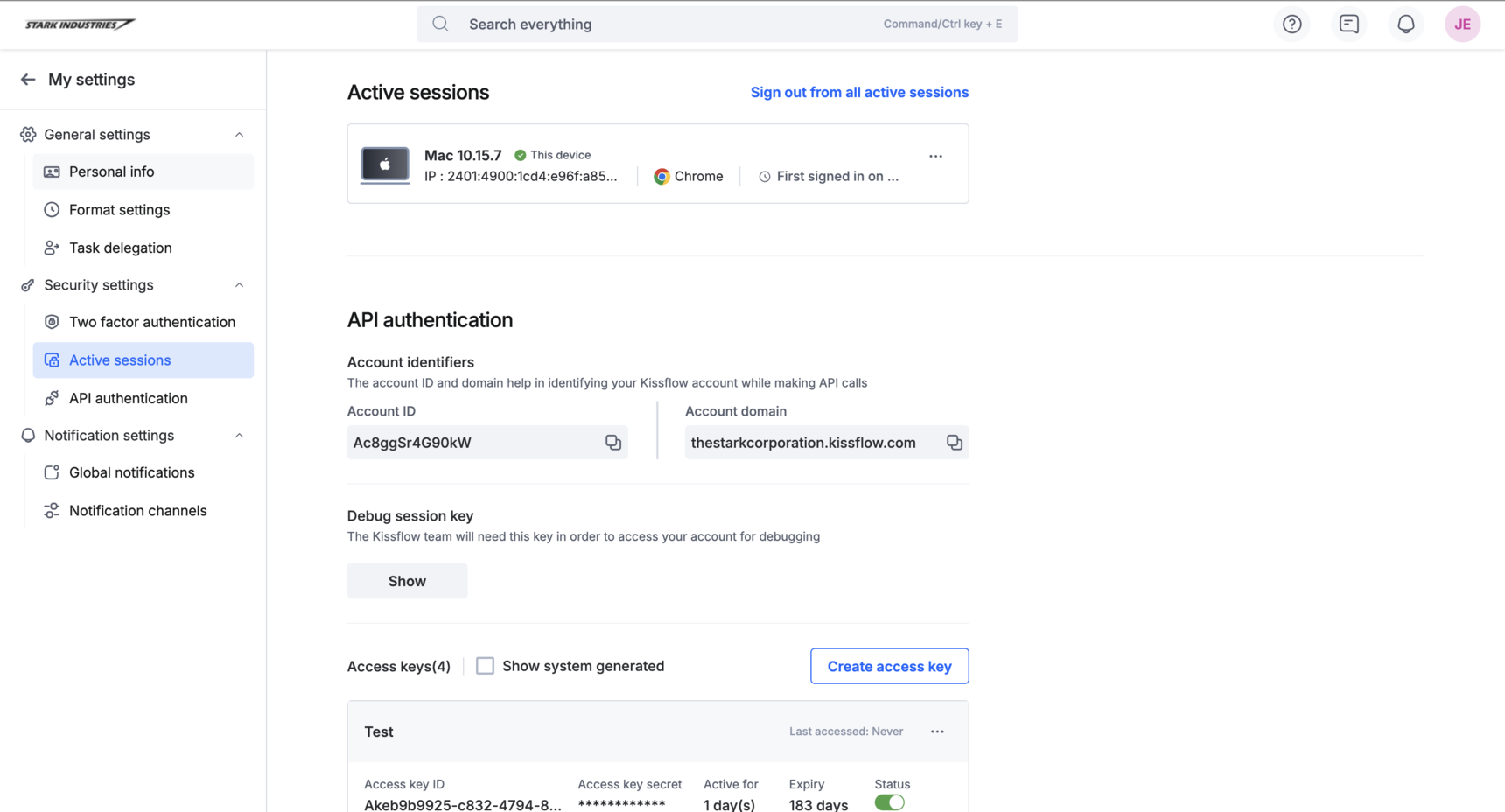
What each session shows
Every entry in the list is a single device or browser where your account is signed in.
| Detail | Description |
|---|---|
| Device information | The web browser and, for computer sessions, the operating system version. |
| IP address | The IP address the session is connecting from. |
| First signed in on | The date and time the session first signed in. Hover over it to see the exact timestamp. |
Note
Operating system version is only shown for sessions from a computer. For other device types, this field is left blank.
Sign out of a session
- Sign out of one session — click the More options button on that session and select Sign out. Signing out your current session prompts you to confirm before it signs you out.
- Sign out of every session — click Sign out from all active sessions to sign out of your current session and every other active session on all devices at once. This also asks for confirmation before it proceeds.
Important
Review this page regularly and sign out any session you don't recognize. If you spot an unfamiliar session, also change your password.