

Two-factor authentication
Set up two-factor authentication with an email code or an authenticator app, and understand how Kissflow IAM Admins control 2FA enrollment for your account.
Two-factor authentication
Two-factor authentication (2FA) adds an extra layer of security to your Kissflow account by requiring more than just a password to sign in. Once 2FA is turned on for your account, you're prompted to enter a code along with your username and password.
2FA enrollment
Kissflow IAM Admins control 2FA enrollment for every user in the account, and can set it to one of three states:
| Enrollment | What it means |
|---|---|
| Recommended | Users can choose whether to turn 2FA on for their own account. This is the default for new users. |
| Mandatory | 2FA is required to sign in. |
| Disable | 2FA is unavailable for the user. |
Note
New users start with 2FA set to Recommended, not disabled — you can already turn 2FA on for your own account unless your IAM Admin has changed it.
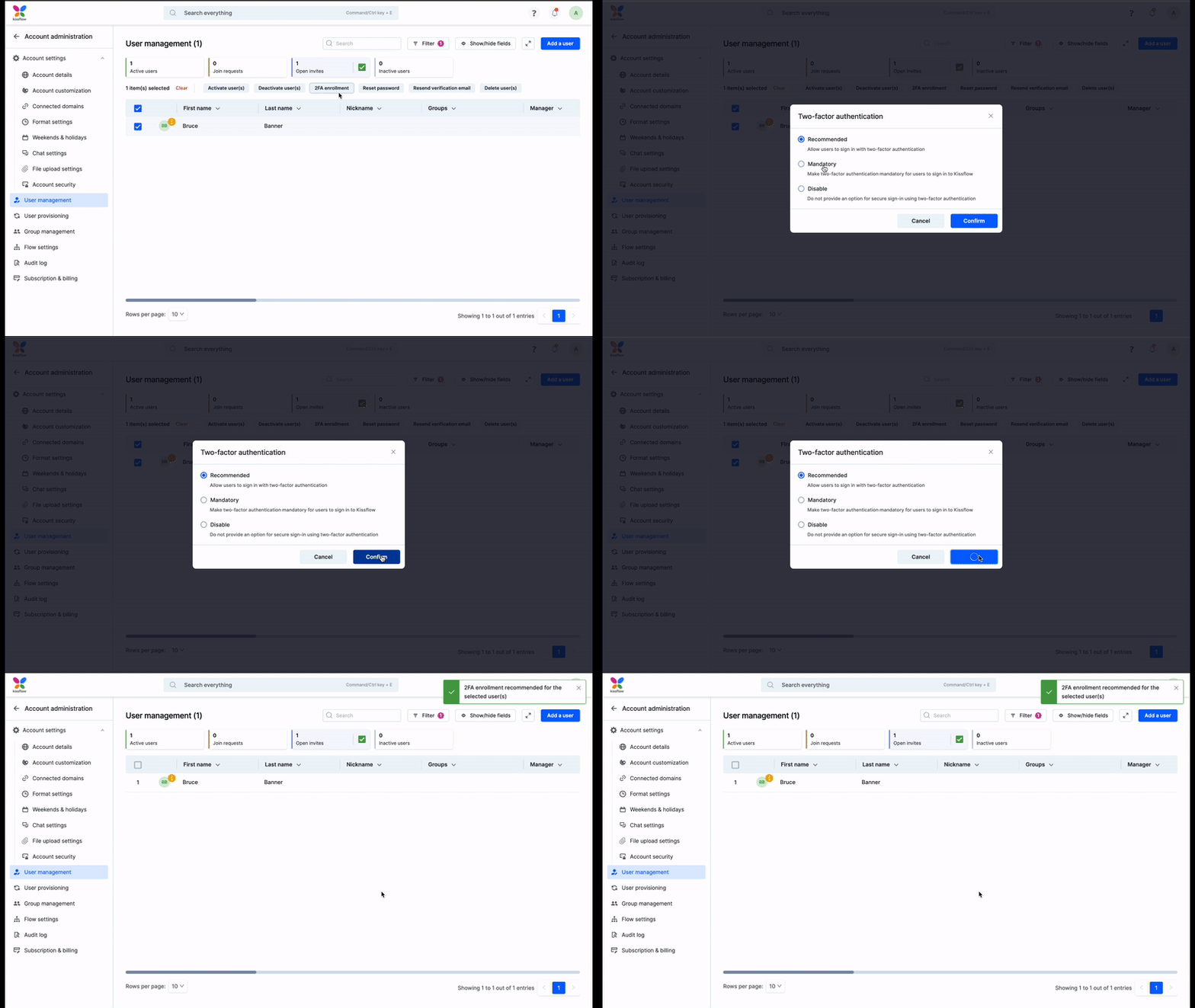
Enabling 2FA for your account
If your IAM Admin has made 2FA recommended or mandatory, you'll see the 2FA widget under My settings > Security. Turn on the widget, then choose how you want to receive your sign-in code:
- Email — the code is sent to your email address. Nothing else needs to be configured.
- Authentication app — the code is generated by an authenticator app on your mobile device or computer.
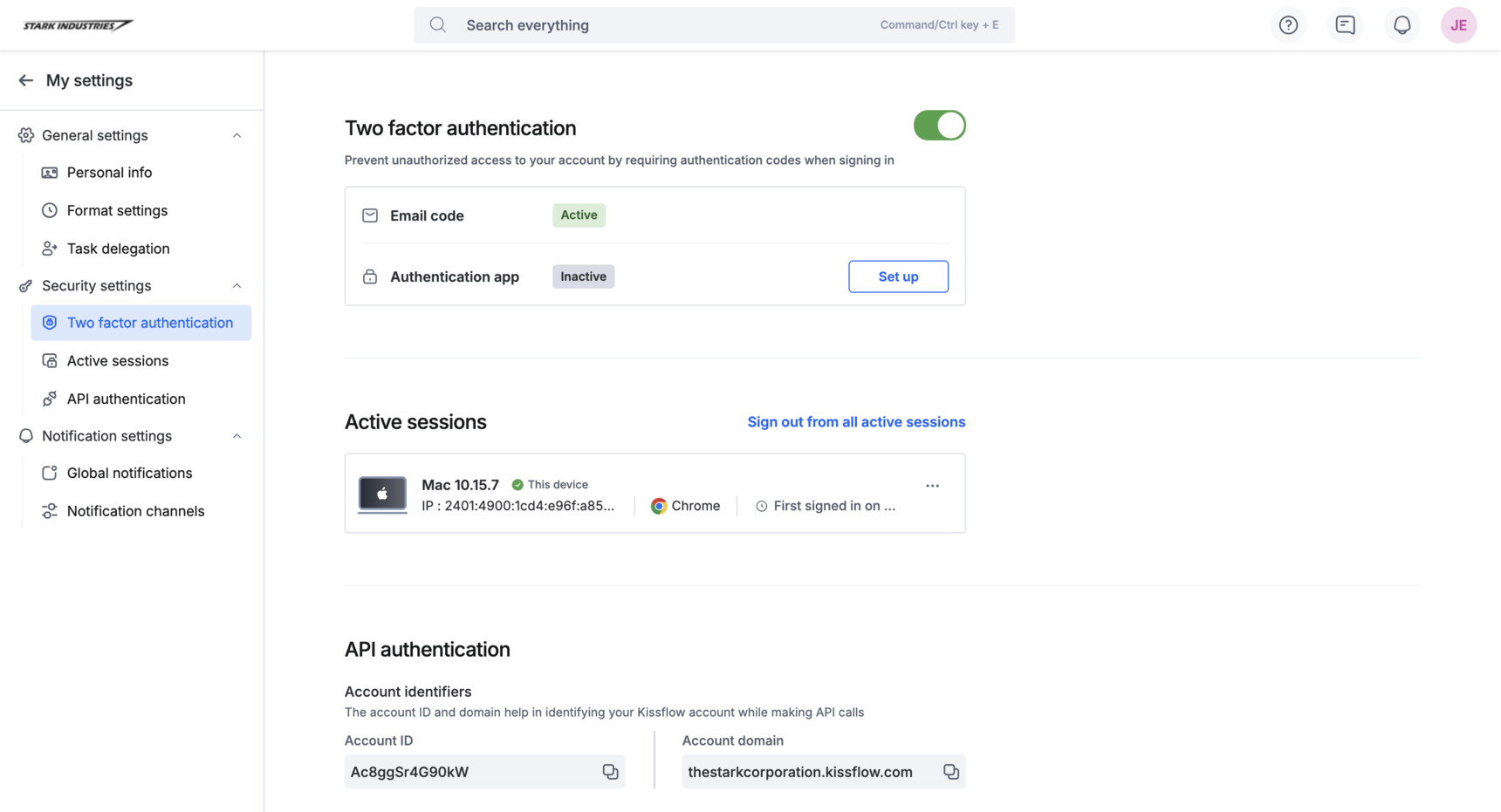
Setting up an authenticator app
Kissflow supports standard authenticator apps such as Google Authenticator, Authy, 1Password, and LastPass.
-
Turn on the 2FA widget under My settings > Security.
-
Next to Authentication app, click Set up.
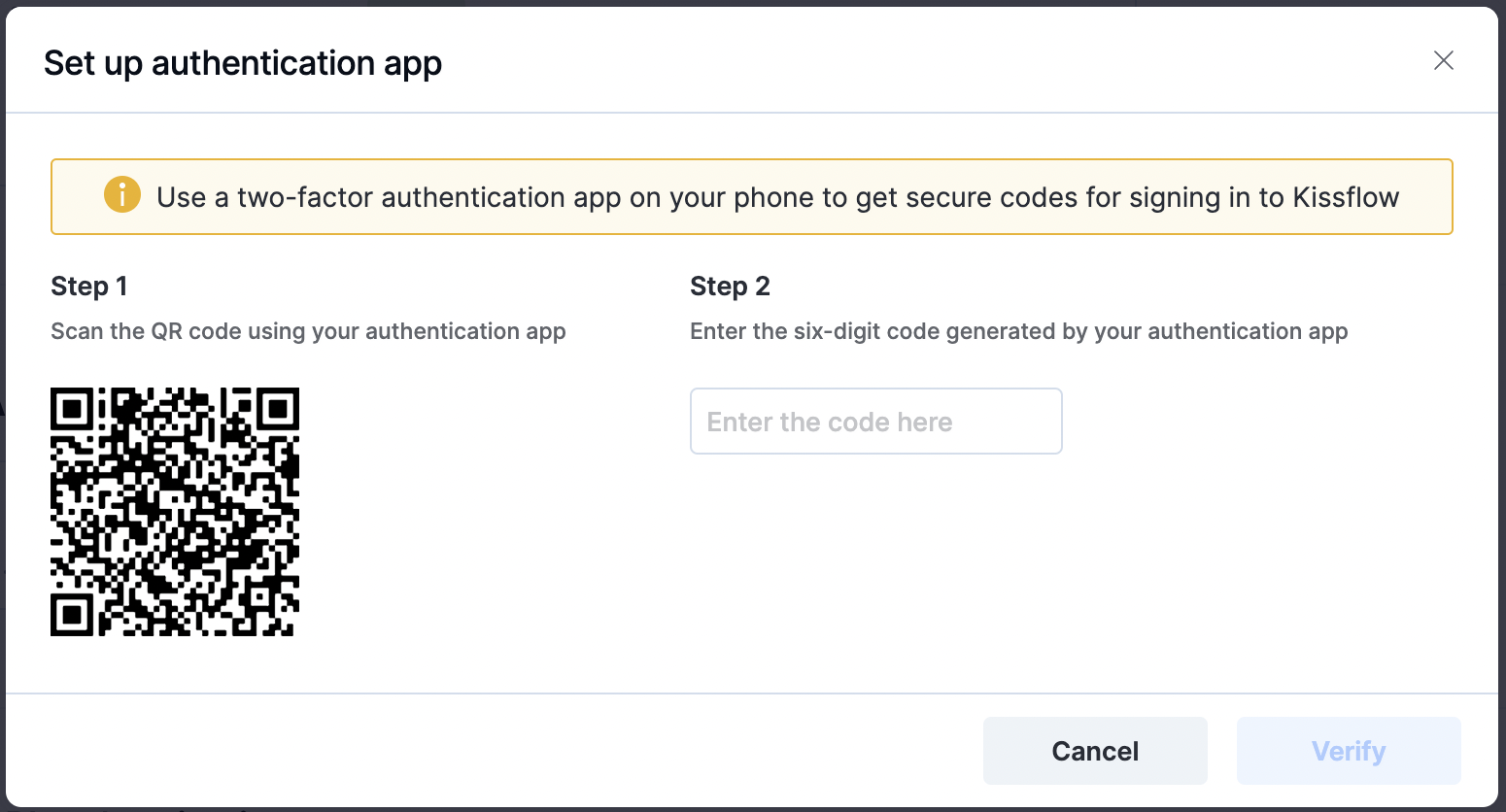
-
Open the authenticator app on your device and scan the QR code.
-
Enter the six-digit code generated by the app.
-
Click Verify to complete the setup.
To switch to a different authenticator app, click Change next to Authentication app and repeat the setup steps — scanning a new QR code and verifying it automatically replaces the previous app. You don't need to remove the old one first.
Important
Deleting your authenticator app removes all its saved data. You'll need to set it up again from scratch if you want to use an authenticator app afterward — you can still sign in with an email code in the meantime.
Signing in with 2FA enabled
Signing in with 2FA enabled is only slightly different from a normal sign-in. Enter your username and password as usual, then you'll see a second prompt depending on which 2FA mode you have enabled.
- Email code — enter the code sent to your email address. It's valid for five minutes.
- Authenticator app code — enter the six-digit code currently shown in your authenticator app.