

Filtering items in a process
Narrow down process items with manual filter conditions, contextual user and date values, or filters generated from a plain-language prompt using AI.
Filtering items in a process
Instead of scrolling through every record, apply a filter to your process page to see only the items that match specific conditions. You can filter items inside the Draft, In progress, Completed, Withdrawn, and Rejected tabs.
Add a filter
A filter can be a single condition, or a set of conditions grouped together. Only items that satisfy the filter are shown on the process page.
-
Click the Filter button (
 ) on your process page.
 -
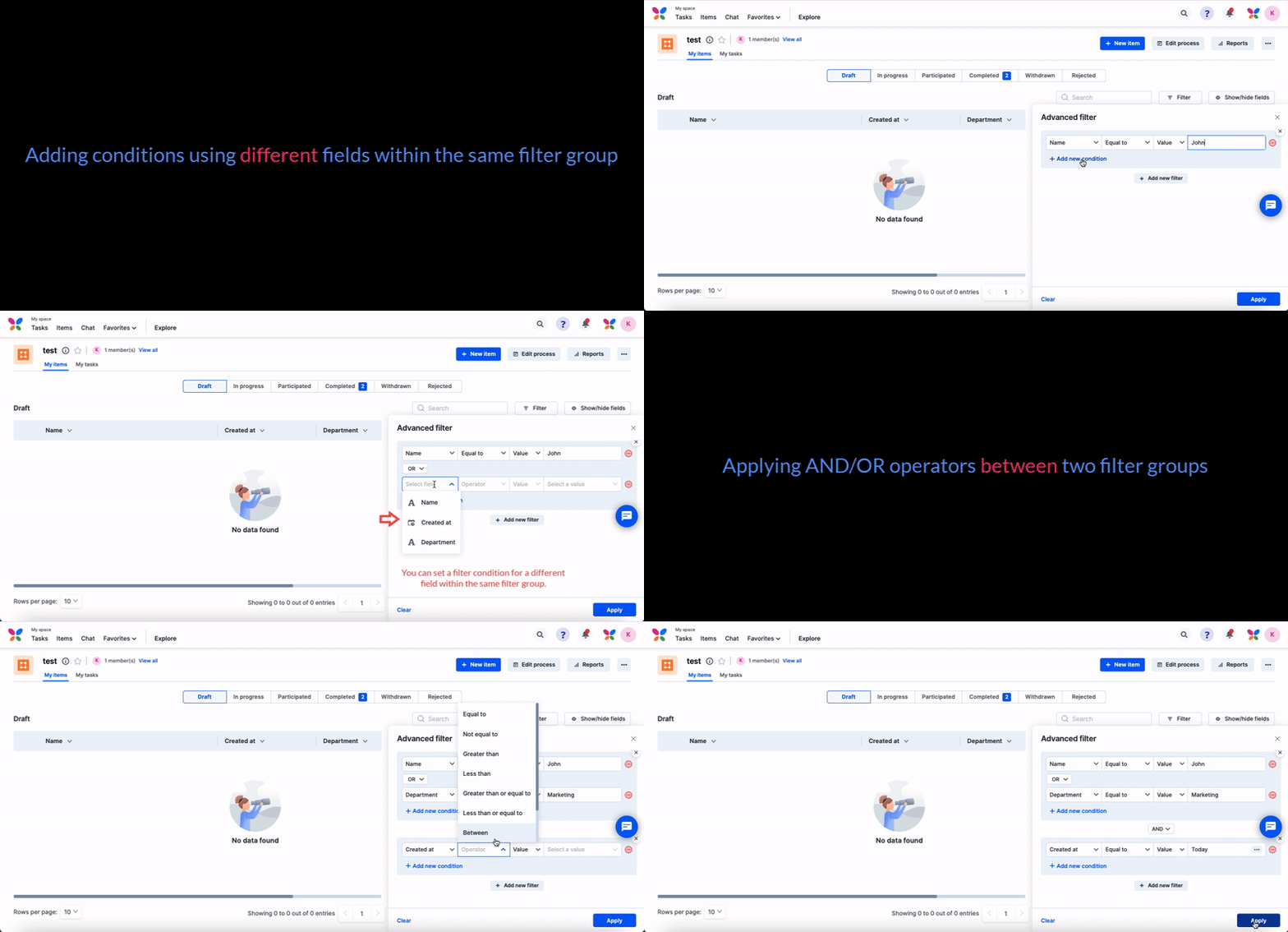
Click + Add a filter.
-
Select a field from the Select field dropdown, then define the condition:
- Choose an operator. Operators are contextually populated based on the field you select — for example Equal to, Not equal to, or Contains for a text field, and Is empty where applicable.
- Select a field or enter the value to check the condition against.
-
To add more conditions to the same group, click Add new condition and choose whether the group uses AND or OR logic.
Note
A filter group can use only one logical operator throughout. If a group has five conditions, they must all be joined with AND, or all with OR — you can't mix AND and OR within the same group.
-
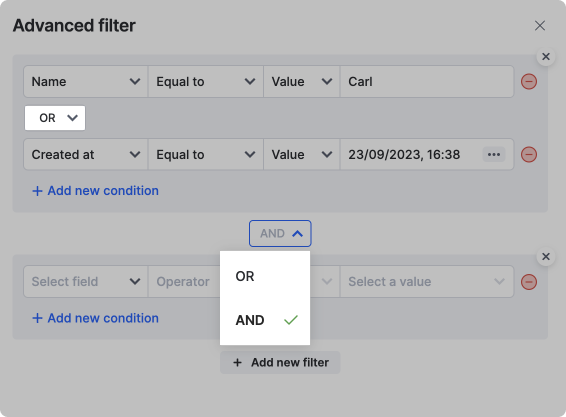
Click + Add new filter to add as many filter groups as you need. Choose the logical operator that applies across the groups: AND requires every group to be true, and OR requires at least one group to be true.
-
Click Apply to filter the items.
Filter by the current user
When you're matching a text or user field against another field, use the Current User option to reference the person viewing the filter, instead of a fixed name.
While setting the value for a condition, choose Current User in the right-hand dropdown, then pick the attribute that fits your condition: Name, Email address, Manager, Status, or Job Title.
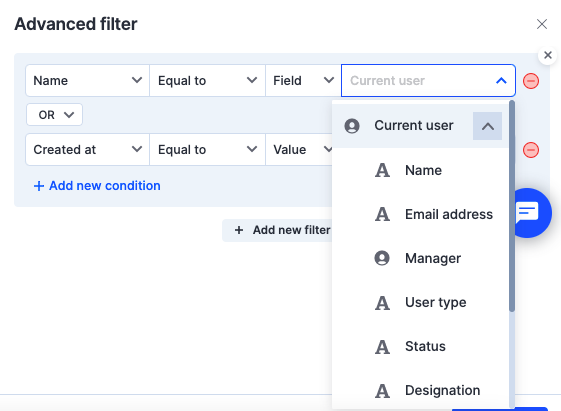
For example, to check whether a department head is the person viewing the filter, set the condition to:
Department head — Equal to — Current User.Name
Filter by relative dates
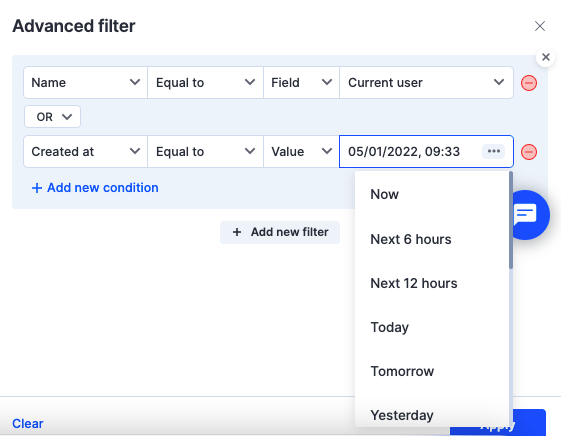
For date and time fields, you can filter against a relative value instead of a fixed date. While matching a date or time field against a value, click the More options button ( ) to see the relative options:
- Now
- Next 6 hours
- Next 12 hours
- Today
- Tomorrow
- Yesterday
- This week
- Last 7 days
- Next 7 days
- Last 14 days
- Last 30 days
- This month
- This quarter
- Next quarter
- This year
You can also open the calendar after choosing a relative value and adjust the date manually in the Value field.
Generate filters with AI
Instead of manually building conditions, describe what you want to see in plain language and let AI build the filter for you.
-
Click the Filter button (
 ) on your process page.
 -
In the filter pane, click Advanced filter.
-
In the text box under Generate advanced filter using AI, type your filtering criteria in plain language — for example, My high priority assigned items.
-
Click Generate. AI creates the corresponding filter conditions in the section below.
-
Once you're satisfied with the conditions, click Apply to see your filtered results.
Note
AI-powered filter generation is available on the Enterprise plan. On the Basic plan, you can still build filters manually as described above.
Summarize and regenerate filters
Click Filter summary to get an AI-generated summary describing what your filter conditions represent. You can use this summary as a base for new prompts:
- Click Edit summary.
- Update the summary text to reflect your new requirement.
- Click Regenerate to make AI create a new set of filter conditions.
For example, if the summary says This filter shows items with priority High that are assigned to the current user, you can edit it to say This filter shows items with priority Critical that are assigned to the current user and regenerate the filter.
Example prompts
| To see... | You can type... |
|---|---|
| High-priority items assigned to you | "My high priority assigned items" |
| Items that are past their due date | "Show me all overdue tasks" |
| Items created within the current week | "Everything created this week" |
| Items assigned to a specific person | "Tasks assigned to Natasha Romanoff" |
| Items with multiple conditions | "All critical items in the approval step due today" |
Troubleshooting
Error: "Filter generation failed: Some required fields are hidden or couldn't be selected. Please make them visible in the Show/hide fields menu or refine your prompt."
- Why it happens — AI can only build filters using fields that are currently visible on your process. If your prompt mentions a field like "Name" or "Asset type" but that field is hidden in Show/hide fields, AI can't access it and the filter fails.
- How to fix it:
-
Close the filter pane.
-
Click the Show/hide fields button (
 ).
). -
In the dropdown, select the checkbox for every field you want to filter by.
-
Try generating the AI filter again.
-
The generated filters aren't what I expected.
- Why it happens — AI may have misinterpreted an unclear request.
- How to fix it — rephrase your request to be more direct and specific. For example, instead of Show old tasks, try Show tasks created before October 1, 2025. Including field names in your request often leads to more accurate results.
What's next
- Adding advanced filters using AI (Enterprise) — the same AI filter builder on boards
- Member actions in a process
- Watching a process item